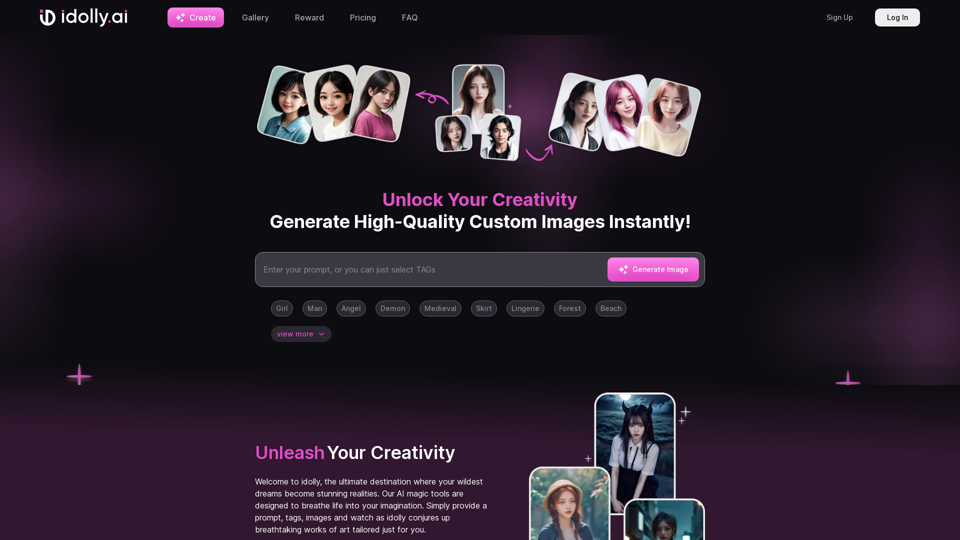
idolly is an AI-powered platform that enables users to create custom, high-quality images instantly. With a wide range of AI magic tools, idolly brings imagination to life, allowing users to generate stunning artworks tailored to their preferences. The platform offers features like Face Transfer, Mood Fusion, and diverse character creation, making it a versatile tool for digital artists and creative enthusiasts.
Idolly
Explore idolly.ai, where imagination meets AI image creation and BlockChain. Create stunning visuals with ease using our Face Transfer and Mood Fusion technology.
Introduction
Feature
Face Transfer
Users can upload a photo of someone they admire or idolize and create an image that resembles their idol using idolly's advanced technology.
Mood Fusion
This innovative feature analyzes ambiance, colors, and overall feel to generate unique visuals tailored to the user's desired mood and style.
Diversity in Character Creation
idolly celebrates diversity by allowing users to create and interact with characters from various racial backgrounds, promoting inclusivity in digital art.
Re-Create Functionality
Users can use their favorite images as a starting point to generate similar visuals, enhancing creativity and exploration.
User-Friendly Interface
idolly boasts a simple and intuitive interface, making it easy for users to provide prompts, tags, and images to generate stunning artworks.
Daily Missions and Rewards
Complete daily missions to unlock treasure chests and enhance the idolly experience, encouraging regular engagement.
Referral Program
Users can share their unique referral code to earn special rewards, promoting community growth and user acquisition.
FAQ
Can I create images of various races with idolly?
Yes, idolly allows users to create and interact with characters from diverse racial backgrounds, celebrating the beauty of diversity and imagination.
How do I re-create my favorite images with idolly?
To re-create your favorite images, navigate to your gallery, click the Re-Create button, and choose a different tag or face than the one you originally created.
What is the daily bonus program, and how do I participate?
The daily bonus program rewards users for their activities on idolly. Participate by completing daily missions to unlock treasure chests and enhance your experience on the platform.
Related Websites
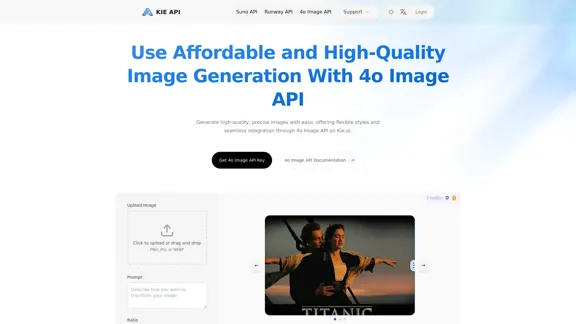
Kie.ai's 4o Image API: Cost-effective, Reliable, and Very Accurate AI Image Creation
Kie.ai's 4o Image API: Cost-effective, Reliable, and Very Accurate AI Image CreationKie.ai’s 4o Image API offers affordable, stable, and highly accurate AI image generation, enabling creators to easily produce high-quality visuals. It provides reliable and efficient solutions for various creative projects, including text-to-image and image-to-image transformations, as well as a range of visual styles.
356.51 K
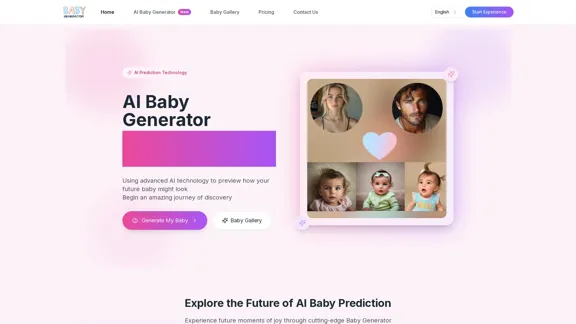
Baby Generator | AI Future Baby Prediction | Free Trial
Baby Generator | AI Future Baby Prediction | Free TrialCreate realistic AI predictions of your future baby with Baby Generator. Free trial for new users! Advanced technology transforms parents' photos into lifelike baby images.
0

The #1 YouTube Thumbnails Generator for Viral Videos
The #1 YouTube Thumbnails Generator for Viral VideosThe AI thumbnail generator used by the top YouTube content creators. Create viral thumbnails with ThumbnailPro. Ideal for YouTube thumbnails.
0

2. Understanding the Basics
* `/imagine` Command: This is the core command for generating images.
* Prompt: A text description of the artwork you want to create. Be specific and descriptive!
* Parameters: Options that control aspects like image size, aspect ratio, and style.
3. Crafting Your Journey Prompt
Think about the story you want to tell with your artwork.
* Setting: Where does your journey take place? (e.g., a mystical forest, a futuristic city, a desolate wasteland)
* Characters: Who is on this journey? (e.g., a lone traveler, a group of adventurers, mythical creatures)
* Mood: What feeling do you want to evoke? (e.g., adventurous, mysterious, hopeful, melancholic)
* Style: What artistic style appeals to you? (e.g., photorealistic, painterly, abstract)
4. Putting it Together
Combine these elements into a clear and concise prompt.
Example:
`/imagine A lone traveler journeys through a mystical forest at sunset, bathed in golden light. The path ahead is shrouded in mist, hinting at unknown wonders. Style: painterly, ethereal`
5. Experiment and Refine
* Midjourney is all about experimentation! Try different prompts, parameters, and styles.
* Use the "upscale" command to enlarge your favorite images and reveal more detail.
* Don't be afraid to iterate and refine your prompts based on the results.](https://static.right-ai.com/tools/2024/7/4/chromewebstore-google-com-detail-journey-artprompt-with-mi-pfjhhefanfhdijppdppillliedgaehko-thumbnail-1720092379.png "Journey ArtPrompt with Midjourney
This guide will walk you through creating stunning artwork using Midjourney, a powerful AI art generator.
1. Accessing Midjourney
* You'll need a Discord account to use Midjourney.
* Join the official Midjourney server: [https://discord.gg/midjourney](https://discord.gg/midjourney)
2. Understanding the Basics
* `/imagine` Command: This is the core command for generating images.
* Prompt: A text description of the artwork you want to create. Be specific and descriptive!
* Parameters: Options that control aspects like image size, aspect ratio, and style.
3. Crafting Your Journey Prompt
Think about the story you want to tell with your artwork.
* Setting: Where does your journey take place? (e.g., a mystical forest, a futuristic city, a desolate wasteland)
* Characters: Who is on this journey? (e.g., a lone traveler, a group of adventurers, mythical creatures)
* Mood: What feeling do you want to evoke? (e.g., adventurous, mysterious, hopeful, melancholic)
* Style: What artistic style appeals to you? (e.g., photorealistic, painterly, abstract)
4. Putting it Together
Combine these elements into a clear and concise prompt.
Example:
`/imagine A lone traveler journeys through a mystical forest at sunset, bathed in golden light. The path ahead is shrouded in mist, hinting at unknown wonders. Style: painterly, ethereal`
5. Experiment and Refine
* Midjourney is all about experimentation! Try different prompts, parameters, and styles.
* Use the \"upscale\" command to enlarge your favorite images and reveal more detail.
* Don't be afraid to iterate and refine your prompts based on the results.")
Journey ArtPrompt with Midjourney This guide will walk you through creating stunning artwork using Midjourney, a powerful AI art generator. 1. Accessing Midjourney * You'll need a Discord account to use Midjourney. * Join the official Midjourney server: [https://discord.gg/midjourney](https://discord.gg/midjourney) 2. Understanding the Basics * `/imagine` Command: This is the core command for generating images. * Prompt: A text description of the artwork you want to create. Be specific and descriptive! * Parameters: Options that control aspects like image size, aspect ratio, and style. 3. Crafting Your Journey Prompt Think about the story you want to tell with your artwork. * Setting: Where does your journey take place? (e.g., a mystical forest, a futuristic city, a desolate wasteland) * Characters: Who is on this journey? (e.g., a lone traveler, a group of adventurers, mythical creatures) * Mood: What feeling do you want to evoke? (e.g., adventurous, mysterious, hopeful, melancholic) * Style: What artistic style appeals to you? (e.g., photorealistic, painterly, abstract) 4. Putting it Together Combine these elements into a clear and concise prompt. Example: `/imagine A lone traveler journeys through a mystical forest at sunset, bathed in golden light. The path ahead is shrouded in mist, hinting at unknown wonders. Style: painterly, ethereal` 5. Experiment and Refine * Midjourney is all about experimentation! Try different prompts, parameters, and styles. * Use the "upscale" command to enlarge your favorite images and reveal more detail. * Don't be afraid to iterate and refine your prompts based on the results.
Journey ArtPrompt with Midjourney This guide will walk you through creating stunning artwork using Midjourney, a powerful AI art generator. 1. Accessing Midjourney * You'll need a Discord account to use Midjourney. * Join the official Midjourney server: [https://discord.gg/midjourney](https://discord.gg/midjourney) 2. Understanding the Basics * `/imagine` Command: This is the core command for generating images. * Prompt: A text description of the artwork you want to create. Be specific and descriptive! * Parameters: Options that control aspects like image size, aspect ratio, and style. 3. Crafting Your Journey Prompt Think about the story you want to tell with your artwork. * Setting: Where does your journey take place? (e.g., a mystical forest, a futuristic city, a desolate wasteland) * Characters: Who is on this journey? (e.g., a lone traveler, a group of adventurers, mythical creatures) * Mood: What feeling do you want to evoke? (e.g., adventurous, mysterious, hopeful, melancholic) * Style: What artistic style appeals to you? (e.g., photorealistic, painterly, abstract) 4. Putting it Together Combine these elements into a clear and concise prompt. Example: `/imagine A lone traveler journeys through a mystical forest at sunset, bathed in golden light. The path ahead is shrouded in mist, hinting at unknown wonders. Style: painterly, ethereal` 5. Experiment and Refine * Midjourney is all about experimentation! Try different prompts, parameters, and styles. * Use the "upscale" command to enlarge your favorite images and reveal more detail. * Don't be afraid to iterate and refine your prompts based on the results.New backgrounds with Midjourney on new tabs
193.90 M
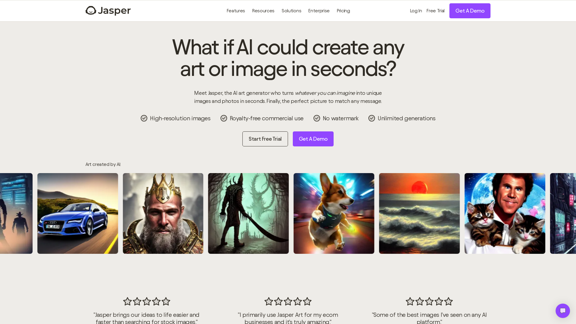
AI Art Generator | AI Image Generator - Jasper Art
AI Art Generator | AI Image Generator - Jasper ArtJasper Art is a new AI art generator that transforms your text prompt into stunning art and lifelike AI-generated images within seconds. Your AI artist produces the ideal picture to complement your message.
939.36 K
