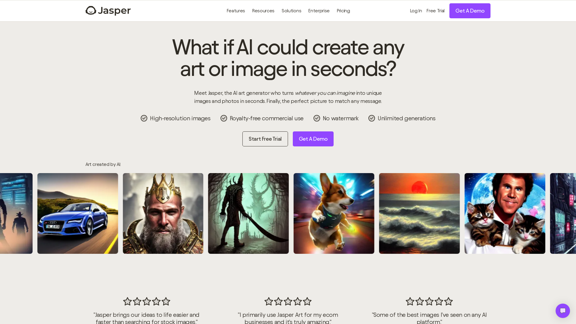
Jasper AI Art Generator is an innovative tool that empowers users to create high-quality, unique images using artificial intelligence. This powerful platform enables both businesses and individual creators to bring their visual ideas to life quickly and easily, without the need for advanced design skills or expensive software. Jasper offers a user-friendly interface that transforms written prompts into stunning, customizable images in seconds.
AI Art Generator | AI Image Generator - Jasper Art
Jasper Art is a new AI art generator that transforms your text prompt into stunning art and lifelike AI-generated images within seconds. Your AI artist produces the ideal picture to complement your message.
Introduction
Feature
High-Resolution Image Generation
Jasper produces crisp, clear images suitable for various applications, ensuring professional-quality output for all your creative needs.
Royalty-Free Commercial Use
All images generated by Jasper are available for unrestricted commercial use, providing flexibility for both personal and business purposes.
No Watermarks
Generated images are clean and ready to use without any branding, allowing for seamless integration into your projects.
Unlimited Generations
Create as many images as you need without restrictions, giving you the freedom to explore and refine your visual concepts.
User-Friendly Creation Process
- Write a detailed prompt describing your desired image
- Select additional parameters like medium, artist style, and mood
- Generate four AI-created images in seconds
Time and Cost Efficiency
Quickly produce unique visuals for marketing campaigns, social media, and more, reducing expenses on stock photos and custom illustrations.
Versatile Applications
Create images for various purposes, from product photos to concept art, catering to diverse creative needs.
Brand Consistency
Generate on-brand visuals that align with your company's style, maintaining a cohesive visual identity across all platforms.
FAQ
What are the pricing options for Jasper AI Art Generator?
Jasper AI Art Generator is included in Jasper's Pro and Business plans, starting at $59 per month/seat when billed annually. A 7-day free trial is available, allowing users to generate 200 images for free during the trial period.
What rights do users have over the generated images?
Users have full commercial rights to the images generated using Jasper AI Art Generator. The images can be used for various purposes, including digital and print media, websites, merchandise, and marketing materials.
How does Jasper AI Art Generator work?
Users write a prompt describing the desired image, select additional parameters like style and mood, and Jasper processes this input to create four AI-generated images in seconds.
Can Jasper AI Art Generator be used for business purposes?
Yes, Jasper AI Art Generator is designed for both individual creators and businesses. It offers time-saving and cost-effective solutions for creating unique visuals for marketing campaigns, social media, and various other business applications.
How can I get started with Jasper AI Art Generator?
To begin using Jasper AI Art Generator, sign up for a Jasper Pro or Business plan, access the AI Art Generator feature, and start experimenting with prompts and styles to create your AI-generated images.
Related Websites
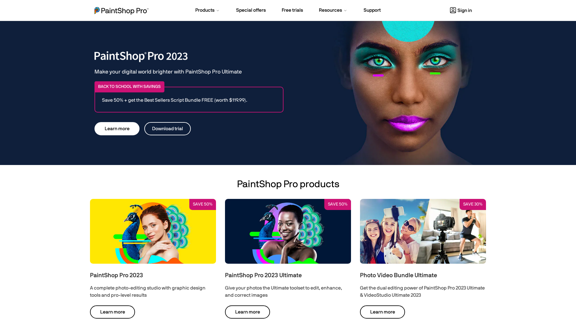
The official website for the PaintShop Pro family of products. Get product information, updates and free trials. Access special offers, tutorials and videos.
155.73 K
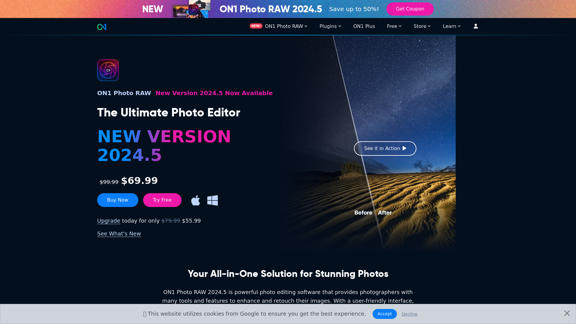
Raw Photo Editor | Buy Raw Photo Editing Software Online - ON1
Raw Photo Editor | Buy Raw Photo Editing Software Online - ON1Unlock your creativity with the ultimate raw photo editing software. ON1 Photo RAW makes raw photo editing effortless with the help of AI. Edit, organize, and process your photos while maintaining the highest image quality. Purchase or subscribe to Photo RAW raw editing software from ON1 now!
550.51 K

2. Understanding the Basics
* `/imagine` Command: This is the core command for generating images.
* Prompt: A text description of the artwork you want to create. Be specific and descriptive!
* Parameters: Options that control aspects like image size, aspect ratio, and style.
3. Crafting Your Journey Prompt
Think about the story you want to tell with your artwork.
* Setting: Where does your journey take place? (e.g., a mystical forest, a futuristic city, a desolate wasteland)
* Characters: Who is on this journey? (e.g., a lone traveler, a group of adventurers, mythical creatures)
* Mood: What feeling do you want to evoke? (e.g., adventurous, mysterious, hopeful, melancholic)
* Style: What artistic style appeals to you? (e.g., photorealistic, painterly, abstract)
4. Putting it Together
Combine these elements into a clear and concise prompt.
Example:
`/imagine A lone traveler journeys through a mystical forest at sunset, bathed in golden light. The path ahead is shrouded in mist, hinting at unknown wonders. Style: painterly, ethereal`
5. Experiment and Refine
* Midjourney is all about experimentation! Try different prompts, parameters, and styles.
* Use the "upscale" command to enlarge your favorite images and reveal more detail.
* Don't be afraid to iterate and refine your prompts based on the results.](https://static.right-ai.com/tools/2024/7/4/chromewebstore-google-com-detail-journey-artprompt-with-mi-pfjhhefanfhdijppdppillliedgaehko-thumbnail-1720092379.png "Journey ArtPrompt with Midjourney
This guide will walk you through creating stunning artwork using Midjourney, a powerful AI art generator.
1. Accessing Midjourney
* You'll need a Discord account to use Midjourney.
* Join the official Midjourney server: [https://discord.gg/midjourney](https://discord.gg/midjourney)
2. Understanding the Basics
* `/imagine` Command: This is the core command for generating images.
* Prompt: A text description of the artwork you want to create. Be specific and descriptive!
* Parameters: Options that control aspects like image size, aspect ratio, and style.
3. Crafting Your Journey Prompt
Think about the story you want to tell with your artwork.
* Setting: Where does your journey take place? (e.g., a mystical forest, a futuristic city, a desolate wasteland)
* Characters: Who is on this journey? (e.g., a lone traveler, a group of adventurers, mythical creatures)
* Mood: What feeling do you want to evoke? (e.g., adventurous, mysterious, hopeful, melancholic)
* Style: What artistic style appeals to you? (e.g., photorealistic, painterly, abstract)
4. Putting it Together
Combine these elements into a clear and concise prompt.
Example:
`/imagine A lone traveler journeys through a mystical forest at sunset, bathed in golden light. The path ahead is shrouded in mist, hinting at unknown wonders. Style: painterly, ethereal`
5. Experiment and Refine
* Midjourney is all about experimentation! Try different prompts, parameters, and styles.
* Use the \"upscale\" command to enlarge your favorite images and reveal more detail.
* Don't be afraid to iterate and refine your prompts based on the results.")
Journey ArtPrompt with Midjourney This guide will walk you through creating stunning artwork using Midjourney, a powerful AI art generator. 1. Accessing Midjourney * You'll need a Discord account to use Midjourney. * Join the official Midjourney server: [https://discord.gg/midjourney](https://discord.gg/midjourney) 2. Understanding the Basics * `/imagine` Command: This is the core command for generating images. * Prompt: A text description of the artwork you want to create. Be specific and descriptive! * Parameters: Options that control aspects like image size, aspect ratio, and style. 3. Crafting Your Journey Prompt Think about the story you want to tell with your artwork. * Setting: Where does your journey take place? (e.g., a mystical forest, a futuristic city, a desolate wasteland) * Characters: Who is on this journey? (e.g., a lone traveler, a group of adventurers, mythical creatures) * Mood: What feeling do you want to evoke? (e.g., adventurous, mysterious, hopeful, melancholic) * Style: What artistic style appeals to you? (e.g., photorealistic, painterly, abstract) 4. Putting it Together Combine these elements into a clear and concise prompt. Example: `/imagine A lone traveler journeys through a mystical forest at sunset, bathed in golden light. The path ahead is shrouded in mist, hinting at unknown wonders. Style: painterly, ethereal` 5. Experiment and Refine * Midjourney is all about experimentation! Try different prompts, parameters, and styles. * Use the "upscale" command to enlarge your favorite images and reveal more detail. * Don't be afraid to iterate and refine your prompts based on the results.
Journey ArtPrompt with Midjourney This guide will walk you through creating stunning artwork using Midjourney, a powerful AI art generator. 1. Accessing Midjourney * You'll need a Discord account to use Midjourney. * Join the official Midjourney server: [https://discord.gg/midjourney](https://discord.gg/midjourney) 2. Understanding the Basics * `/imagine` Command: This is the core command for generating images. * Prompt: A text description of the artwork you want to create. Be specific and descriptive! * Parameters: Options that control aspects like image size, aspect ratio, and style. 3. Crafting Your Journey Prompt Think about the story you want to tell with your artwork. * Setting: Where does your journey take place? (e.g., a mystical forest, a futuristic city, a desolate wasteland) * Characters: Who is on this journey? (e.g., a lone traveler, a group of adventurers, mythical creatures) * Mood: What feeling do you want to evoke? (e.g., adventurous, mysterious, hopeful, melancholic) * Style: What artistic style appeals to you? (e.g., photorealistic, painterly, abstract) 4. Putting it Together Combine these elements into a clear and concise prompt. Example: `/imagine A lone traveler journeys through a mystical forest at sunset, bathed in golden light. The path ahead is shrouded in mist, hinting at unknown wonders. Style: painterly, ethereal` 5. Experiment and Refine * Midjourney is all about experimentation! Try different prompts, parameters, and styles. * Use the "upscale" command to enlarge your favorite images and reveal more detail. * Don't be afraid to iterate and refine your prompts based on the results.New backgrounds with Midjourney on new tabs
193.90 M
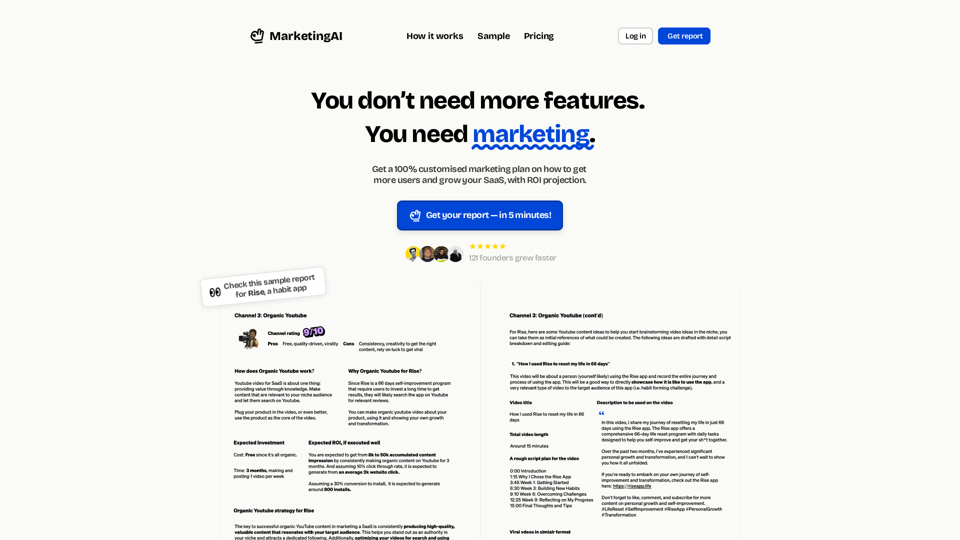
MarketingAI: You don't need more features. You need marketing.
MarketingAI: You don't need more features. You need marketing.Get a 15-page marketing action plan tailored to your SaaS business, including a step-by-step guide on acquiring users and a projected return on investment (ROI).
0
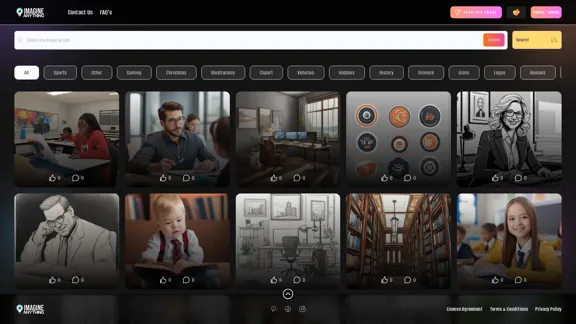
Generate Free AI Images with Imagine Anything. Easily create Photos, Clipart, Graphics and more with our AI Generator.
56.84 K