Open-source RightAI Tools Directory
  • Discover AI
  • Submit
  • Startup
  • Blog
Open-source RightAI Tools Directory
Discover the best AI tools of 2025 with the RightAI Tools Directory!

Friend Links

AI Anime GeneratorToolsApp AI

Support

Tap4
Privacy policyTerms & ConditionsContact Us
Loading...
loading...

WriteText.ai

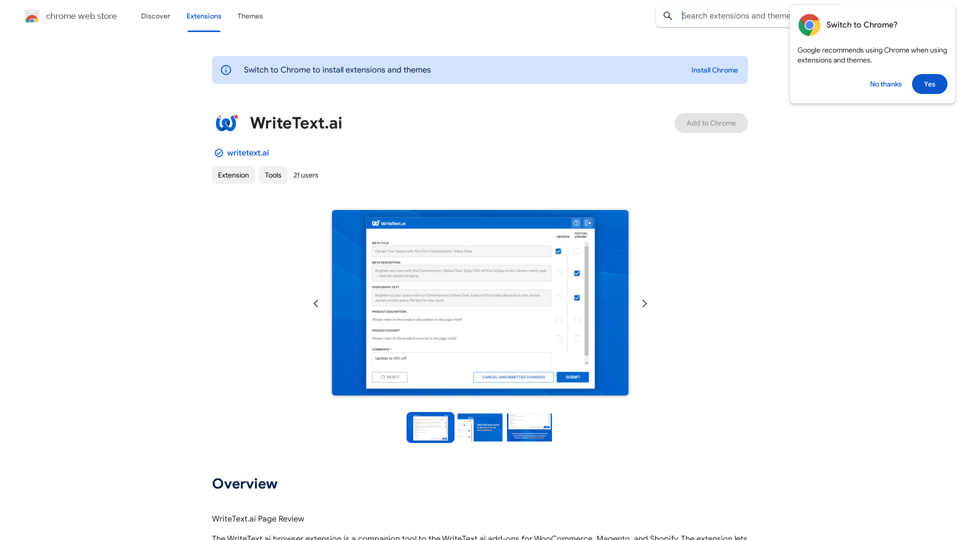
WriteText.ai Page Review WriteText.ai is an AI-powered writing assistant that helps you generate different creative text formats, like poems, code, scripts, musical pieces, email, letters, etc. It's designed to be user-friendly and accessible to everyone, regardless of their writing experience. Here's a breakdown of its key features and benefits: * Multiple Text Formats: WriteText.ai can generate a variety of text formats, including poems, code, scripts, musical pieces, emails, letters, and more. This versatility makes it a valuable tool for writers, developers, and anyone who needs to create different types of content. * User-Friendly Interface: The platform boasts a clean and intuitive interface that is easy to navigate, even for beginners. * AI-Powered Generation: WriteText.ai leverages the power of artificial intelligence to generate high-quality text. The AI model is trained on a massive dataset of text and code, allowing it to produce creative and coherent outputs. * Customization Options: Users can customize their text generation by providing specific instructions, keywords, or examples. This level of control ensures that the generated text meets their exact needs. * Fast and Efficient: WriteText.ai is designed to be fast and efficient, generating text quickly and accurately. This saves users time and effort, allowing them to focus on other aspects of their work. Overall, WriteText.ai is a powerful and versatile AI writing assistant that can be a valuable tool for a wide range of users. Its user-friendly interface, multiple text format options, and AI-powered generation make it a compelling choice for anyone looking to enhance their writing process.
Visit Website
WriteText.ai
Visit Website

Introduction

WriteText.ai is a versatile browser extension designed to enhance text editing and content creation on web pages. It offers an AI-powered content writer, text editing tools, bookmark search functionality, and a highlighter feature. This free tool caters to content creators, writers, and marketers, providing an efficient solution for generating and refining text across various web platforms.

Feature

AI-Powered Content Writer

WriteText.ai's advanced AI technology enables users to generate high-quality text effortlessly. This feature is particularly beneficial for content creators, writers, and marketers looking to streamline their content production process.

Text Editing and Rewriting Tools

The extension offers a comprehensive suite of text editing and rewriting tools, including:

  • Search and replace functionality
  • Easy web page editor
  • Text change capabilities

These tools allow users to refine and optimize their content directly on web pages.

Bookmark Search

Users can efficiently search and organize their favorite web pages using the bookmark search feature. This functionality enhances productivity by allowing quick access to relevant saved content.

Highlighter with Note-Taking

The highlighter feature enables users to:

  • Mark important text on web pages
  • Add notes to highlighted sections
  • Revisit webpages to view highlighted text and saved notes

This feature aids in information retention and organization during web browsing sessions.

Free to Use

WriteText.ai is completely free, with no subscription fees or hidden costs. Users can access all features immediately upon installation of the browser extension.

FAQ

How do I start using WriteText.ai?

To begin using WriteText.ai:

  1. Install the browser extension
  2. Navigate to any web page
  3. Start using the tools to edit, rewrite, or generate text as needed

What are the primary features of WriteText.ai?

WriteText.ai offers four main features:

  1. AI-powered content writer
  2. Text editing and rewriting tools
  3. Bookmark search functionality
  4. Highlighter with note-taking capabilities

Is WriteText.ai compatible with all browsers?

The provided information doesn't specify browser compatibility. It's recommended to check the official WriteText.ai website or extension store for supported browsers.

Can WriteText.ai be used for collaborative work?

The given information doesn't mention collaborative features. WriteText.ai appears to be primarily designed for individual use on personal devices.

Latest Traffic Insights

  • Monthly Visits

    193.90 M

  • Bounce Rate

    56.27%

  • Pages Per Visit

    2.71

  • Time on Site(s)

    115.91

  • Global Rank

    -

  • Country Rank

    -

Recent Visits

Traffic Sources

  • Social Media:
    0.48%
  • Paid Referrals:
    0.55%
  • Email:
    0.15%
  • Referrals:
    12.81%
  • Search Engines:
    16.21%
  • Direct:
    69.81%
More Data

Related Websites

MarketingAI: You don't need more features. You need marketing.
View Detail

MarketingAI: You don't need more features. You need marketing.

MarketingAI: You don't need more features. You need marketing.

Get a 15-page marketing action plan tailored to your SaaS business, including a step-by-step guide on acquiring users and a projected return on investment (ROI).

0
Chrome Web Store
View Detail

Chrome Web Store

Chrome Web Store

Enhance your browser with new features and customize your browsing experience.

193.90 M
Image to text converter, converting image text to text, how to extract text from an image.
View Detail

Image to text converter, converting image text to text, how to extract text from an image.

Image to text converter, converting image text to text, how to extract text from an image.

Transform images with text into editable, searchable content instantly. Our advanced AI technology extracts text from any image with remarkable accuracy, supporting multiple languages and document types. Simply upload your picture, and watch as handwritten notes, printed documents, screenshots, and signs are converted to crisp, copyable text in seconds.

0
Kie.ai's 4o Image API: Cost-effective, Reliable, and Very Accurate AI Image Creation
View Detail

Kie.ai's 4o Image API: Cost-effective, Reliable, and Very Accurate AI Image Creation

Kie.ai's 4o Image API: Cost-effective, Reliable, and Very Accurate AI Image Creation

Kie.ai’s 4o Image API offers affordable, stable, and highly accurate AI image generation, enabling creators to easily produce high-quality visuals. It provides reliable and efficient solutions for various creative projects, including text-to-image and image-to-image transformations, as well as a range of visual styles.

356.51 K
The #1 YouTube Thumbnails Generator for Viral Videos
View Detail

The #1 YouTube Thumbnails Generator for Viral Videos

The #1 YouTube Thumbnails Generator for Viral Videos

The AI thumbnail generator used by the top YouTube content creators. Create viral thumbnails with ThumbnailPro. Ideal for YouTube thumbnails.

0
Unblur Image

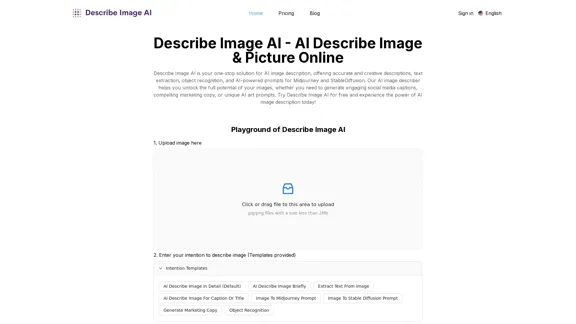
Unblur image refers to the process of removing blur or haze from an image to make it sharper and clearer. This technique is often used to enhance the quality of images that have been affected by camera shake, motion blur, or other factors that cause blur.
View Detail

Unblur Image Unblur image refers to the process of removing blur or haze from an image to make it sharper and clearer. This technique is often used to enhance the quality of images that have been affected by camera shake, motion blur, or other factors that cause blur.

Unblur Image Unblur image refers to the process of removing blur or haze from an image to make it sharper and clearer. This technique is often used to enhance the quality of images that have been affected by camera shake, motion blur, or other factors that cause blur.

Automatically unblur images in one click with our AI photo blur remover.

193.90 M
AI Headshot Generator Free
View Detail

AI Headshot Generator Free

AI Headshot Generator Free

Create stunning, professional headshots for free with our AI Headshot Generator. Perfect for LinkedIn and resumes. Try it now!

0
Batch Save ChatGPT to Notion

This is a guide on how to save multiple ChatGPT responses to Notion in a batch. 

Tools You'll Need:

* ChatGPT: An AI chatbot that can generate text.
* Notion: A note-taking and project management tool.
* Python: A programming language.
* Requests Library: A Python library for making HTTP requests.

Steps:

1. Get Your Notion API Token:
   - Go to your Notion workspace settings.
   - Navigate to the "Integrations" tab.
   - Click "Create new integration" and choose "API Token".
   - Copy your API token.

2. Install Python Libraries:
   - Open your terminal or command prompt.
   - Type `pip install requests` and press Enter.

3. Write Python Script:
   - Create a new Python file (e.g., `save_chatgpt_to_notion.py`).
   - Paste the following code into the file, replacing `YOUR_NOTION_API_TOKEN` with your actual token:

```python
import requests

def save_chatgpt_response_to_notion(response, page_id, token):
  """Saves a ChatGPT response to a Notion page."""
  url = f"https://api.notion.com/v1/pages/{page_id}/children"
  headers = {"Authorization": f"Bearer {token}"}
  data = {
    "parent": {
      "page_id": page_id
    },
    "properties": {
      "title": {
        "title": [
          {
            "text": {
              "content": "ChatGPT Response"
            }
          }
        ]
      },
      "content": {
        "rich_text": [
          {
            "text": {
              "content": response
            }
          }
        ]
      }
    }
  }
  response = requests.post(url, headers=headers, json=data)
  print(response.status_code)

Example usage
page_id = "YOUR_NOTION_PAGE_ID"
token = "YOUR_NOTION_API_TOKEN"

Get ChatGPT responses (replace with your actual ChatGPT interaction)
chatgpt_responses = [
  "This is the first ChatGPT response.",
  "This is the second ChatGPT response.",
  "This is the third ChatGPT response."
]

Save each response to Notion
for response in chatgpt_responses:
  save_chatgpt_response_to_notion(response, page_id, token)
```

4. Run the Script:
   - In your terminal, navigate to the directory where you saved the Python file.
   - Type `python save_chatgpt_to_notion.py` and press Enter.

5. Check Notion:
   - Open your Notion workspace and go to the page specified by `page_id`.
   - You should see your ChatGPT responses saved as separate blocks.
View Detail

Batch Save ChatGPT to Notion This is a guide on how to save multiple ChatGPT responses to Notion in a batch. Tools You'll Need: * ChatGPT: An AI chatbot that can generate text. * Notion: A note-taking and project management tool. * Python: A programming language. * Requests Library: A Python library for making HTTP requests. Steps: 1. Get Your Notion API Token: - Go to your Notion workspace settings. - Navigate to the "Integrations" tab. - Click "Create new integration" and choose "API Token". - Copy your API token. 2. Install Python Libraries: - Open your terminal or command prompt. - Type `pip install requests` and press Enter. 3. Write Python Script: - Create a new Python file (e.g., `save_chatgpt_to_notion.py`). - Paste the following code into the file, replacing `YOUR_NOTION_API_TOKEN` with your actual token: ```python import requests def save_chatgpt_response_to_notion(response, page_id, token): """Saves a ChatGPT response to a Notion page.""" url = f"https://api.notion.com/v1/pages/{page_id}/children" headers = {"Authorization": f"Bearer {token}"} data = { "parent": { "page_id": page_id }, "properties": { "title": { "title": [ { "text": { "content": "ChatGPT Response" } } ] }, "content": { "rich_text": [ { "text": { "content": response } } ] } } } response = requests.post(url, headers=headers, json=data) print(response.status_code) Example usage page_id = "YOUR_NOTION_PAGE_ID" token = "YOUR_NOTION_API_TOKEN" Get ChatGPT responses (replace with your actual ChatGPT interaction) chatgpt_responses = [ "This is the first ChatGPT response.", "This is the second ChatGPT response.", "This is the third ChatGPT response." ] Save each response to Notion for response in chatgpt_responses: save_chatgpt_response_to_notion(response, page_id, token) ``` 4. Run the Script: - In your terminal, navigate to the directory where you saved the Python file. - Type `python save_chatgpt_to_notion.py` and press Enter. 5. Check Notion: - Open your Notion workspace and go to the page specified by `page_id`. - You should see your ChatGPT responses saved as separate blocks.

Batch Save ChatGPT to Notion This is a guide on how to save multiple ChatGPT responses to Notion in a batch. Tools You'll Need: * ChatGPT: An AI chatbot that can generate text. * Notion: A note-taking and project management tool. * Python: A programming language. * Requests Library: A Python library for making HTTP requests. Steps: 1. Get Your Notion API Token: - Go to your Notion workspace settings. - Navigate to the "Integrations" tab. - Click "Create new integration" and choose "API Token". - Copy your API token. 2. Install Python Libraries: - Open your terminal or command prompt. - Type `pip install requests` and press Enter. 3. Write Python Script: - Create a new Python file (e.g., `save_chatgpt_to_notion.py`). - Paste the following code into the file, replacing `YOUR_NOTION_API_TOKEN` with your actual token: ```python import requests def save_chatgpt_response_to_notion(response, page_id, token): """Saves a ChatGPT response to a Notion page.""" url = f"https://api.notion.com/v1/pages/{page_id}/children" headers = {"Authorization": f"Bearer {token}"} data = { "parent": { "page_id": page_id }, "properties": { "title": { "title": [ { "text": { "content": "ChatGPT Response" } } ] }, "content": { "rich_text": [ { "text": { "content": response } } ] } } } response = requests.post(url, headers=headers, json=data) print(response.status_code) Example usage page_id = "YOUR_NOTION_PAGE_ID" token = "YOUR_NOTION_API_TOKEN" Get ChatGPT responses (replace with your actual ChatGPT interaction) chatgpt_responses = [ "This is the first ChatGPT response.", "This is the second ChatGPT response.", "This is the third ChatGPT response." ] Save each response to Notion for response in chatgpt_responses: save_chatgpt_response_to_notion(response, page_id, token) ``` 4. Run the Script: - In your terminal, navigate to the directory where you saved the Python file. - Type `python save_chatgpt_to_notion.py` and press Enter. 5. Check Notion: - Open your Notion workspace and go to the page specified by `page_id`. - You should see your ChatGPT responses saved as separate blocks.

Save ChatGPT Conversations to Notion with One Click Export your ChatGPT conversations directly to Notion with a single click.

193.90 M