Open-source RightAI Tools Directory
  • Discover AI
  • Submit
  • Startup
  • Blog
Open-source RightAI Tools Directory
Discover the best AI tools of 2025 with the RightAI Tools Directory!

Friend Links

AI Anime GeneratorToolsApp AI

Support

Tap4
Privacy policyTerms & ConditionsContact Us
Loading...
loading...

Image to SVG Converter

Help me convert images to vector graphics (SVG).
Visit Website
Image to SVG Converter
Visit Website

Introduction

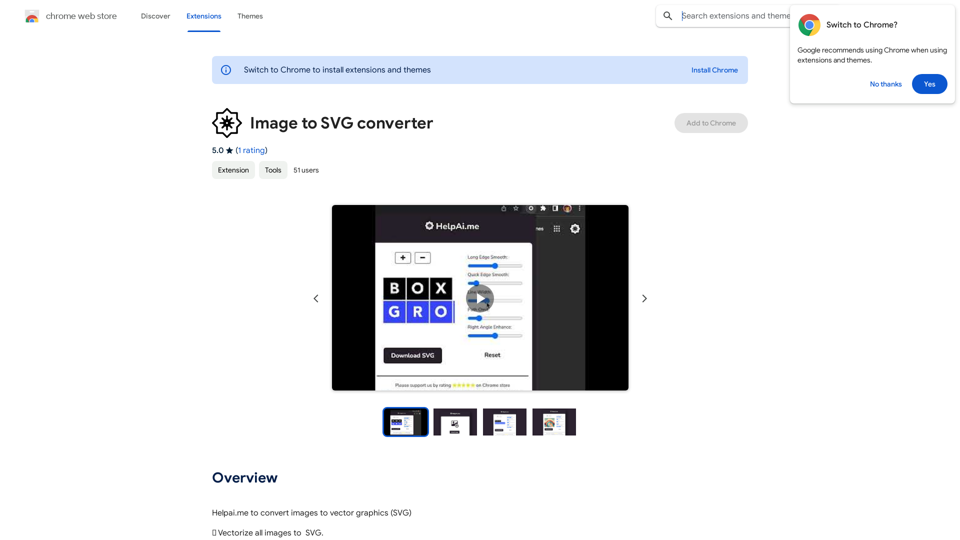
Image to SVG Converter is a Chrome extension that transforms images into vector graphics (SVG) format. This tool simplifies the process of converting various image types to scalable, semantic, and accessible SVG files. It's designed to work across all websites, offering a user-friendly interface through a popup window activated by clicking the extension icon.

Feature

Easy Image Conversion

Convert images to SVG format with just a few clicks. The extension supports various image formats including PNG, JPG, JPEG, and bitmap, making it versatile for different user needs.

Universal Website Compatibility

Works seamlessly on all websites. Users can simply click the extension icon to open the popup window and start converting images, regardless of the site they're browsing.

Generate Editable SVG Files

The extension creates SVG files that can be easily edited or downloaded, providing flexibility for further modifications or immediate use.

User-Friendly Interface

With a simple popup window interface, the extension offers a straightforward process for image conversion:

  1. Launch the popup window
  2. Upload an image
  3. Generate the SVG file
  4. Edit or download the result

Free and Unlimited Usage

The extension is completely free to use, with no hidden costs or subscriptions. Users can convert as many images as they want without any limitations.

FAQ

Is the Image to SVG Converter extension free?

Yes, the extension is entirely free to use. There are no hidden costs or subscriptions associated with its usage.

Which websites are compatible with this extension?

The Image to SVG Converter works on all websites. Users can activate the extension by clicking its icon to open the popup window, regardless of the site they're currently browsing.

What types of image formats does the extension support?

The extension supports various image formats, including PNG, JPG, JPEG, and bitmap.

Is my data safe when using this extension?

Yes, your data is safe and secure. The extension does not share any user data.

Are there any tips for getting the best results?

Here are some helpful tips:

  • Upload high-quality images for optimal results
  • Use the extension for web design, graphic design, or any application requiring vector graphics
  • Experiment with different image formats and settings to achieve desired outputs

Latest Traffic Insights

  • Monthly Visits

    193.90 M

  • Bounce Rate

    56.27%

  • Pages Per Visit

    2.71

  • Time on Site(s)

    115.91

  • Global Rank

    -

  • Country Rank

    -

Recent Visits

Traffic Sources

  • Social Media:
    0.48%
  • Paid Referrals:
    0.55%
  • Email:
    0.15%
  • Referrals:
    12.81%
  • Search Engines:
    16.21%
  • Direct:
    69.81%
More Data

Related Websites

MarketingAI: You don't need more features. You need marketing.
View Detail

MarketingAI: You don't need more features. You need marketing.

MarketingAI: You don't need more features. You need marketing.

Get a 15-page marketing action plan tailored to your SaaS business, including a step-by-step guide on acquiring users and a projected return on investment (ROI).

0
Soulreply - Your mental health assistant
View Detail

Soulreply - Your mental health assistant

Soulreply - Your mental health assistant

Discover a supportive and understanding mental health bot designed to help you manage stress, anxiety, and everyday emotional challenges. Accessible anytime to provide guidance, resources, and comfort, ensuring you never feel alone in your journey towards mental wellness.

0
Expand Image with AI - Expand images for free with AI, free trial to extend images.
View Detail

Expand Image with AI - Expand images for free with AI, free trial to extend images.

Expand Image with AI - Expand images for free with AI, free trial to extend images.

Expand Image with AI is the leading platform that allows you to expand and extend images using artificial intelligence technology. Simply upload your image to our AI system to expand images and get impressive results in seconds. Experience the future of image composition with our advanced Expand Image with AI technology.

0
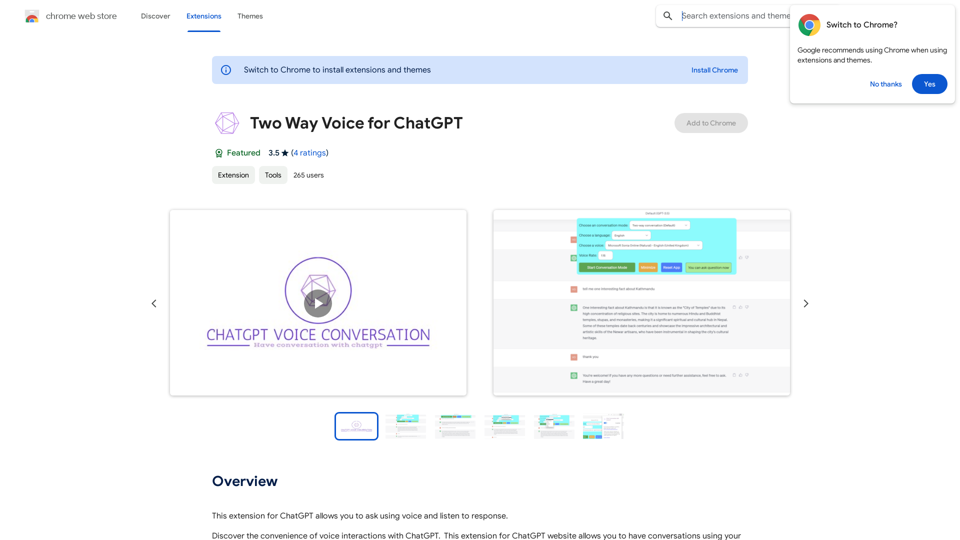
Two-Way Voice for Gemini™
View Detail

Two-Way Voice for Gemini™

Two-Way Voice for Gemini™

This extension for Google Gemini™ lets you ask questions using your voice and listen to the answers.

193.90 M
Text Generation for X (formerly Twitter)
View Detail

Text Generation for X (formerly Twitter)

Text Generation for X (formerly Twitter)

This is a Chrome extension that analyzes images you want to post to X (formerly Twitter) and automatically generates alternative text for them.

193.90 M
AI Baby Generator: FutureBaby on the App Store
View Detail

AI Baby Generator: FutureBaby on the App Store

AI Baby Generator: FutureBaby on the App Store

Introducing the FutureBaby: AI Baby Generator app, an innovative tool that predicts the potential appearance of your future child by analyzing the facial features of you and your partner.

124.77 M
Image to SVG Converter
View Detail

Image to SVG Converter

Image to SVG Converter

Help me convert images to vector graphics (SVG).

193.90 M
Batch Save ChatGPT to Notion

This is a guide on how to save multiple ChatGPT responses to Notion in a batch. 

Tools You'll Need:

* ChatGPT: An AI chatbot that can generate text.
* Notion: A note-taking and project management tool.
* Python: A programming language.
* Requests Library: A Python library for making HTTP requests.

Steps:

1. Get Your Notion API Token:
   - Go to your Notion workspace settings.
   - Navigate to the "Integrations" tab.
   - Click "Create new integration" and choose "API Token".
   - Copy your API token.

2. Install Python Libraries:
   - Open your terminal or command prompt.
   - Type `pip install requests` and press Enter.

3. Write Python Script:
   - Create a new Python file (e.g., `save_chatgpt_to_notion.py`).
   - Paste the following code into the file, replacing `YOUR_NOTION_API_TOKEN` with your actual token:

```python
import requests

def save_chatgpt_response_to_notion(response, page_id, token):
  """Saves a ChatGPT response to a Notion page."""
  url = f"https://api.notion.com/v1/pages/{page_id}/children"
  headers = {"Authorization": f"Bearer {token}"}
  data = {
    "parent": {
      "page_id": page_id
    },
    "properties": {
      "title": {
        "title": [
          {
            "text": {
              "content": "ChatGPT Response"
            }
          }
        ]
      },
      "content": {
        "rich_text": [
          {
            "text": {
              "content": response
            }
          }
        ]
      }
    }
  }
  response = requests.post(url, headers=headers, json=data)
  print(response.status_code)

Example usage
page_id = "YOUR_NOTION_PAGE_ID"
token = "YOUR_NOTION_API_TOKEN"

Get ChatGPT responses (replace with your actual ChatGPT interaction)
chatgpt_responses = [
  "This is the first ChatGPT response.",
  "This is the second ChatGPT response.",
  "This is the third ChatGPT response."
]

Save each response to Notion
for response in chatgpt_responses:
  save_chatgpt_response_to_notion(response, page_id, token)
```

4. Run the Script:
   - In your terminal, navigate to the directory where you saved the Python file.
   - Type `python save_chatgpt_to_notion.py` and press Enter.

5. Check Notion:
   - Open your Notion workspace and go to the page specified by `page_id`.
   - You should see your ChatGPT responses saved as separate blocks.
View Detail

Batch Save ChatGPT to Notion This is a guide on how to save multiple ChatGPT responses to Notion in a batch. Tools You'll Need: * ChatGPT: An AI chatbot that can generate text. * Notion: A note-taking and project management tool. * Python: A programming language. * Requests Library: A Python library for making HTTP requests. Steps: 1. Get Your Notion API Token: - Go to your Notion workspace settings. - Navigate to the "Integrations" tab. - Click "Create new integration" and choose "API Token". - Copy your API token. 2. Install Python Libraries: - Open your terminal or command prompt. - Type `pip install requests` and press Enter. 3. Write Python Script: - Create a new Python file (e.g., `save_chatgpt_to_notion.py`). - Paste the following code into the file, replacing `YOUR_NOTION_API_TOKEN` with your actual token: ```python import requests def save_chatgpt_response_to_notion(response, page_id, token): """Saves a ChatGPT response to a Notion page.""" url = f"https://api.notion.com/v1/pages/{page_id}/children" headers = {"Authorization": f"Bearer {token}"} data = { "parent": { "page_id": page_id }, "properties": { "title": { "title": [ { "text": { "content": "ChatGPT Response" } } ] }, "content": { "rich_text": [ { "text": { "content": response } } ] } } } response = requests.post(url, headers=headers, json=data) print(response.status_code) Example usage page_id = "YOUR_NOTION_PAGE_ID" token = "YOUR_NOTION_API_TOKEN" Get ChatGPT responses (replace with your actual ChatGPT interaction) chatgpt_responses = [ "This is the first ChatGPT response.", "This is the second ChatGPT response.", "This is the third ChatGPT response." ] Save each response to Notion for response in chatgpt_responses: save_chatgpt_response_to_notion(response, page_id, token) ``` 4. Run the Script: - In your terminal, navigate to the directory where you saved the Python file. - Type `python save_chatgpt_to_notion.py` and press Enter. 5. Check Notion: - Open your Notion workspace and go to the page specified by `page_id`. - You should see your ChatGPT responses saved as separate blocks.

Batch Save ChatGPT to Notion This is a guide on how to save multiple ChatGPT responses to Notion in a batch. Tools You'll Need: * ChatGPT: An AI chatbot that can generate text. * Notion: A note-taking and project management tool. * Python: A programming language. * Requests Library: A Python library for making HTTP requests. Steps: 1. Get Your Notion API Token: - Go to your Notion workspace settings. - Navigate to the "Integrations" tab. - Click "Create new integration" and choose "API Token". - Copy your API token. 2. Install Python Libraries: - Open your terminal or command prompt. - Type `pip install requests` and press Enter. 3. Write Python Script: - Create a new Python file (e.g., `save_chatgpt_to_notion.py`). - Paste the following code into the file, replacing `YOUR_NOTION_API_TOKEN` with your actual token: ```python import requests def save_chatgpt_response_to_notion(response, page_id, token): """Saves a ChatGPT response to a Notion page.""" url = f"https://api.notion.com/v1/pages/{page_id}/children" headers = {"Authorization": f"Bearer {token}"} data = { "parent": { "page_id": page_id }, "properties": { "title": { "title": [ { "text": { "content": "ChatGPT Response" } } ] }, "content": { "rich_text": [ { "text": { "content": response } } ] } } } response = requests.post(url, headers=headers, json=data) print(response.status_code) Example usage page_id = "YOUR_NOTION_PAGE_ID" token = "YOUR_NOTION_API_TOKEN" Get ChatGPT responses (replace with your actual ChatGPT interaction) chatgpt_responses = [ "This is the first ChatGPT response.", "This is the second ChatGPT response.", "This is the third ChatGPT response." ] Save each response to Notion for response in chatgpt_responses: save_chatgpt_response_to_notion(response, page_id, token) ``` 4. Run the Script: - In your terminal, navigate to the directory where you saved the Python file. - Type `python save_chatgpt_to_notion.py` and press Enter. 5. Check Notion: - Open your Notion workspace and go to the page specified by `page_id`. - You should see your ChatGPT responses saved as separate blocks.

Save ChatGPT Conversations to Notion with One Click Export your ChatGPT conversations directly to Notion with a single click.

193.90 M