Two Way Voice for Gemini is an extension for Google Gemini that enables voice interaction with the AI. Users can ask questions verbally and receive spoken responses, making it a hands-free and convenient way to access information. The extension offers multiple conversation modes, language support, and utilizes the browser's built-in voice-to-text API.
Two-Way Voice for Gemini™
This extension for Google Gemini™ lets you ask questions using your voice and listen to the answers.
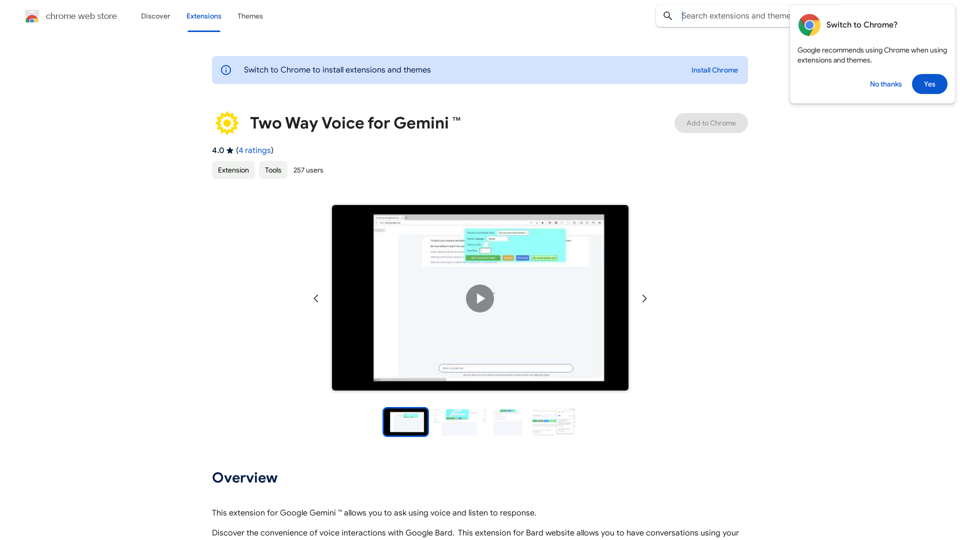
Introduction
Feature
Voice Interaction
Two Way Voice for Gemini allows users to ask questions using their voice and listen to the AI's response, creating a more natural and accessible interaction with Google Gemini.
Multiple Conversation Modes
The extension offers three conversation modes:
- Two-way conversation
- User speaks, Gemini responds in text
- User types, Gemini responds with voice
Language Support
Two Way Voice for Gemini supports various languages, including Chinese and Korean, making it accessible to a diverse user base.
Browser Integration
The extension utilizes the browser's built-in voice-to-text API, ensuring seamless integration with the user's existing setup.
Free to Use
Two Way Voice for Gemini is completely free to install and use, with no subscription fees or hidden costs.
FAQ
How do I start using Two Way Voice for Gemini?
- Install the extension from the Chrome Web Store
- Click on the extension icon to start the conversation mode
- Ask your question using your voice
- Listen to the response from Google Gemini
Is Two Way Voice for Gemini affiliated with Google Inc?
No, the extension is developed independently and is not affiliated with or endorsed by Google Inc.
Can I use Two Way Voice for Gemini with other AI chatbots?
No, the extension is specifically designed for use with Google Gemini and cannot be used with other AI chatbots.
How can I optimize the performance of Two Way Voice for Gemini?
- Ensure your machine has sufficient resources for optimal voice-to-text performance
- Use the extension in a quiet environment to minimize background noise
- Experiment with different conversation modes to find the one that works best for you
Related Websites
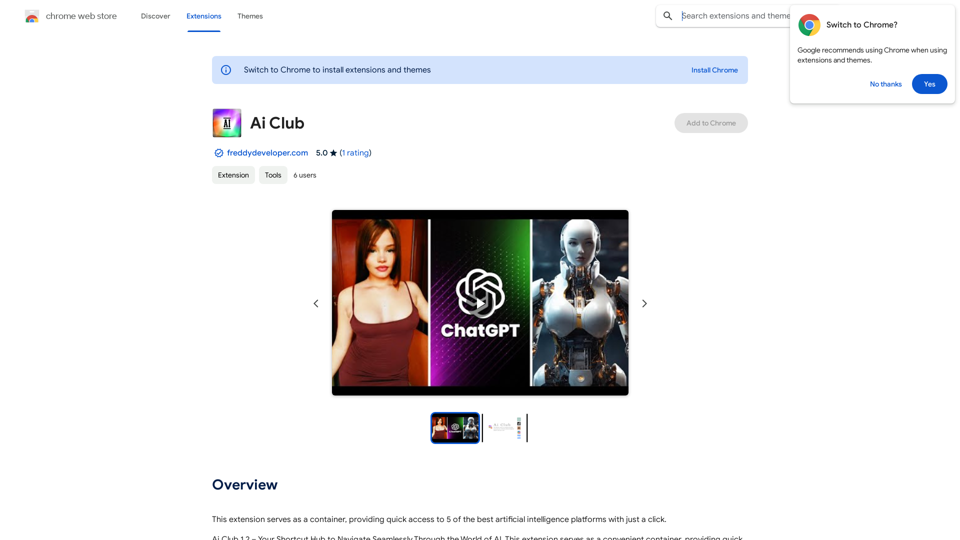
This extension acts as a container, giving you quick access to 5 of the top artificial intelligence platforms with a single click.
193.90 M
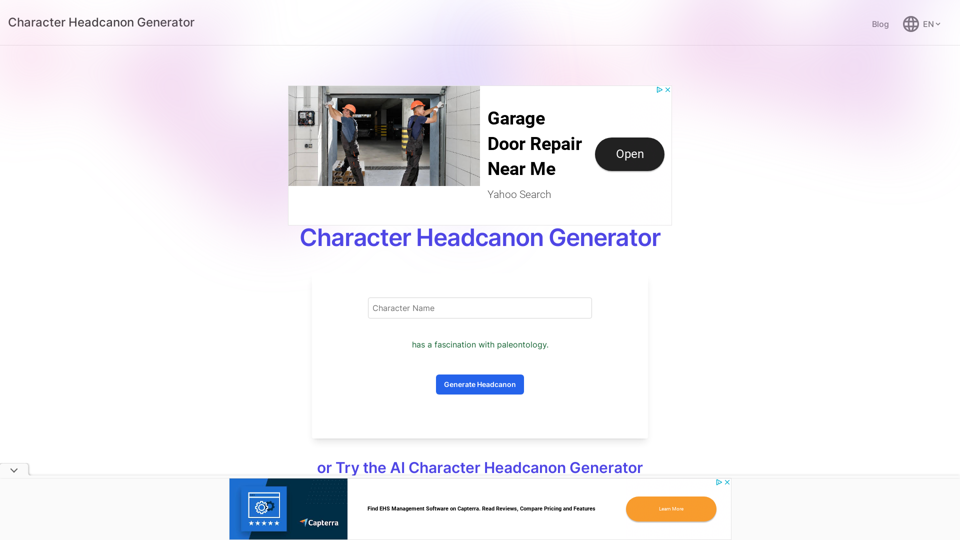
Character Headcanon Generator The Character Headcanon Generator, originating from Perchance, creates unique character headcanons through our headcanon generator.
Character Headcanon Generator The Character Headcanon Generator, originating from Perchance, creates unique character headcanons through our headcanon generator.Discover the Character Headcanon Generator, an innovative tool that originated from the Perchance platform. This powerful character headcanon generator helps you create detailed and engaging character headcanon with ease, allowing fans to explore new interpretations of their favorite characters. Whether you're a writer, role-player, or fan fiction enthusiast, our headcanon generator provides endless creative possibilities by generating unique backgrounds and traits. Enhance your storytelling and bring your characters to life with the Character Headcanon Generator today!
243
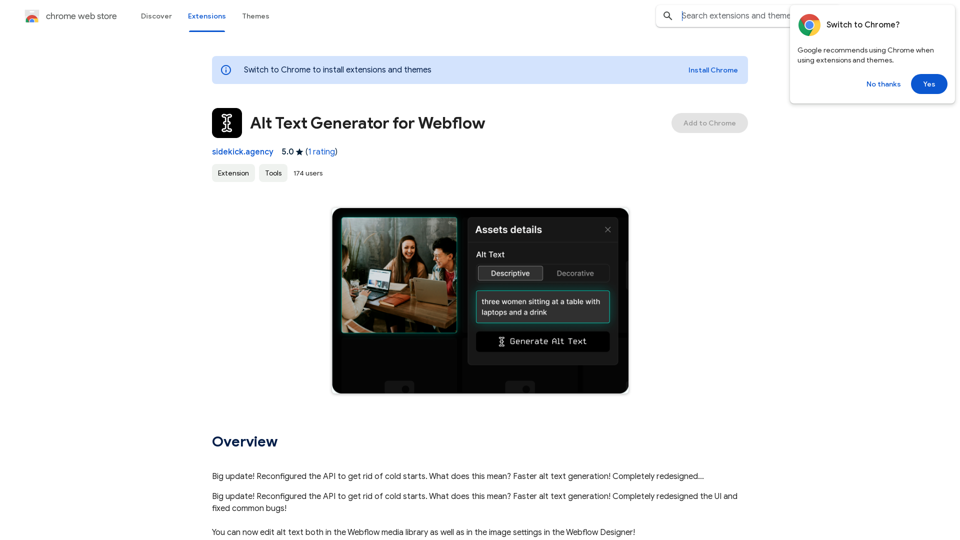
Alt Text Generator for Webflow This tool helps you generate descriptive alt text for your Webflow images. Why is Alt Text Important? * Accessibility: Alt text allows screen readers to describe images to visually impaired users. * SEO: Search engines use alt text to understand the content of your images, improving your website's ranking. How to Use: 1. Paste your image URL: Enter the URL of the image you want to generate alt text for. 2. Click "Generate Alt Text": The tool will analyze the image and suggest relevant alt text. 3. Review and Edit: Read the generated alt text and make any necessary changes to ensure it accurately describes the image. Example: Image URL: https://www.example.com/image.jpg Generated Alt Text: A photo of a smiling woman holding a cup of coffee. Remember: * Keep alt text concise and descriptive. * Use keywords that accurately reflect the image content. * Avoid using generic phrases like "image" or "picture."
Alt Text Generator for Webflow This tool helps you generate descriptive alt text for your Webflow images. Why is Alt Text Important? * Accessibility: Alt text allows screen readers to describe images to visually impaired users. * SEO: Search engines use alt text to understand the content of your images, improving your website's ranking. How to Use: 1. Paste your image URL: Enter the URL of the image you want to generate alt text for. 2. Click "Generate Alt Text": The tool will analyze the image and suggest relevant alt text. 3. Review and Edit: Read the generated alt text and make any necessary changes to ensure it accurately describes the image. Example: Image URL: https://www.example.com/image.jpg Generated Alt Text: A photo of a smiling woman holding a cup of coffee. Remember: * Keep alt text concise and descriptive. * Use keywords that accurately reflect the image content. * Avoid using generic phrases like "image" or "picture."Big update! Reconfigured the API to get rid of cold starts. What does this mean? Faster alt text generation! Completely redesigned...
193.90 M
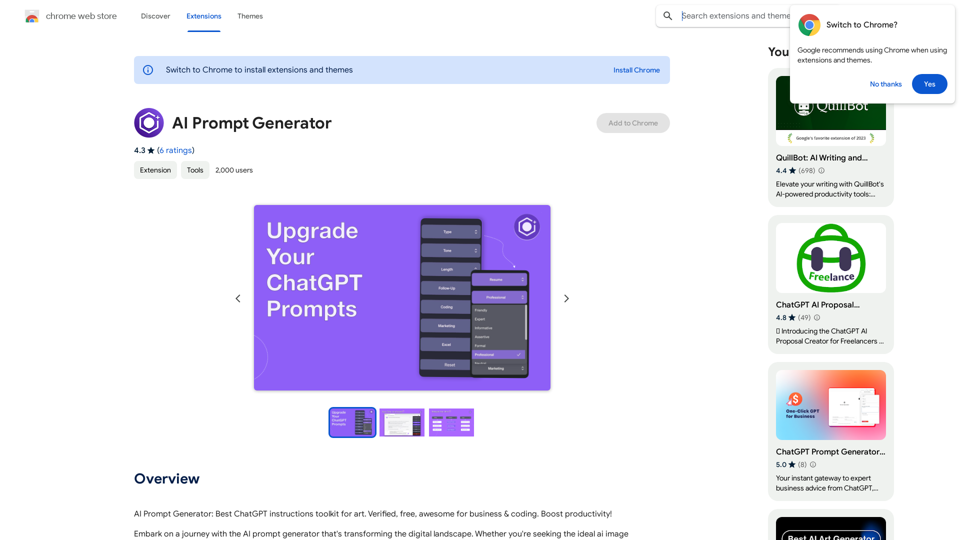
AI Prompt Generator: The Ultimate ChatGPT Instructions Toolkit for Art Verified, free, and awesome for business and coding. This toolkit is designed to boost your productivity!
193.90 M
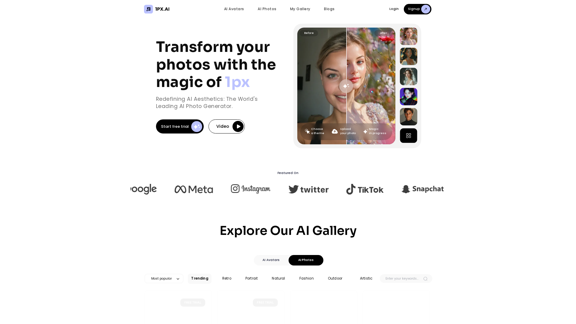
AI photo, photo AI, AI photo editing, AI-generated photos, free AI photo editor, AI photo generator, AI avatar generator
105
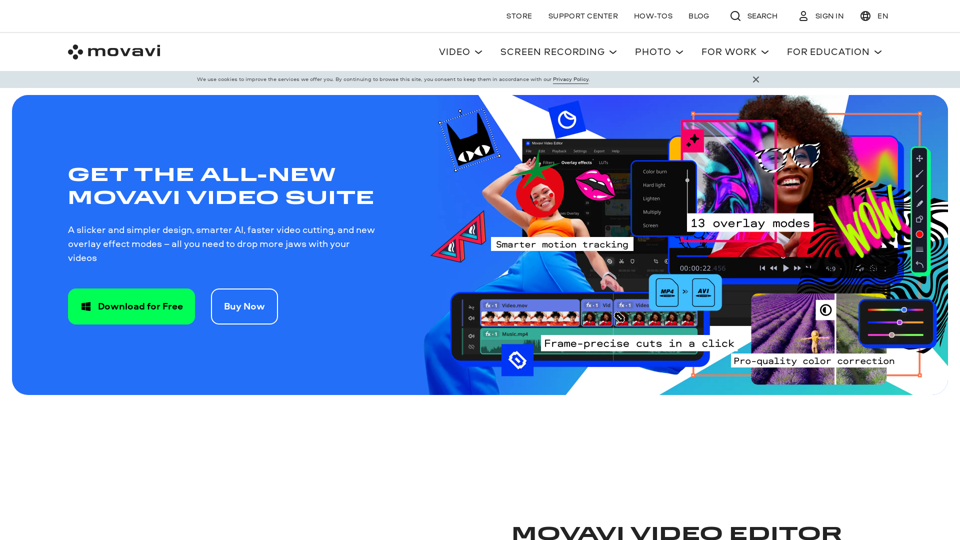
Video Editor 2024 and Other Cool Programs from Movavi – Download for Free
Video Editor 2024 and Other Cool Programs from Movavi – Download for FreeMovavi offers fast and easy-to-use photo and video editing software that is safe and trusted worldwide. Try it all out for free!
3.27 M
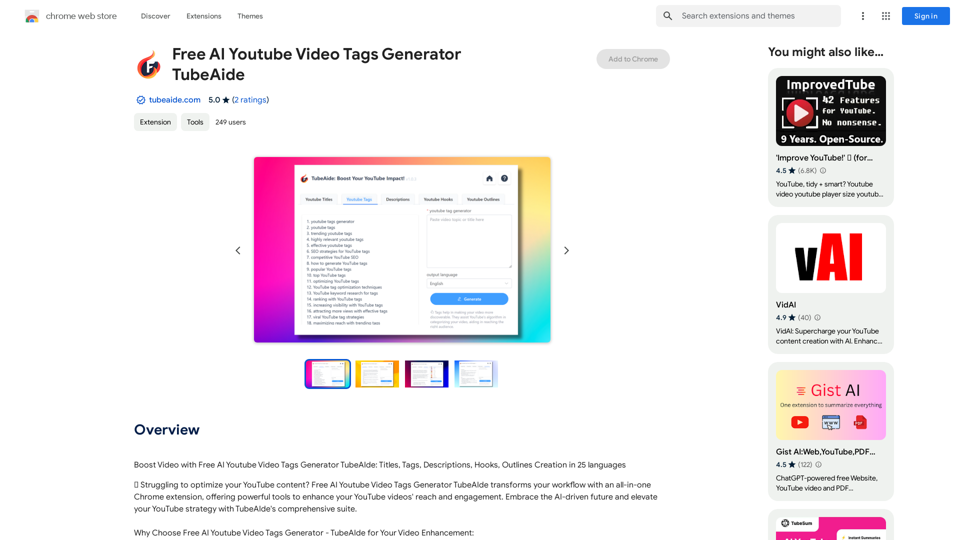
Boost Your Video with Free AI YouTube Video Tag Generator TubeAIde: Titles, Tags, Descriptions, Hooks, and Outlines in 25 Languages
193.90 M
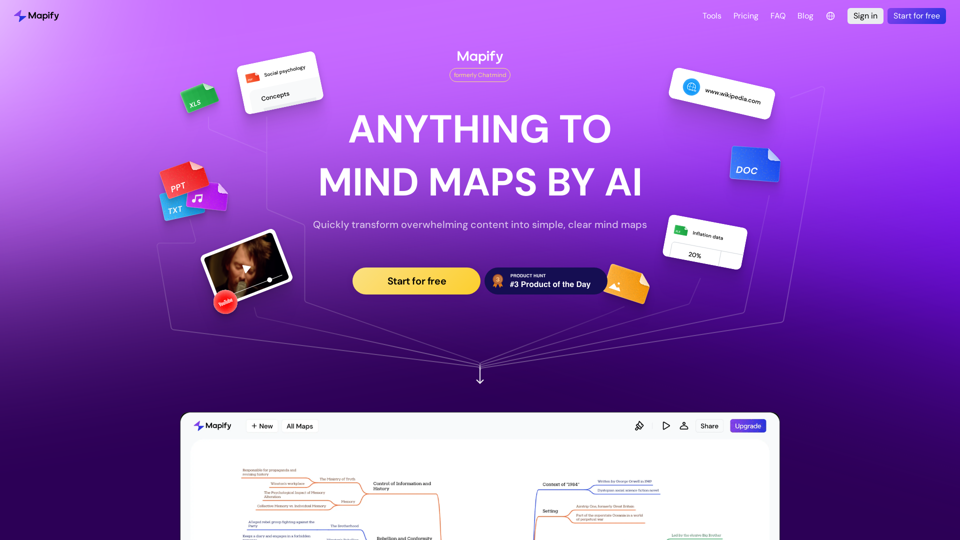
Mapify: Transform Anything to Mind Maps by AI, formerly Chatmind
Mapify: Transform Anything to Mind Maps by AI, formerly ChatmindMapify, upgraded from Chatmind by the Xmind Team, is a free online mind mapping and brainstorming tool powered by AI. It can summarize PDF, Word, PowerPoint, YouTube, long text, and images into mind maps in just a few minutes.
1.15 M