Open-source RightAI Tools Directory
  • Discover AI
  • Submit
  • Startup
  • Blog
Open-source RightAI Tools Directory
Discover the best AI tools of 2025 with the RightAI Tools Directory!

Friend Links

AI Anime GeneratorToolsApp AI

Support

Tap4
Privacy policyTerms & ConditionsContact Us
Loading...
loading...

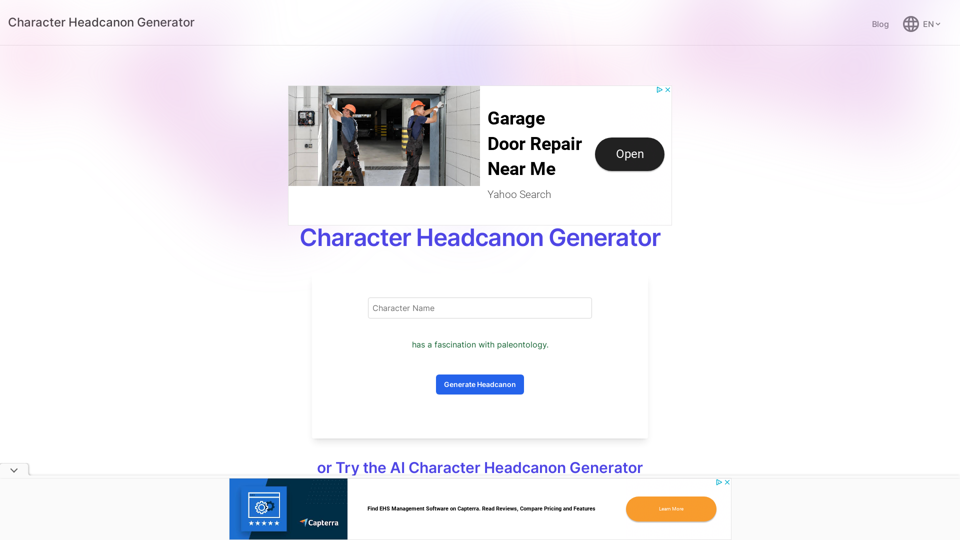
Character Headcanon Generator The Character Headcanon Generator, originating from Perchance, creates unique character headcanons through our headcanon generator.

Discover the Character Headcanon Generator, an innovative tool that originated from the Perchance platform. This powerful character headcanon generator helps you create detailed and engaging character headcanon with ease, allowing fans to explore new interpretations of their favorite characters. Whether you're a writer, role-player, or fan fiction enthusiast, our headcanon generator provides endless creative possibilities by generating unique backgrounds and traits. Enhance your storytelling and bring your characters to life with the Character Headcanon Generator today!
Visit Website
Character Headcanon Generator
The Character Headcanon Generator, originating from Perchance, creates unique character headcanons through our headcanon generator.
Visit Website

Introduction

The Character Headcanon Generator is an innovative tool designed to create unique character headcanons. It offers a user-friendly interface that allows users to generate detailed character backstories and traits based on provided names and descriptions. This tool is particularly useful for writers, role-players, and fans looking to explore and expand upon fictional characters.

Feature

Randomized Trait Generation

The generator offers a powerful feature that creates diverse and unique character attributes effortlessly. This randomization helps users develop characters with unexpected and interesting traits.

Automated Backstory Creation

Users can generate detailed character histories, including:

  • Upbringing information
  • Pivotal life events
  • Character relationships
  • Personal motivations

User-Friendly Interface

The tool boasts an intuitive design, making it accessible to writers of all experience levels. Its ease of use ensures that even beginners can create complex character headcanons.

Customizable Prompts

The generator allows users to select specific traits or scenarios, combining these elements to create comprehensive narratives that fit within the character's universe.

Multi-Character Integration

The tool supports the development of multiple characters, allowing users to create interconnected backstories and relationships.

FAQ

What is a character headcanon?

A character headcanon is a fan-created idea or personal belief about a fictional character that is not explicitly stated in the original source material. These ideas often fill gaps in the character's backstory, personality, or future events, allowing fans to personalize their favorite characters and explore alternative narratives.

Is the Character Headcanon Generator free to use?

Yes, the Character Headcanon Generator is free to use.

Can I use the Character Headcanon Generator for non-writing purposes?

Absolutely! While designed with writers in mind, the tool is also great for:

  • Role-playing games
  • Creating character profiles for cosplay
  • Developing unique personas for online avatars

What are some limitations of the Character Headcanon Generator?

Some limitations include:

  • Limited customization options for specific or niche character aspects
  • Potential for repetitive or formulaic outputs due to algorithmic constraints
  • Challenges with complex anatomical details, especially in dynamic poses
  • Difficulty integrating characters into specific, detailed contexts requiring deep understanding of complex lore

How often is the Character Headcanon Generator updated?

The Character Headcanon Generator is regularly updated with new traits, backstory elements, and customization options to enhance its functionality and user experience.

Related Websites
Image Search
View Detail

Image Search

Image Search

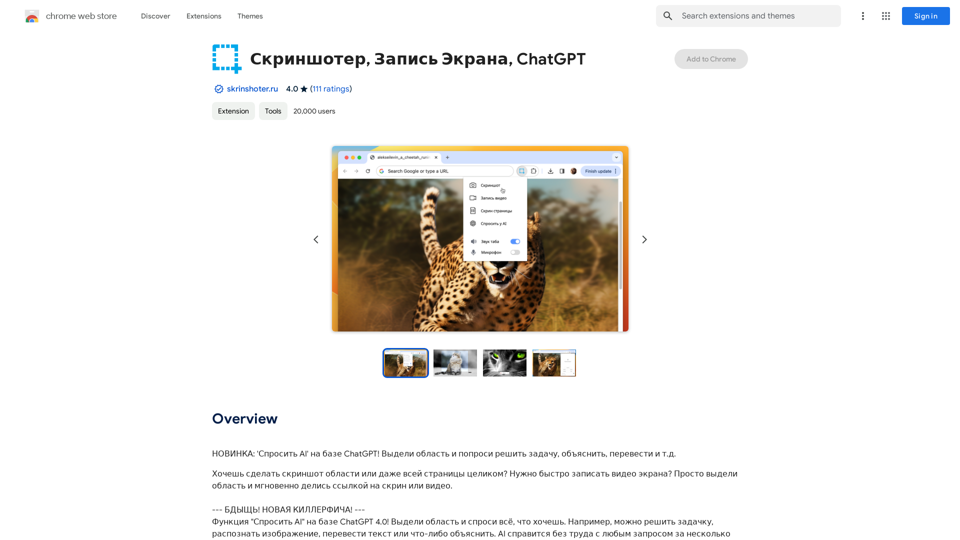
Find Similar Images in Popular Search Engines You can find similar images in popular search engines like Google, Bing, and Yandex using the following methods: #Google Images * Drag and drop an image into the search bar or click on the camera icon to upload an image. * Click on the "Search by image" button. * Google will display a list of similar images. #Bing Images * Click on the "Images" tab on the Bing homepage. * Click on the "Camera" icon in the search bar. * Upload an image or enter the image URL. * Bing will display a list of similar images. #Yandex Images * Click on the "Images" tab on the Yandex homepage. * Click on the "Lens" icon in the search bar. * Upload an image or enter the image URL. * Yandex will display a list of similar images. These search engines use advanced algorithms to find similar images based on various factors such as color, shape, and texture.

193.90 M
AI Image Enlarger | Enlarge Images Without Losing Quality!
View Detail

AI Image Enlarger | Enlarge Images Without Losing Quality!

AI Image Enlarger | Enlarge Images Without Losing Quality!

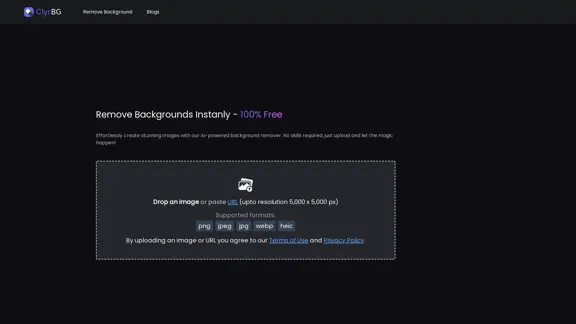
AI Image Enlarger is a FREE online tool for automatically upscaling and enhancing small images. It can make jpg/png pictures larger without compromising quality.

614.68 K
Live captions with translation (ChatGPT)
View Detail

Live captions with translation (ChatGPT)

Live captions with translation (ChatGPT)

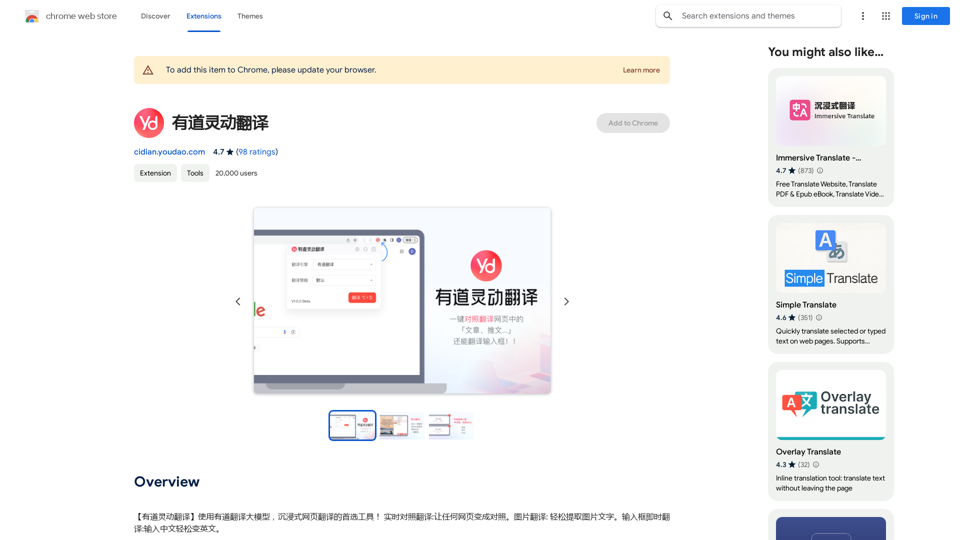
Live audio/video streaming with subtitles and translation, Live captions powered by ChatGPT

193.90 M
TensorScan AI
View Detail

TensorScan AI

TensorScan AI

Analyze Ethereum wallets easily with the TensorScan AI extension. It works perfectly with Etherscan.io. Download it now!

193.90 M
Home of AI Stock Images
View Detail

Home of AI Stock Images

Home of AI Stock Images

Your source for high-quality AI-generated stock images. Browse our curated collection of royalty-free images, both free and premium. Sell AI art and earn a 90% commission.

0
Batch Save ChatGPT to Notion

This is a guide on how to save multiple ChatGPT responses to Notion in a batch. 

Tools You'll Need:

* ChatGPT: An AI chatbot that can generate text.
* Notion: A note-taking and project management tool.
* Python: A programming language.
* Requests Library: A Python library for making HTTP requests.

Steps:

1. Get Your Notion API Token:
   - Go to your Notion workspace settings.
   - Navigate to the "Integrations" tab.
   - Click "Create new integration" and choose "API Token".
   - Copy your API token.

2. Install Python Libraries:
   - Open your terminal or command prompt.
   - Type `pip install requests` and press Enter.

3. Write Python Script:
   - Create a new Python file (e.g., `save_chatgpt_to_notion.py`).
   - Paste the following code into the file, replacing `YOUR_NOTION_API_TOKEN` with your actual token:

```python
import requests

def save_chatgpt_response_to_notion(response, page_id, token):
  """Saves a ChatGPT response to a Notion page."""
  url = f"https://api.notion.com/v1/pages/{page_id}/children"
  headers = {"Authorization": f"Bearer {token}"}
  data = {
    "parent": {
      "page_id": page_id
    },
    "properties": {
      "title": {
        "title": [
          {
            "text": {
              "content": "ChatGPT Response"
            }
          }
        ]
      },
      "content": {
        "rich_text": [
          {
            "text": {
              "content": response
            }
          }
        ]
      }
    }
  }
  response = requests.post(url, headers=headers, json=data)
  print(response.status_code)

Example usage
page_id = "YOUR_NOTION_PAGE_ID"
token = "YOUR_NOTION_API_TOKEN"

Get ChatGPT responses (replace with your actual ChatGPT interaction)
chatgpt_responses = [
  "This is the first ChatGPT response.",
  "This is the second ChatGPT response.",
  "This is the third ChatGPT response."
]

Save each response to Notion
for response in chatgpt_responses:
  save_chatgpt_response_to_notion(response, page_id, token)
```

4. Run the Script:
   - In your terminal, navigate to the directory where you saved the Python file.
   - Type `python save_chatgpt_to_notion.py` and press Enter.

5. Check Notion:
   - Open your Notion workspace and go to the page specified by `page_id`.
   - You should see your ChatGPT responses saved as separate blocks.
View Detail

Batch Save ChatGPT to Notion This is a guide on how to save multiple ChatGPT responses to Notion in a batch. Tools You'll Need: * ChatGPT: An AI chatbot that can generate text. * Notion: A note-taking and project management tool. * Python: A programming language. * Requests Library: A Python library for making HTTP requests. Steps: 1. Get Your Notion API Token: - Go to your Notion workspace settings. - Navigate to the "Integrations" tab. - Click "Create new integration" and choose "API Token". - Copy your API token. 2. Install Python Libraries: - Open your terminal or command prompt. - Type `pip install requests` and press Enter. 3. Write Python Script: - Create a new Python file (e.g., `save_chatgpt_to_notion.py`). - Paste the following code into the file, replacing `YOUR_NOTION_API_TOKEN` with your actual token: ```python import requests def save_chatgpt_response_to_notion(response, page_id, token): """Saves a ChatGPT response to a Notion page.""" url = f"https://api.notion.com/v1/pages/{page_id}/children" headers = {"Authorization": f"Bearer {token}"} data = { "parent": { "page_id": page_id }, "properties": { "title": { "title": [ { "text": { "content": "ChatGPT Response" } } ] }, "content": { "rich_text": [ { "text": { "content": response } } ] } } } response = requests.post(url, headers=headers, json=data) print(response.status_code) Example usage page_id = "YOUR_NOTION_PAGE_ID" token = "YOUR_NOTION_API_TOKEN" Get ChatGPT responses (replace with your actual ChatGPT interaction) chatgpt_responses = [ "This is the first ChatGPT response.", "This is the second ChatGPT response.", "This is the third ChatGPT response." ] Save each response to Notion for response in chatgpt_responses: save_chatgpt_response_to_notion(response, page_id, token) ``` 4. Run the Script: - In your terminal, navigate to the directory where you saved the Python file. - Type `python save_chatgpt_to_notion.py` and press Enter. 5. Check Notion: - Open your Notion workspace and go to the page specified by `page_id`. - You should see your ChatGPT responses saved as separate blocks.

Batch Save ChatGPT to Notion This is a guide on how to save multiple ChatGPT responses to Notion in a batch. Tools You'll Need: * ChatGPT: An AI chatbot that can generate text. * Notion: A note-taking and project management tool. * Python: A programming language. * Requests Library: A Python library for making HTTP requests. Steps: 1. Get Your Notion API Token: - Go to your Notion workspace settings. - Navigate to the "Integrations" tab. - Click "Create new integration" and choose "API Token". - Copy your API token. 2. Install Python Libraries: - Open your terminal or command prompt. - Type `pip install requests` and press Enter. 3. Write Python Script: - Create a new Python file (e.g., `save_chatgpt_to_notion.py`). - Paste the following code into the file, replacing `YOUR_NOTION_API_TOKEN` with your actual token: ```python import requests def save_chatgpt_response_to_notion(response, page_id, token): """Saves a ChatGPT response to a Notion page.""" url = f"https://api.notion.com/v1/pages/{page_id}/children" headers = {"Authorization": f"Bearer {token}"} data = { "parent": { "page_id": page_id }, "properties": { "title": { "title": [ { "text": { "content": "ChatGPT Response" } } ] }, "content": { "rich_text": [ { "text": { "content": response } } ] } } } response = requests.post(url, headers=headers, json=data) print(response.status_code) Example usage page_id = "YOUR_NOTION_PAGE_ID" token = "YOUR_NOTION_API_TOKEN" Get ChatGPT responses (replace with your actual ChatGPT interaction) chatgpt_responses = [ "This is the first ChatGPT response.", "This is the second ChatGPT response.", "This is the third ChatGPT response." ] Save each response to Notion for response in chatgpt_responses: save_chatgpt_response_to_notion(response, page_id, token) ``` 4. Run the Script: - In your terminal, navigate to the directory where you saved the Python file. - Type `python save_chatgpt_to_notion.py` and press Enter. 5. Check Notion: - Open your Notion workspace and go to the page specified by `page_id`. - You should see your ChatGPT responses saved as separate blocks.

Save ChatGPT Conversations to Notion with One Click Export your ChatGPT conversations directly to Notion with a single click.

193.90 M
Bing search
View Detail

Bing search

Bing search

Upgrade your browsing with the Bing Search extension. Optimize your SEO with Bing's AI-powered search engine.

193.90 M
Translate Frame
View Detail

Translate Frame

Translate Frame

This Chrome extension lets you translate text by taking pictures of it on web pages.

193.90 M