AutoMOT is a Chrome extension designed to streamline the process of checking a vehicle's MOT history on autotrader.co.uk. By leveraging AI technology and DVLA data, AutoMOT automatically extracts registration plates from AutoTrader images and cross-references them with the DVLA database. This free tool provides users with instant access to a vehicle's history, saving time and enhancing the car browsing experience.
AutoMOT - Quick Access to MOT History
This extension saves you time by automatically loading information about a vehicle's MOT history on autotrader.co.uk.
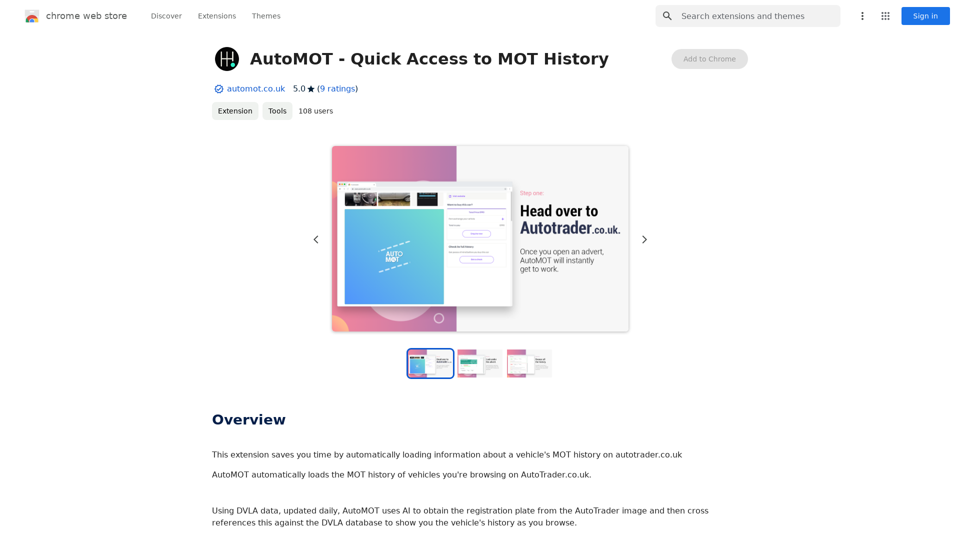
Introduction
Feature
AI-Powered Registration Plate Recognition
AutoMOT utilizes advanced AI technology to accurately extract registration plates from AutoTrader images, eliminating the need for manual input.
Automatic DVLA Database Cross-Referencing
The extension seamlessly cross-references the extracted registration plate with the DVLA database, providing up-to-date vehicle history information.
Seamless Integration with AutoTrader
Once installed and logged in, AutoMOT works automatically when browsing vehicle advertisements on AutoTrader.co.uk, enhancing the user experience.
Free and Accessible
AutoMOT is offered as a free Chrome extension, with no hidden costs or subscription fees, making it accessible to all users.
Daily Updated DVLA Data
The extension uses DVLA data that is updated daily, ensuring users have access to the most current vehicle information.
Time-Saving Functionality
By automating the MOT history lookup process, AutoMOT saves users valuable time and eliminates the need to switch between tabs or memorize registration plates.
FAQ
How does AutoMOT work?
AutoMOT uses AI to extract the registration plate from AutoTrader images. It then cross-references this information with the DVLA database to display the vehicle's MOT history directly on the AutoTrader page.
Is AutoMOT free to use?
Yes, AutoMOT is completely free to use. There are no hidden costs or subscription fees associated with the extension.
How accurate is the information provided by AutoMOT?
AutoMOT uses daily updated DVLA data, ensuring that the information provided is accurate and up-to-date. However, it's always recommended to use AutoMOT in conjunction with other research tools for a comprehensive view of a vehicle's history.
Do I need to manually input registration plates when using AutoMOT?
No, AutoMOT automatically extracts registration plates from AutoTrader images using AI technology, eliminating the need for manual input.
How can I ensure I'm using the latest version of AutoMOT?
To access the latest features and bug fixes, make sure to keep your Chrome extensions updated. You can check for updates in the Chrome Web Store or enable automatic updates for all your extensions.
Related Websites
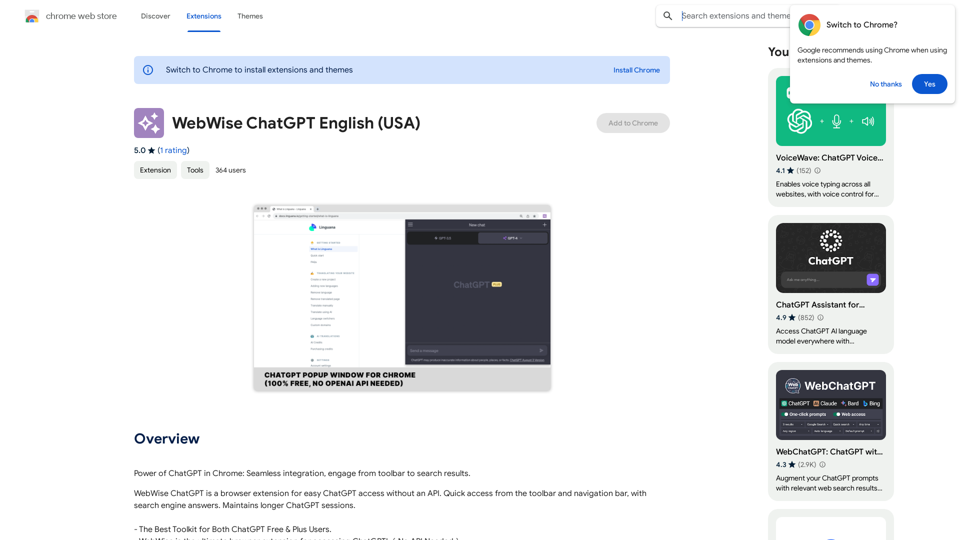
ChatGPT's power in Chrome: Seamlessly integrated, engage from the toolbar to search results.
193.90 M
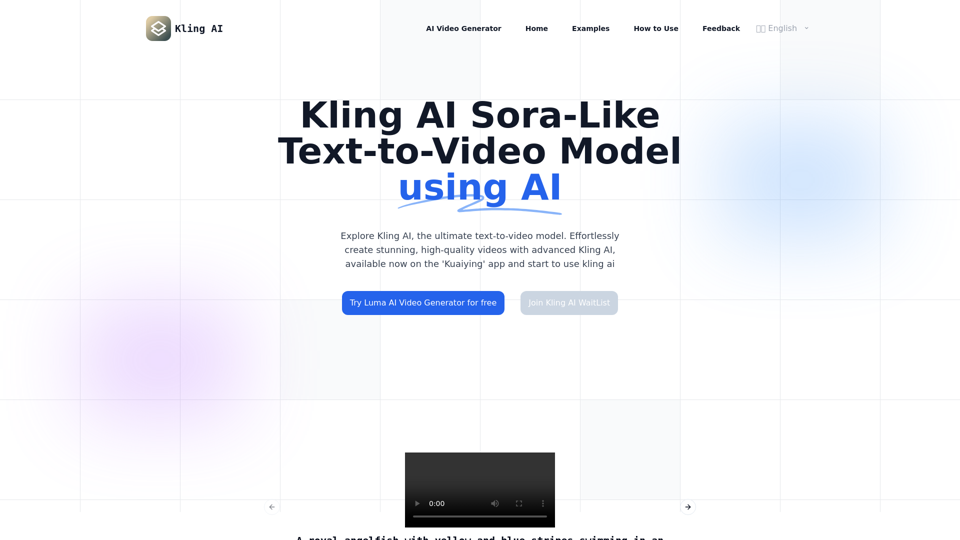
Kling AI | KuaiShou Text-to-Video Generation Model
Kling AI | KuaiShou Text-to-Video Generation ModelDiscover Kling AI, a revolutionary Sora-like text-to-video model. Create stunning videos with advanced 3D mechanisms and cinema-grade quality.
21.14 K
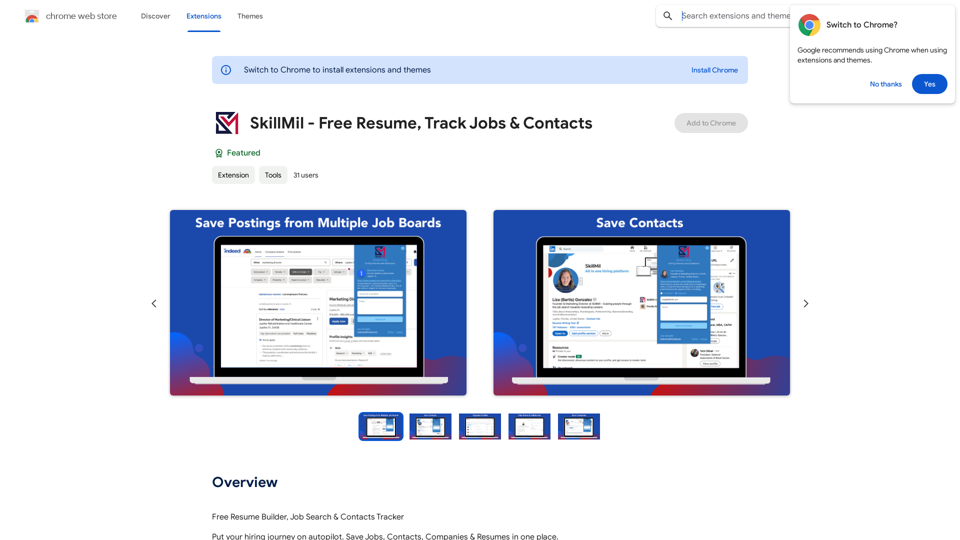
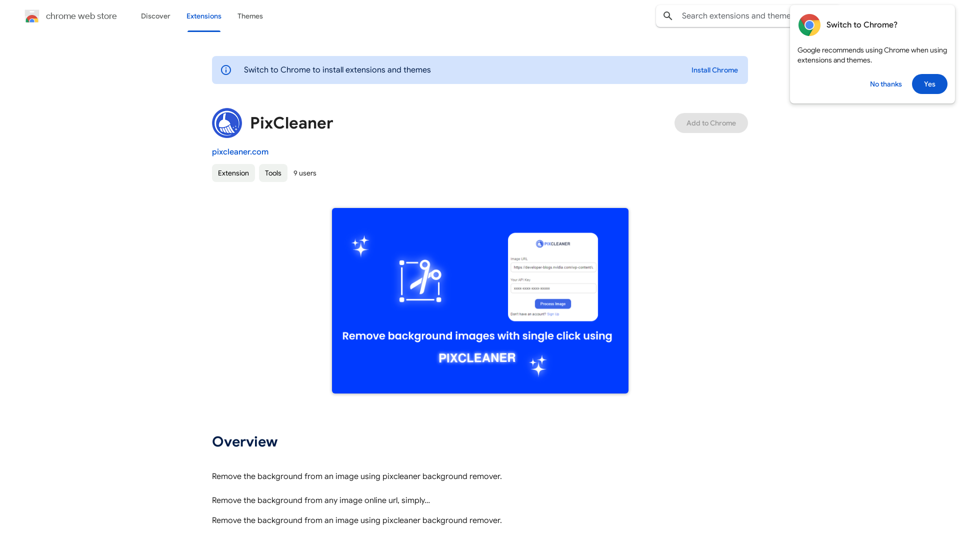
Remove the background from an image using pixcleaner background remover. Remove the background from any image online URL, simply...
193.90 M
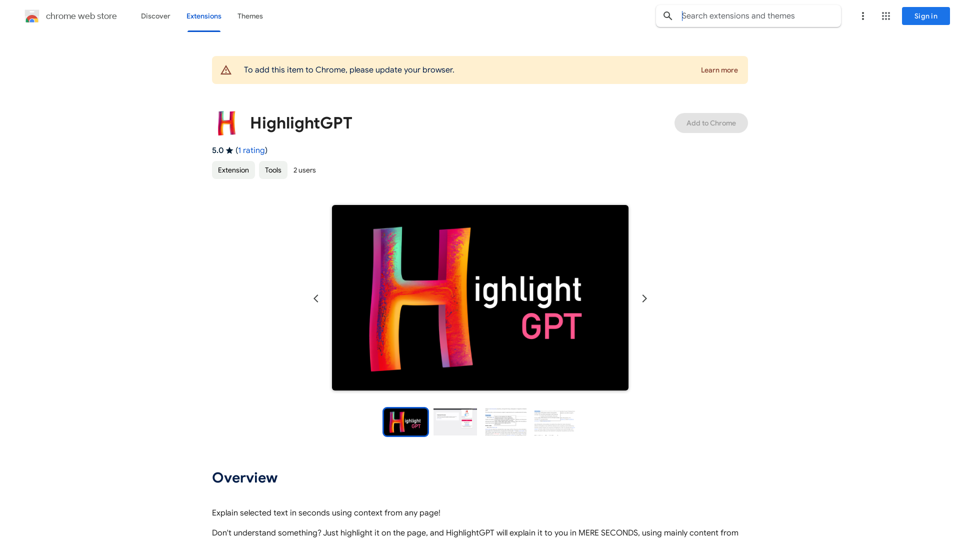
HighlightGPT Let me know what you'd like to know about HighlightGPT! For example, you could ask: * What is HighlightGPT? * How does HighlightGPT work? * What are the benefits of using HighlightGPT? * What are some examples of how HighlightGPT can be used?
HighlightGPT Let me know what you'd like to know about HighlightGPT! For example, you could ask: * What is HighlightGPT? * How does HighlightGPT work? * What are the benefits of using HighlightGPT? * What are some examples of how HighlightGPT can be used?I can explain a piece of text you select and give you a short summary based on the information on the current page. Just highlight the text you want me to explain and ask!
193.90 M
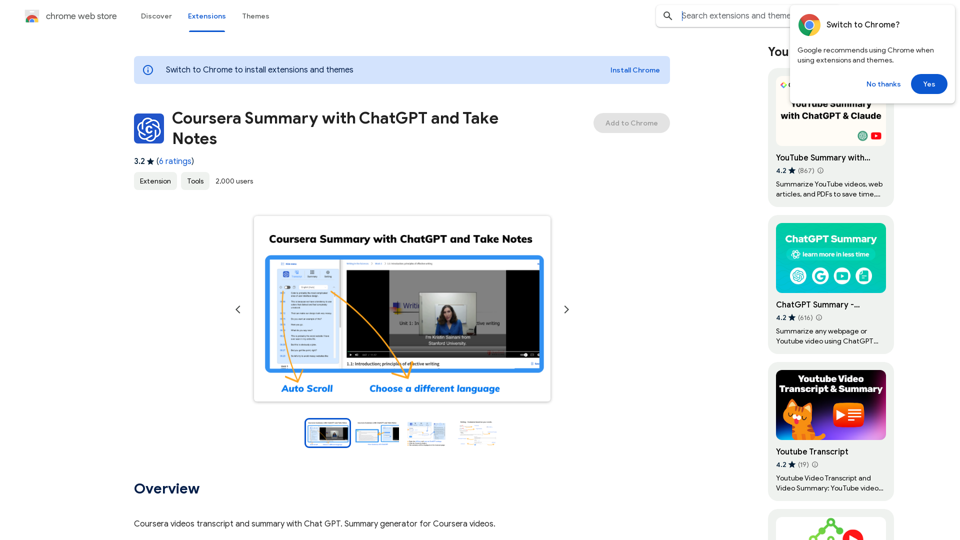
Coursera Summary with ChatGPT and Take Notes ===================================================== What is Coursera? Coursera is an online learning platform that partners with top universities and organizations to offer courses and degree programs in a wide range of fields. What is ChatGPT? ChatGPT is a conversational AI tool that can understand and respond to human input in a human-like way. It can be used to generate text, answer questions, and even create content. How to Use ChatGPT for Coursera Summary? You can use ChatGPT to summarize Coursera courses by: * Providing the course material or lecture notes to ChatGPT * Asking ChatGPT to summarize the key points or main ideas * Reviewing and editing the summary generated by ChatGPT Benefits of Using ChatGPT for Coursera Summary Using ChatGPT for Coursera summary can help you: * Save time by automating the summarization process * Improve understanding and retention of course material * Focus on key concepts and ideas * Enhance learning experience How to Take Notes with ChatGPT? You can use ChatGPT to take notes by: * Providing the course material or lecture notes to ChatGPT * Asking ChatGPT to generate notes or key points * Reviewing and editing the notes generated by ChatGPT * Organizing and structuring the notes for easy reference Benefits of Using ChatGPT for Taking Notes Using ChatGPT for taking notes can help you: * Save time by automating the note-taking process * Improve organization and structure of notes * Enhance understanding and retention of course material * Focus on key concepts and ideas
Coursera Summary with ChatGPT and Take Notes ===================================================== What is Coursera? Coursera is an online learning platform that partners with top universities and organizations to offer courses and degree programs in a wide range of fields. What is ChatGPT? ChatGPT is a conversational AI tool that can understand and respond to human input in a human-like way. It can be used to generate text, answer questions, and even create content. How to Use ChatGPT for Coursera Summary? You can use ChatGPT to summarize Coursera courses by: * Providing the course material or lecture notes to ChatGPT * Asking ChatGPT to summarize the key points or main ideas * Reviewing and editing the summary generated by ChatGPT Benefits of Using ChatGPT for Coursera Summary Using ChatGPT for Coursera summary can help you: * Save time by automating the summarization process * Improve understanding and retention of course material * Focus on key concepts and ideas * Enhance learning experience How to Take Notes with ChatGPT? You can use ChatGPT to take notes by: * Providing the course material or lecture notes to ChatGPT * Asking ChatGPT to generate notes or key points * Reviewing and editing the notes generated by ChatGPT * Organizing and structuring the notes for easy reference Benefits of Using ChatGPT for Taking Notes Using ChatGPT for taking notes can help you: * Save time by automating the note-taking process * Improve organization and structure of notes * Enhance understanding and retention of course material * Focus on key concepts and ideasAutomate Your Learning: Coursera Videos Transcript and Summary with ChatGPT ============================================================ Are you tired of manually taking notes while watching Coursera videos? Do you wish you had a summary of the video to review later? Look no further! With the power of ChatGPT, you can now generate transcripts and summaries of Coursera videos with ease. How it Works --------------- 1. Transcribe the Video: Use a transcription tool to convert the audio from the Coursera video into text. 2. Feed it to ChatGPT: Input the transcript into ChatGPT, and it will generate a concise summary of the video. 3. Review and Refine: Review the summary, refine it as needed, and you're good to go! Benefits ------------ * Save Time: No more manual note-taking or re-watching videos to understand the content. * Improve Retention: A summary of the video helps you retain information better and review it quickly. * Enhance Learning: Focus on understanding the concepts rather than taking notes. Get Started -------------- Try it out today and take your learning to the next level!
193.90 M