Open-source RightAI Tools Directory
  • Discover AI
  • Submit
  • Startup
  • Blog
Open-source RightAI Tools Directory
Discover the best AI tools of 2025 with the RightAI Tools Directory!

Friend Links

AI Anime GeneratorToolsApp AI

Support

Tap4
Privacy policyTerms & ConditionsContact Us
Loading...
loading...

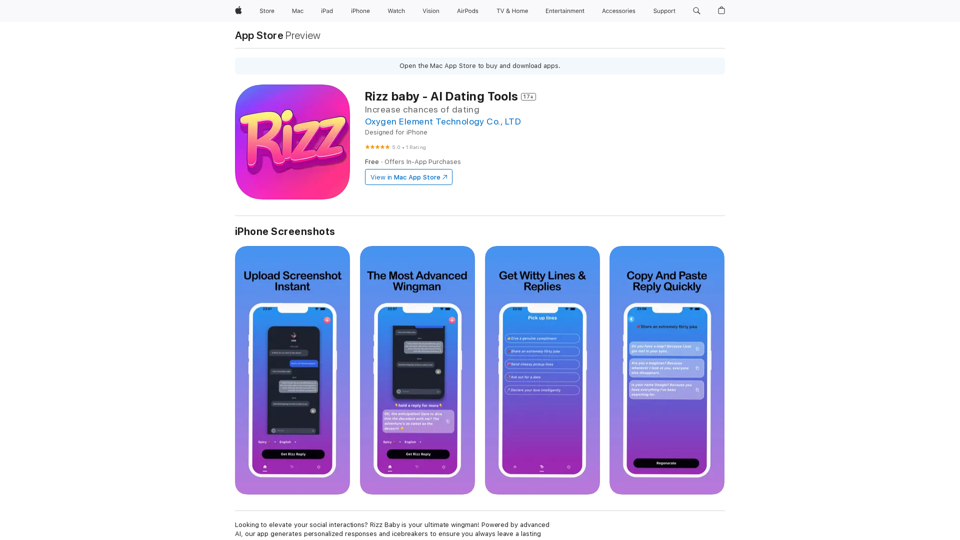
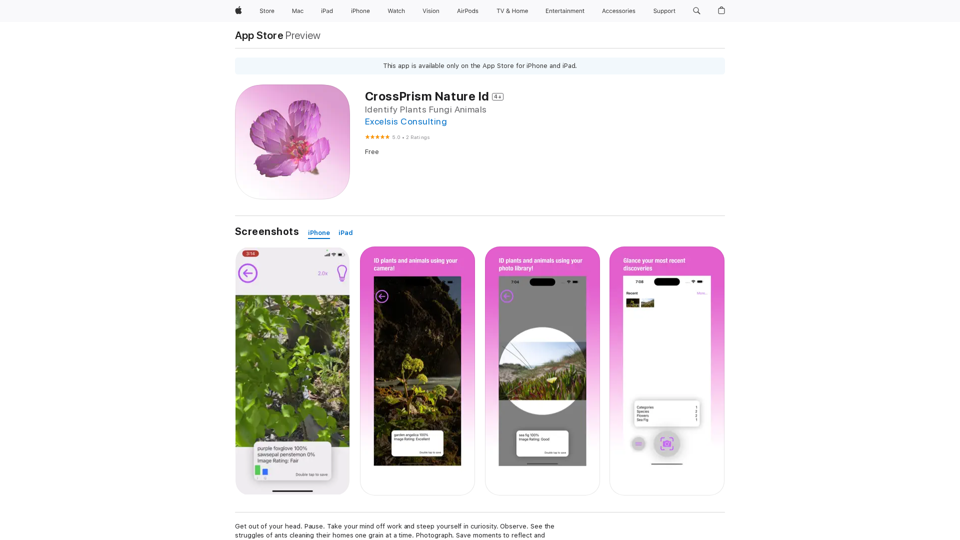
CrossPrism Nature Id on the App Store

Get out of your head. Pause. Take your mind off work and steep yourself in curiosity. Observe. See the struggles of ants cleaning their homes one grain at a time, and the way birds build their nests with twigs and threads.
Visit Website
CrossPrism Nature Id on the App Store
Visit Website

Introduction

CrossPrism Nature Id is an AI-powered platform for identifying various species in nature. It uses advanced AI technology to recognize plants, fungi, animals, and underwater species in real-time. The app offers offline capabilities, customization options, and an image evaluator feature, making it a versatile tool for nature enthusiasts, researchers, and casual users alike.

Feature

Comprehensive Species Identification

CrossPrism Nature Id can identify a wide range of species including:

  • Birds
  • Flowers
  • Leaves
  • Insects
  • Fungi
  • Underwater species
  • Mammals
  • Reptiles
  • Amphibians

Image Quality Evaluator

The app includes a built-in image evaluator that guides users in taking high-quality photos for better identification results.

Offline Functionality

Unlike many other identification apps, CrossPrism Nature Id works without an internet connection, allowing users to explore and identify species in remote areas.

AI Engine Customization

Users can train and customize the CrossPrism AI engine to suit their specific needs, enhancing the app's versatility for various applications.

Free to Use

CrossPrism Nature Id is available for free download and use on iPhone and iPad devices.

Extensive Species Database

The app can identify over 6,000 bird species, 17,000 flower species, and numerous other plant and animal species.

FAQ

How do I use CrossPrism Nature Id?

  1. Download and install the app from the App Store on your iPhone or iPad.
  2. Take a photo of the species you want to identify.
  3. Use the app to process the image and receive identification results.
  4. Explore additional information about the identified species.

Can I use CrossPrism Nature Id without an internet connection?

Yes, the app is designed to work offline, allowing you to identify species in remote areas without internet access.

Is it possible to customize the app for specific identification needs?

Yes, CrossPrism Nature Id allows users to train and customize the AI engine to meet their specific requirements.

Latest Traffic Insights

  • Monthly Visits

    124.77 M

  • Bounce Rate

    74.15%

  • Pages Per Visit

    1.56

  • Time on Site(s)

    46.64

  • Global Rank

    -

  • Country Rank

    -

Recent Visits

Traffic Sources

  • Social Media:
    2.88%
  • Paid Referrals:
    2.50%
  • Email:
    0.18%
  • Referrals:
    19.65%
  • Search Engines:
    29.02%
  • Direct:
    45.78%
More Data

Related Websites

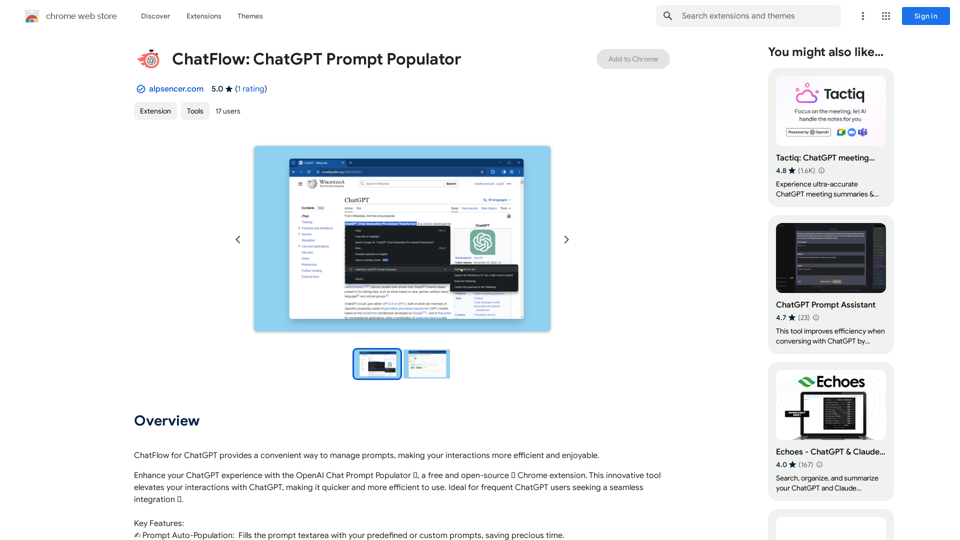
ChatShelf - Save ChatGPT to Notion

ChatShelf is a tool that lets you save your ChatGPT conversations directly into Notion. 

It's a simple way to keep track of your AI interactions and use them later. 

Just copy the link to your ChatGPT conversation and paste it into ChatShelf. 

It will then extract the conversation and create a Notion page for you.
View Detail

ChatShelf - Save ChatGPT to Notion ChatShelf is a tool that lets you save your ChatGPT conversations directly into Notion. It's a simple way to keep track of your AI interactions and use them later. Just copy the link to your ChatGPT conversation and paste it into ChatShelf. It will then extract the conversation and create a Notion page for you.

ChatShelf - Save ChatGPT to Notion ChatShelf is a tool that lets you save your ChatGPT conversations directly into Notion. It's a simple way to keep track of your AI interactions and use them later. Just copy the link to your ChatGPT conversation and paste it into ChatShelf. It will then extract the conversation and create a Notion page for you.

It's fast, stable, beautiful, and free.

193.90 M
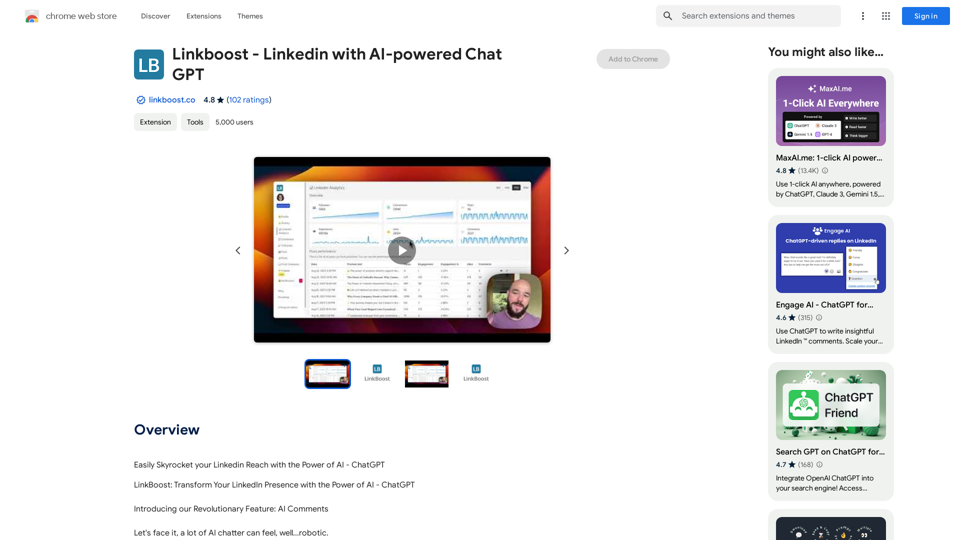
Doubao, Browser AI Assistant
View Detail

Doubao, Browser AI Assistant

Doubao, Browser AI Assistant

Beanbag is your AI assistant, residing in the browser sidebar, answering questions, summarizing translations of web pages, papers, and videos, and even helping you write emails quickly.

193.90 M
Online Story Planner - Plot Factory
View Detail

Online Story Planner - Plot Factory

Online Story Planner - Plot Factory

Online story planner, organizer, and writing app that allows you to create fictional universes, develop rich characters, and write amazing stories.

32.05 K
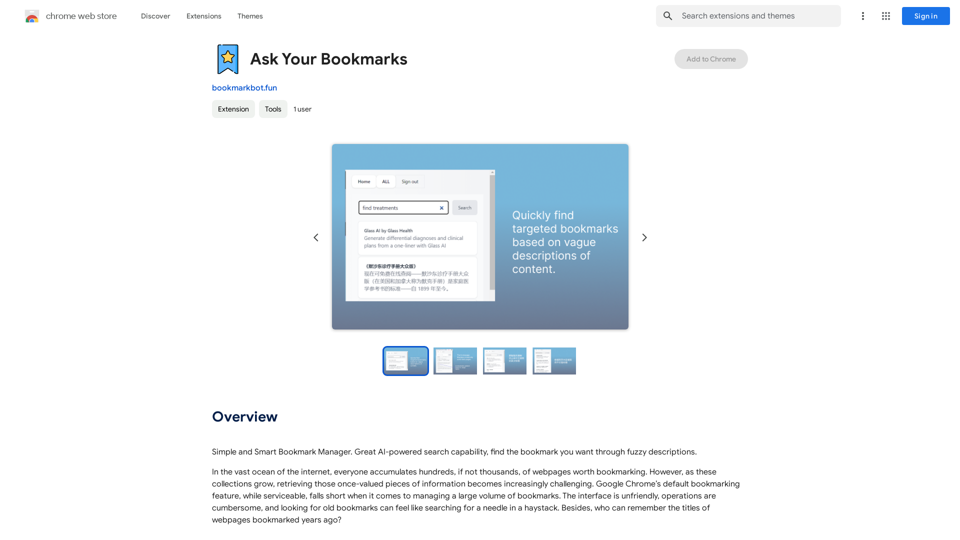
Natural Advanced Search for GitHub
View Detail

Natural Advanced Search for GitHub

Natural Advanced Search for GitHub

Searching GitHub Like a Pro: Using Natural Language

193.90 M
Sketch2Code GPT4-128K GPT4-Vision - Sidebar 

This is a simple sidebar for a Sketch2Code application powered by GPT4-128K and GPT4-Vision. 

It likely contains:

* Upload Sketch: A button or area to upload an image sketch.
* Code Generation Options:  Settings to choose the programming language, desired code complexity, or other generation parameters.
* Output Code: A display area to show the generated code.
* Clear Output: A button to clear the generated code.


Let me know if you'd like me to elaborate on any specific aspect of the sidebar!
View Detail

Sketch2Code GPT4-128K GPT4-Vision - Sidebar This is a simple sidebar for a Sketch2Code application powered by GPT4-128K and GPT4-Vision. It likely contains: * Upload Sketch: A button or area to upload an image sketch. * Code Generation Options: Settings to choose the programming language, desired code complexity, or other generation parameters. * Output Code: A display area to show the generated code. * Clear Output: A button to clear the generated code. Let me know if you'd like me to elaborate on any specific aspect of the sidebar!

Sketch2Code GPT4-128K GPT4-Vision - Sidebar This is a simple sidebar for a Sketch2Code application powered by GPT4-128K and GPT4-Vision. It likely contains: * Upload Sketch: A button or area to upload an image sketch. * Code Generation Options: Settings to choose the programming language, desired code complexity, or other generation parameters. * Output Code: A display area to show the generated code. * Clear Output: A button to clear the generated code. Let me know if you'd like me to elaborate on any specific aspect of the sidebar!

Sketch2Code GPT4-128K GPT4-Vision - FREE

193.90 M
SimilarTube
View Detail

SimilarTube

SimilarTube

AI Scanner & Analytics for Similar YouTube Channels

193.90 M
AI Voice Over for YouTube 

This is a guide to using AI voice over for your YouTube videos. 

Why Use AI Voice Over?

* Cost-Effective: AI voice over is much cheaper than hiring a professional voice actor.
* Time-Saving: You can generate voice over quickly and easily, without needing to schedule recording sessions.
* Variety of Voices: Choose from a wide range of AI voices, including male, female, and even robotic voices.
* Accessibility: Make your videos accessible to viewers who are deaf or hard of hearing by adding captions generated by AI.

How to Use AI Voice Over

1. Choose a Platform: There are many different platforms that offer AI voice over services, such as:
    * Google Cloud Text-to-Speech
    * Amazon Polly
    * Microsoft Azure Text to Speech
    * Murf.ai
    * NaturalReader
2. Write Your Script:  Write a clear and concise script for your video.
3. Upload Your Script:  Upload your script to the chosen platform.
4. Select a Voice: Choose the voice that best suits your video.
5. Adjust Settings:  Adjust settings such as speed, pitch, and volume.
6. Generate Voice Over:  Click the "Generate" button to create your voice over.
7. Download and Edit: Download the generated voice over file and edit it as needed.
8. Add to Your Video:  Add the voice over to your YouTube video.

Tips for Using AI Voice Over

* Use Natural Language:  Write your script as if you were speaking naturally.
* Vary Your Tone:  Use different tones of voice to keep your viewers engaged.
* Add Pauses:  Include pauses in your script to allow viewers to process information.
* Proofread Carefully:  Always proofread your script before generating the voice over.
* Experiment:  Try different voices, settings, and styles to find what works best for you.
View Detail

AI Voice Over for YouTube This is a guide to using AI voice over for your YouTube videos. Why Use AI Voice Over? * Cost-Effective: AI voice over is much cheaper than hiring a professional voice actor. * Time-Saving: You can generate voice over quickly and easily, without needing to schedule recording sessions. * Variety of Voices: Choose from a wide range of AI voices, including male, female, and even robotic voices. * Accessibility: Make your videos accessible to viewers who are deaf or hard of hearing by adding captions generated by AI. How to Use AI Voice Over 1. Choose a Platform: There are many different platforms that offer AI voice over services, such as: * Google Cloud Text-to-Speech * Amazon Polly * Microsoft Azure Text to Speech * Murf.ai * NaturalReader 2. Write Your Script: Write a clear and concise script for your video. 3. Upload Your Script: Upload your script to the chosen platform. 4. Select a Voice: Choose the voice that best suits your video. 5. Adjust Settings: Adjust settings such as speed, pitch, and volume. 6. Generate Voice Over: Click the "Generate" button to create your voice over. 7. Download and Edit: Download the generated voice over file and edit it as needed. 8. Add to Your Video: Add the voice over to your YouTube video. Tips for Using AI Voice Over * Use Natural Language: Write your script as if you were speaking naturally. * Vary Your Tone: Use different tones of voice to keep your viewers engaged. * Add Pauses: Include pauses in your script to allow viewers to process information. * Proofread Carefully: Always proofread your script before generating the voice over. * Experiment: Try different voices, settings, and styles to find what works best for you.

AI Voice Over for YouTube This is a guide to using AI voice over for your YouTube videos. Why Use AI Voice Over? * Cost-Effective: AI voice over is much cheaper than hiring a professional voice actor. * Time-Saving: You can generate voice over quickly and easily, without needing to schedule recording sessions. * Variety of Voices: Choose from a wide range of AI voices, including male, female, and even robotic voices. * Accessibility: Make your videos accessible to viewers who are deaf or hard of hearing by adding captions generated by AI. How to Use AI Voice Over 1. Choose a Platform: There are many different platforms that offer AI voice over services, such as: * Google Cloud Text-to-Speech * Amazon Polly * Microsoft Azure Text to Speech * Murf.ai * NaturalReader 2. Write Your Script: Write a clear and concise script for your video. 3. Upload Your Script: Upload your script to the chosen platform. 4. Select a Voice: Choose the voice that best suits your video. 5. Adjust Settings: Adjust settings such as speed, pitch, and volume. 6. Generate Voice Over: Click the "Generate" button to create your voice over. 7. Download and Edit: Download the generated voice over file and edit it as needed. 8. Add to Your Video: Add the voice over to your YouTube video. Tips for Using AI Voice Over * Use Natural Language: Write your script as if you were speaking naturally. * Vary Your Tone: Use different tones of voice to keep your viewers engaged. * Add Pauses: Include pauses in your script to allow viewers to process information. * Proofread Carefully: Always proofread your script before generating the voice over. * Experiment: Try different voices, settings, and styles to find what works best for you.

Watch foreign language YouTube videos in your own language.

193.90 M
Astra Vision
View Detail

Astra Vision

Astra Vision

Astra Vision is an AI-powered web extension that includes a set of powerful AI tools: Astra Guard and AI Snapper.

193.90 M