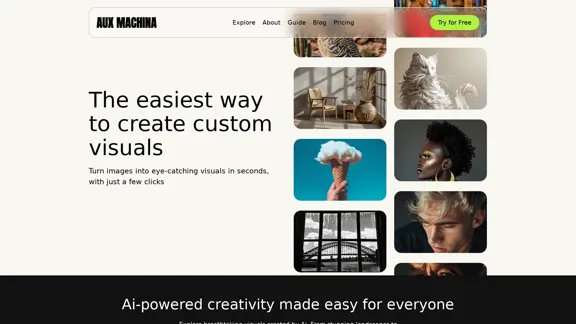
Aux Machina is an AI-powered tool designed to simplify the creation of custom visuals. Users can transform their ideas into stunning images with just a few clicks, making it accessible for everyone. The platform offers a variety of features that cater to both personal and professional needs, ensuring high-quality, unique images without licensing fees or restrictions.
Machina
Introduction
Feature
-
AI-Powered Image Creation
Aux Machina utilizes advanced AI technology to generate high-quality images based on user input, allowing for quick and effortless creation.
-
Customizable Visuals
Users can customize their images by selecting styles, themes, and other parameters, ensuring that the final product aligns with their vision.
-
Royalty-Free Images
All images created through Aux Machina are royalty-free, providing users with the freedom to use them in any project without additional costs.
-
Quick and Easy Process
The platform is designed for efficiency, enabling users to create stunning visuals in just a few clicks, saving time and effort.
-
Image Editing Features
Aux Machina offers various editing tools, including background replacement, image upscaling, and object removal, enhancing the overall user experience.
-
Flexible Pricing Plans
The service provides transparent pricing options, including a free trial and various subscription plans to suit different user needs.
How to Use?
- Visit the Aux Machina website and sign up for an account.
- Start by selecting the "Create" option to begin generating visuals.
- Choose your desired style or theme for the image.
- Input your ideas or descriptions to guide the AI in creating your image.
- Utilize the editing features to refine your image as needed.
- Download and share your created visuals on various platforms.
FAQ
What is Aux Machina?
Aux Machina is an AI-driven platform that allows users to create custom visuals quickly and easily, catering to both personal and commercial needs.
Is there a free trial available?
Yes, Aux Machina offers a free trial that provides full access to basic features, allowing users to explore the platform without any commitment.
Can I use Aux Machina for commercial purposes?
Absolutely, all images generated through Aux Machina are royalty-free and can be used for commercial projects without any restrictions.
What kind of support does Aux Machina offer?
Aux Machina provides customer support to assist users with any inquiries or issues they may encounter while using the platform.
How secure is Aux Machina with my data?
Aux Machina prioritizes user privacy and data security, ensuring that all information is handled with care.
Price
| Plan | Price | Features |
|---|---|---|
| Free Trial | $0/month | 100 images per day, standard generation speed |
| Pro | $5/month | Unlimited images, online storage, fast generation |
| Enterprise | $100/month | Unlimited server access, custom solutions |
The price is for reference only, please refer to the latest official data for actual information.
Evaluation
- Aux Machina excels in providing a user-friendly interface and powerful AI capabilities, making it easy for users to generate high-quality visuals quickly.
- The platform's flexibility in customization allows for a wide range of creative possibilities, appealing to both casual users and professionals.
- However, some users may find limitations in the free trial, as it restricts the number of images generated per day.
- The pricing structure is transparent, but the higher-tier plans may be a consideration for users with extensive needs.
- Overall, Aux Machina is a valuable tool for anyone looking to create stunning visuals efficiently, though users may need to explore the full range of features to maximize its potential.
Related Websites
![Batch Save ChatGPT to Notion
This is a guide on how to save multiple ChatGPT responses to Notion in a batch.
Tools You'll Need:
* ChatGPT: An AI chatbot that can generate text.
* Notion: A note-taking and project management tool.
* Python: A programming language.
* Requests Library: A Python library for making HTTP requests.
Steps:
1. Get Your Notion API Token:
- Go to your Notion workspace settings.
- Navigate to the "Integrations" tab.
- Click "Create new integration" and choose "API Token".
- Copy your API token.
2. Install Python Libraries:
- Open your terminal or command prompt.
- Type `pip install requests` and press Enter.
3. Write Python Script:
- Create a new Python file (e.g., `save_chatgpt_to_notion.py`).
- Paste the following code into the file, replacing `YOUR_NOTION_API_TOKEN` with your actual token:
```python
import requests
def save_chatgpt_response_to_notion(response, page_id, token):
"""Saves a ChatGPT response to a Notion page."""
url = f"https://api.notion.com/v1/pages/{page_id}/children"
headers = {"Authorization": f"Bearer {token}"}
data = {
"parent": {
"page_id": page_id
},
"properties": {
"title": {
"title": [
{
"text": {
"content": "ChatGPT Response"
}
}
]
},
"content": {
"rich_text": [
{
"text": {
"content": response
}
}
]
}
}
}
response = requests.post(url, headers=headers, json=data)
print(response.status_code)
Example usage
page_id = "YOUR_NOTION_PAGE_ID"
token = "YOUR_NOTION_API_TOKEN"
Get ChatGPT responses (replace with your actual ChatGPT interaction)
chatgpt_responses = [
"This is the first ChatGPT response.",
"This is the second ChatGPT response.",
"This is the third ChatGPT response."
]
Save each response to Notion
for response in chatgpt_responses:
save_chatgpt_response_to_notion(response, page_id, token)
```
4. Run the Script:
- In your terminal, navigate to the directory where you saved the Python file.
- Type `python save_chatgpt_to_notion.py` and press Enter.
5. Check Notion:
- Open your Notion workspace and go to the page specified by `page_id`.
- You should see your ChatGPT responses saved as separate blocks.](https://static.right-ai.com/tools/2024/7/4/chromewebstore-google-com-detail-save-chatgpt-to-notion-da-djefhicmpbpmmlagbgooepmbobdhajgn-thumbnail-1720087209.png "Batch Save ChatGPT to Notion
This is a guide on how to save multiple ChatGPT responses to Notion in a batch.
Tools You'll Need:
* ChatGPT: An AI chatbot that can generate text.
* Notion: A note-taking and project management tool.
* Python: A programming language.
* Requests Library: A Python library for making HTTP requests.
Steps:
1. Get Your Notion API Token:
- Go to your Notion workspace settings.
- Navigate to the \"Integrations\" tab.
- Click \"Create new integration\" and choose \"API Token\".
- Copy your API token.
2. Install Python Libraries:
- Open your terminal or command prompt.
- Type `pip install requests` and press Enter.
3. Write Python Script:
- Create a new Python file (e.g., `save_chatgpt_to_notion.py`).
- Paste the following code into the file, replacing `YOUR_NOTION_API_TOKEN` with your actual token:
```python
import requests
def save_chatgpt_response_to_notion(response, page_id, token):
\"\"\"Saves a ChatGPT response to a Notion page.\"\"\"
url = f\"https://api.notion.com/v1/pages/{page_id}/children\"
headers = {\"Authorization\": f\"Bearer {token}\"}
data = {
\"parent\": {
\"page_id\": page_id
},
\"properties\": {
\"title\": {
\"title\": [
{
\"text\": {
\"content\": \"ChatGPT Response\"
}
}
]
},
\"content\": {
\"rich_text\": [
{
\"text\": {
\"content\": response
}
}
]
}
}
}
response = requests.post(url, headers=headers, json=data)
print(response.status_code)
Example usage
page_id = \"YOUR_NOTION_PAGE_ID\"
token = \"YOUR_NOTION_API_TOKEN\"
Get ChatGPT responses (replace with your actual ChatGPT interaction)
chatgpt_responses = [
\"This is the first ChatGPT response.\",
\"This is the second ChatGPT response.\",
\"This is the third ChatGPT response.\"
]
Save each response to Notion
for response in chatgpt_responses:
save_chatgpt_response_to_notion(response, page_id, token)
```
4. Run the Script:
- In your terminal, navigate to the directory where you saved the Python file.
- Type `python save_chatgpt_to_notion.py` and press Enter.
5. Check Notion:
- Open your Notion workspace and go to the page specified by `page_id`.
- You should see your ChatGPT responses saved as separate blocks.")
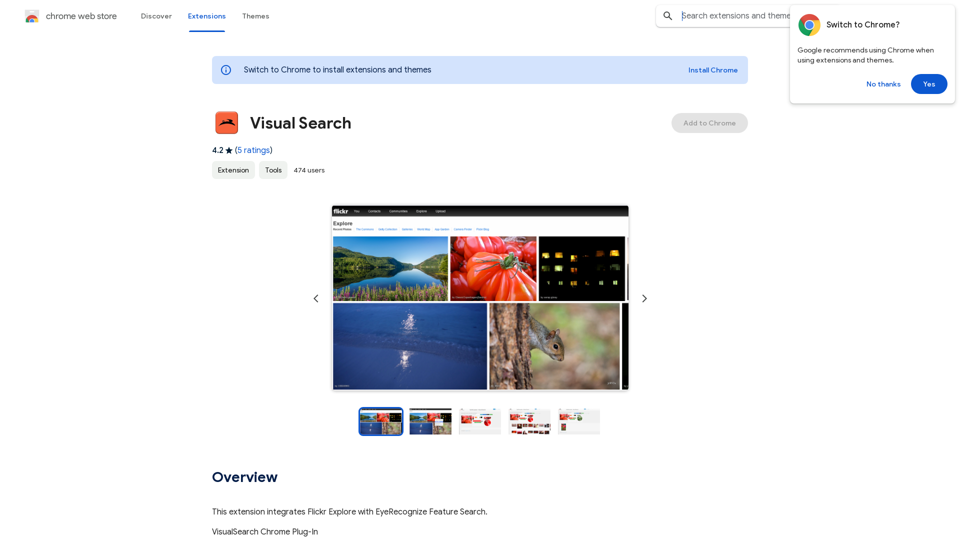
Batch Save ChatGPT to Notion This is a guide on how to save multiple ChatGPT responses to Notion in a batch. Tools You'll Need: * ChatGPT: An AI chatbot that can generate text. * Notion: A note-taking and project management tool. * Python: A programming language. * Requests Library: A Python library for making HTTP requests. Steps: 1. Get Your Notion API Token: - Go to your Notion workspace settings. - Navigate to the "Integrations" tab. - Click "Create new integration" and choose "API Token". - Copy your API token. 2. Install Python Libraries: - Open your terminal or command prompt. - Type `pip install requests` and press Enter. 3. Write Python Script: - Create a new Python file (e.g., `save_chatgpt_to_notion.py`). - Paste the following code into the file, replacing `YOUR_NOTION_API_TOKEN` with your actual token: ```python import requests def save_chatgpt_response_to_notion(response, page_id, token): """Saves a ChatGPT response to a Notion page.""" url = f"https://api.notion.com/v1/pages/{page_id}/children" headers = {"Authorization": f"Bearer {token}"} data = { "parent": { "page_id": page_id }, "properties": { "title": { "title": [ { "text": { "content": "ChatGPT Response" } } ] }, "content": { "rich_text": [ { "text": { "content": response } } ] } } } response = requests.post(url, headers=headers, json=data) print(response.status_code) Example usage page_id = "YOUR_NOTION_PAGE_ID" token = "YOUR_NOTION_API_TOKEN" Get ChatGPT responses (replace with your actual ChatGPT interaction) chatgpt_responses = [ "This is the first ChatGPT response.", "This is the second ChatGPT response.", "This is the third ChatGPT response." ] Save each response to Notion for response in chatgpt_responses: save_chatgpt_response_to_notion(response, page_id, token) ``` 4. Run the Script: - In your terminal, navigate to the directory where you saved the Python file. - Type `python save_chatgpt_to_notion.py` and press Enter. 5. Check Notion: - Open your Notion workspace and go to the page specified by `page_id`. - You should see your ChatGPT responses saved as separate blocks.
Batch Save ChatGPT to Notion This is a guide on how to save multiple ChatGPT responses to Notion in a batch. Tools You'll Need: * ChatGPT: An AI chatbot that can generate text. * Notion: A note-taking and project management tool. * Python: A programming language. * Requests Library: A Python library for making HTTP requests. Steps: 1. Get Your Notion API Token: - Go to your Notion workspace settings. - Navigate to the "Integrations" tab. - Click "Create new integration" and choose "API Token". - Copy your API token. 2. Install Python Libraries: - Open your terminal or command prompt. - Type `pip install requests` and press Enter. 3. Write Python Script: - Create a new Python file (e.g., `save_chatgpt_to_notion.py`). - Paste the following code into the file, replacing `YOUR_NOTION_API_TOKEN` with your actual token: ```python import requests def save_chatgpt_response_to_notion(response, page_id, token): """Saves a ChatGPT response to a Notion page.""" url = f"https://api.notion.com/v1/pages/{page_id}/children" headers = {"Authorization": f"Bearer {token}"} data = { "parent": { "page_id": page_id }, "properties": { "title": { "title": [ { "text": { "content": "ChatGPT Response" } } ] }, "content": { "rich_text": [ { "text": { "content": response } } ] } } } response = requests.post(url, headers=headers, json=data) print(response.status_code) Example usage page_id = "YOUR_NOTION_PAGE_ID" token = "YOUR_NOTION_API_TOKEN" Get ChatGPT responses (replace with your actual ChatGPT interaction) chatgpt_responses = [ "This is the first ChatGPT response.", "This is the second ChatGPT response.", "This is the third ChatGPT response." ] Save each response to Notion for response in chatgpt_responses: save_chatgpt_response_to_notion(response, page_id, token) ``` 4. Run the Script: - In your terminal, navigate to the directory where you saved the Python file. - Type `python save_chatgpt_to_notion.py` and press Enter. 5. Check Notion: - Open your Notion workspace and go to the page specified by `page_id`. - You should see your ChatGPT responses saved as separate blocks.Save ChatGPT Conversations to Notion with One Click Export your ChatGPT conversations directly to Notion with a single click.
193.90 M
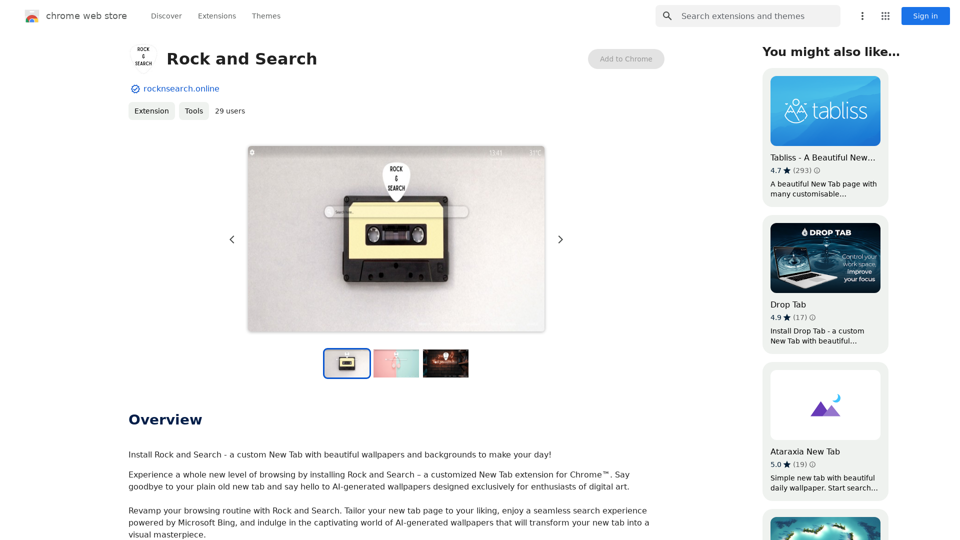
Install Rock and Search - a custom New Tab with beautiful wallpapers and backgrounds to brighten your day!
193.90 M
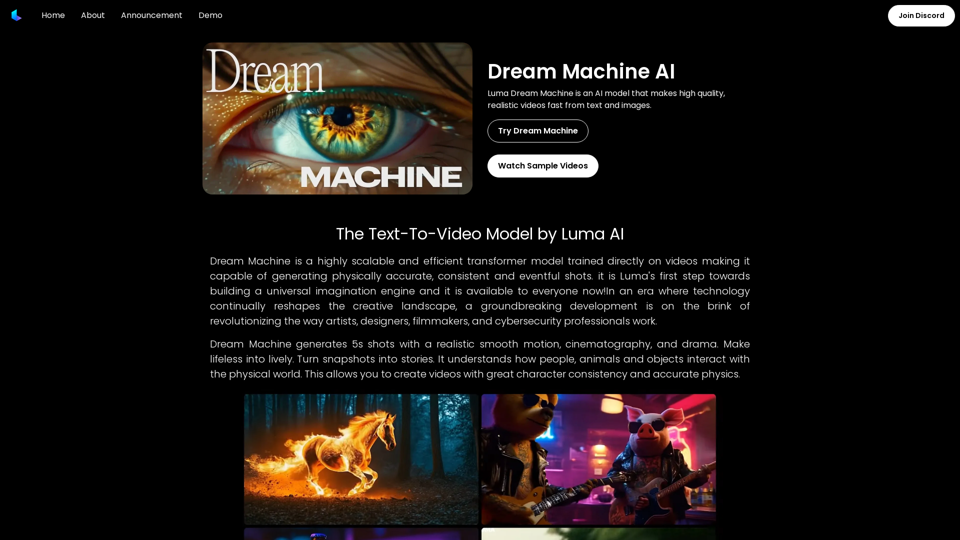
Dream Machine AI: Try Luma AI Video Generator for Free
Dream Machine AI: Try Luma AI Video Generator for FreeTry Dream Machine AI Video Generator for Free Online. Dream Machine is a new text-to-video model by Luma Ai, able to create high-definition videos.
0
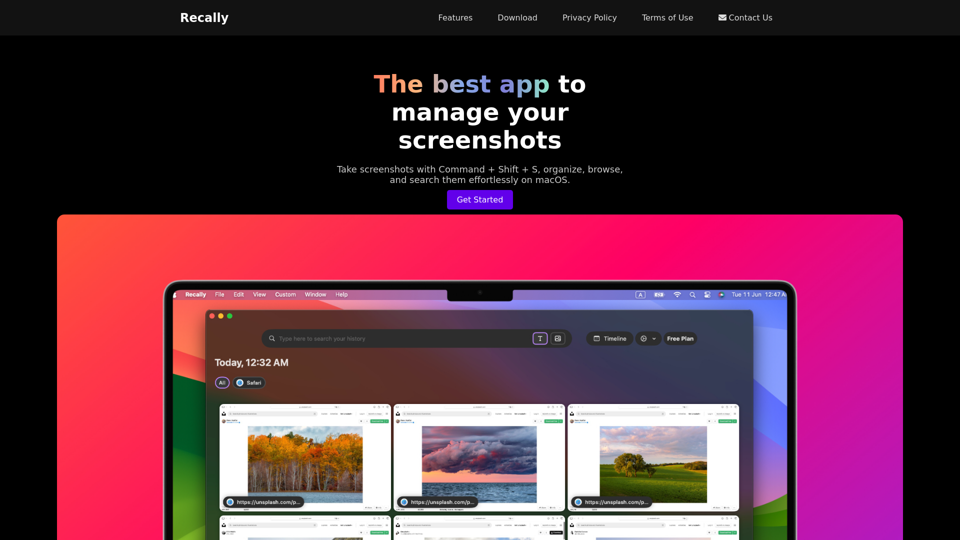
Recally - The Best Screenshot Management App for macOS
Recally - The Best Screenshot Management App for macOSRecally is the best app to manage your screenshots on macOS. Organize, browse, and search your screenshots with ease. Available on macOS.
0