Open-source RightAI Tools Directory
  • Discover AI
  • Submit
  • Startup
  • Blog
Open-source RightAI Tools Directory
Discover the best AI tools of 2025 with the RightAI Tools Directory!

Friend Links

AI Anime GeneratorToolsApp AI

Support

Tap4
Privacy policyTerms & ConditionsContact Us
Loading...
loading...

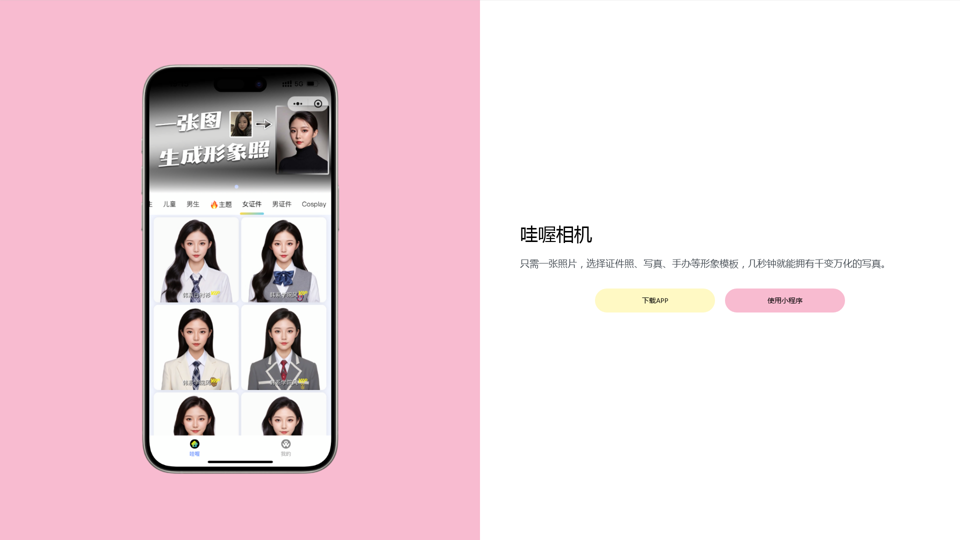
Wow, with just one photo, the camera can generate a portrait!

Wow Camera, Wow Camera, Wao, Portrait Photography, Korean-Style Photography, Chinese-Style Photography, Old Photo Restoration, AI Face Swap, AI Video, Remini, Remini, Clay Filter, Clay Filter, Clay Clay Photo, Standard ID Photo, AI Photography, Photo Editing, Beauty Photo, Wow Photo, Portrait Photo, Butter Camera, Intelligent Photo Editing, Auto Beauty, Deep Learning Photography, Personalized Photo, Artistic Photo, Retro-Style Photo, Modern-Style Photo, Cartoon-Style Photo, Photo Post-Production, AI Photography, Photo Special Effects, Professional-Level Photography, Family Portrait, Personal Photography, Photography Art, Photo Editing, Photo Beautification, Intelligent Filter, Selfie Magic, Photography Enthusiast, Professional Photographer.
Visit Website
Wow, with just one photo, the camera can generate a portrait!
Visit Website

Introduction

Wahou Camera is an AI-powered photography tool that leverages advanced artificial intelligence to automatically recognize facial features, posture, and background. It generates high-quality, personalized photos, offering users a smart and efficient photography experience. The app caters to various photography needs, from standard portraits to certificate photos, with features like automatic beautification and background replacement.

Feature

AI-Driven Photography

Wahou Camera utilizes cutting-edge AI technology to automatically recognize facial features, posture, and background, producing high-quality personalized photos.

Certificate Photography Support

The app supports standard certificate photography, providing smart editing and background adjustment functions to ensure photos meet various certificate requirements.

Smart Editing and Beautification

Wahou Camera offers automatic beautification and smart editing features, enhancing user photos with minimal effort.

Background Replacement

Users can easily change photo backgrounds, adding versatility to their images.

Special Effects and Multiple Styles

The app provides options to add special effects and generate photos in multiple styles, allowing for creative and diverse outputs.

One-Photo Processing

Unlike traditional photography software, Wahou Camera only requires one photo to generate various outputs, offering a more efficient experience.

Accessibility

Users can access Wahou Camera through the official WeChat account, the official website, or major app stores.

FAQ

How does Wahou Camera differ from Xiaohua Camera?

Wahou Camera requires only one photo and uses AI technology to provide a more intelligent and convenient photography experience, operating faster than traditional photography software.

What's the difference between Wahou Camera and Meitu Xiu Xiu?

Wahou Camera focuses on AI technology, automatically generating high-quality photos and artistic images. Meitu Xiu Xiu is a comprehensive beauty and editing software with more functions but requires manual operation.

How do I generate certificate photos with Wahou Camera?

Download the Wahou Camera app or open the mini-program, then locate and use the certificate photo template.

How can I get started with Wahou Camera?

You can start using Wahou Camera by downloading the app or using the mini-program.

How can I contact Wahou Camera support?

For support or inquiries, you can contact Wahou Camera via email at [email protected].

Latest Traffic Insights

  • Monthly Visits

    0

  • Bounce Rate

    0.00%

  • Pages Per Visit

    0.00

  • Time on Site(s)

    0.00

  • Global Rank

    -

  • Country Rank

    -

Recent Visits

Traffic Sources

  • Social Media:
    0.00%
  • Paid Referrals:
    0.00%
  • Email:
    0.00%
  • Referrals:
    0.00%
  • Search Engines:
    0.00%
  • Direct:
    0.00%
More Data

Related Websites

Kolors Virtual Try On AI: Free Tool for Stunning Virtual
View Detail

Kolors Virtual Try On AI: Free Tool for Stunning Virtual

Kolors Virtual Try On AI: Free Tool for Stunning Virtual

Experience Kolors Virtual Try On AI: effortlessly try various makeup looks and hairstyles in real-time, ensuring the perfect style for you

0
AI Tattoo Generator | Tattoo AI Design
View Detail

AI Tattoo Generator | Tattoo AI Design

AI Tattoo Generator | Tattoo AI Design

Tattoo AI Design is a tool that offers a free AI Tattoo Generator and Design service. It provides inspiration through AI-generated Tattoo Designs. The goal of Tattoo AI Design is to spark amazing ideas for users and help them create their own unique tattoo designs.

601
Sanket's OpenAI Search
View Detail

Sanket's OpenAI Search

Sanket's OpenAI Search

Chrome Extension for OpenAI Search This is a Chrome extension that integrates OpenAI's powerful search capabilities directly into your browser. Features: * Seamless Search: Access OpenAI's search results directly from your address bar or by clicking a dedicated button. * Contextual Understanding: The extension leverages OpenAI's advanced language models to understand the context of your search queries, delivering more relevant and insightful results. * Summarization and Insights: Get concise summaries and key takeaways from search results, saving you time and effort. * Customizable Settings: Tailor your search experience with options to adjust parameters like temperature and top_p for fine-tuned results. Benefits: * Enhanced Research: Uncover deeper insights and explore information more effectively. * Improved Productivity: Quickly find the information you need and streamline your workflow. * New Ways to Explore: Discover unexpected connections and gain a broader understanding of topics.

193.90 M
Magnific AI — The amazing image upscaling and enhancement tool
View Detail

Magnific AI — The amazing image upscaling and enhancement tool

Magnific AI — The amazing image upscaling and enhancement tool

The most advanced AI upscaler and enhancer. Magnific can reimagine as many details in your image or photo as you wish, guided by your prompt and parameters!

595.11 K
Torii Image Translator — Use GPT-4 & DeepL to Translate Any Image, Manga...
View Detail

Torii Image Translator — Use GPT-4 & DeepL to Translate Any Image, Manga...

Torii Image Translator — Use GPT-4 & DeepL to Translate Any Image, Manga...

Translate any image on any website into any language! Perfect for Manga, Manhwa, Manhua, Comics, ArtistCG, Memes, or any image at all!

193.90 M
Stickers AI Generator
View Detail

Stickers AI Generator

Stickers AI Generator

Unleash your imagination with AI stickers. Captivating visuals brought to life by cutting-edge generative AI.

0
Batch Save ChatGPT to Notion

This is a guide on how to save multiple ChatGPT responses to Notion in a batch. 

Tools You'll Need:

* ChatGPT: An AI chatbot that can generate text.
* Notion: A note-taking and project management tool.
* Python: A programming language.
* Requests Library: A Python library for making HTTP requests.

Steps:

1. Get Your Notion API Token:
   - Go to your Notion workspace settings.
   - Navigate to the "Integrations" tab.
   - Click "Create new integration" and choose "API Token".
   - Copy your API token.

2. Install Python Libraries:
   - Open your terminal or command prompt.
   - Type `pip install requests` and press Enter.

3. Write Python Script:
   - Create a new Python file (e.g., `save_chatgpt_to_notion.py`).
   - Paste the following code into the file, replacing `YOUR_NOTION_API_TOKEN` with your actual token:

```python
import requests

def save_chatgpt_response_to_notion(response, page_id, token):
  """Saves a ChatGPT response to a Notion page."""
  url = f"https://api.notion.com/v1/pages/{page_id}/children"
  headers = {"Authorization": f"Bearer {token}"}
  data = {
    "parent": {
      "page_id": page_id
    },
    "properties": {
      "title": {
        "title": [
          {
            "text": {
              "content": "ChatGPT Response"
            }
          }
        ]
      },
      "content": {
        "rich_text": [
          {
            "text": {
              "content": response
            }
          }
        ]
      }
    }
  }
  response = requests.post(url, headers=headers, json=data)
  print(response.status_code)

Example usage
page_id = "YOUR_NOTION_PAGE_ID"
token = "YOUR_NOTION_API_TOKEN"

Get ChatGPT responses (replace with your actual ChatGPT interaction)
chatgpt_responses = [
  "This is the first ChatGPT response.",
  "This is the second ChatGPT response.",
  "This is the third ChatGPT response."
]

Save each response to Notion
for response in chatgpt_responses:
  save_chatgpt_response_to_notion(response, page_id, token)
```

4. Run the Script:
   - In your terminal, navigate to the directory where you saved the Python file.
   - Type `python save_chatgpt_to_notion.py` and press Enter.

5. Check Notion:
   - Open your Notion workspace and go to the page specified by `page_id`.
   - You should see your ChatGPT responses saved as separate blocks.
View Detail

Batch Save ChatGPT to Notion This is a guide on how to save multiple ChatGPT responses to Notion in a batch. Tools You'll Need: * ChatGPT: An AI chatbot that can generate text. * Notion: A note-taking and project management tool. * Python: A programming language. * Requests Library: A Python library for making HTTP requests. Steps: 1. Get Your Notion API Token: - Go to your Notion workspace settings. - Navigate to the "Integrations" tab. - Click "Create new integration" and choose "API Token". - Copy your API token. 2. Install Python Libraries: - Open your terminal or command prompt. - Type `pip install requests` and press Enter. 3. Write Python Script: - Create a new Python file (e.g., `save_chatgpt_to_notion.py`). - Paste the following code into the file, replacing `YOUR_NOTION_API_TOKEN` with your actual token: ```python import requests def save_chatgpt_response_to_notion(response, page_id, token): """Saves a ChatGPT response to a Notion page.""" url = f"https://api.notion.com/v1/pages/{page_id}/children" headers = {"Authorization": f"Bearer {token}"} data = { "parent": { "page_id": page_id }, "properties": { "title": { "title": [ { "text": { "content": "ChatGPT Response" } } ] }, "content": { "rich_text": [ { "text": { "content": response } } ] } } } response = requests.post(url, headers=headers, json=data) print(response.status_code) Example usage page_id = "YOUR_NOTION_PAGE_ID" token = "YOUR_NOTION_API_TOKEN" Get ChatGPT responses (replace with your actual ChatGPT interaction) chatgpt_responses = [ "This is the first ChatGPT response.", "This is the second ChatGPT response.", "This is the third ChatGPT response." ] Save each response to Notion for response in chatgpt_responses: save_chatgpt_response_to_notion(response, page_id, token) ``` 4. Run the Script: - In your terminal, navigate to the directory where you saved the Python file. - Type `python save_chatgpt_to_notion.py` and press Enter. 5. Check Notion: - Open your Notion workspace and go to the page specified by `page_id`. - You should see your ChatGPT responses saved as separate blocks.

Batch Save ChatGPT to Notion This is a guide on how to save multiple ChatGPT responses to Notion in a batch. Tools You'll Need: * ChatGPT: An AI chatbot that can generate text. * Notion: A note-taking and project management tool. * Python: A programming language. * Requests Library: A Python library for making HTTP requests. Steps: 1. Get Your Notion API Token: - Go to your Notion workspace settings. - Navigate to the "Integrations" tab. - Click "Create new integration" and choose "API Token". - Copy your API token. 2. Install Python Libraries: - Open your terminal or command prompt. - Type `pip install requests` and press Enter. 3. Write Python Script: - Create a new Python file (e.g., `save_chatgpt_to_notion.py`). - Paste the following code into the file, replacing `YOUR_NOTION_API_TOKEN` with your actual token: ```python import requests def save_chatgpt_response_to_notion(response, page_id, token): """Saves a ChatGPT response to a Notion page.""" url = f"https://api.notion.com/v1/pages/{page_id}/children" headers = {"Authorization": f"Bearer {token}"} data = { "parent": { "page_id": page_id }, "properties": { "title": { "title": [ { "text": { "content": "ChatGPT Response" } } ] }, "content": { "rich_text": [ { "text": { "content": response } } ] } } } response = requests.post(url, headers=headers, json=data) print(response.status_code) Example usage page_id = "YOUR_NOTION_PAGE_ID" token = "YOUR_NOTION_API_TOKEN" Get ChatGPT responses (replace with your actual ChatGPT interaction) chatgpt_responses = [ "This is the first ChatGPT response.", "This is the second ChatGPT response.", "This is the third ChatGPT response." ] Save each response to Notion for response in chatgpt_responses: save_chatgpt_response_to_notion(response, page_id, token) ``` 4. Run the Script: - In your terminal, navigate to the directory where you saved the Python file. - Type `python save_chatgpt_to_notion.py` and press Enter. 5. Check Notion: - Open your Notion workspace and go to the page specified by `page_id`. - You should see your ChatGPT responses saved as separate blocks.

Save ChatGPT Conversations to Notion with One Click Export your ChatGPT conversations directly to Notion with a single click.

193.90 M
PhotoFuse AI - Your personal AI photographer always with you.
View Detail

PhotoFuse AI - Your personal AI photographer always with you.

PhotoFuse AI - Your personal AI photographer always with you.

Your personal AI photographer in your pocket

1.81 K