Open-source RightAI Tools Directory
  • Discover AI
  • Submit
  • Startup
  • Blog
Open-source RightAI Tools Directory
Discover the best AI tools of 2025 with the RightAI Tools Directory!

Friend Links

AI Anime GeneratorToolsApp AI

Support

Tap4
Privacy policyTerms & ConditionsContact Us
Loading...
loading...

PaintShop Pro: Photo Editing Software by Corel

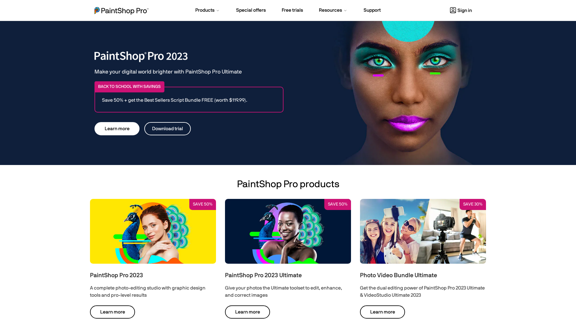
The official website for the PaintShop Pro family of products. Get product information, updates and free trials. Access special offers, tutorials and videos.
Visit Website
PaintShop Pro: Photo Editing Software by Corel
Visit Website

Introduction

PaintShop Pro is a versatile photo editing software developed by Corel. It offers a comprehensive suite of tools suitable for both amateur and professional photographers. The software combines powerful editing capabilities with user-friendly interfaces, making it accessible to users of all skill levels.

Feature

Advanced Photo Editing Tools

  • Complete photo-editing studio with professional-level results
  • Graphic design tools for enhanced creativity
  • AI-powered enhancements including AI HDR Studio 3.0 and Vision FX

Versatile File Support

  • Opens and edits various file formats including JPEG, JPG, PNG, EPS, AI, BMP, and IMG
  • Ensures compatibility with different image types

Product Lineup

  • PaintShop Pro 2023: Basic version for beginners and intermediate users
  • PaintShop Pro 2023 Ultimate: Advanced version with additional tools for professionals
  • Photo Video Bundle Ultimate: Combines PaintShop Pro with VideoStudio Ultimate for content creators

Additional Products

  • PhotoMirage: Creates engaging animations from static images
  • ParticleShop: Photoshop brush plugin for extraordinary image transformations

Business and Education Solutions

  • Flexible, cost-effective licensing options
  • Tailored for business and educational institutions

Learning Resources

  • Comprehensive learning center with video tutorials
  • Expert tips from professional photographers
  • Regular blog updates with industry insights

FAQ

What is PaintShop Pro?

PaintShop Pro is a comprehensive photo editing software developed by Corel. It offers a complete suite of tools for both amateur and professional photographers, combining powerful editing capabilities with user-friendly interfaces.

What are the key features of PaintShop Pro?

Key features include:

  • Advanced photo editing tools
  • AI-powered enhancements (AI HDR Studio 3.0, Vision FX)
  • Versatile file support (JPEG, JPG, PNG, EPS, AI, BMP, IMG)
  • Multiple product versions catering to different user needs

Are there learning resources available for PaintShop Pro?

Yes, PaintShop Pro offers:

  • A comprehensive learning center
  • Video tutorials
  • Expert tips from professional photographers
  • Regular blog updates with industry insights

What support options are available for PaintShop Pro users?

PaintShop Pro provides:

  • A dedicated help center
  • Option to submit product feedback
  • Software updates and uninstall instructions

In which languages is PaintShop Pro available?

PaintShop Pro supports multiple languages including English, German, Spanish, French, Italian, Dutch, and Japanese.

Latest Traffic Insights

  • Monthly Visits

    155.73 K

  • Bounce Rate

    41.32%

  • Pages Per Visit

    2.17

  • Time on Site(s)

    88.73

  • Global Rank

    255833

  • Country Rank

    United States 202517

Recent Visits

Traffic Sources

  • Social Media:
    1.97%
  • Paid Referrals:
    1.15%
  • Email:
    0.10%
  • Referrals:
    7.76%
  • Search Engines:
    47.88%
  • Direct:
    41.14%
More Data

Related Websites

YT Hacks
View Detail

YT Hacks

YT Hacks

Artificial Intelligence for Generating YouTube Content Ideas from Subtitles.

193.90 M
LogoAI.ai: Free Online AI Logo Creator
View Detail

LogoAI.ai: Free Online AI Logo Creator

LogoAI.ai: Free Online AI Logo Creator

Create unique and professional logos effortlessly with LogoAI.ai's AI logo maker. Enjoy free online access, advanced customization, watermark-free logos, and secure design.

129.09 K
Batch Save ChatGPT to Notion

This is a guide on how to save multiple ChatGPT responses to Notion in a batch. 

Tools You'll Need:

* ChatGPT: An AI chatbot that can generate text.
* Notion: A note-taking and project management tool.
* Python: A programming language.
* Requests Library: A Python library for making HTTP requests.

Steps:

1. Get Your Notion API Token:
   - Go to your Notion workspace settings.
   - Navigate to the "Integrations" tab.
   - Click "Create new integration" and choose "API Token".
   - Copy your API token.

2. Install Python Libraries:
   - Open your terminal or command prompt.
   - Type `pip install requests` and press Enter.

3. Write Python Script:
   - Create a new Python file (e.g., `save_chatgpt_to_notion.py`).
   - Paste the following code into the file, replacing `YOUR_NOTION_API_TOKEN` with your actual token:

```python
import requests

def save_chatgpt_response_to_notion(response, page_id, token):
  """Saves a ChatGPT response to a Notion page."""
  url = f"https://api.notion.com/v1/pages/{page_id}/children"
  headers = {"Authorization": f"Bearer {token}"}
  data = {
    "parent": {
      "page_id": page_id
    },
    "properties": {
      "title": {
        "title": [
          {
            "text": {
              "content": "ChatGPT Response"
            }
          }
        ]
      },
      "content": {
        "rich_text": [
          {
            "text": {
              "content": response
            }
          }
        ]
      }
    }
  }
  response = requests.post(url, headers=headers, json=data)
  print(response.status_code)

Example usage
page_id = "YOUR_NOTION_PAGE_ID"
token = "YOUR_NOTION_API_TOKEN"

Get ChatGPT responses (replace with your actual ChatGPT interaction)
chatgpt_responses = [
  "This is the first ChatGPT response.",
  "This is the second ChatGPT response.",
  "This is the third ChatGPT response."
]

Save each response to Notion
for response in chatgpt_responses:
  save_chatgpt_response_to_notion(response, page_id, token)
```

4. Run the Script:
   - In your terminal, navigate to the directory where you saved the Python file.
   - Type `python save_chatgpt_to_notion.py` and press Enter.

5. Check Notion:
   - Open your Notion workspace and go to the page specified by `page_id`.
   - You should see your ChatGPT responses saved as separate blocks.
View Detail

Batch Save ChatGPT to Notion This is a guide on how to save multiple ChatGPT responses to Notion in a batch. Tools You'll Need: * ChatGPT: An AI chatbot that can generate text. * Notion: A note-taking and project management tool. * Python: A programming language. * Requests Library: A Python library for making HTTP requests. Steps: 1. Get Your Notion API Token: - Go to your Notion workspace settings. - Navigate to the "Integrations" tab. - Click "Create new integration" and choose "API Token". - Copy your API token. 2. Install Python Libraries: - Open your terminal or command prompt. - Type `pip install requests` and press Enter. 3. Write Python Script: - Create a new Python file (e.g., `save_chatgpt_to_notion.py`). - Paste the following code into the file, replacing `YOUR_NOTION_API_TOKEN` with your actual token: ```python import requests def save_chatgpt_response_to_notion(response, page_id, token): """Saves a ChatGPT response to a Notion page.""" url = f"https://api.notion.com/v1/pages/{page_id}/children" headers = {"Authorization": f"Bearer {token}"} data = { "parent": { "page_id": page_id }, "properties": { "title": { "title": [ { "text": { "content": "ChatGPT Response" } } ] }, "content": { "rich_text": [ { "text": { "content": response } } ] } } } response = requests.post(url, headers=headers, json=data) print(response.status_code) Example usage page_id = "YOUR_NOTION_PAGE_ID" token = "YOUR_NOTION_API_TOKEN" Get ChatGPT responses (replace with your actual ChatGPT interaction) chatgpt_responses = [ "This is the first ChatGPT response.", "This is the second ChatGPT response.", "This is the third ChatGPT response." ] Save each response to Notion for response in chatgpt_responses: save_chatgpt_response_to_notion(response, page_id, token) ``` 4. Run the Script: - In your terminal, navigate to the directory where you saved the Python file. - Type `python save_chatgpt_to_notion.py` and press Enter. 5. Check Notion: - Open your Notion workspace and go to the page specified by `page_id`. - You should see your ChatGPT responses saved as separate blocks.

Batch Save ChatGPT to Notion This is a guide on how to save multiple ChatGPT responses to Notion in a batch. Tools You'll Need: * ChatGPT: An AI chatbot that can generate text. * Notion: A note-taking and project management tool. * Python: A programming language. * Requests Library: A Python library for making HTTP requests. Steps: 1. Get Your Notion API Token: - Go to your Notion workspace settings. - Navigate to the "Integrations" tab. - Click "Create new integration" and choose "API Token". - Copy your API token. 2. Install Python Libraries: - Open your terminal or command prompt. - Type `pip install requests` and press Enter. 3. Write Python Script: - Create a new Python file (e.g., `save_chatgpt_to_notion.py`). - Paste the following code into the file, replacing `YOUR_NOTION_API_TOKEN` with your actual token: ```python import requests def save_chatgpt_response_to_notion(response, page_id, token): """Saves a ChatGPT response to a Notion page.""" url = f"https://api.notion.com/v1/pages/{page_id}/children" headers = {"Authorization": f"Bearer {token}"} data = { "parent": { "page_id": page_id }, "properties": { "title": { "title": [ { "text": { "content": "ChatGPT Response" } } ] }, "content": { "rich_text": [ { "text": { "content": response } } ] } } } response = requests.post(url, headers=headers, json=data) print(response.status_code) Example usage page_id = "YOUR_NOTION_PAGE_ID" token = "YOUR_NOTION_API_TOKEN" Get ChatGPT responses (replace with your actual ChatGPT interaction) chatgpt_responses = [ "This is the first ChatGPT response.", "This is the second ChatGPT response.", "This is the third ChatGPT response." ] Save each response to Notion for response in chatgpt_responses: save_chatgpt_response_to_notion(response, page_id, token) ``` 4. Run the Script: - In your terminal, navigate to the directory where you saved the Python file. - Type `python save_chatgpt_to_notion.py` and press Enter. 5. Check Notion: - Open your Notion workspace and go to the page specified by `page_id`. - You should see your ChatGPT responses saved as separate blocks.

Save ChatGPT Conversations to Notion with One Click Export your ChatGPT conversations directly to Notion with a single click.

193.90 M
Scrape G2 Reviews and Download to Excel - Extract G2 Reviews Data Easily
View Detail

Scrape G2 Reviews and Download to Excel - Extract G2 Reviews Data Easily

Scrape G2 Reviews and Download to Excel - Extract G2 Reviews Data Easily

Instantly download G2 product reviews

193.90 M
Drawbert - A Portrait Artist AI
View Detail

Drawbert - A Portrait Artist AI

Drawbert - A Portrait Artist AI

Drawbert creates beautiful paintings for you within seconds and at low cost. You can choose from watercolor, sketch, oil painting, comic, cartoon, caricature and more styles, plus the option to customize the painting to your liking.

0
Voice Master: Voice Recognition and Speech-to-Text Converter
View Detail

Voice Master: Voice Recognition and Speech-to-Text Converter

Voice Master: Voice Recognition and Speech-to-Text Converter

Allows you to speak and have your words recognized as text, which is then added to the text parts of the webpage.

193.90 M
Free QR Code AI Art Generator (2024) • Scanner, Link in Bio, Smart Link, Analytics, Workspace, Monkey, Tiger
View Detail

Free QR Code AI Art Generator (2024) • Scanner, Link in Bio, Smart Link, Analytics, Workspace, Monkey, Tiger

Free QR Code AI Art Generator (2024) • Scanner, Link in Bio, Smart Link, Analytics, Workspace, Monkey, Tiger

Create an artistic QR Code for free, featuring images, logos, colors, and shapes. Select from templates that link to your website, email, WiFi, URL, phone, UPI, PIX, or Rick Roll. Use tools like Canva, Adobe, or Google to design. Compatible with Android and iOS devices. A top alternative to QR Monkey, Tiger, Chimp, and Unitag.

194.49 K
AI Anime Generator
View Detail

AI Anime Generator

AI Anime Generator

AI Anime Generator is a free AI tool for creating anime characters and scenes. Simply input a description and allow the AI to produce your anime image.

0