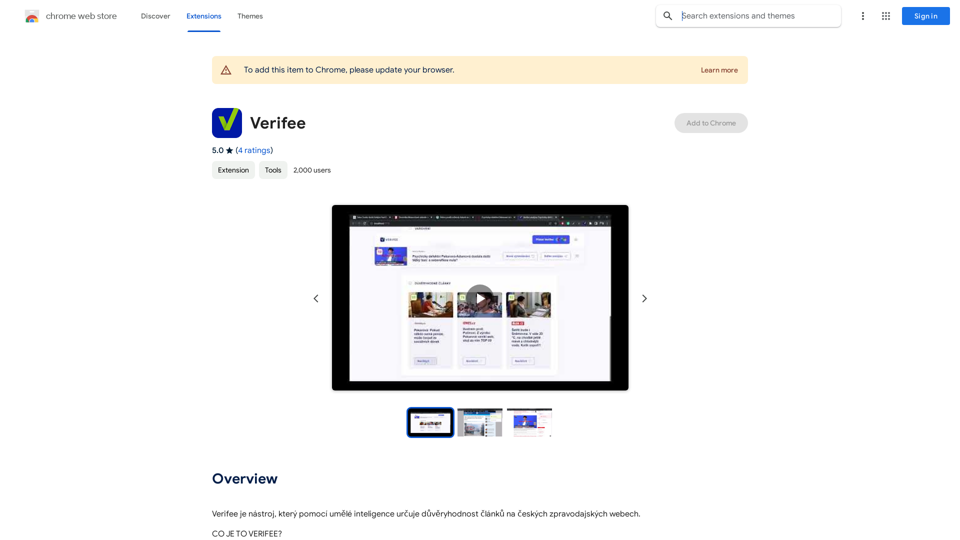
Verifee is an AI-powered tool designed to assess the credibility of articles on Czech news websites. It helps readers navigate the vast sea of online information by providing warnings for articles written in styles typical of unreliable media sources. Verifee aims to promote critical thinking and informed decision-making among its users.
Verify
Verify is a tool that uses artificial intelligence to determine the trustworthiness of articles on Czech news websites.
Introduction
Feature
Browser Extension and Web Application
Verifee offers two convenient ways to use its services:
- Browser extension: Always available, automatically displays warning icons next to news articles
- Web application: Allows analysis of any article without installation
Credibility Scoring System
- Assigns a credibility score to each analyzed article
- Provides immediate indication of content reliability
- Helps users quickly identify potentially unreliable information
Detailed Analysis Results
- Offers in-depth analysis of articles
- Enables users to critically evaluate content
- Supports informed decision-making
Non-Intrusive Design
- Operates quietly in the background
- Only displays notifications for low credibility scores
- Ensures a smooth browsing experience
AI-Powered Analysis
- Utilizes artificial intelligence to examine article language and style
- Compares content against a database of known unreliable media
- Generates credibility scores based on comprehensive analysis
Privacy-Focused
- Does not collect or use user data for training purposes
- Designed with transparency and user privacy in mind
Flexible Usage Options
- Basic features available for free
- Subscription option for advanced features and additional data
FAQ
How does Verifee work?
Verifee employs artificial intelligence to analyze the language and style of articles, comparing them to a database of known unreliable media. It then assigns a credibility score based on this analysis, which is displayed next to the article. For low credibility scores, Verifee shows a warning icon and provides a detailed analysis of the article.
How can I maximize my use of Verifee?
To get the most out of Verifee:
- Install it as a browser extension for constant availability
- Regularly analyze articles to stay informed about source credibility
- Use the detailed analysis results to critically evaluate articles and make informed decisions
Is my information used for training data?
No, Verifee does not collect or use your data for training purposes. The tool is designed to be transparent and respects user privacy.
When would I need a subscription to Verifee?
A subscription may be necessary if you:
- Rely heavily on Verifee
- Need access to more advanced features
- Require additional data
However, basic features are available for free, allowing you to start using the tool without a subscription.
Related Websites
Shinkai enhances AI capabilities to better manage your daily tasks and keeps the AI current with worldwide information.
193.90 M
Free ChatGPT Sidebar Assistant is an AI chatbot developed based on OpenAI's ChatGPT 3.5 and 4 models.
193.90 M
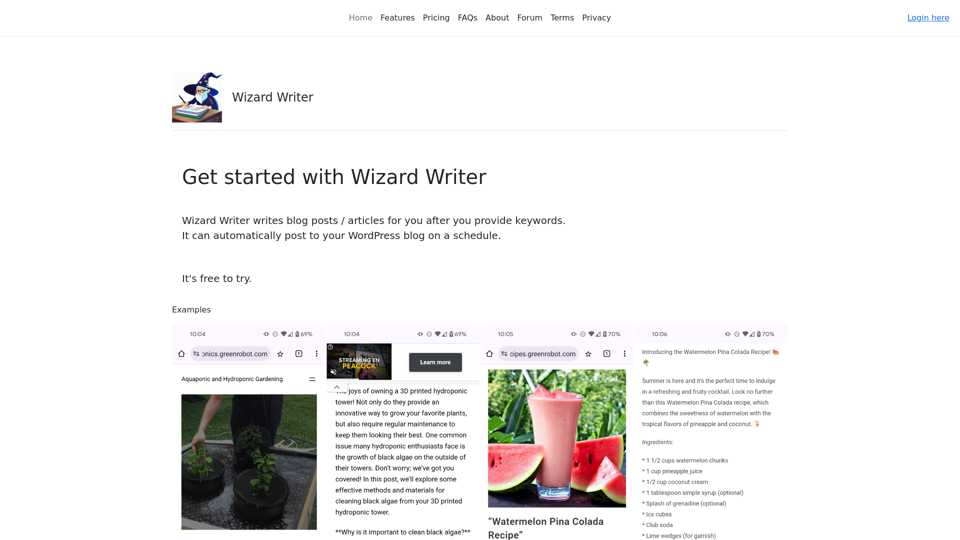
Wizard Writer is an AI-powered platform that gives you access to many different AI tools for a variety of uses, such as writing text and creating content.
0
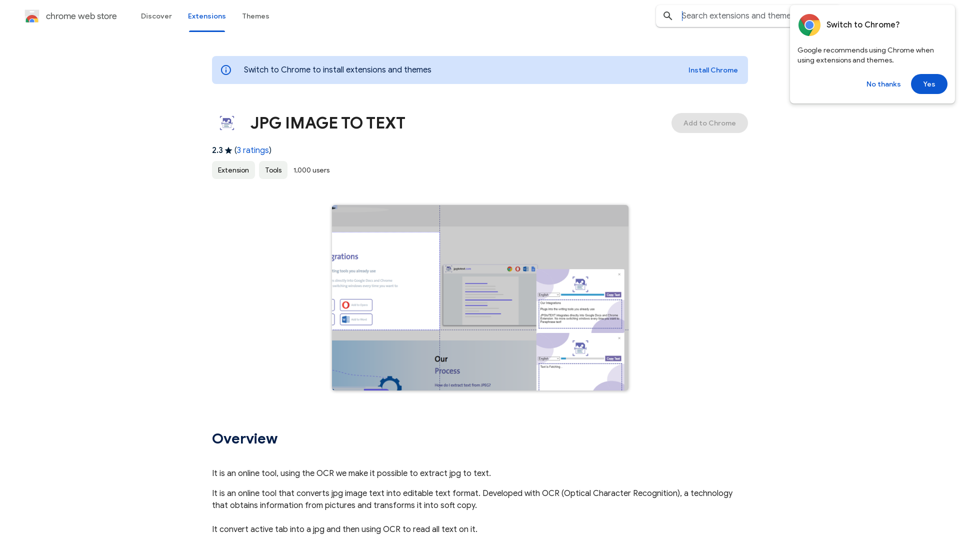
Converting JPG Images to Text Converting a JPG image to text is a process known as Optical Character Recognition (OCR). This technology enables you to extract text from images, scanned documents, and photos. Here's how to do it: Method 1: Online OCR Tools You can use online OCR tools to convert JPG images to text. Here are the steps: 1. Upload your JPG image: Go to an online OCR tool website, such as Online OCR Tools or OCR.space, and upload your JPG image. 2. Select the language: Choose the language of the text in your image. 3. Click on "Convert": The tool will convert the image to text. 4. Download the text: You can download the extracted text as a Word document, PDF, or plain text file. Method 2: Google Drive You can also use Google Drive to convert JPG images to text. Here's how: 1. Upload your JPG image: Upload your JPG image to Google Drive. 2. Right-click on the image: Right-click on the uploaded image and select "Open with" > "Google Docs". 3. The image will be converted: Google Docs will automatically convert the image to text. 4. Edit and download: You can edit the extracted text and download it as a Word document or PDF. Method 3: Adobe Acrobat If you have Adobe Acrobat installed on your computer, you can use it to convert JPG images to text. Here's how: 1. Open Adobe Acrobat: Open Adobe Acrobat on your computer. 2. Create a new document: Create a new document and click on "Tools" > "Recognize Text". 3. Select the image: Select the JPG image you want to convert. 4. Click on "Recognize": Adobe Acrobat will convert the image to text. 5. Edit and save: You can edit the extracted text and save it as a Word document or PDF. These are the three methods to convert JPG images to text. Choose the method that works best for you!
Converting JPG Images to Text Converting a JPG image to text is a process known as Optical Character Recognition (OCR). This technology enables you to extract text from images, scanned documents, and photos. Here's how to do it: Method 1: Online OCR Tools You can use online OCR tools to convert JPG images to text. Here are the steps: 1. Upload your JPG image: Go to an online OCR tool website, such as Online OCR Tools or OCR.space, and upload your JPG image. 2. Select the language: Choose the language of the text in your image. 3. Click on "Convert": The tool will convert the image to text. 4. Download the text: You can download the extracted text as a Word document, PDF, or plain text file. Method 2: Google Drive You can also use Google Drive to convert JPG images to text. Here's how: 1. Upload your JPG image: Upload your JPG image to Google Drive. 2. Right-click on the image: Right-click on the uploaded image and select "Open with" > "Google Docs". 3. The image will be converted: Google Docs will automatically convert the image to text. 4. Edit and download: You can edit the extracted text and download it as a Word document or PDF. Method 3: Adobe Acrobat If you have Adobe Acrobat installed on your computer, you can use it to convert JPG images to text. Here's how: 1. Open Adobe Acrobat: Open Adobe Acrobat on your computer. 2. Create a new document: Create a new document and click on "Tools" > "Recognize Text". 3. Select the image: Select the JPG image you want to convert. 4. Click on "Recognize": Adobe Acrobat will convert the image to text. 5. Edit and save: You can edit the extracted text and save it as a Word document or PDF. These are the three methods to convert JPG images to text. Choose the method that works best for you!It is an online tool that uses Optical Character Recognition (OCR) to make it possible to extract text from images in JPG format.
193.90 M