Open-source RightAI Tools Directory
  • Discover AI
  • Submit
  • Startup
  • Blog
Open-source RightAI Tools Directory
Discover the best AI tools of 2025 with the RightAI Tools Directory!

Friend Links

AI Anime GeneratorToolsApp AI

Support

Tap4
Privacy policyTerms & ConditionsContact Us
Loading...
loading...

Simpedit One Click to Change Your Image with a Stylish Trend

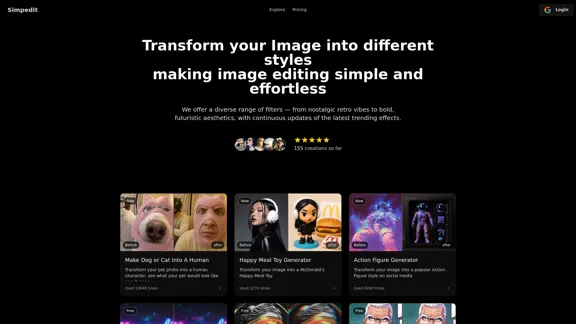
We've curated a rich library of effects. Transform your image into something beautiful and unique with just one click on Simpedit.
Visit Website
Simpedit One Click to Change Your Image with a Stylish Trend
Visit Website

Introduction

Simpedit is an innovative image transformation tool that allows users to effortlessly convert their photos into various artistic styles. With a wide range of filters, from nostalgic retro to bold futuristic aesthetics, Simpedit simplifies the image editing process, making it accessible for both casual users and creative professionals. The platform continuously updates its effects to keep up with the latest trends, ensuring that users can create visually appealing images with ease.

Feature

  1. One-Click Image Transformation

    Users can upload an image and receive professional-grade editing effects instantly, eliminating complex multi-step processes.

  2. Diverse Range of Filters

    Simpedit offers a variety of filters, including retro, futuristic, glitch art, and more, catering to different creative needs.

  3. Cost-Effective AI Capabilities

    The platform provides high-quality image processing services at significantly reduced prices, making it budget-friendly.

  4. Continuous Trend Monitoring

    Simpedit tracks global visual trends and updates its effect library regularly, ensuring users have access to the latest styles.

  5. User-Friendly Interface

    The platform is designed for ease of use, requiring no professional editing knowledge, allowing anyone to create stunning visuals quickly.

  6. Commercial Use Rights

    Images processed through Simpedit can be used for both personal and commercial projects, provided users own the rights to the original images.

How to Use?

  1. Visit the Simpedit website and log in or create an account.
  2. Upload the image you want to edit.
  3. Browse through the effect library and select a style you like.
  4. Apply the chosen effect with one click.
  5. Download your transformed image and share it on social media.

FAQ

What is Simpedit?

Simpedit is a professional image style transformation tool that converts ordinary photos into various artistic styles with just one click.

How is Simpedit different from other image editing tools?

Simpedit offers a one-click operation, continuously updates its effects based on current trends, and provides cost-effective AI processing services.

Who is Simpedit designed for?

Simpedit caters to creative professionals, content creators, storytellers, trendsetters, and general users looking to enhance their images.

Can I use Simpedit-processed images in commercial projects?

Yes, images generated by Simpedit can be used for both personal and commercial purposes, as long as users own the rights to the original images.

Price

PlanPriceCreditsFeatures
Standard$2.922020 images, standard resolution (up to 1080p), access to popular filters
Premium$9.955050 images, ultra-high resolution (up to 4K), watermark-free downloads, priority processing
The price is for reference only, please refer to the latest official data for actual information.

Evaluation

Simpedit excels in providing a user-friendly platform for image transformation, making it suitable for a wide range of users. The one-click operation and diverse filter options are significant advantages, allowing for quick and creative edits. However, the platform could improve by offering more advanced editing features for professional users who may seek greater customization. Additionally, while the pricing is competitive, introducing a subscription model could provide users with more flexibility for frequent use. Overall, Simpedit is a valuable tool for casual users and professionals alike, but it may need to expand its capabilities to fully satisfy advanced editing needs.

Latest Traffic Insights

  • Monthly Visits

    21.33 K

  • Bounce Rate

    43.30%

  • Pages Per Visit

    1.94

  • Time on Site(s)

    41.36

  • Global Rank

    1216695

  • Country Rank

    United States 1674346

Recent Visits

Traffic Sources

  • Social Media:
    5.29%
  • Paid Referrals:
    1.03%
  • Email:
    0.23%
  • Referrals:
    12.04%
  • Search Engines:
    59.28%
  • Direct:
    21.98%
More Data

Related Websites

Mp3Converter AI
View Detail

Mp3Converter AI

Mp3Converter AI

Experience high-quality, efficient audio conversions with our AI-powered MP3 Converter. Convert any format to MP3 with unmatched speed and precision. Transform your audio effortlessly!

0
Stock Photos, Vectors and Royalty Free Images from 123RF
View Detail

Stock Photos, Vectors and Royalty Free Images from 123RF

Stock Photos, Vectors and Royalty Free Images from 123RF

Search and download from millions of HD stock photos, royalty-free images, clipart, vectors, and illustrations

9.66 M
Batch Save ChatGPT to Notion

This is a guide on how to save multiple ChatGPT responses to Notion in a batch. 

Tools You'll Need:

* ChatGPT: An AI chatbot that can generate text.
* Notion: A note-taking and project management tool.
* Python: A programming language.
* Requests Library: A Python library for making HTTP requests.

Steps:

1. Get Your Notion API Token:
   - Go to your Notion workspace settings.
   - Navigate to the "Integrations" tab.
   - Click "Create new integration" and choose "API Token".
   - Copy your API token.

2. Install Python Libraries:
   - Open your terminal or command prompt.
   - Type `pip install requests` and press Enter.

3. Write Python Script:
   - Create a new Python file (e.g., `save_chatgpt_to_notion.py`).
   - Paste the following code into the file, replacing `YOUR_NOTION_API_TOKEN` with your actual token:

```python
import requests

def save_chatgpt_response_to_notion(response, page_id, token):
  """Saves a ChatGPT response to a Notion page."""
  url = f"https://api.notion.com/v1/pages/{page_id}/children"
  headers = {"Authorization": f"Bearer {token}"}
  data = {
    "parent": {
      "page_id": page_id
    },
    "properties": {
      "title": {
        "title": [
          {
            "text": {
              "content": "ChatGPT Response"
            }
          }
        ]
      },
      "content": {
        "rich_text": [
          {
            "text": {
              "content": response
            }
          }
        ]
      }
    }
  }
  response = requests.post(url, headers=headers, json=data)
  print(response.status_code)

Example usage
page_id = "YOUR_NOTION_PAGE_ID"
token = "YOUR_NOTION_API_TOKEN"

Get ChatGPT responses (replace with your actual ChatGPT interaction)
chatgpt_responses = [
  "This is the first ChatGPT response.",
  "This is the second ChatGPT response.",
  "This is the third ChatGPT response."
]

Save each response to Notion
for response in chatgpt_responses:
  save_chatgpt_response_to_notion(response, page_id, token)
```

4. Run the Script:
   - In your terminal, navigate to the directory where you saved the Python file.
   - Type `python save_chatgpt_to_notion.py` and press Enter.

5. Check Notion:
   - Open your Notion workspace and go to the page specified by `page_id`.
   - You should see your ChatGPT responses saved as separate blocks.
View Detail

Batch Save ChatGPT to Notion This is a guide on how to save multiple ChatGPT responses to Notion in a batch. Tools You'll Need: * ChatGPT: An AI chatbot that can generate text. * Notion: A note-taking and project management tool. * Python: A programming language. * Requests Library: A Python library for making HTTP requests. Steps: 1. Get Your Notion API Token: - Go to your Notion workspace settings. - Navigate to the "Integrations" tab. - Click "Create new integration" and choose "API Token". - Copy your API token. 2. Install Python Libraries: - Open your terminal or command prompt. - Type `pip install requests` and press Enter. 3. Write Python Script: - Create a new Python file (e.g., `save_chatgpt_to_notion.py`). - Paste the following code into the file, replacing `YOUR_NOTION_API_TOKEN` with your actual token: ```python import requests def save_chatgpt_response_to_notion(response, page_id, token): """Saves a ChatGPT response to a Notion page.""" url = f"https://api.notion.com/v1/pages/{page_id}/children" headers = {"Authorization": f"Bearer {token}"} data = { "parent": { "page_id": page_id }, "properties": { "title": { "title": [ { "text": { "content": "ChatGPT Response" } } ] }, "content": { "rich_text": [ { "text": { "content": response } } ] } } } response = requests.post(url, headers=headers, json=data) print(response.status_code) Example usage page_id = "YOUR_NOTION_PAGE_ID" token = "YOUR_NOTION_API_TOKEN" Get ChatGPT responses (replace with your actual ChatGPT interaction) chatgpt_responses = [ "This is the first ChatGPT response.", "This is the second ChatGPT response.", "This is the third ChatGPT response." ] Save each response to Notion for response in chatgpt_responses: save_chatgpt_response_to_notion(response, page_id, token) ``` 4. Run the Script: - In your terminal, navigate to the directory where you saved the Python file. - Type `python save_chatgpt_to_notion.py` and press Enter. 5. Check Notion: - Open your Notion workspace and go to the page specified by `page_id`. - You should see your ChatGPT responses saved as separate blocks.

Batch Save ChatGPT to Notion This is a guide on how to save multiple ChatGPT responses to Notion in a batch. Tools You'll Need: * ChatGPT: An AI chatbot that can generate text. * Notion: A note-taking and project management tool. * Python: A programming language. * Requests Library: A Python library for making HTTP requests. Steps: 1. Get Your Notion API Token: - Go to your Notion workspace settings. - Navigate to the "Integrations" tab. - Click "Create new integration" and choose "API Token". - Copy your API token. 2. Install Python Libraries: - Open your terminal or command prompt. - Type `pip install requests` and press Enter. 3. Write Python Script: - Create a new Python file (e.g., `save_chatgpt_to_notion.py`). - Paste the following code into the file, replacing `YOUR_NOTION_API_TOKEN` with your actual token: ```python import requests def save_chatgpt_response_to_notion(response, page_id, token): """Saves a ChatGPT response to a Notion page.""" url = f"https://api.notion.com/v1/pages/{page_id}/children" headers = {"Authorization": f"Bearer {token}"} data = { "parent": { "page_id": page_id }, "properties": { "title": { "title": [ { "text": { "content": "ChatGPT Response" } } ] }, "content": { "rich_text": [ { "text": { "content": response } } ] } } } response = requests.post(url, headers=headers, json=data) print(response.status_code) Example usage page_id = "YOUR_NOTION_PAGE_ID" token = "YOUR_NOTION_API_TOKEN" Get ChatGPT responses (replace with your actual ChatGPT interaction) chatgpt_responses = [ "This is the first ChatGPT response.", "This is the second ChatGPT response.", "This is the third ChatGPT response." ] Save each response to Notion for response in chatgpt_responses: save_chatgpt_response_to_notion(response, page_id, token) ``` 4. Run the Script: - In your terminal, navigate to the directory where you saved the Python file. - Type `python save_chatgpt_to_notion.py` and press Enter. 5. Check Notion: - Open your Notion workspace and go to the page specified by `page_id`. - You should see your ChatGPT responses saved as separate blocks.

Save ChatGPT Conversations to Notion with One Click Export your ChatGPT conversations directly to Notion with a single click.

193.90 M
Here is the translation:

Create Perfect Circles in Minecraft with Minecraft Circle Generator | minecraftcirclegenerate.cc
View Detail

Here is the translation: Create Perfect Circles in Minecraft with Minecraft Circle Generator | minecraftcirclegenerate.cc

Here is the translation: Create Perfect Circles in Minecraft with Minecraft Circle Generator | minecraftcirclegenerate.cc

Create perfect circles and ovals in Minecraft with our easy-to-use generator. Customize size and style, then download your designs!

0
Free AI YouTube Video Tags Generator TubeAide
View Detail

Free AI YouTube Video Tags Generator TubeAide

Free AI YouTube Video Tags Generator TubeAide

Boost Your Video with Free AI YouTube Video Tag Generator TubeAIde: Titles, Tags, Descriptions, Hooks, and Outlines in 25 Languages

193.90 M
AI Baby Generator: FutureBaby on the App Store
View Detail

AI Baby Generator: FutureBaby on the App Store

AI Baby Generator: FutureBaby on the App Store

Introducing the FutureBaby: AI Baby Generator app, an innovative tool that predicts the potential appearance of your future child by analyzing the facial features of you and your partner.

124.77 M
AI Art Generator | AI Image Generator - Jasper Art
View Detail

AI Art Generator | AI Image Generator - Jasper Art

AI Art Generator | AI Image Generator - Jasper Art

Jasper Art is a new AI art generator that transforms your text prompt into stunning art and lifelike AI-generated images within seconds. Your AI artist produces the ideal picture to complement your message.

939.36 K
Effortless Image Splitting Tool for Creative Projects
View Detail

Effortless Image Splitting Tool for Creative Projects

Effortless Image Splitting Tool for Creative Projects

Easily split large images online into smaller parts for social media, web design, and creative projects with our intuitive Image Splitter tool.

9.99 K