Open-source RightAI Tools Directory
  • Discover AI
  • Submit
  • Startup
  • Blog
Open-source RightAI Tools Directory
Discover the best AI tools of 2025 with the RightAI Tools Directory!

Friend Links

AI Anime GeneratorToolsApp AI

Support

Tap4
Privacy policyTerms & ConditionsContact Us
Loading...
loading...

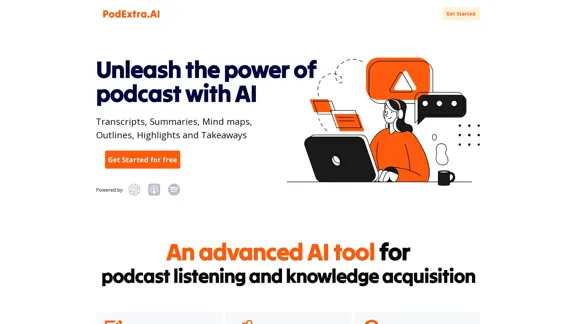
PodExtra AI—Unleash the power of podcast

PodExtra is an innovative AI-powered podcast tool that provides transcripts, summaries, mind maps, outlines, highlights, and takeaways for your favorite podcasts. It allows you to quickly browse through the content, saving time and improving efficiency.
Visit Website
PodExtra AI—Unleash the power of podcast
Visit Website

Introduction

PodExtra AI is an advanced tool designed to enhance podcast listening and knowledge acquisition. It generates transcripts, summaries, mind maps, outlines, highlights, and takeaways, allowing users to grasp the key content of any podcast quickly. This tool is particularly beneficial for podcast enthusiasts looking to maximize their learning experience.

Feature

  1. AI-Generated Summaries

    Quickly grasp the essence of podcast episodes with AI-generated summaries, allowing for efficient content consumption.

  2. Mind Maps

    Visualize podcast content through mind maps, helping users capture the overall structure and key points effectively.

  3. Accurate Transcripts

    Obtain comprehensive transcripts of podcasts, distinguishing between speakers and enabling easy navigation through the content.

  4. Highlight Extraction

    AI extracts notable quotes and highlights from episodes, ensuring that users don't miss significant moments.

  5. Takeaways Generation

    Generate concise takeaways from podcasts without needing to listen to the entire episode, saving time and enhancing learning.

  6. Listening Support

    Users can listen to specific podcast segments based on the transcription, with features for advancing or rewinding sentence by sentence.

How to Use?

  1. Sign up for a free account on the PodExtra website.
  2. Browse through the available podcasts or search for specific episodes.
  3. Utilize the transcript feature to follow along while listening.
  4. Take advantage of the summary and highlight features to quickly identify key points.
  5. Create mind maps to visualize the content for better retention.
  6. Use the takeaways feature to summarize episodes for future reference.

FAQ

What is PodExtra?

PodExtra is an AI-powered podcast tool that provides various features such as transcripts, summaries, mind maps, highlights, and takeaways, designed to enhance the podcast listening experience.

Who can use PodExtra?

PodExtra is suitable for anyone who enjoys podcasts, including casual listeners, students, and professionals seeking to improve their knowledge acquisition from audio content.

What podcast platforms does PodExtra support?

PodExtra supports a wide range of podcast platforms, allowing users to access and enhance content from various sources.

How can I use PodExtra?

To use PodExtra, simply sign up for an account, explore the available podcasts, and utilize the features to enhance your listening and learning experience.

Price

  • Free plan: $0/month
  • Basic plan: $9.99/month
  • Standard plan: $19.99/month
  • Professional plan: $49.99/month
The price is for reference only, please refer to the latest official data for actual information.

Evaluation

  1. PodExtra effectively streamlines the podcast experience by providing essential tools like transcripts and summaries, making it easier for users to absorb information quickly.

  2. The mind map feature is particularly useful for visual learners, enhancing comprehension and retention of podcast content.

  3. While the tool excels in summarization and extraction of highlights, some users may find that the AI-generated content lacks depth compared to full listening.

  4. The interface could benefit from additional customization options to cater to different user preferences and enhance the overall user experience.

  5. Overall, PodExtra is a valuable resource for podcast enthusiasts, though it may not replace the experience of listening to full episodes for those seeking in-depth understanding.

Latest Traffic Insights

  • Monthly Visits

    1.70 K

  • Bounce Rate

    67.69%

  • Pages Per Visit

    1.18

  • Time on Site(s)

    44.47

  • Global Rank

    10115081

  • Country Rank

    United States 3031457

Recent Visits

Traffic Sources

  • Social Media:
    10.26%
  • Paid Referrals:
    1.13%
  • Email:
    0.13%
  • Referrals:
    9.24%
  • Search Engines:
    48.53%
  • Direct:
    30.21%
More Data

Related Websites

Beyz AI | AI Interview Assistant
View Detail

Beyz AI | AI Interview Assistant

Beyz AI | AI Interview Assistant

Beyz AI listens to interviewer questions and delivers concise, accurate answers tailored to your background in real-time, boosting your interview success.

0
AI Note Taking & Transcribe & Summarizer | AI Notebook App
View Detail

AI Note Taking & Transcribe & Summarizer | AI Notebook App

AI Note Taking & Transcribe & Summarizer | AI Notebook App

Generate transcripts and AI summarize for College Students in lectures. Specializing in YouTube Video Summarizer, PDF Summarizer, Article Summarizer. Save key insights and review with study guides, quizzes, and flashcards. Build your AI-powered notes library.

0
Automate Your Content Strategy and Lead Generation with Captain
View Detail

Automate Your Content Strategy and Lead Generation with Captain

Automate Your Content Strategy and Lead Generation with Captain

Captain's AI-powered platform automatically creates and optimizes data-driven content that generates awareness, engagement, and leads.

23
Copilot for Microsoft 365 – Microsoft Adoption

Copilot for Microsoft 365 is a powerful AI assistant that helps you work smarter and faster across Microsoft 365 apps and services. It combines the power of large language models (LLMs) with your organization's data in the Microsoft Graph and Microsoft 365 apps to turn your words into the most powerful productivity tool on the planet.

Copilot is designed to help you:

• Unleash creativity
• Unlock productivity
• Uplevel skills

Copilot is built on Microsoft's comprehensive approach to security, compliance, and privacy. Copilot in Microsoft 365 apps and services:

• Does not use your data to train the underlying LLM
• Does not replace human ingenuity and judgment
• Is designed to keep humans in the loop

Copilot is currently available in Word, Excel, PowerPoint, Outlook, Teams, and more.

Getting Started with Copilot

To get started with Copilot, follow these steps:

1. Check availability: Ensure your organization has access to Copilot.
2. Learn the basics: Familiarize yourself with Copilot's capabilities and how to use it effectively.
3. Explore use cases: Discover how Copilot can help you in your specific role and tasks.
4. Practice and refine: Use Copilot regularly and refine your prompts for better results.
5. Share and collaborate: Collaborate with colleagues using Copilot and share best practices.

Best Practices for Using Copilot

1. Be specific in your prompts
2. Provide context for better results
3. Review and edit Copilot's output
4. Use Copilot as a starting point, not a final product
5. Experiment with different approaches
6. Stay informed about new features and updates

Copilot in Different Microsoft 365 Apps

• Word: Draft, edit, summarize, and rewrite content
• Excel: Analyze data, create formulas, and generate insights
• PowerPoint: Create presentations, design slides, and generate content
• Outlook: Compose emails, summarize threads, and manage your inbox
• Teams: Summarize meetings, generate action items, and create meeting notes

Responsible AI and Copilot

Microsoft is committed to developing AI systems responsibly. When using Copilot, keep in mind:

• AI-generated content may contain biases or inaccuracies
• Always review and verify Copilot's output
• Use your judgment and expertise alongside Copilot's suggestions
• Be aware of your organization's policies regarding AI use

Conclusion

Copilot for Microsoft 365 is a powerful tool that can significantly enhance your productivity and creativity. By understanding its capabilities, following best practices, and using it responsibly, you can make the most of this AI assistant in your daily work.
View Detail

Copilot for Microsoft 365 – Microsoft Adoption Copilot for Microsoft 365 is a powerful AI assistant that helps you work smarter and faster across Microsoft 365 apps and services. It combines the power of large language models (LLMs) with your organization's data in the Microsoft Graph and Microsoft 365 apps to turn your words into the most powerful productivity tool on the planet. Copilot is designed to help you: • Unleash creativity • Unlock productivity • Uplevel skills Copilot is built on Microsoft's comprehensive approach to security, compliance, and privacy. Copilot in Microsoft 365 apps and services: • Does not use your data to train the underlying LLM • Does not replace human ingenuity and judgment • Is designed to keep humans in the loop Copilot is currently available in Word, Excel, PowerPoint, Outlook, Teams, and more. Getting Started with Copilot To get started with Copilot, follow these steps: 1. Check availability: Ensure your organization has access to Copilot. 2. Learn the basics: Familiarize yourself with Copilot's capabilities and how to use it effectively. 3. Explore use cases: Discover how Copilot can help you in your specific role and tasks. 4. Practice and refine: Use Copilot regularly and refine your prompts for better results. 5. Share and collaborate: Collaborate with colleagues using Copilot and share best practices. Best Practices for Using Copilot 1. Be specific in your prompts 2. Provide context for better results 3. Review and edit Copilot's output 4. Use Copilot as a starting point, not a final product 5. Experiment with different approaches 6. Stay informed about new features and updates Copilot in Different Microsoft 365 Apps • Word: Draft, edit, summarize, and rewrite content • Excel: Analyze data, create formulas, and generate insights • PowerPoint: Create presentations, design slides, and generate content • Outlook: Compose emails, summarize threads, and manage your inbox • Teams: Summarize meetings, generate action items, and create meeting notes Responsible AI and Copilot Microsoft is committed to developing AI systems responsibly. When using Copilot, keep in mind: • AI-generated content may contain biases or inaccuracies • Always review and verify Copilot's output • Use your judgment and expertise alongside Copilot's suggestions • Be aware of your organization's policies regarding AI use Conclusion Copilot for Microsoft 365 is a powerful tool that can significantly enhance your productivity and creativity. By understanding its capabilities, following best practices, and using it responsibly, you can make the most of this AI assistant in your daily work.

Copilot for Microsoft 365 – Microsoft Adoption Copilot for Microsoft 365 is a powerful AI assistant that helps you work smarter and faster across Microsoft 365 apps and services. It combines the power of large language models (LLMs) with your organization's data in the Microsoft Graph and Microsoft 365 apps to turn your words into the most powerful productivity tool on the planet. Copilot is designed to help you: • Unleash creativity • Unlock productivity • Uplevel skills Copilot is built on Microsoft's comprehensive approach to security, compliance, and privacy. Copilot in Microsoft 365 apps and services: • Does not use your data to train the underlying LLM • Does not replace human ingenuity and judgment • Is designed to keep humans in the loop Copilot is currently available in Word, Excel, PowerPoint, Outlook, Teams, and more. Getting Started with Copilot To get started with Copilot, follow these steps: 1. Check availability: Ensure your organization has access to Copilot. 2. Learn the basics: Familiarize yourself with Copilot's capabilities and how to use it effectively. 3. Explore use cases: Discover how Copilot can help you in your specific role and tasks. 4. Practice and refine: Use Copilot regularly and refine your prompts for better results. 5. Share and collaborate: Collaborate with colleagues using Copilot and share best practices. Best Practices for Using Copilot 1. Be specific in your prompts 2. Provide context for better results 3. Review and edit Copilot's output 4. Use Copilot as a starting point, not a final product 5. Experiment with different approaches 6. Stay informed about new features and updates Copilot in Different Microsoft 365 Apps • Word: Draft, edit, summarize, and rewrite content • Excel: Analyze data, create formulas, and generate insights • PowerPoint: Create presentations, design slides, and generate content • Outlook: Compose emails, summarize threads, and manage your inbox • Teams: Summarize meetings, generate action items, and create meeting notes Responsible AI and Copilot Microsoft is committed to developing AI systems responsibly. When using Copilot, keep in mind: • AI-generated content may contain biases or inaccuracies • Always review and verify Copilot's output • Use your judgment and expertise alongside Copilot's suggestions • Be aware of your organization's policies regarding AI use Conclusion Copilot for Microsoft 365 is a powerful tool that can significantly enhance your productivity and creativity. By understanding its capabilities, following best practices, and using it responsibly, you can make the most of this AI assistant in your daily work.

Microsoft Copilot combines the power of large language models (LLMs) with your organization's data to turn your words into one of the most powerful productivity tools on the planet.

608.60 K
AI Generators
View Detail

AI Generators

AI Generators

Generate ideas, stories, poems, jokes, and more with AI.

0
Integrity — Notes, Canvases, and AI all in one workspace
View Detail

Integrity — Notes, Canvases, and AI all in one workspace

Integrity — Notes, Canvases, and AI all in one workspace

Stop jumping between Notion, Miro, and ChatGPT. Integrity unifies structure, visual thinking, and AI so you can turn ideas into results faster.

0
Anara | A Reliable Research Platform
View Detail

Anara | A Reliable Research Platform

Anara | A Reliable Research Platform

Automate your research workflows with Anara's AI. Build a research library, verify sources, and collaborate with your team. Trusted by researchers worldwide.

1.40 M
Create a Stack on Splice: AI-Powered Songwriting Inspiration | Splice
View Detail

Create a Stack on Splice: AI-Powered Songwriting Inspiration | Splice

Create a Stack on Splice: AI-Powered Songwriting Inspiration | Splice

Choose a style. Splice AI will present you with millions of unique musical combinations never heard before, showcasing sounds created by the industry's leading producers.

3.79 M