Open-source RightAI Tools Directory
  • Discover AI
  • Submit
  • Startup
  • Blog
Open-source RightAI Tools Directory
Discover the best AI tools of 2025 with the RightAI Tools Directory!

Friend Links

AI Anime GeneratorToolsApp AI

Support

Tap4
Privacy policyTerms & ConditionsContact Us
Loading...
loading...

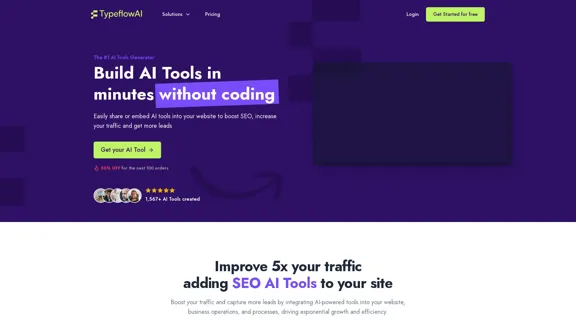
Create AI Tools without coding in minutes | TypeflowAI

TypeflowAI enables users to create AI tools using dynamic forms and advanced prompts. Improve your SEO, boost traffic, and generate more leads by incorporating these tools into your website.
Visit Website
Create AI Tools without coding in minutes | TypeflowAI
Visit Website

Introduction

TypeflowAI is a no-code platform that empowers users to create AI-powered tools without coding skills. It enables businesses and individuals to build dynamic lead magnets, AI quizzes, calculators, and other interactive tools quickly and easily. The platform offers a streamlined process for creating AI tools, flexible pricing plans, and a range of features designed to boost website traffic, improve SEO, and increase lead generation.

Feature

No-Code AI Tool Creation

TypeflowAI allows users to create AI-powered tools without any coding knowledge, making it accessible to a wide range of users.

SEO-Friendly Tool Integration

The platform offers SEO-friendly integration of AI tools, helping to boost website traffic and improve search engine rankings.

Customizable Templates

Users have access to over 350 customizable templates, providing a quick start for AI tool creation.

Multiple AI Models Support

TypeflowAI supports various AI models, including GPT-3.5Turbo, GPT-4, and GPT-4o, allowing users to choose the best fit for their needs.

Integration Capabilities

The platform offers integration with popular tools such as Webhooks, Zapier, Notion, Google Sheets, Airtable, and Slack, streamlining workflows.

Team Collaboration Features

TypeflowAI includes features for team collaboration, enabling efficient project management and coordination.

Four-Step Creation Process

  1. Define your questions
  2. Include questions in your prompt
  3. Customize your AI tool
  4. Publish and deliver your AI tool

Flexible Pricing Plans

TypeflowAI offers three pricing tiers to suit different needs:

PlanPriceFeatures
Basic$29/month2 AI Tools, 500 AI tool responses, Access to +350 Templates
Pro$49/month (50% off)Unlimited AI Tools, 2500 AI tool responses, Access to +350 Templates
EnterpriseCustom pricingUnlimited AI Tools, Unlimited AI tool responses, Access to +350 Templates

FAQ

Is TypeflowAI free?

TypeflowAI offers paid plans starting at $29/month. There is no mention of a free plan in the provided information.

Are templates included?

Yes, all plans include access to over 350 templates.

Do I need a ChatGPT/OpenAI paid account?

No, you don't need a separate ChatGPT or OpenAI paid account. TypeflowAI provides access to various AI models, including GPT-3.5Turbo and GPT-4, as part of their service.

How does TypeflowAI pricing work?

TypeflowAI offers tiered pricing based on the number of AI tools and responses needed. The Basic plan starts at $29/month, while the Pro plan is currently offered at a 50% discount for $49/month.

Is TypeflowAI GDPR compliant?

While not explicitly stated in the provided text, TypeflowAI mentions GDPR in their footer links, suggesting they have resources related to GDPR compliance.

Can I integrate TypeflowAI with other applications?

Yes, TypeflowAI supports integrations with various tools such as Webhooks, Zapier, Notion, Google Sheets, Airtable, and Slack.

Latest Traffic Insights

  • Monthly Visits

    593

  • Bounce Rate

    31.75%

  • Pages Per Visit

    2.49

  • Time on Site(s)

    63.97

  • Global Rank

    -

  • Country Rank

    -

Recent Visits

Traffic Sources

  • Social Media:
    3.75%
  • Paid Referrals:
    1.93%
  • Email:
    0.18%
  • Referrals:
    14.08%
  • Search Engines:
    40.67%
  • Direct:
    38.71%
More Data

Related Websites

Converse - AI Reading Assistant for web articles, PDFs, and videos
View Detail

Converse - AI Reading Assistant for web articles, PDFs, and videos

Converse - AI Reading Assistant for web articles, PDFs, and videos

Save, summarize, and chat with web articles, PDF documents, and YouTube videos. Enhance your reading experience with customized summaries, TLDRs, Key Takeaways, intuitive document chat, and social sharing on Converse.

2.41 K
Hyprnote: A Private, Local-First AI Notetaker for Safe Meetings
View Detail

Hyprnote: A Private, Local-First AI Notetaker for Safe Meetings

Hyprnote: A Private, Local-First AI Notetaker for Safe Meetings

Hyprnote is an open-source AI notetaker designed for compliance and privacy. Take and organize meeting notes entirely on your device with no data leaving your control. Think of Granola AI, but it operates entirely locally on your device.

20.63 K
BrightEdge - Enterprise SEO Platform | Content Marketing Solution
View Detail

BrightEdge - Enterprise SEO Platform | Content Marketing Solution

BrightEdge - Enterprise SEO Platform | Content Marketing Solution

BrightEdge is the premier SEO solution and content performance marketing platform, assisting over 1,700 clients in increasing their organic traffic. Headquartered in San Mateo, CA, BrightEdge has offices in New York, Seattle, Chicago, Cleveland, Tokyo, Sydney, and London. Get in touch with us for an SEO demonstration today.

167.78 K
Automate Your Content Strategy and Lead Generation with Captain
View Detail

Automate Your Content Strategy and Lead Generation with Captain

Automate Your Content Strategy and Lead Generation with Captain

Captain's AI-powered platform automatically creates and optimizes data-driven content that generates awareness, engagement, and leads.

23
AI Just Works β€”β€” discover AIs using AI
View Detail

AI Just Works β€”β€” discover AIs using AI

AI Just Works β€”β€” discover AIs using AI

AI Just Works: Discover the Best AI Tools for Your Needs, designed to find AI solutions for your business.

0
UCG - Chrome Web Store
View Detail

UCG - Chrome Web Store

UCG - Chrome Web Store

ChatGPT without leaving the tab or visible chat!

193.90 M
The AI Cloud for Banks, Insurers and Financial Services
View Detail

The AI Cloud for Banks, Insurers and Financial Services

The AI Cloud for Banks, Insurers and Financial Services

Arya.ai is the 'AI Cloud' for Banks, Insurers and Financial Services to expedite the adoption of AI that is responsible, accurate and auditable.

108.58 K
Copilot for Microsoft 365 – Microsoft Adoption

Copilot for Microsoft 365 is a powerful AI assistant that helps you work smarter and faster across Microsoft 365 apps and services. It combines the power of large language models (LLMs) with your organization's data in the Microsoft Graph and Microsoft 365 apps to turn your words into the most powerful productivity tool on the planet.

Copilot is designed to help you:

β€’ Unleash creativity
β€’ Unlock productivity
β€’ Uplevel skills

Copilot is built on Microsoft's comprehensive approach to security, compliance, and privacy. Copilot in Microsoft 365 apps and services:

β€’ Does not use your data to train the underlying LLM
β€’ Does not replace human ingenuity and judgment
β€’ Is designed to keep humans in the loop

Copilot is currently available in Word, Excel, PowerPoint, Outlook, Teams, and more.

Getting Started with Copilot

To get started with Copilot, follow these steps:

1. Check availability: Ensure your organization has access to Copilot.
2. Learn the basics: Familiarize yourself with Copilot's capabilities and how to use it effectively.
3. Explore use cases: Discover how Copilot can help you in your specific role and tasks.
4. Practice and refine: Use Copilot regularly and refine your prompts for better results.
5. Share and collaborate: Collaborate with colleagues using Copilot and share best practices.

Best Practices for Using Copilot

1. Be specific in your prompts
2. Provide context for better results
3. Review and edit Copilot's output
4. Use Copilot as a starting point, not a final product
5. Experiment with different approaches
6. Stay informed about new features and updates

Copilot in Different Microsoft 365 Apps

β€’ Word: Draft, edit, summarize, and rewrite content
β€’ Excel: Analyze data, create formulas, and generate insights
β€’ PowerPoint: Create presentations, design slides, and generate content
β€’ Outlook: Compose emails, summarize threads, and manage your inbox
β€’ Teams: Summarize meetings, generate action items, and create meeting notes

Responsible AI and Copilot

Microsoft is committed to developing AI systems responsibly. When using Copilot, keep in mind:

β€’ AI-generated content may contain biases or inaccuracies
β€’ Always review and verify Copilot's output
β€’ Use your judgment and expertise alongside Copilot's suggestions
β€’ Be aware of your organization's policies regarding AI use

Conclusion

Copilot for Microsoft 365 is a powerful tool that can significantly enhance your productivity and creativity. By understanding its capabilities, following best practices, and using it responsibly, you can make the most of this AI assistant in your daily work.
View Detail

Copilot for Microsoft 365 – Microsoft Adoption Copilot for Microsoft 365 is a powerful AI assistant that helps you work smarter and faster across Microsoft 365 apps and services. It combines the power of large language models (LLMs) with your organization's data in the Microsoft Graph and Microsoft 365 apps to turn your words into the most powerful productivity tool on the planet. Copilot is designed to help you: β€’ Unleash creativity β€’ Unlock productivity β€’ Uplevel skills Copilot is built on Microsoft's comprehensive approach to security, compliance, and privacy. Copilot in Microsoft 365 apps and services: β€’ Does not use your data to train the underlying LLM β€’ Does not replace human ingenuity and judgment β€’ Is designed to keep humans in the loop Copilot is currently available in Word, Excel, PowerPoint, Outlook, Teams, and more. Getting Started with Copilot To get started with Copilot, follow these steps: 1. Check availability: Ensure your organization has access to Copilot. 2. Learn the basics: Familiarize yourself with Copilot's capabilities and how to use it effectively. 3. Explore use cases: Discover how Copilot can help you in your specific role and tasks. 4. Practice and refine: Use Copilot regularly and refine your prompts for better results. 5. Share and collaborate: Collaborate with colleagues using Copilot and share best practices. Best Practices for Using Copilot 1. Be specific in your prompts 2. Provide context for better results 3. Review and edit Copilot's output 4. Use Copilot as a starting point, not a final product 5. Experiment with different approaches 6. Stay informed about new features and updates Copilot in Different Microsoft 365 Apps β€’ Word: Draft, edit, summarize, and rewrite content β€’ Excel: Analyze data, create formulas, and generate insights β€’ PowerPoint: Create presentations, design slides, and generate content β€’ Outlook: Compose emails, summarize threads, and manage your inbox β€’ Teams: Summarize meetings, generate action items, and create meeting notes Responsible AI and Copilot Microsoft is committed to developing AI systems responsibly. When using Copilot, keep in mind: β€’ AI-generated content may contain biases or inaccuracies β€’ Always review and verify Copilot's output β€’ Use your judgment and expertise alongside Copilot's suggestions β€’ Be aware of your organization's policies regarding AI use Conclusion Copilot for Microsoft 365 is a powerful tool that can significantly enhance your productivity and creativity. By understanding its capabilities, following best practices, and using it responsibly, you can make the most of this AI assistant in your daily work.

Copilot for Microsoft 365 – Microsoft Adoption Copilot for Microsoft 365 is a powerful AI assistant that helps you work smarter and faster across Microsoft 365 apps and services. It combines the power of large language models (LLMs) with your organization's data in the Microsoft Graph and Microsoft 365 apps to turn your words into the most powerful productivity tool on the planet. Copilot is designed to help you: β€’ Unleash creativity β€’ Unlock productivity β€’ Uplevel skills Copilot is built on Microsoft's comprehensive approach to security, compliance, and privacy. Copilot in Microsoft 365 apps and services: β€’ Does not use your data to train the underlying LLM β€’ Does not replace human ingenuity and judgment β€’ Is designed to keep humans in the loop Copilot is currently available in Word, Excel, PowerPoint, Outlook, Teams, and more. Getting Started with Copilot To get started with Copilot, follow these steps: 1. Check availability: Ensure your organization has access to Copilot. 2. Learn the basics: Familiarize yourself with Copilot's capabilities and how to use it effectively. 3. Explore use cases: Discover how Copilot can help you in your specific role and tasks. 4. Practice and refine: Use Copilot regularly and refine your prompts for better results. 5. Share and collaborate: Collaborate with colleagues using Copilot and share best practices. Best Practices for Using Copilot 1. Be specific in your prompts 2. Provide context for better results 3. Review and edit Copilot's output 4. Use Copilot as a starting point, not a final product 5. Experiment with different approaches 6. Stay informed about new features and updates Copilot in Different Microsoft 365 Apps β€’ Word: Draft, edit, summarize, and rewrite content β€’ Excel: Analyze data, create formulas, and generate insights β€’ PowerPoint: Create presentations, design slides, and generate content β€’ Outlook: Compose emails, summarize threads, and manage your inbox β€’ Teams: Summarize meetings, generate action items, and create meeting notes Responsible AI and Copilot Microsoft is committed to developing AI systems responsibly. When using Copilot, keep in mind: β€’ AI-generated content may contain biases or inaccuracies β€’ Always review and verify Copilot's output β€’ Use your judgment and expertise alongside Copilot's suggestions β€’ Be aware of your organization's policies regarding AI use Conclusion Copilot for Microsoft 365 is a powerful tool that can significantly enhance your productivity and creativity. By understanding its capabilities, following best practices, and using it responsibly, you can make the most of this AI assistant in your daily work.

Microsoft Copilot combines the power of large language models (LLMs) with your organization's data to turn your words into one of the most powerful productivity tools on the planet.

608.60 K