Open-source RightAI Tools Directory
  • Discover AI
  • Submit
  • Startup
  • Blog
Open-source RightAI Tools Directory
Discover the best AI tools of 2025 with the RightAI Tools Directory!

Friend Links

AI Anime GeneratorToolsApp AI

Support

Tap4
Privacy policyTerms & ConditionsContact Us
Loading...
loading...

Home - Background

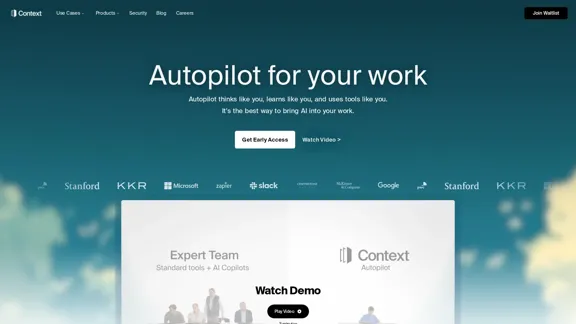
Context is a hippocampus for LLMs. It's the best way to integrate AI into your work.
Visit Website
Home - Background
Visit Website

Introduction

Autopilot is an innovative AI tool designed to enhance productivity by mimicking human reasoning and decision-making processes. It integrates seamlessly with various data sources and tools, providing users with insights, citations, and accurate answers based on their data. The platform offers a range of features that streamline tasks such as document creation, presentation generation, and data analysis.

Feature

  1. Context Engine

    Autopilot utilizes the world's first context engine, enabling it to reason and make decisions like a human. This feature ensures that the insights and answers provided are relevant and grounded in the user's specific data.

  2. 100+ Integrations

    The tool connects with over 100 integrations, allowing users to retrieve necessary information from various sources effortlessly.

  3. Presentation Generation

    Users can create and edit professional presentations in minutes. Autopilot simplifies the process of generating polished content for client decks and internal reviews.

  4. Document Automation

    Autopilot can generate, edit, and format documents and reports instantly. This includes everything from contracts to briefs, all tailored to the user's data.

  5. Spreadsheet Functionality

    The platform allows users to build and modify complex financial models, analyze data trends, and generate insights using natural language commands, making spreadsheet management intuitive.

  6. Data Visualization

    Autopilot provides tools for creating stunning visualizations and analyzing large datasets without the need for coding, making data analysis accessible to all users.

How to Use?

  1. Sign up for early access on the Autopilot website.
  2. Explore the various integrations available to connect your data sources.
  3. Utilize the presentation feature to quickly generate professional content.
  4. Experiment with document automation to streamline report writing.
  5. Use natural language commands to interact with spreadsheets for data analysis.
  6. Take advantage of the data visualization tools to enhance your presentations and reports.

FAQ

What is Autopilot?

Autopilot is an AI-powered tool that enhances productivity by automating tasks such as document creation, presentation generation, and data analysis, all while leveraging the user's data.

How does Autopilot work?

Autopilot uses a context engine to understand user data and generate insights, documents, and presentations based on natural language commands, making it user-friendly and efficient.

Can I integrate Autopilot with my existing tools?

Yes, Autopilot supports over 100 integrations, allowing you to connect it with various data sources and tools you already use.

Is Autopilot suitable for all types of users?

Yes, Autopilot is designed for a wide range of users, from professionals needing quick document generation to teams looking for advanced data analysis capabilities.

How can I get started with Autopilot?

To get started, visit the Autopilot website and sign up for early access to explore its features and capabilities.

Price

  • Free plan: $0/month
  • Basic plan: $9.99/month
  • Standard plan: $19.99/month
  • Professional plan: $49.99/month
The price is for reference only, please refer to the latest official data for actual information.

Evaluation

  1. Autopilot excels in automating repetitive tasks, significantly enhancing productivity for users across various sectors.
  2. The context engine provides relevant insights, reducing the chances of errors and improving decision-making.
  3. However, the reliance on integrations may pose challenges for users with less technical expertise.
  4. While the tool is powerful, some users may find the learning curve steep when first adapting to its features.
  5. Overall, Autopilot offers a compelling solution for those looking to integrate AI into their workflows, but ongoing support and tutorials could enhance user experience further.

Related Websites

Copilot for Microsoft 365 – Microsoft Adoption

Copilot for Microsoft 365 is a powerful AI assistant that helps you work smarter and faster across Microsoft 365 apps and services. It combines the power of large language models (LLMs) with your organization's data in the Microsoft Graph and Microsoft 365 apps to turn your words into the most powerful productivity tool on the planet.

Copilot is designed to help you:

• Unleash creativity
• Unlock productivity
• Uplevel skills

Copilot is built on Microsoft's comprehensive approach to security, compliance, and privacy. Copilot in Microsoft 365 apps and services:

• Does not use your data to train the underlying LLM
• Does not replace human ingenuity and judgment
• Is designed to keep humans in the loop

Copilot is currently available in Word, Excel, PowerPoint, Outlook, Teams, and more.

Getting Started with Copilot

To get started with Copilot, follow these steps:

1. Check availability: Ensure your organization has access to Copilot.
2. Learn the basics: Familiarize yourself with Copilot's capabilities and how to use it effectively.
3. Explore use cases: Discover how Copilot can help you in your specific role and tasks.
4. Practice and refine: Use Copilot regularly and refine your prompts for better results.
5. Share and collaborate: Collaborate with colleagues using Copilot and share best practices.

Best Practices for Using Copilot

1. Be specific in your prompts
2. Provide context for better results
3. Review and edit Copilot's output
4. Use Copilot as a starting point, not a final product
5. Experiment with different approaches
6. Stay informed about new features and updates

Copilot in Different Microsoft 365 Apps

• Word: Draft, edit, summarize, and rewrite content
• Excel: Analyze data, create formulas, and generate insights
• PowerPoint: Create presentations, design slides, and generate content
• Outlook: Compose emails, summarize threads, and manage your inbox
• Teams: Summarize meetings, generate action items, and create meeting notes

Responsible AI and Copilot

Microsoft is committed to developing AI systems responsibly. When using Copilot, keep in mind:

• AI-generated content may contain biases or inaccuracies
• Always review and verify Copilot's output
• Use your judgment and expertise alongside Copilot's suggestions
• Be aware of your organization's policies regarding AI use

Conclusion

Copilot for Microsoft 365 is a powerful tool that can significantly enhance your productivity and creativity. By understanding its capabilities, following best practices, and using it responsibly, you can make the most of this AI assistant in your daily work.
View Detail

Copilot for Microsoft 365 – Microsoft Adoption Copilot for Microsoft 365 is a powerful AI assistant that helps you work smarter and faster across Microsoft 365 apps and services. It combines the power of large language models (LLMs) with your organization's data in the Microsoft Graph and Microsoft 365 apps to turn your words into the most powerful productivity tool on the planet. Copilot is designed to help you: • Unleash creativity • Unlock productivity • Uplevel skills Copilot is built on Microsoft's comprehensive approach to security, compliance, and privacy. Copilot in Microsoft 365 apps and services: • Does not use your data to train the underlying LLM • Does not replace human ingenuity and judgment • Is designed to keep humans in the loop Copilot is currently available in Word, Excel, PowerPoint, Outlook, Teams, and more. Getting Started with Copilot To get started with Copilot, follow these steps: 1. Check availability: Ensure your organization has access to Copilot. 2. Learn the basics: Familiarize yourself with Copilot's capabilities and how to use it effectively. 3. Explore use cases: Discover how Copilot can help you in your specific role and tasks. 4. Practice and refine: Use Copilot regularly and refine your prompts for better results. 5. Share and collaborate: Collaborate with colleagues using Copilot and share best practices. Best Practices for Using Copilot 1. Be specific in your prompts 2. Provide context for better results 3. Review and edit Copilot's output 4. Use Copilot as a starting point, not a final product 5. Experiment with different approaches 6. Stay informed about new features and updates Copilot in Different Microsoft 365 Apps • Word: Draft, edit, summarize, and rewrite content • Excel: Analyze data, create formulas, and generate insights • PowerPoint: Create presentations, design slides, and generate content • Outlook: Compose emails, summarize threads, and manage your inbox • Teams: Summarize meetings, generate action items, and create meeting notes Responsible AI and Copilot Microsoft is committed to developing AI systems responsibly. When using Copilot, keep in mind: • AI-generated content may contain biases or inaccuracies • Always review and verify Copilot's output • Use your judgment and expertise alongside Copilot's suggestions • Be aware of your organization's policies regarding AI use Conclusion Copilot for Microsoft 365 is a powerful tool that can significantly enhance your productivity and creativity. By understanding its capabilities, following best practices, and using it responsibly, you can make the most of this AI assistant in your daily work.

Copilot for Microsoft 365 – Microsoft Adoption Copilot for Microsoft 365 is a powerful AI assistant that helps you work smarter and faster across Microsoft 365 apps and services. It combines the power of large language models (LLMs) with your organization's data in the Microsoft Graph and Microsoft 365 apps to turn your words into the most powerful productivity tool on the planet. Copilot is designed to help you: • Unleash creativity • Unlock productivity • Uplevel skills Copilot is built on Microsoft's comprehensive approach to security, compliance, and privacy. Copilot in Microsoft 365 apps and services: • Does not use your data to train the underlying LLM • Does not replace human ingenuity and judgment • Is designed to keep humans in the loop Copilot is currently available in Word, Excel, PowerPoint, Outlook, Teams, and more. Getting Started with Copilot To get started with Copilot, follow these steps: 1. Check availability: Ensure your organization has access to Copilot. 2. Learn the basics: Familiarize yourself with Copilot's capabilities and how to use it effectively. 3. Explore use cases: Discover how Copilot can help you in your specific role and tasks. 4. Practice and refine: Use Copilot regularly and refine your prompts for better results. 5. Share and collaborate: Collaborate with colleagues using Copilot and share best practices. Best Practices for Using Copilot 1. Be specific in your prompts 2. Provide context for better results 3. Review and edit Copilot's output 4. Use Copilot as a starting point, not a final product 5. Experiment with different approaches 6. Stay informed about new features and updates Copilot in Different Microsoft 365 Apps • Word: Draft, edit, summarize, and rewrite content • Excel: Analyze data, create formulas, and generate insights • PowerPoint: Create presentations, design slides, and generate content • Outlook: Compose emails, summarize threads, and manage your inbox • Teams: Summarize meetings, generate action items, and create meeting notes Responsible AI and Copilot Microsoft is committed to developing AI systems responsibly. When using Copilot, keep in mind: • AI-generated content may contain biases or inaccuracies • Always review and verify Copilot's output • Use your judgment and expertise alongside Copilot's suggestions • Be aware of your organization's policies regarding AI use Conclusion Copilot for Microsoft 365 is a powerful tool that can significantly enhance your productivity and creativity. By understanding its capabilities, following best practices, and using it responsibly, you can make the most of this AI assistant in your daily work.

Microsoft Copilot combines the power of large language models (LLMs) with your organization's data to turn your words into one of the most powerful productivity tools on the planet.

608.60 K
Gigasheet - Big Data Analytics That's Spreadsheet Easy.
View Detail

Gigasheet - Big Data Analytics That's Spreadsheet Easy.

Gigasheet - Big Data Analytics That's Spreadsheet Easy.

Our powerful, no-code platform is designed for big data analysis, enabling anyone to effortlessly explore and analyze vast datasets via a user-friendly, spreadsheet-like interface. Gigasheet supports a wide variety of data sources from CSV, XLSX, and JSON to popular CRMs, data warehouses, and cloud data stores.

127.47 K
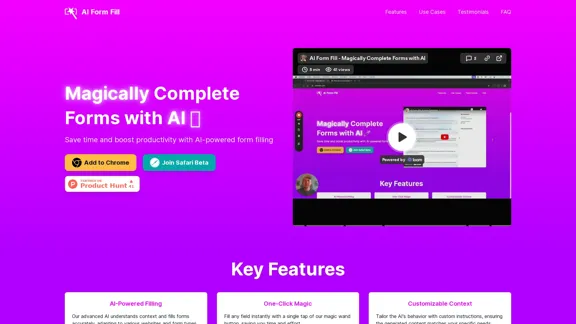
AI Form Fill - Magically Complete Forms with AI
View Detail

AI Form Fill - Magically Complete Forms with AI

AI Form Fill - Magically Complete Forms with AI

AI Form Fill: The browser extension that uses AI to automatically fill out forms for you. Save time and boost productivity with magical form completion.

2.35 K
Zenpai Assistant: AI assistant that handles your tedious tasks
View Detail

Zenpai Assistant: AI assistant that handles your tedious tasks

Zenpai Assistant: AI assistant that handles your tedious tasks

An AI assistant that handles your tedious tasks. Download our AI-powered desktop software that performs routine jobs such as file conversion, image resizing, and more.

0
BlacktoothAI - All-in-One AI Assistant
View Detail

BlacktoothAI - All-in-One AI Assistant

BlacktoothAI - All-in-One AI Assistant

Blacktooth is a powerful AI platform for generating text, images, and more. Access ChatGPT, Claude, Gemini, Stable Diffusion, Flux PRO, ElevenLabs, and more.

191
NinjaChat - All-in-One AI Assistant
View Detail

NinjaChat - All-in-One AI Assistant

NinjaChat - All-in-One AI Assistant

Here is the translation in English: Access GPT-4, Claude, Gemini, and more. Chat, analyze PDFs, generate images - all in one platform.

88.60 K
HireVue Hiring Platform: Video Interviews, Assessments, AI, and More
View Detail

HireVue Hiring Platform: Video Interviews, Assessments, AI, and More

HireVue Hiring Platform: Video Interviews, Assessments, AI, and More

HireVue's enterprise-level hiring platform is a comprehensive recruitment solution that includes video interviewing, hiring assessments, AI automation, and additional features.

1.69 M
Artificial intelligence-powered software platform for aneurysms, pulmonary embolisms, and strokes
View Detail

Artificial intelligence-powered software platform for aneurysms, pulmonary embolisms, and strokes

Artificial intelligence-powered software platform for aneurysms, pulmonary embolisms, and strokes

RapidAI empowers neurovascular and vascular clinical teams to push the limits of care, decreasing treatment time and enhancing patient outcomes.

20.57 K