Open-source RightAI Tools Directory
  • Discover AI
  • Submit
  • Startup
  • Blog
Open-source RightAI Tools Directory
Discover the best AI tools of 2025 with the RightAI Tools Directory!

Friend Links

AI Anime GeneratorToolsApp AI

Support

Tap4
Privacy policyTerms & ConditionsContact Us
Loading...
loading...

Otto

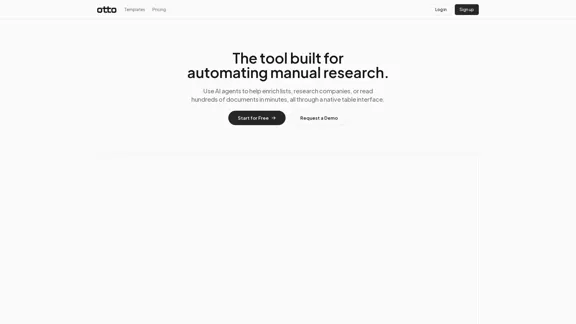
OttoTemplates is designed to automate manual research tasks, enabling users to leverage AI agents for enriching lists, researching companies, and processing documents efficiently
Visit Website
Otto
Visit Website

Introduction

OttoTemplates is designed to automate manual research tasks, enabling users to leverage AI agents for enriching lists, researching companies, and processing documents efficiently. The tool features a user-friendly table interface that simplifies complex research workflows.

Feature

  1. Company Research

    Utilize web browsing agents to gather key insights about companies quickly, saving hours of manual research.

  2. List Enrichment

    Enhance any list with new data points by scanning multiple company websites for pricing, customer reviews, and contact details.

  3. Web Scraping

    A straightforward web scraper that allows users to browse and crawl links using plain English, eliminating the need for scripts or proxies.

  4. AI Research Agent

    Replace traditional research workflows by using AI agents to find pricing information, testimonials, and contact details efficiently.

  5. Document Processing

    Process large volumes of documents in minutes by setting questions for Otto to answer, streamlining data extraction.

  6. Customizable Tables

    Build and configure tables tailored to specific needs, with each column acting as an AI agent to automate data collection.

How to Use?

  1. Start from a template or an existing list to build your table.
  2. Define your columns by specifying prompts for each AI agent.
  3. Input initial data and let Otto autofill the remaining information.
  4. Explore the demo options to understand the tool's capabilities better.

FAQ

What is OttoTemplates?

OttoTemplates is an AI-powered tool designed to automate manual research tasks, helping users gather insights, enrich lists, and process documents efficiently.

How does OttoTemplates work?

Users can create tables, configure columns with specific prompts, and let Otto automate the research process by filling in data from various sources.

Can I use OttoTemplates for my business?

Yes, OttoTemplates is suitable for various industries, including real estate, recruiting, and finance, making it a versatile tool for business research.

Is there a mobile app available?

Yes, OttoTemplates has a mobile app that allows users to access its features on the go.

What are the pricing tiers for OttoTemplates?

OttoTemplates offers several pricing tiers, including Free, Basic, Pro, Enterprise, and Custom options.

Price

Pricing TierMonthly Cost
Free$0
Basic$9.99
Pro$19.99
EnterpriseCustom
The price is for reference only, please refer to the latest official data for actual information.

Evaluation

  1. OttoTemplates effectively automates research tasks, significantly reducing the time required for data collection and analysis.
  2. The user-friendly interface and customizable tables enhance usability, making it accessible for users with varying technical skills.
  3. However, there may be a steep learning curve for new users, particularly in understanding how to configure prompts effectively.
  4. While the free tier offers impressive features, businesses may find the need to upgrade for more advanced functionalities.
  5. Overall, OttoTemplates is a powerful tool for automating research, but ongoing support and tutorials could further enhance user experience.

Latest Traffic Insights

  • Monthly Visits

    10.30 K

  • Bounce Rate

    38.12%

  • Pages Per Visit

    1.69

  • Time on Site(s)

    9.30

  • Global Rank

    2153631

  • Country Rank

    United States 1749255

Recent Visits

Traffic Sources

  • Social Media:
    11.00%
  • Paid Referrals:
    1.00%
  • Email:
    0.11%
  • Referrals:
    12.80%
  • Search Engines:
    31.84%
  • Direct:
    42.89%
More Data

Related Websites

Gong - Revenue Intelligence Platform
View Detail

Gong - Revenue Intelligence Platform

Gong - Revenue Intelligence Platform

Gong captures customer interactions and then delivers insights at scale, enabling teams to make decisions based on data rather than opinions.

1.95 M
Create Incredible Content with Just a Few Clicks.
View Detail

Create Incredible Content with Just a Few Clicks.

Create Incredible Content with Just a Few Clicks.

Turn Recordings into Limitless Content Transcripts, AI Writing, Viral Clips, Image Generation, Chatbots, and more. Start Free Trial Watch Demo 51,594 hours of content already […]

38.94 K
eDiscovery & Legal Search Software Solutions
View Detail

eDiscovery & Legal Search Software Solutions

eDiscovery & Legal Search Software Solutions

Organizations worldwide utilize Relativity's secure, comprehensive legal software to address their most significant data challenges.

104.27 K
Jestor - Build apps for operations without code
View Detail

Jestor - Build apps for operations without code

Jestor - Build apps for operations without code

Build scalable Apps, automations, and workflows for your entire company without any coding required. Do it yourself.

36.60 K
Scottie - AI-Powered Daily News Summaries
View Detail

Scottie - AI-Powered Daily News Summaries

Scottie - AI-Powered Daily News Summaries

Get personalized daily news briefs powered by AI. Transform your news experience with Scottie's intelligent summaries.

0
Poised: AI-Powered Communication Coach
View Detail

Poised: AI-Powered Communication Coach

Poised: AI-Powered Communication Coach

Speak with confidence and clarity and improve your communication skills in real-time.

69.71 K
Copilot for Microsoft 365 – Microsoft Adoption

Copilot for Microsoft 365 is a powerful AI assistant that helps you work smarter and faster across Microsoft 365 apps and services. It combines the power of large language models (LLMs) with your organization's data in the Microsoft Graph and Microsoft 365 apps to turn your words into the most powerful productivity tool on the planet.

Copilot is designed to help you:

β€’ Unleash creativity
β€’ Unlock productivity
β€’ Uplevel skills

Copilot is built on Microsoft's comprehensive approach to security, compliance, and privacy. Copilot in Microsoft 365 apps and services:

β€’ Does not use your data to train the underlying LLM
β€’ Does not replace human ingenuity and judgment
β€’ Is designed to keep humans in the loop

Copilot is currently available in Word, Excel, PowerPoint, Outlook, Teams, and more.

Getting Started with Copilot

To get started with Copilot, follow these steps:

1. Check availability: Ensure your organization has access to Copilot.
2. Learn the basics: Familiarize yourself with Copilot's capabilities and how to use it effectively.
3. Explore use cases: Discover how Copilot can help you in your specific role and tasks.
4. Practice and refine: Use Copilot regularly and refine your prompts for better results.
5. Share and collaborate: Collaborate with colleagues using Copilot and share best practices.

Best Practices for Using Copilot

1. Be specific in your prompts
2. Provide context for better results
3. Review and edit Copilot's output
4. Use Copilot as a starting point, not a final product
5. Experiment with different approaches
6. Stay informed about new features and updates

Copilot in Different Microsoft 365 Apps

β€’ Word: Draft, edit, summarize, and rewrite content
β€’ Excel: Analyze data, create formulas, and generate insights
β€’ PowerPoint: Create presentations, design slides, and generate content
β€’ Outlook: Compose emails, summarize threads, and manage your inbox
β€’ Teams: Summarize meetings, generate action items, and create meeting notes

Responsible AI and Copilot

Microsoft is committed to developing AI systems responsibly. When using Copilot, keep in mind:

β€’ AI-generated content may contain biases or inaccuracies
β€’ Always review and verify Copilot's output
β€’ Use your judgment and expertise alongside Copilot's suggestions
β€’ Be aware of your organization's policies regarding AI use

Conclusion

Copilot for Microsoft 365 is a powerful tool that can significantly enhance your productivity and creativity. By understanding its capabilities, following best practices, and using it responsibly, you can make the most of this AI assistant in your daily work.
View Detail

Copilot for Microsoft 365 – Microsoft Adoption Copilot for Microsoft 365 is a powerful AI assistant that helps you work smarter and faster across Microsoft 365 apps and services. It combines the power of large language models (LLMs) with your organization's data in the Microsoft Graph and Microsoft 365 apps to turn your words into the most powerful productivity tool on the planet. Copilot is designed to help you: β€’ Unleash creativity β€’ Unlock productivity β€’ Uplevel skills Copilot is built on Microsoft's comprehensive approach to security, compliance, and privacy. Copilot in Microsoft 365 apps and services: β€’ Does not use your data to train the underlying LLM β€’ Does not replace human ingenuity and judgment β€’ Is designed to keep humans in the loop Copilot is currently available in Word, Excel, PowerPoint, Outlook, Teams, and more. Getting Started with Copilot To get started with Copilot, follow these steps: 1. Check availability: Ensure your organization has access to Copilot. 2. Learn the basics: Familiarize yourself with Copilot's capabilities and how to use it effectively. 3. Explore use cases: Discover how Copilot can help you in your specific role and tasks. 4. Practice and refine: Use Copilot regularly and refine your prompts for better results. 5. Share and collaborate: Collaborate with colleagues using Copilot and share best practices. Best Practices for Using Copilot 1. Be specific in your prompts 2. Provide context for better results 3. Review and edit Copilot's output 4. Use Copilot as a starting point, not a final product 5. Experiment with different approaches 6. Stay informed about new features and updates Copilot in Different Microsoft 365 Apps β€’ Word: Draft, edit, summarize, and rewrite content β€’ Excel: Analyze data, create formulas, and generate insights β€’ PowerPoint: Create presentations, design slides, and generate content β€’ Outlook: Compose emails, summarize threads, and manage your inbox β€’ Teams: Summarize meetings, generate action items, and create meeting notes Responsible AI and Copilot Microsoft is committed to developing AI systems responsibly. When using Copilot, keep in mind: β€’ AI-generated content may contain biases or inaccuracies β€’ Always review and verify Copilot's output β€’ Use your judgment and expertise alongside Copilot's suggestions β€’ Be aware of your organization's policies regarding AI use Conclusion Copilot for Microsoft 365 is a powerful tool that can significantly enhance your productivity and creativity. By understanding its capabilities, following best practices, and using it responsibly, you can make the most of this AI assistant in your daily work.

Copilot for Microsoft 365 – Microsoft Adoption Copilot for Microsoft 365 is a powerful AI assistant that helps you work smarter and faster across Microsoft 365 apps and services. It combines the power of large language models (LLMs) with your organization's data in the Microsoft Graph and Microsoft 365 apps to turn your words into the most powerful productivity tool on the planet. Copilot is designed to help you: β€’ Unleash creativity β€’ Unlock productivity β€’ Uplevel skills Copilot is built on Microsoft's comprehensive approach to security, compliance, and privacy. Copilot in Microsoft 365 apps and services: β€’ Does not use your data to train the underlying LLM β€’ Does not replace human ingenuity and judgment β€’ Is designed to keep humans in the loop Copilot is currently available in Word, Excel, PowerPoint, Outlook, Teams, and more. Getting Started with Copilot To get started with Copilot, follow these steps: 1. Check availability: Ensure your organization has access to Copilot. 2. Learn the basics: Familiarize yourself with Copilot's capabilities and how to use it effectively. 3. Explore use cases: Discover how Copilot can help you in your specific role and tasks. 4. Practice and refine: Use Copilot regularly and refine your prompts for better results. 5. Share and collaborate: Collaborate with colleagues using Copilot and share best practices. Best Practices for Using Copilot 1. Be specific in your prompts 2. Provide context for better results 3. Review and edit Copilot's output 4. Use Copilot as a starting point, not a final product 5. Experiment with different approaches 6. Stay informed about new features and updates Copilot in Different Microsoft 365 Apps β€’ Word: Draft, edit, summarize, and rewrite content β€’ Excel: Analyze data, create formulas, and generate insights β€’ PowerPoint: Create presentations, design slides, and generate content β€’ Outlook: Compose emails, summarize threads, and manage your inbox β€’ Teams: Summarize meetings, generate action items, and create meeting notes Responsible AI and Copilot Microsoft is committed to developing AI systems responsibly. When using Copilot, keep in mind: β€’ AI-generated content may contain biases or inaccuracies β€’ Always review and verify Copilot's output β€’ Use your judgment and expertise alongside Copilot's suggestions β€’ Be aware of your organization's policies regarding AI use Conclusion Copilot for Microsoft 365 is a powerful tool that can significantly enhance your productivity and creativity. By understanding its capabilities, following best practices, and using it responsibly, you can make the most of this AI assistant in your daily work.

Microsoft Copilot combines the power of large language models (LLMs) with your organization's data to turn your words into one of the most powerful productivity tools on the planet.

608.60 K
OdysseyGPT – Comprehend Your Documents
View Detail

OdysseyGPT – Comprehend Your Documents

OdysseyGPT – Comprehend Your Documents

OdysseyGPT reads and genuinely understands your documents, allowing you to search, summarize, and extract insights instantly.

0