Open-source RightAI Tools Directory
  • Discover AI
  • Submit
  • Startup
  • Blog
Open-source RightAI Tools Directory
Discover the best AI tools of 2025 with the RightAI Tools Directory!

Friend Links

AI Anime GeneratorToolsApp AI

Support

Tap4
Privacy policyTerms & ConditionsContact Us
Loading...
loading...

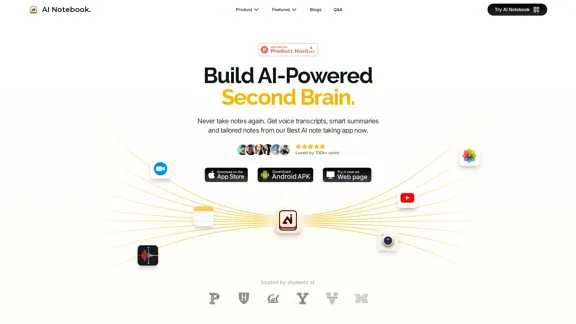
AI Note Taking & Transcribe & Summarizer | AI Notebook App

Generate transcripts and AI summarize for College Students in lectures. Specializing in YouTube Video Summarizer, PDF Summarizer, Article Summarizer. Save key insights and review with study guides, quizzes, and flashcards. Build your AI-powered notes library.
Visit Website
AI Note Taking & Transcribe & Summarizer | AI Notebook App
Visit Website

Introduction

AI Notebook is a comprehensive note-taking and productivity app that leverages artificial intelligence to streamline the process of capturing, organizing, and understanding information. It offers features like voice transcription, smart summaries, and tailored notes, making it an ideal tool for students, professionals, and anyone looking to enhance their learning and productivity. The app supports various input methods, including audio, text, photos, and YouTube links, and provides instant notes and idea generation for different scenarios.

Feature

Capture Everything

Upload sources through audio, text, photos, and YouTube links to get instant notes or brainstorm ideas for various scenarios.

Recording & Live Transcription

High-quality audio recording with real-time transcription for lectures, meetings, or conversations.

AI-Powered Summaries

Analyze notes to provide concise, intelligible summaries with templates for different content types.

Flashcards and Quizzes

Auto-generate flashcards and quizzes to help create, organize, and efficiently review learned material.

Summarize YouTube Videos

Transcribe, segment, and summarize YouTube videos with a single click.

Cross-Platform Compatibility

Seamlessly use AI Notebook across smartphones, tablets, and computers.

Note Sharing

Share notes with others through web links for easy collaboration.

Multi-Format Support

Process various formats including audio, text, images, PDFs, and websites.

FAQ

What can AI Notebook do for me?

AI Notebook enhances note-taking by capturing ideas in text, images, or audio with live transcriptions. It uses AI to organize and understand content through summaries, auto-categorization, and flashcards, accessible from multiple devices.

Is this legal at my school?

Recording lectures is often permitted with instructor consent. AI Notebook prioritizes ethical and legal learning practices, focusing on helping students achieve a deeper understanding of course materials rather than answering questions directly.

Can I use AI Notebook on my phone, tablet, and computer?

Yes, AI Notebook has a user-friendly interface that works seamlessly across smartphones, tablets, and computers.

Can I share my notes with others using AI Notebook?

Yes, AI Notebook allows you to share your notes with others through web links, facilitating collaboration with classmates or colleagues.

Latest Traffic Insights

  • Monthly Visits

    0

  • Bounce Rate

    0.00%

  • Pages Per Visit

    0.00

  • Time on Site(s)

    0.00

  • Global Rank

    5354465

  • Country Rank

    -

Recent Visits

Traffic Sources

  • Social Media:
    0.00%
  • Paid Referrals:
    0.00%
  • Email:
    0.00%
  • Referrals:
    0.00%
  • Search Engines:
    0.00%
  • Direct:
    0.00%
More Data

Related Websites

CVBee.ai: AI-Powered Online CV Maker | Resume Builder & CV Optimization
View Detail

CVBee.ai: AI-Powered Online CV Maker | Resume Builder & CV Optimization

CVBee.ai: AI-Powered Online CV Maker | Resume Builder & CV Optimization

CVBee.ai is an AI-powered online CV maker that helps you create, optimize, and refine professional resumes. Whether you're a job seeker or an experienced professional, CVBee.ai ensures your CV is ATS-friendly and perfectly structured.

0
PCSports – Sports for everyone
View Detail

PCSports – Sports for everyone

PCSports – Sports for everyone

0
Leadership Coaching App | Create Free Account Today
View Detail

Leadership Coaching App | Create Free Account Today

Leadership Coaching App | Create Free Account Today

Conversational AI leadership tool that is revolutionizing leadership coaching, infinitely scalable and capable of being deployed as a leadership development tool to your entire organization

0
Copilot for Microsoft 365 – Microsoft Adoption

Copilot for Microsoft 365 is a powerful AI assistant that helps you work smarter and faster across Microsoft 365 apps and services. It combines the power of large language models (LLMs) with your organization's data in the Microsoft Graph and Microsoft 365 apps to turn your words into the most powerful productivity tool on the planet.

Copilot is designed to help you:

β€’ Unleash creativity
β€’ Unlock productivity
β€’ Uplevel skills

Copilot is built on Microsoft's comprehensive approach to security, compliance, and privacy. Copilot in Microsoft 365 apps and services:

β€’ Does not use your data to train the underlying LLM
β€’ Does not replace human ingenuity and judgment
β€’ Is designed to keep humans in the loop

Copilot is currently available in Word, Excel, PowerPoint, Outlook, Teams, and more.

Getting Started with Copilot

To get started with Copilot, follow these steps:

1. Check availability: Ensure your organization has access to Copilot.
2. Learn the basics: Familiarize yourself with Copilot's capabilities and how to use it effectively.
3. Explore use cases: Discover how Copilot can help you in your specific role and tasks.
4. Practice and refine: Use Copilot regularly and refine your prompts for better results.
5. Share and collaborate: Collaborate with colleagues using Copilot and share best practices.

Best Practices for Using Copilot

1. Be specific in your prompts
2. Provide context for better results
3. Review and edit Copilot's output
4. Use Copilot as a starting point, not a final product
5. Experiment with different approaches
6. Stay informed about new features and updates

Copilot in Different Microsoft 365 Apps

β€’ Word: Draft, edit, summarize, and rewrite content
β€’ Excel: Analyze data, create formulas, and generate insights
β€’ PowerPoint: Create presentations, design slides, and generate content
β€’ Outlook: Compose emails, summarize threads, and manage your inbox
β€’ Teams: Summarize meetings, generate action items, and create meeting notes

Responsible AI and Copilot

Microsoft is committed to developing AI systems responsibly. When using Copilot, keep in mind:

β€’ AI-generated content may contain biases or inaccuracies
β€’ Always review and verify Copilot's output
β€’ Use your judgment and expertise alongside Copilot's suggestions
β€’ Be aware of your organization's policies regarding AI use

Conclusion

Copilot for Microsoft 365 is a powerful tool that can significantly enhance your productivity and creativity. By understanding its capabilities, following best practices, and using it responsibly, you can make the most of this AI assistant in your daily work.
View Detail

Copilot for Microsoft 365 – Microsoft Adoption Copilot for Microsoft 365 is a powerful AI assistant that helps you work smarter and faster across Microsoft 365 apps and services. It combines the power of large language models (LLMs) with your organization's data in the Microsoft Graph and Microsoft 365 apps to turn your words into the most powerful productivity tool on the planet. Copilot is designed to help you: β€’ Unleash creativity β€’ Unlock productivity β€’ Uplevel skills Copilot is built on Microsoft's comprehensive approach to security, compliance, and privacy. Copilot in Microsoft 365 apps and services: β€’ Does not use your data to train the underlying LLM β€’ Does not replace human ingenuity and judgment β€’ Is designed to keep humans in the loop Copilot is currently available in Word, Excel, PowerPoint, Outlook, Teams, and more. Getting Started with Copilot To get started with Copilot, follow these steps: 1. Check availability: Ensure your organization has access to Copilot. 2. Learn the basics: Familiarize yourself with Copilot's capabilities and how to use it effectively. 3. Explore use cases: Discover how Copilot can help you in your specific role and tasks. 4. Practice and refine: Use Copilot regularly and refine your prompts for better results. 5. Share and collaborate: Collaborate with colleagues using Copilot and share best practices. Best Practices for Using Copilot 1. Be specific in your prompts 2. Provide context for better results 3. Review and edit Copilot's output 4. Use Copilot as a starting point, not a final product 5. Experiment with different approaches 6. Stay informed about new features and updates Copilot in Different Microsoft 365 Apps β€’ Word: Draft, edit, summarize, and rewrite content β€’ Excel: Analyze data, create formulas, and generate insights β€’ PowerPoint: Create presentations, design slides, and generate content β€’ Outlook: Compose emails, summarize threads, and manage your inbox β€’ Teams: Summarize meetings, generate action items, and create meeting notes Responsible AI and Copilot Microsoft is committed to developing AI systems responsibly. When using Copilot, keep in mind: β€’ AI-generated content may contain biases or inaccuracies β€’ Always review and verify Copilot's output β€’ Use your judgment and expertise alongside Copilot's suggestions β€’ Be aware of your organization's policies regarding AI use Conclusion Copilot for Microsoft 365 is a powerful tool that can significantly enhance your productivity and creativity. By understanding its capabilities, following best practices, and using it responsibly, you can make the most of this AI assistant in your daily work.

Copilot for Microsoft 365 – Microsoft Adoption Copilot for Microsoft 365 is a powerful AI assistant that helps you work smarter and faster across Microsoft 365 apps and services. It combines the power of large language models (LLMs) with your organization's data in the Microsoft Graph and Microsoft 365 apps to turn your words into the most powerful productivity tool on the planet. Copilot is designed to help you: β€’ Unleash creativity β€’ Unlock productivity β€’ Uplevel skills Copilot is built on Microsoft's comprehensive approach to security, compliance, and privacy. Copilot in Microsoft 365 apps and services: β€’ Does not use your data to train the underlying LLM β€’ Does not replace human ingenuity and judgment β€’ Is designed to keep humans in the loop Copilot is currently available in Word, Excel, PowerPoint, Outlook, Teams, and more. Getting Started with Copilot To get started with Copilot, follow these steps: 1. Check availability: Ensure your organization has access to Copilot. 2. Learn the basics: Familiarize yourself with Copilot's capabilities and how to use it effectively. 3. Explore use cases: Discover how Copilot can help you in your specific role and tasks. 4. Practice and refine: Use Copilot regularly and refine your prompts for better results. 5. Share and collaborate: Collaborate with colleagues using Copilot and share best practices. Best Practices for Using Copilot 1. Be specific in your prompts 2. Provide context for better results 3. Review and edit Copilot's output 4. Use Copilot as a starting point, not a final product 5. Experiment with different approaches 6. Stay informed about new features and updates Copilot in Different Microsoft 365 Apps β€’ Word: Draft, edit, summarize, and rewrite content β€’ Excel: Analyze data, create formulas, and generate insights β€’ PowerPoint: Create presentations, design slides, and generate content β€’ Outlook: Compose emails, summarize threads, and manage your inbox β€’ Teams: Summarize meetings, generate action items, and create meeting notes Responsible AI and Copilot Microsoft is committed to developing AI systems responsibly. When using Copilot, keep in mind: β€’ AI-generated content may contain biases or inaccuracies β€’ Always review and verify Copilot's output β€’ Use your judgment and expertise alongside Copilot's suggestions β€’ Be aware of your organization's policies regarding AI use Conclusion Copilot for Microsoft 365 is a powerful tool that can significantly enhance your productivity and creativity. By understanding its capabilities, following best practices, and using it responsibly, you can make the most of this AI assistant in your daily work.

Microsoft Copilot combines the power of large language models (LLMs) with your organization's data to turn your words into one of the most powerful productivity tools on the planet.

608.60 K
AI Just Works β€”β€” discover AIs using AI
View Detail

AI Just Works β€”β€” discover AIs using AI

AI Just Works β€”β€” discover AIs using AI

AI Just Works: Discover the Best AI Tools for Your Needs, designed to find AI solutions for your business.

0
Automatic Technical Documentation Updates with AI
View Detail

Automatic Technical Documentation Updates with AI

Automatic Technical Documentation Updates with AI

Promptless keeps your technical documents up to date by automatically drafting document updates from GitHub pull requests, enhancing customer satisfaction and increasing free user conversions while reducing implementation time and support requests.

2.23 K
Tana
View Detail

Tana

Tana

Stay on top of everythingβ€”without the busywork. An AI-native workspace that gives you an unfair advantage.

239.22 K
Maximo AI: Your All-in-One AI Solution for Trading & Content Creation
View Detail

Maximo AI: Your All-in-One AI Solution for Trading & Content Creation

Maximo AI: Your All-in-One AI Solution for Trading & Content Creation

Unleash the power of AI with Maximo. Your all-in-one solution for trading, content creation, automation, and social media management.

0