ShowHN Today is a blog platform that aggregates and presents "Show HN" posts from various sources. It offers a curated selection of interesting projects, tools, and ideas shared by developers and creators from around the world. The platform aims to provide valuable insights and inspiration to its readers on a daily basis.
Blog | ShowHNToday
New blog posts, recommendations, tutorials
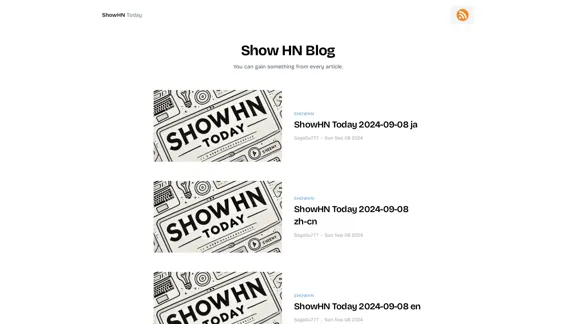
Introduction
Feature
-
Daily updates: ShowHN Today provides fresh content every day, ensuring users have access to the latest and most interesting projects.
-
Multi-language support: The platform offers content in multiple languages, including Japanese (ja), Chinese (zh-cn), and English (en), catering to a global audience.
-
Date-specific browsing: Users can easily navigate through posts from specific dates, allowing for convenient exploration of past content.
-
User-generated content: The platform relies on submissions from the community, fostering a diverse range of topics and ideas.
-
Simple and clean interface: The website features a minimalist design, focusing on content delivery without unnecessary distractions.
FAQ
What is "Show HN"?
"Show HN" is a popular feature on Hacker News where users can share their projects, products, or interesting discoveries with the community. It's a way for creators to showcase their work and receive feedback from peers.
How often is ShowHN Today updated?
Based on the information provided, ShowHN Today appears to be updated daily, with new posts aggregated and presented for each date.
What languages are supported on ShowHN Today?
The platform supports at least three languages: Japanese (ja), Chinese (zh-cn), and English (en). This multi-language support allows for a broader reach and diverse content.
Evaluation
-
ShowHN Today provides a valuable service by curating and presenting interesting "Show HN" posts in an easily accessible format. This can be particularly useful for busy professionals who want to stay updated on new projects and ideas in the tech community.
-
The multi-language support is a significant strength, making the platform more inclusive and accessible to a global audience. This feature sets it apart from many similar aggregation sites.
-
The daily update schedule ensures fresh content, which can help maintain user engagement and provide a consistent flow of new ideas and projects.
-
The platform's simple interface is a double-edged sword. While it keeps the focus on the content, it might benefit from additional features such as categorization, search functionality, or user interaction options to enhance the overall user experience.
-
There's potential for improvement in terms of community engagement. Adding features like comments, upvoting, or user profiles could create a more interactive and dynamic platform.
-
The site could benefit from providing more context or summaries for each post, helping users quickly determine which projects are most relevant to their interests.
Latest Traffic Insights
Monthly Visits
3.26 K
Bounce Rate
41.09%
Pages Per Visit
1.69
Time on Site(s)
19.42
Global Rank
5080302
Country Rank
United States 2232122
Recent Visits
Traffic Sources
- Social Media:9.12%
- Paid Referrals:1.30%
- Email:0.12%
- Referrals:23.10%
- Search Engines:27.26%
- Direct:38.89%
Related Websites
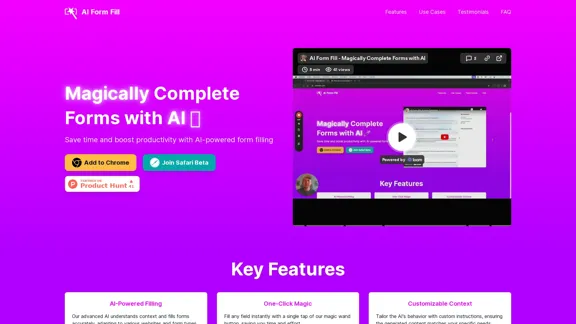
AI Form Fill: The browser extension that uses AI to automatically fill out forms for you. Save time and boost productivity with magical form completion.
2.35 K

Free Website Builder 100% Off | Create a Free Website - SITE123
Free Website Builder 100% Off | Create a Free Website - SITE123Create a free website with SITE123. No design or coding skills needed. SITE123 is the simplest free website builder by far. Make your website now!
611.72 K
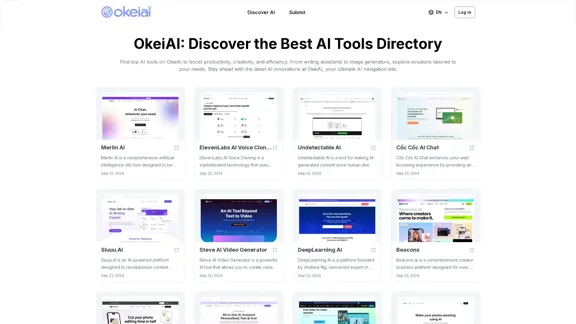
OkeiAI - Best AI Tools Directory for Productivity Boost
OkeiAI - Best AI Tools Directory for Productivity BoostDiscover the latest AI tools on OkeiAI to enhance productivity and creativity. Find writing assistants, image generators, and more tailored solutions.
0
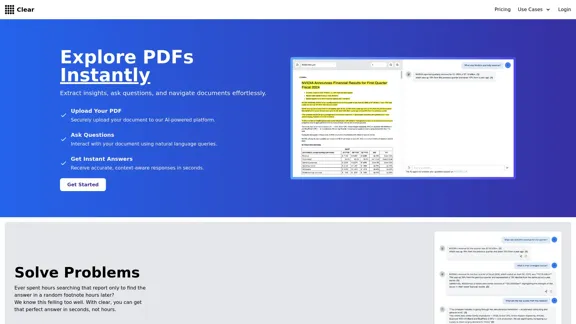

Monitor your sleep, strain, recovery, and health with the most advanced fitness and health wearable available today. WHOOP helps you uncover data-driven insights for a healthier, more empowered life.
4.21 M
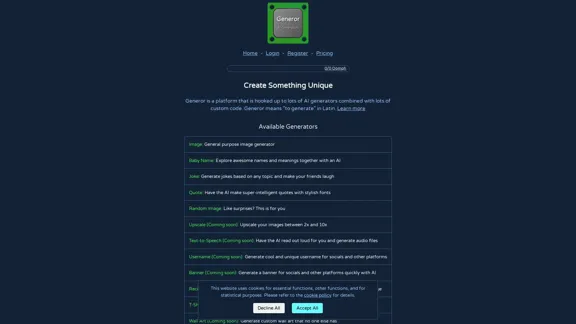

Converse - AI Reading Assistant for web articles, PDFs, and videos
Converse - AI Reading Assistant for web articles, PDFs, and videosSave, summarize, and chat with web articles, PDF documents, and YouTube videos. Enhance your reading experience with customized summaries, TLDRs, Key Takeaways, intuitive document chat, and social sharing on Converse.
2.41 K
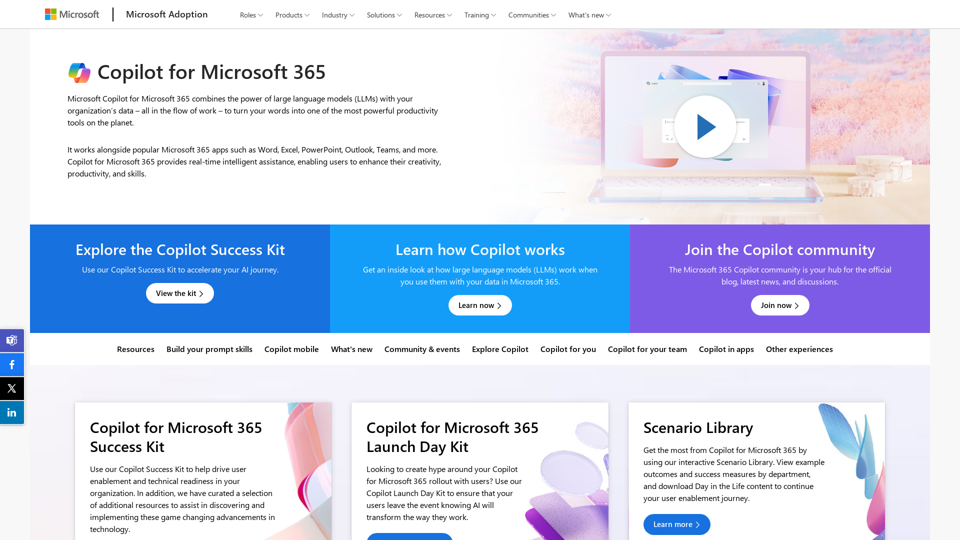
Copilot for Microsoft 365 – Microsoft Adoption Copilot for Microsoft 365 is a powerful AI assistant that helps you work smarter and faster across Microsoft 365 apps and services. It combines the power of large language models (LLMs) with your organization's data in the Microsoft Graph and Microsoft 365 apps to turn your words into the most powerful productivity tool on the planet. Copilot is designed to help you: • Unleash creativity • Unlock productivity • Uplevel skills Copilot is built on Microsoft's comprehensive approach to security, compliance, and privacy. Copilot in Microsoft 365 apps and services: • Does not use your data to train the underlying LLM • Does not replace human ingenuity and judgment • Is designed to keep humans in the loop Copilot is currently available in Word, Excel, PowerPoint, Outlook, Teams, and more. Getting Started with Copilot To get started with Copilot, follow these steps: 1. Check availability: Ensure your organization has access to Copilot. 2. Learn the basics: Familiarize yourself with Copilot's capabilities and how to use it effectively. 3. Explore use cases: Discover how Copilot can help you in your specific role and tasks. 4. Practice and refine: Use Copilot regularly and refine your prompts for better results. 5. Share and collaborate: Collaborate with colleagues using Copilot and share best practices. Best Practices for Using Copilot 1. Be specific in your prompts 2. Provide context for better results 3. Review and edit Copilot's output 4. Use Copilot as a starting point, not a final product 5. Experiment with different approaches 6. Stay informed about new features and updates Copilot in Different Microsoft 365 Apps • Word: Draft, edit, summarize, and rewrite content • Excel: Analyze data, create formulas, and generate insights • PowerPoint: Create presentations, design slides, and generate content • Outlook: Compose emails, summarize threads, and manage your inbox • Teams: Summarize meetings, generate action items, and create meeting notes Responsible AI and Copilot Microsoft is committed to developing AI systems responsibly. When using Copilot, keep in mind: • AI-generated content may contain biases or inaccuracies • Always review and verify Copilot's output • Use your judgment and expertise alongside Copilot's suggestions • Be aware of your organization's policies regarding AI use Conclusion Copilot for Microsoft 365 is a powerful tool that can significantly enhance your productivity and creativity. By understanding its capabilities, following best practices, and using it responsibly, you can make the most of this AI assistant in your daily work.
Copilot for Microsoft 365 – Microsoft Adoption Copilot for Microsoft 365 is a powerful AI assistant that helps you work smarter and faster across Microsoft 365 apps and services. It combines the power of large language models (LLMs) with your organization's data in the Microsoft Graph and Microsoft 365 apps to turn your words into the most powerful productivity tool on the planet. Copilot is designed to help you: • Unleash creativity • Unlock productivity • Uplevel skills Copilot is built on Microsoft's comprehensive approach to security, compliance, and privacy. Copilot in Microsoft 365 apps and services: • Does not use your data to train the underlying LLM • Does not replace human ingenuity and judgment • Is designed to keep humans in the loop Copilot is currently available in Word, Excel, PowerPoint, Outlook, Teams, and more. Getting Started with Copilot To get started with Copilot, follow these steps: 1. Check availability: Ensure your organization has access to Copilot. 2. Learn the basics: Familiarize yourself with Copilot's capabilities and how to use it effectively. 3. Explore use cases: Discover how Copilot can help you in your specific role and tasks. 4. Practice and refine: Use Copilot regularly and refine your prompts for better results. 5. Share and collaborate: Collaborate with colleagues using Copilot and share best practices. Best Practices for Using Copilot 1. Be specific in your prompts 2. Provide context for better results 3. Review and edit Copilot's output 4. Use Copilot as a starting point, not a final product 5. Experiment with different approaches 6. Stay informed about new features and updates Copilot in Different Microsoft 365 Apps • Word: Draft, edit, summarize, and rewrite content • Excel: Analyze data, create formulas, and generate insights • PowerPoint: Create presentations, design slides, and generate content • Outlook: Compose emails, summarize threads, and manage your inbox • Teams: Summarize meetings, generate action items, and create meeting notes Responsible AI and Copilot Microsoft is committed to developing AI systems responsibly. When using Copilot, keep in mind: • AI-generated content may contain biases or inaccuracies • Always review and verify Copilot's output • Use your judgment and expertise alongside Copilot's suggestions • Be aware of your organization's policies regarding AI use Conclusion Copilot for Microsoft 365 is a powerful tool that can significantly enhance your productivity and creativity. By understanding its capabilities, following best practices, and using it responsibly, you can make the most of this AI assistant in your daily work.Microsoft Copilot combines the power of large language models (LLMs) with your organization's data to turn your words into one of the most powerful productivity tools on the planet.
608.60 K