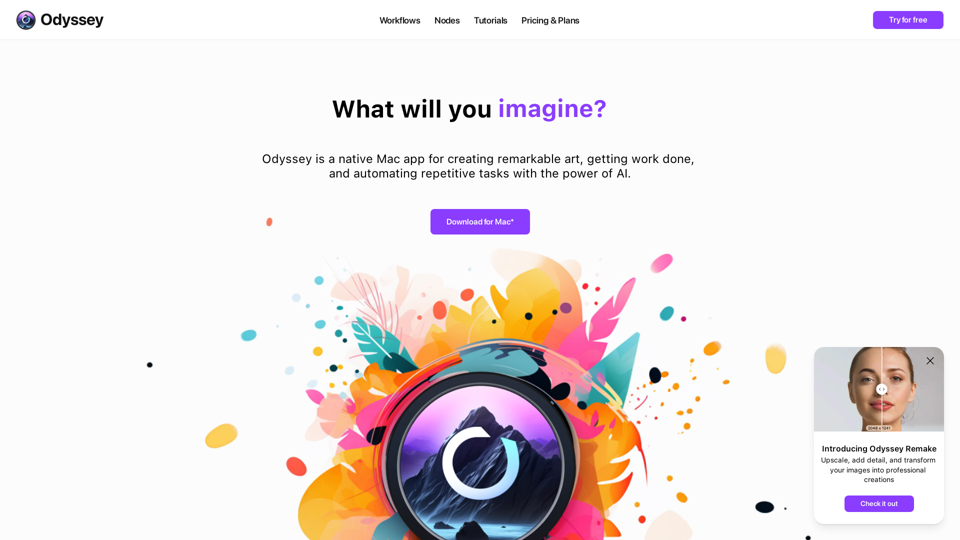
Odyssey is a powerful native Mac application designed to empower creators with AI-driven tools. It offers a comprehensive suite of features for image generation, processing, and automation, as well as language models and math equation solving capabilities. Odyssey caters to a wide range of users, from students and educators to artists, marketers, photographers, AI enthusiasts, and developers.
Odyssey: Imagine. Create. Automate.
Odyssey is a native Mac app for creating remarkable art, getting work done, and automating repetitive tasks with the power of AI.
Introduction
Feature
AI-Powered Image Generation and Processing
- Run Stable Diffusion models locally (1.5, SDXL, SDXL Turbo)
- Connect to Stable Diffusion 3 API
- Upscale images up to 8K resolution
- Apply creative upscaling and image transformation
- Support for custom Stable Diffusion models, including ControlNet
Advanced Image Editing Tools
- Multiple background removal models
- In-painting, out-painting, and object erasure
- Dozens of image processing nodes (aspect ratio, resizing, blurring, etc.)
- Custom image transitions for slideshows
Language Models and Math Capabilities
- Run Llama2-based models locally
- Integrate with ChatGPT using your API key
- Solve word problems and math equations with the Solver node
Automation and Workflow Integration
- Create batch workflows
- Run workflows from desktop with Odyssey Widgets
- Integrate with Apple Shortcuts
Privacy and Customization
- Completely private and secure
- No data storage or access by the Odyssey team
- Customizable features and models
FAQ
Who can benefit from using Odyssey?
Odyssey is designed for a diverse user base, including:
- Students: Essay writing, summarization, discussion responses
- Educators: Lesson planning, writing prompt generation
- Artists: Custom image generation, ControlNet integration, image processing
- Marketers: Chatbot creation, social media content generation
- Photographers: Product image variations, scene manipulation
- AI Hobbyists: Alternative to ComfyUI and Automatic1111
- Developers: Prompt testing and image setting optimization
What are the pricing options for Odyssey?
Odyssey offers two pricing options:
- Monthly subscription: $11.99/month (all features, unlimited devices)
- One-time purchase: $119 (all features, 1 year of updates)
How does Odyssey compare to other AI tools?
Odyssey stands out by offering:
- Native Mac application for seamless integration
- Comprehensive suite of AI-powered tools in one package
- Local processing capabilities for enhanced privacy
- User-friendly interface accessible to various skill levels
- Flexibility to use both local models and API connections
Related Websites
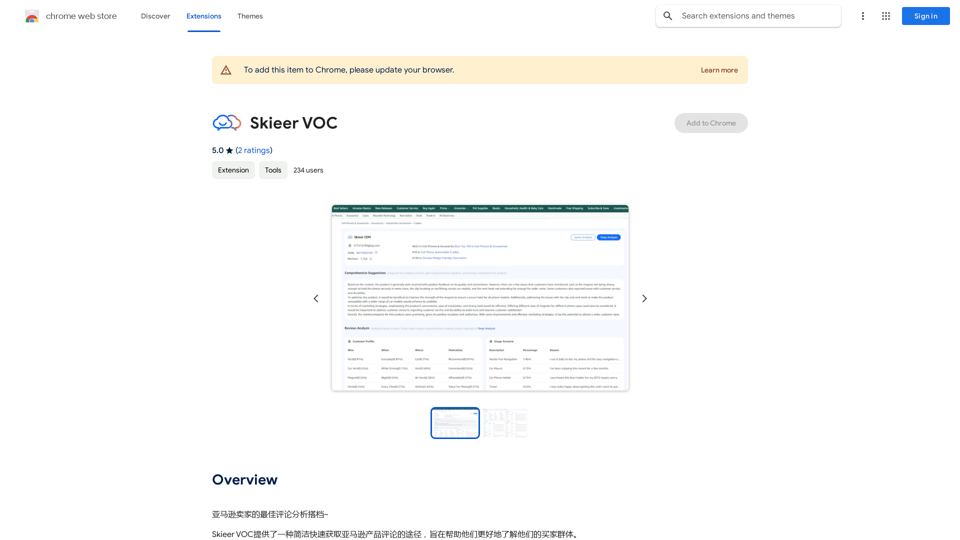

Musick.ai: Free AI Music Generator & AI Song Maker Online
Musick.ai: Free AI Music Generator & AI Song Maker OnlineExplore Musick.ai as an innovative AI Music Generator, including music theory and music plaza. Create songs with AI and make AI music now!
57.04 K
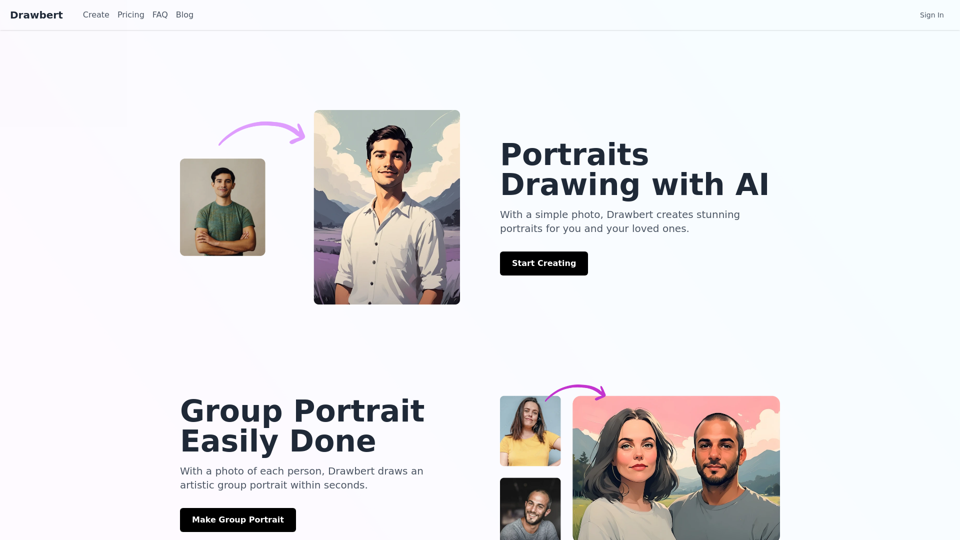
Drawbert creates beautiful paintings for you within seconds and at low cost. You can choose from watercolor, sketch, oil painting, comic, cartoon, caricature and more styles, plus the option to customize the painting to your liking.
0
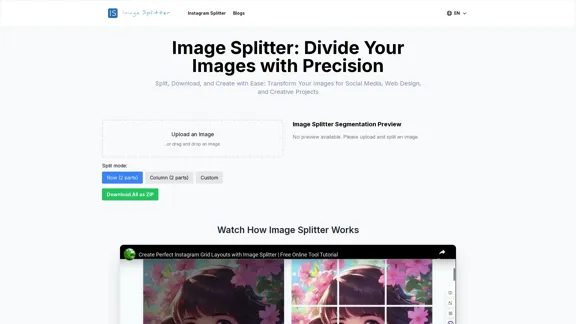
Effortless Image Splitting Tool for Creative Projects
Effortless Image Splitting Tool for Creative ProjectsEasily split large images online into smaller parts for social media, web design, and creative projects with our intuitive Image Splitter tool.
9.99 K
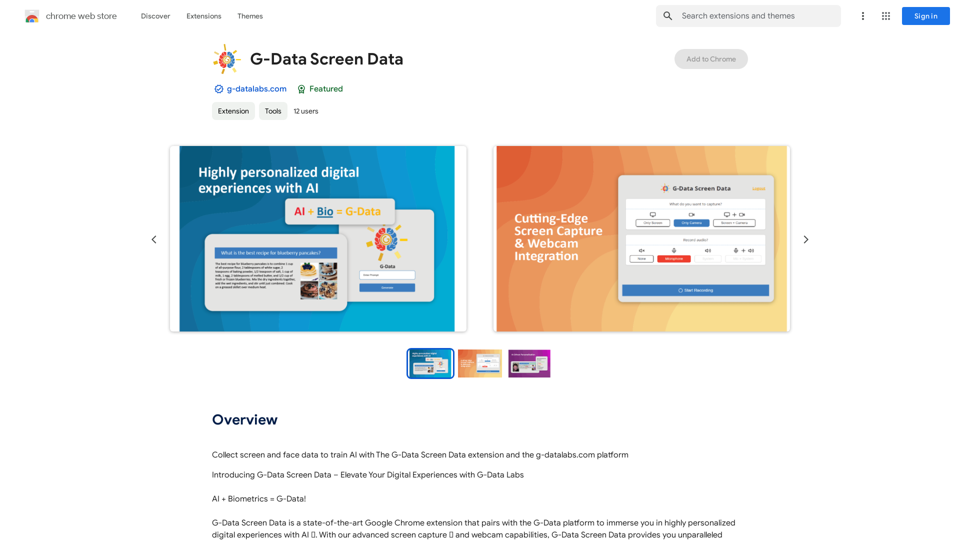
Use the G-Data Screen Data extension and the g-datalabs.com platform to gather screen and facial information for training artificial intelligence.
193.90 M

Image Describer - AI Describe Image or Picture Online With the advancement of Artificial Intelligence (AI), it is now possible to describe images or pictures online using an Image Describer. This innovative tool uses computer vision and machine learning algorithms to analyze and identify the contents of an image, generating a descriptive text of what it sees. How it Works The process is quite simple: 1. Upload an Image: You can upload an image or enter the URL of an online image to the Image Describer tool. 2. AI Analysis: The AI algorithm analyzes the image, detecting objects, people, animals, and other elements within the picture. 3. Generate Description: The AI generates a descriptive text based on the analysis, providing a clear and concise description of the image. Applications of Image Describer The Image Describer has numerous applications, including: * Accessibility: Helping visually impaired individuals to understand the content of an image. * E-commerce: Providing product descriptions for online shopping platforms. * Search Engine Optimization (SEO): Generating alt tags and descriptions for images to improve search engine rankings. * Content Creation: Assisting writers and content creators with image descriptions. Benefits of Image Describer The Image Describer offers several benefits, including: * Time-Saving: Automating the process of image description, saving time and effort. * Accuracy: Providing accurate and objective descriptions of images. * Efficiency: Enabling individuals to focus on other tasks while the AI handles image description. Try it Out Experience the power of AI-driven image description today! Upload an image or enter a URL to see the Image Describer in action.
Image Describer - AI Describe Image or Picture Online With the advancement of Artificial Intelligence (AI), it is now possible to describe images or pictures online using an Image Describer. This innovative tool uses computer vision and machine learning algorithms to analyze and identify the contents of an image, generating a descriptive text of what it sees. How it Works The process is quite simple: 1. Upload an Image: You can upload an image or enter the URL of an online image to the Image Describer tool. 2. AI Analysis: The AI algorithm analyzes the image, detecting objects, people, animals, and other elements within the picture. 3. Generate Description: The AI generates a descriptive text based on the analysis, providing a clear and concise description of the image. Applications of Image Describer The Image Describer has numerous applications, including: * Accessibility: Helping visually impaired individuals to understand the content of an image. * E-commerce: Providing product descriptions for online shopping platforms. * Search Engine Optimization (SEO): Generating alt tags and descriptions for images to improve search engine rankings. * Content Creation: Assisting writers and content creators with image descriptions. Benefits of Image Describer The Image Describer offers several benefits, including: * Time-Saving: Automating the process of image description, saving time and effort. * Accuracy: Providing accurate and objective descriptions of images. * Efficiency: Enabling individuals to focus on other tasks while the AI handles image description. Try it Out Experience the power of AI-driven image description today! Upload an image or enter a URL to see the Image Describer in action.AI Image Describer is a tool to describe images or pictures online. It can be used as an image description and caption generator. Additionally, it supports image-to-prompt and text extraction from photos.
5.16 K
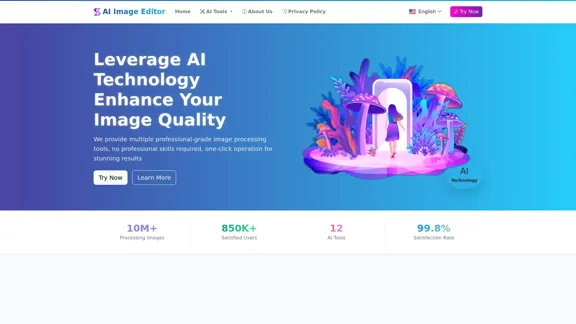
AI Image Editor │ Free Comprehensive Photo AI Tools
AI Image Editor │ Free Comprehensive Photo AI ToolsAIImageEditor.me offers 12 Free AI image tools—from image enhancement and watermark removal to style transfer and background editing—to simplify image editing.
21.99 K