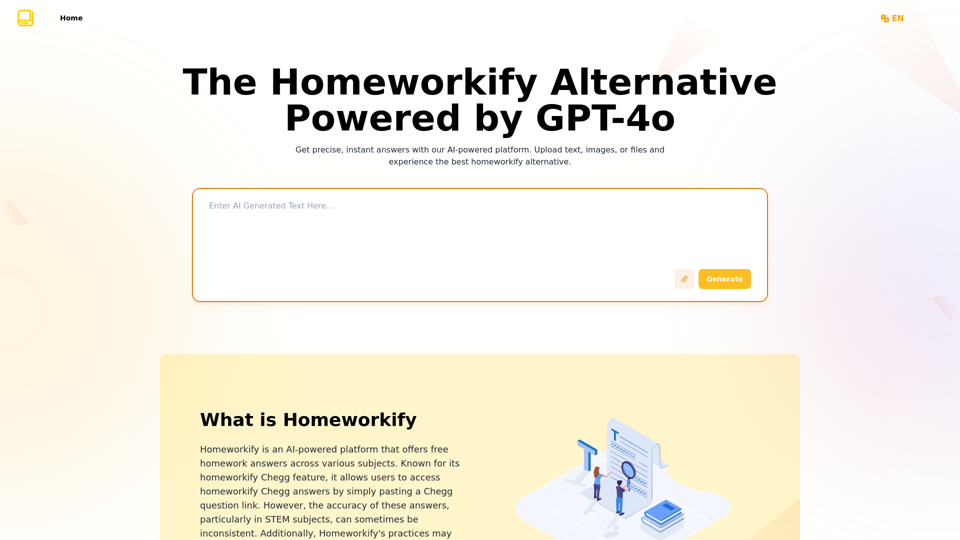
Homeworkify.im is an AI-powered platform that provides accurate homework assistance across various subjects. It uses advanced GPT-4o technology to offer precise answers and support for students. The platform accepts questions via text, images, and files, making it highly flexible and user-friendly.
Homeworkify.im: The GPT-4o Powered Homeworkify Alternative
Discover Homeworkify.im, the top homeworkify alternative offering free online AI-powered solutions. Upload text, images, or files for accurate and instant homework help across all subjects.
Introduction
Feature
Versatile Input Methods
- Text input
- Image upload
- File upload
AI-Powered Solutions
- Utilizes advanced GPT-4o technology
- Delivers accurate and comprehensive answers
Step-by-Step Usage
- Input problem (text, image, or file)
- Receive instant answers
- Ask follow-up questions for clarification
Target Users
- Students of all levels (high school to university)
- STEM learners
- Language learners
- Tutors and educators
Key Features
- History and review functionality
- Interactive Q&A
- Multi-language support
- Multi-platform accessibility (computer and mobile)
- Real-time problem solving (24/7 availability)
FAQ
How reliable are Homeworkify.im answers?
Homeworkify.im uses advanced GPT-4o technology to provide accurate and comprehensive answers, making it highly reliable for academic support.
What sets Homeworkify.im apart from other homework help platforms?
Homeworkify.im offers versatile input methods, real-time problem solving, and interactive Q&A features, providing a more comprehensive and user-friendly experience.
Can Homeworkify.im be used for languages other than English?
Yes, Homeworkify.im supports multiple languages, making it accessible for users from diverse linguistic backgrounds.
Are there any legal or ethical issues with using Homeworkify.im?
Homeworkify.im is designed as a learning aid and homework assistance tool. Users should follow their institution's guidelines on academic integrity when using the platform.
What should I do if Homeworkify.im is not working?
If you encounter issues, try refreshing the page or clearing your browser cache. If problems persist, contact support at [email protected].
Related Websites
Converting JPG Images to Text Converting a JPG image to text is a process known as Optical Character Recognition (OCR). This technology enables you to extract text from images, scanned documents, and photos. Here's how to do it: Method 1: Online OCR Tools You can use online OCR tools to convert JPG images to text. Here are the steps: 1. Upload your JPG image: Go to an online OCR tool website, such as Online OCR Tools or OCR.space, and upload your JPG image. 2. Select the language: Choose the language of the text in your image. 3. Click on "Convert": The tool will convert the image to text. 4. Download the text: You can download the extracted text as a Word document, PDF, or plain text file. Method 2: Google Drive You can also use Google Drive to convert JPG images to text. Here's how: 1. Upload your JPG image: Upload your JPG image to Google Drive. 2. Right-click on the image: Right-click on the uploaded image and select "Open with" > "Google Docs". 3. The image will be converted: Google Docs will automatically convert the image to text. 4. Edit and download: You can edit the extracted text and download it as a Word document or PDF. Method 3: Adobe Acrobat If you have Adobe Acrobat installed on your computer, you can use it to convert JPG images to text. Here's how: 1. Open Adobe Acrobat: Open Adobe Acrobat on your computer. 2. Create a new document: Create a new document and click on "Tools" > "Recognize Text". 3. Select the image: Select the JPG image you want to convert. 4. Click on "Recognize": Adobe Acrobat will convert the image to text. 5. Edit and save: You can edit the extracted text and save it as a Word document or PDF. These are the three methods to convert JPG images to text. Choose the method that works best for you!
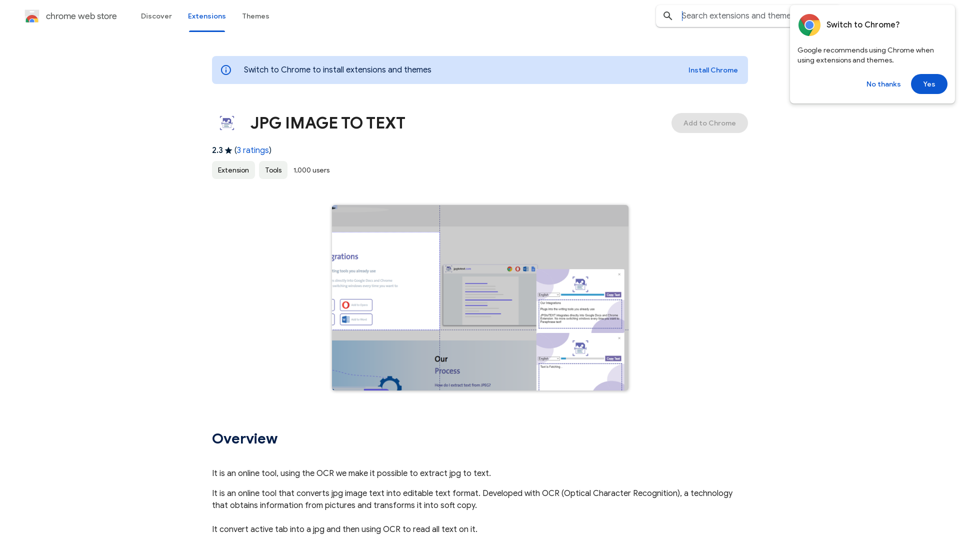
Converting JPG Images to Text Converting a JPG image to text is a process known as Optical Character Recognition (OCR). This technology enables you to extract text from images, scanned documents, and photos. Here's how to do it: Method 1: Online OCR Tools You can use online OCR tools to convert JPG images to text. Here are the steps: 1. Upload your JPG image: Go to an online OCR tool website, such as Online OCR Tools or OCR.space, and upload your JPG image. 2. Select the language: Choose the language of the text in your image. 3. Click on "Convert": The tool will convert the image to text. 4. Download the text: You can download the extracted text as a Word document, PDF, or plain text file. Method 2: Google Drive You can also use Google Drive to convert JPG images to text. Here's how: 1. Upload your JPG image: Upload your JPG image to Google Drive. 2. Right-click on the image: Right-click on the uploaded image and select "Open with" > "Google Docs". 3. The image will be converted: Google Docs will automatically convert the image to text. 4. Edit and download: You can edit the extracted text and download it as a Word document or PDF. Method 3: Adobe Acrobat If you have Adobe Acrobat installed on your computer, you can use it to convert JPG images to text. Here's how: 1. Open Adobe Acrobat: Open Adobe Acrobat on your computer. 2. Create a new document: Create a new document and click on "Tools" > "Recognize Text". 3. Select the image: Select the JPG image you want to convert. 4. Click on "Recognize": Adobe Acrobat will convert the image to text. 5. Edit and save: You can edit the extracted text and save it as a Word document or PDF. These are the three methods to convert JPG images to text. Choose the method that works best for you!It is an online tool that uses Optical Character Recognition (OCR) to make it possible to extract text from images in JPG format.
193.90 M
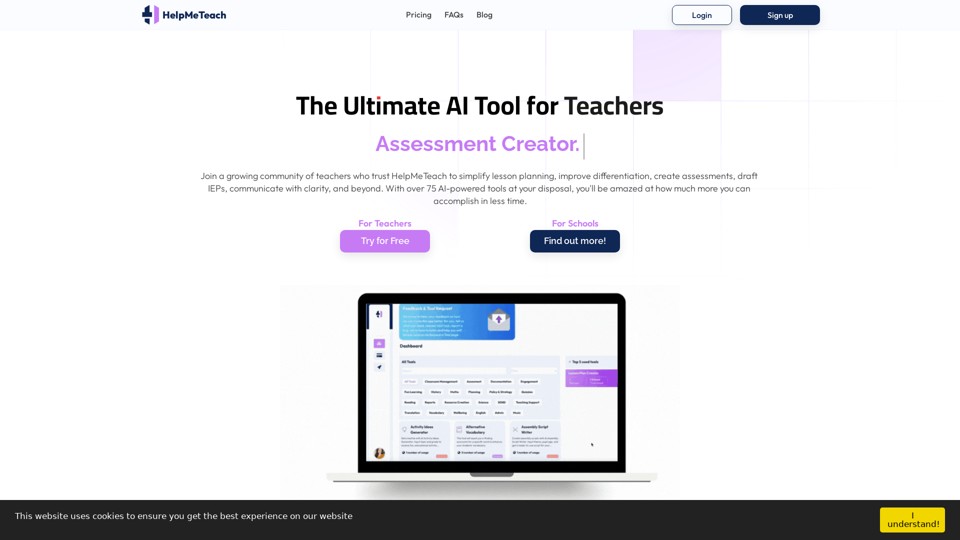
HelpMeTeach - AI Simplifies Teaching | Lesson Plans, Assessments, and More!
HelpMeTeach - AI Simplifies Teaching | Lesson Plans, Assessments, and More!Revolutionize your teaching with HelpMeTeach, the premier AI assistant for teachers. Simplify lesson plans and assessments, generate ideas, and create reports with ease. Enhance work-life balance and reduce workload with our 70+ teacher tools. Start now!
1.62 K
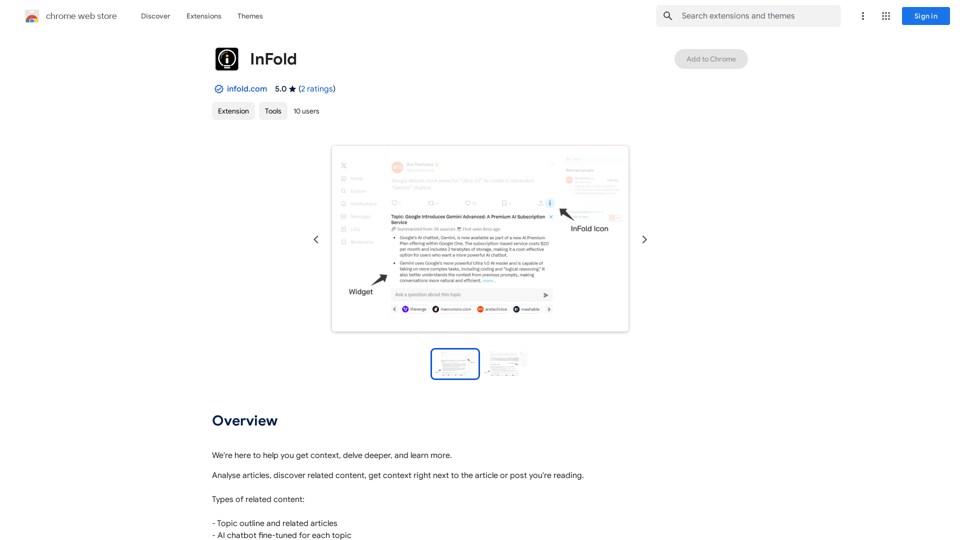
We're here to help you understand things better, explore topics in more detail, and learn new things.
193.90 M
MagicalAPI: YouTube SEO - Boost Your Channel with AI
MagicalAPI: YouTube SEO - Boost Your Channel with AIYour ultimate AI-powered tool for YouTube SEO and video optimization.
193.90 M