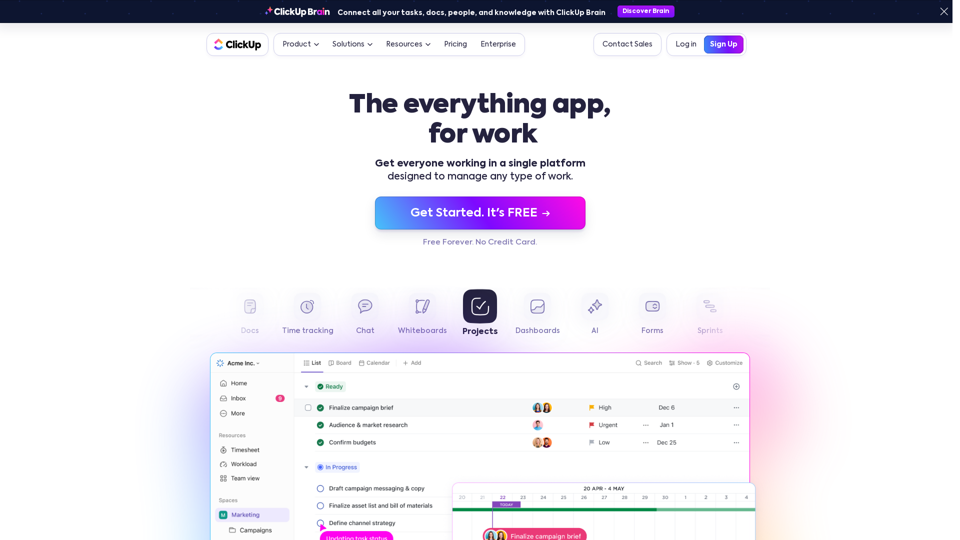
ClickUp is a comprehensive productivity platform designed to manage various types of work. It aims to replace multiple apps and tools, streamlining work processes for teams and individuals across different industries. ClickUp offers a wide range of features including task management, project planning, document collaboration, time tracking, and AI-powered productivity tools.
ClickUp™ | One app to replace them all
Our mission is to make the world more productive. To achieve this, we created a single app to replace all others - incorporating Tasks, Docs, Goals, and Chat.
Introduction
Feature
All-in-One Productivity Solution
ClickUp provides a centralized workspace that eliminates the need for multiple apps, improving collaboration and enhancing team communication and productivity.
Customizable Workspace
Users can adapt ClickUp to various work styles and industries through customizable views (List, Board, Gantt, etc.), workflows, and processes.
AI-Powered Productivity
ClickUp integrates AI technology to boost efficiency and streamline task completion, setting it apart from traditional project management tools.
Extensive Feature Set
Task Management
Project Planning
Document Collaboration
Time Tracking
Automation
Integrations
Whiteboards
Dashboards and Reporting
Flexible Pricing Options
ClickUp offers various pricing tiers to accommodate different needs and budgets:
| Plan | Price | Key Features |
|---|---|---|
| Free Forever | $0 | 100MB storage, Unlimited tasks, Unlimited members |
| Unlimited | $5/member/month | Unlimited storage, Integrations, Dashboards |
| Business | $12/member/month | Google SSO, Custom Exporting, Advanced Automations |
| Business Plus | $19/member/month | Team Sharing, Subtasks in multiple lists, Custom Role Creation |
| Enterprise | Custom pricing | White Labeling, Enterprise API, Dedicated Success Manager |
Mobile Accessibility
ClickUp offers mobile apps for both iOS and Android devices, allowing users to stay productive on the go.
Security Features
ClickUp prioritizes user security with features like two-factor authentication, SSO, and compliance with various security standards.
FAQ
Is ClickUp suitable for small businesses?
Yes, ClickUp's flexible pricing and scalable features make it suitable for businesses of all sizes, from small startups to large enterprises.
Can ClickUp replace project management tools like Asana or Trello?
Yes, ClickUp offers comparable and often more extensive features than many popular project management tools, making it a viable replacement for platforms like Asana or Trello.
Does ClickUp offer integrations with other software?
ClickUp provides numerous integrations with popular tools and has an API for custom integrations, allowing users to connect their existing software ecosystem with ClickUp.
Latest Traffic Insights
Monthly Visits
33.03 M
Bounce Rate
31.10%
Pages Per Visit
8.05
Time on Site(s)
580.99
Global Rank
1144
Country Rank
United States 1137
Recent Visits
Traffic Sources
- Social Media:0.62%
- Paid Referrals:0.68%
- Email:0.05%
- Referrals:3.43%
- Search Engines:18.57%
- Direct:76.65%
Related Websites
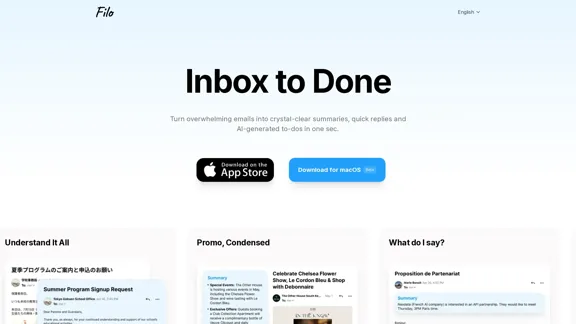
Turn overwhelming emails into clear summaries, quick replies, and AI-generated to-dos in one second.
6.31 K
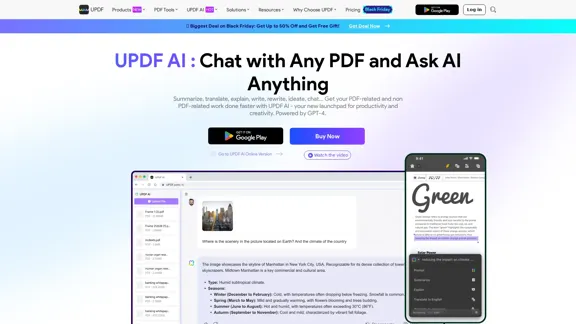
UPDF AI: The GPT-4 Powered AI for PDF Questions and More
UPDF AI: The GPT-4 Powered AI for PDF Questions and MoreUPDF AI with GPT-4 integrated to enhance productivity by summarizing, translating, explaining, rewriting, etc., for PDFs or anything!
1.61 M
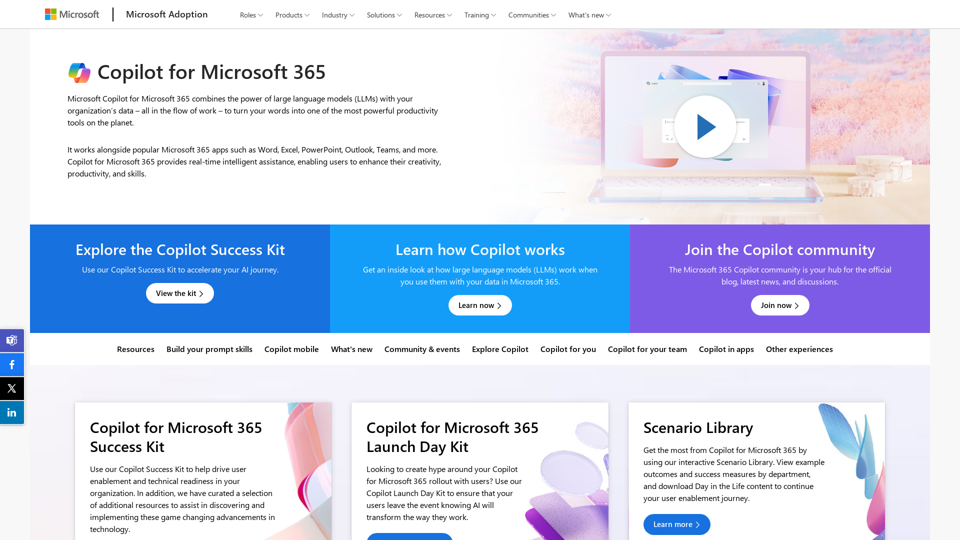
Copilot for Microsoft 365 – Microsoft Adoption Copilot for Microsoft 365 is a powerful AI assistant that helps you work smarter and faster across Microsoft 365 apps and services. It combines the power of large language models (LLMs) with your organization's data in the Microsoft Graph and Microsoft 365 apps to turn your words into the most powerful productivity tool on the planet. Copilot is designed to help you: • Unleash creativity • Unlock productivity • Uplevel skills Copilot is built on Microsoft's comprehensive approach to security, compliance, and privacy. Copilot in Microsoft 365 apps and services: • Does not use your data to train the underlying LLM • Does not replace human ingenuity and judgment • Is designed to keep humans in the loop Copilot is currently available in Word, Excel, PowerPoint, Outlook, Teams, and more. Getting Started with Copilot To get started with Copilot, follow these steps: 1. Check availability: Ensure your organization has access to Copilot. 2. Learn the basics: Familiarize yourself with Copilot's capabilities and how to use it effectively. 3. Explore use cases: Discover how Copilot can help you in your specific role and tasks. 4. Practice and refine: Use Copilot regularly and refine your prompts for better results. 5. Share and collaborate: Collaborate with colleagues using Copilot and share best practices. Best Practices for Using Copilot 1. Be specific in your prompts 2. Provide context for better results 3. Review and edit Copilot's output 4. Use Copilot as a starting point, not a final product 5. Experiment with different approaches 6. Stay informed about new features and updates Copilot in Different Microsoft 365 Apps • Word: Draft, edit, summarize, and rewrite content • Excel: Analyze data, create formulas, and generate insights • PowerPoint: Create presentations, design slides, and generate content • Outlook: Compose emails, summarize threads, and manage your inbox • Teams: Summarize meetings, generate action items, and create meeting notes Responsible AI and Copilot Microsoft is committed to developing AI systems responsibly. When using Copilot, keep in mind: • AI-generated content may contain biases or inaccuracies • Always review and verify Copilot's output • Use your judgment and expertise alongside Copilot's suggestions • Be aware of your organization's policies regarding AI use Conclusion Copilot for Microsoft 365 is a powerful tool that can significantly enhance your productivity and creativity. By understanding its capabilities, following best practices, and using it responsibly, you can make the most of this AI assistant in your daily work.
Copilot for Microsoft 365 – Microsoft Adoption Copilot for Microsoft 365 is a powerful AI assistant that helps you work smarter and faster across Microsoft 365 apps and services. It combines the power of large language models (LLMs) with your organization's data in the Microsoft Graph and Microsoft 365 apps to turn your words into the most powerful productivity tool on the planet. Copilot is designed to help you: • Unleash creativity • Unlock productivity • Uplevel skills Copilot is built on Microsoft's comprehensive approach to security, compliance, and privacy. Copilot in Microsoft 365 apps and services: • Does not use your data to train the underlying LLM • Does not replace human ingenuity and judgment • Is designed to keep humans in the loop Copilot is currently available in Word, Excel, PowerPoint, Outlook, Teams, and more. Getting Started with Copilot To get started with Copilot, follow these steps: 1. Check availability: Ensure your organization has access to Copilot. 2. Learn the basics: Familiarize yourself with Copilot's capabilities and how to use it effectively. 3. Explore use cases: Discover how Copilot can help you in your specific role and tasks. 4. Practice and refine: Use Copilot regularly and refine your prompts for better results. 5. Share and collaborate: Collaborate with colleagues using Copilot and share best practices. Best Practices for Using Copilot 1. Be specific in your prompts 2. Provide context for better results 3. Review and edit Copilot's output 4. Use Copilot as a starting point, not a final product 5. Experiment with different approaches 6. Stay informed about new features and updates Copilot in Different Microsoft 365 Apps • Word: Draft, edit, summarize, and rewrite content • Excel: Analyze data, create formulas, and generate insights • PowerPoint: Create presentations, design slides, and generate content • Outlook: Compose emails, summarize threads, and manage your inbox • Teams: Summarize meetings, generate action items, and create meeting notes Responsible AI and Copilot Microsoft is committed to developing AI systems responsibly. When using Copilot, keep in mind: • AI-generated content may contain biases or inaccuracies • Always review and verify Copilot's output • Use your judgment and expertise alongside Copilot's suggestions • Be aware of your organization's policies regarding AI use Conclusion Copilot for Microsoft 365 is a powerful tool that can significantly enhance your productivity and creativity. By understanding its capabilities, following best practices, and using it responsibly, you can make the most of this AI assistant in your daily work.Microsoft Copilot combines the power of large language models (LLMs) with your organization's data to turn your words into one of the most powerful productivity tools on the planet.
608.60 K

Engage AI | Generative AI for LinkedIn Comments and Content
Engage AI | Generative AI for LinkedIn Comments and ContentEngage AI empowers LinkedIn power users with Generative AI. Craft meaningful LinkedIn comments and content that allow you to stand out, break the ice, and start conversations even with prospects who are usually unresponsive to calls, messages, and emails.
71.94 K