Open-source RightAI Tools Directory
  • Discover AI
  • Submit
  • Startup
  • Blog
Open-source RightAI Tools Directory
Discover the best AI tools of 2025 with the RightAI Tools Directory!

Friend Links

AI Anime GeneratorToolsApp AI

Support

Tap4
Privacy policyTerms & ConditionsContact Us
Loading...
loading...

Trovy for Threads

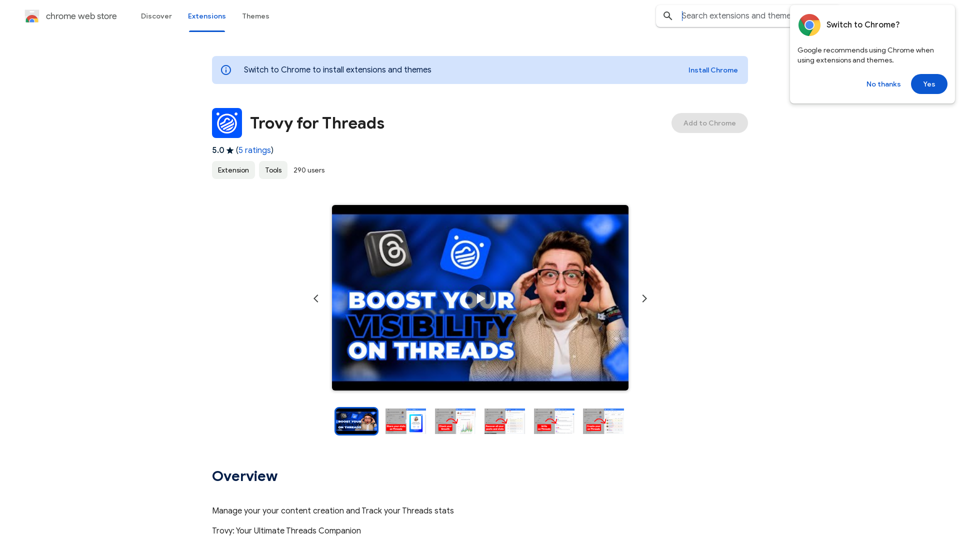
Manage your content creation and Track your Threads statistics.
Visit Website
Trovy for Threads
Visit Website

Introduction

Trovy for Threads is a Chrome extension designed to enhance your experience on the Threads social network. It offers a comprehensive suite of tools for managing, analyzing, and improving your digital engagement. With features like bookmarking, instant profile stats, and AI-powered post generation, Trovy seamlessly integrates with Threads to help users track their growth, manage content, and create compelling posts.

Feature

Bookmark Posts & Creators

Easily save favorite posts and profiles for quick access, ensuring you stay connected to inspiring content and creators.

Instant Profile Stats

Get a detailed summary of your social engagement with just one click, including total posts, likes, and replies.

Elegant Integration

Trovy blends seamlessly with the Threads interface, providing a non-intrusive and natural extension to the platform.

Social Growth Tracking

Monitor your growing influence on Threads by tracking follower growth and engagement levels.

Content Management

Organize and plan your Threads content effortlessly to maintain a consistent and impactful online presence.

AI-Powered Post Generation

Unleash creativity with Trovy's AI tool, designed to help craft compelling content and provide inspiration.

Effortless Installation

Simple Chrome browser installation process with intuitive integration into your Threads profile.

FAQ

What is Trovy for Threads?

Trovy for Threads is a Chrome extension that enhances your presence on the Threads social network by offering tools for managing, analyzing, and improving digital engagement.

How much does Trovy for Threads cost?

Trovy for Threads is a free Chrome extension, available for download and use without any costs or subscriptions.

What are the main benefits of using Trovy for Threads?

Benefits include:

  • Enhanced social media experience
  • Streamlined content creation and management
  • AI-powered post generation
  • Effortless installation and integration
  • Free to use

How can I maximize my use of Trovy for Threads?

To maximize Trovy's potential:

  • Leverage features for content creation and stat tracking
  • Monitor social engagement and growth
  • Utilize AI-powered post generation
  • Install and integrate seamlessly with Chrome browser

Related Websites
JustRecap
View Detail

JustRecap

JustRecap

JustRecap extracts summaries and key moments from videos so you can learn more in less time.

193.90 M
Typogram
View Detail

Typogram

Typogram

Use Typogram to generate text, translate languages, and write code on any website.

193.90 M
AI Group Tabs
View Detail

AI Group Tabs

AI Group Tabs

Group your tabs with AI This is a simple and effective way to organize your browser tabs using artificial intelligence. Here's how it works: * Select multiple tabs: Choose the tabs you want to group together. * AI grouping: Our AI will analyze the content of the selected tabs and suggest relevant groups. * Customize groups: You can adjust the suggested groups or create your own. * Save and access: Save your grouped tabs for easy access later. Let AI help you stay organized and productive!

193.90 M
HireJoy - AI assistant for reviewing resumes
View Detail

HireJoy - AI assistant for reviewing resumes

HireJoy - AI assistant for reviewing resumes

HireJoy is an AI tool powered by GPT-4 that can review candidates more completely than a person, in a much shorter amount of time.

193.90 M
Prompt Hackers
=====================

Generate creative and effective prompts to get the most out of your language model.
View Detail

Prompt Hackers ===================== Generate creative and effective prompts to get the most out of your language model.

Prompt Hackers ===================== Generate creative and effective prompts to get the most out of your language model.

The Most Advanced ChatGPT Prompt Generator and Prompt Library

193.90 M
SEO by AI
View Detail

SEO by AI

SEO by AI

SEOByAI helps you start your marketing efforts for free by giving you 100% free SEO tools.

193.90 M
Click
View Detail

Click

Click

Discover your core beliefs and put them into practice with your unique alignment score, powered by Google search data.

193.90 M
Converting JPG Images to Text

Converting a JPG image to text is a process known as Optical Character Recognition (OCR). This technology enables you to extract text from images, scanned documents, and photos. Here's how to do it:

Method 1: Online OCR Tools

You can use online OCR tools to convert JPG images to text. Here are the steps:

1. Upload your JPG image: Go to an online OCR tool website, such as Online OCR Tools or OCR.space, and upload your JPG image.
2. Select the language: Choose the language of the text in your image.
3. Click on "Convert": The tool will convert the image to text.
4. Download the text: You can download the extracted text as a Word document, PDF, or plain text file.

Method 2: Google Drive

You can also use Google Drive to convert JPG images to text. Here's how:

1. Upload your JPG image: Upload your JPG image to Google Drive.
2. Right-click on the image: Right-click on the uploaded image and select "Open with" > "Google Docs".
3. The image will be converted: Google Docs will automatically convert the image to text.
4. Edit and download: You can edit the extracted text and download it as a Word document or PDF.

Method 3: Adobe Acrobat

If you have Adobe Acrobat installed on your computer, you can use it to convert JPG images to text. Here's how:

1. Open Adobe Acrobat: Open Adobe Acrobat on your computer.
2. Create a new document: Create a new document and click on "Tools" > "Recognize Text".
3. Select the image: Select the JPG image you want to convert.
4. Click on "Recognize": Adobe Acrobat will convert the image to text.
5. Edit and save: You can edit the extracted text and save it as a Word document or PDF.

These are the three methods to convert JPG images to text. Choose the method that works best for you!
View Detail

Converting JPG Images to Text Converting a JPG image to text is a process known as Optical Character Recognition (OCR). This technology enables you to extract text from images, scanned documents, and photos. Here's how to do it: Method 1: Online OCR Tools You can use online OCR tools to convert JPG images to text. Here are the steps: 1. Upload your JPG image: Go to an online OCR tool website, such as Online OCR Tools or OCR.space, and upload your JPG image. 2. Select the language: Choose the language of the text in your image. 3. Click on "Convert": The tool will convert the image to text. 4. Download the text: You can download the extracted text as a Word document, PDF, or plain text file. Method 2: Google Drive You can also use Google Drive to convert JPG images to text. Here's how: 1. Upload your JPG image: Upload your JPG image to Google Drive. 2. Right-click on the image: Right-click on the uploaded image and select "Open with" > "Google Docs". 3. The image will be converted: Google Docs will automatically convert the image to text. 4. Edit and download: You can edit the extracted text and download it as a Word document or PDF. Method 3: Adobe Acrobat If you have Adobe Acrobat installed on your computer, you can use it to convert JPG images to text. Here's how: 1. Open Adobe Acrobat: Open Adobe Acrobat on your computer. 2. Create a new document: Create a new document and click on "Tools" > "Recognize Text". 3. Select the image: Select the JPG image you want to convert. 4. Click on "Recognize": Adobe Acrobat will convert the image to text. 5. Edit and save: You can edit the extracted text and save it as a Word document or PDF. These are the three methods to convert JPG images to text. Choose the method that works best for you!

Converting JPG Images to Text Converting a JPG image to text is a process known as Optical Character Recognition (OCR). This technology enables you to extract text from images, scanned documents, and photos. Here's how to do it: Method 1: Online OCR Tools You can use online OCR tools to convert JPG images to text. Here are the steps: 1. Upload your JPG image: Go to an online OCR tool website, such as Online OCR Tools or OCR.space, and upload your JPG image. 2. Select the language: Choose the language of the text in your image. 3. Click on "Convert": The tool will convert the image to text. 4. Download the text: You can download the extracted text as a Word document, PDF, or plain text file. Method 2: Google Drive You can also use Google Drive to convert JPG images to text. Here's how: 1. Upload your JPG image: Upload your JPG image to Google Drive. 2. Right-click on the image: Right-click on the uploaded image and select "Open with" > "Google Docs". 3. The image will be converted: Google Docs will automatically convert the image to text. 4. Edit and download: You can edit the extracted text and download it as a Word document or PDF. Method 3: Adobe Acrobat If you have Adobe Acrobat installed on your computer, you can use it to convert JPG images to text. Here's how: 1. Open Adobe Acrobat: Open Adobe Acrobat on your computer. 2. Create a new document: Create a new document and click on "Tools" > "Recognize Text". 3. Select the image: Select the JPG image you want to convert. 4. Click on "Recognize": Adobe Acrobat will convert the image to text. 5. Edit and save: You can edit the extracted text and save it as a Word document or PDF. These are the three methods to convert JPG images to text. Choose the method that works best for you!

It is an online tool that uses Optical Character Recognition (OCR) to make it possible to extract text from images in JPG format.

193.90 M