Open-source RightAI Tools Directory
  • Discover AI
  • Submit
  • Startup
  • Blog
Open-source RightAI Tools Directory
Discover the best AI tools of 2025 with the RightAI Tools Directory!

Friend Links

AI Anime GeneratorToolsApp AI

Support

Tap4
Privacy policyTerms & ConditionsContact Us
Loading...
loading...

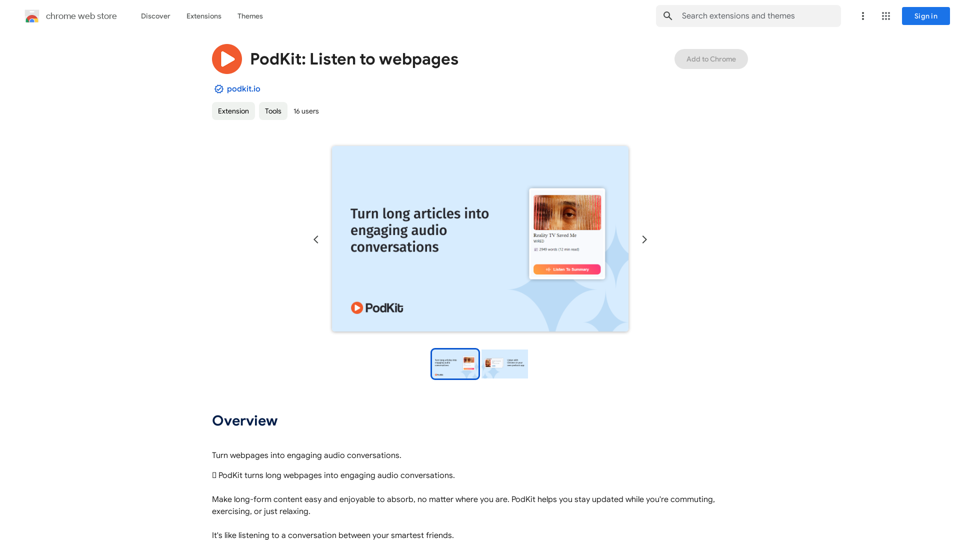
PodKit: Listen to Web Pages

Turn webpages into engaging audio conversations.
Visit Website
PodKit: Listen to Web Pages
Visit Website

Introduction

PodKit is an AI-powered platform that transforms lengthy webpages into concise audio conversations. This innovative tool allows users to stay informed while on the move, whether commuting, exercising, or relaxing. PodKit converts webpages into audio summaries, making information absorption and retention effortless.

Feature

5-minute Audio Summaries

PodKit's advanced AI technology delivers accurate and concise summaries of webpages, focusing on essential information without unnecessary details.

Versatile Content Conversion

Convert various long-form content types into audio, including:

  • Blog posts
  • News articles
  • Wikipedia pages
  • YouTube videos (2-hour lectures into 5-minute summaries)

Interactive Q&A Session

After the summary, two AI speakers discuss key points through a series of questions and answers, enhancing comprehension of the text.

Advanced Text-to-Speech (TTS)

Two natural-sounding AI voices present the webpage summary in a lifelike manner, creating an engaging listening experience.

Flexible Listening Options

Listen to audio summaries via:

  • Chrome extension
  • PodKit website
  • Any podcast app on mobile devices

Free Full-Text TTS

Access free full-text audio of webpages using your device's built-in system voice.

FAQ

How does PodKit work?

PodKit utilizes AI to transform lengthy articles into brief, engaging audio conversations between two virtual speakers, providing key takeaways without excess information.

Who is PodKit designed for?

PodKit's audio summaries are ideal for:

  • Students
  • Researchers
  • Information workers
  • Individuals with extensive reading lists but limited time

What is the typical length of a PodKit episode?

Episodes are approximately 3-5 minutes long, offering quick summaries of articles.

Which languages does PodKit support?

Currently, PodKit only supports English, with plans to expand language options in the future.

How much does PodKit cost?

PodKit offers credit packs:

  • 50 credits
  • 150 credits
  • 350 credits

Unused credits never expire. One credit generates one episode, with longer webpages (1500+ words) potentially requiring additional credits.

Is there a free trial available?

Yes, new users receive 10 free credits upon signing up to try PodKit's features.

Latest Traffic Insights

  • Monthly Visits

    193.90 M

  • Bounce Rate

    56.27%

  • Pages Per Visit

    2.71

  • Time on Site(s)

    115.91

  • Global Rank

    -

  • Country Rank

    -

Recent Visits

Traffic Sources

  • Social Media:
    0.48%
  • Paid Referrals:
    0.55%
  • Email:
    0.15%
  • Referrals:
    12.81%
  • Search Engines:
    16.21%
  • Direct:
    69.81%
More Data

Related Websites

TabCrunch - AI Tab Manager
View Detail

TabCrunch - AI Tab Manager

TabCrunch - AI Tab Manager

AI-Powered Tab Manager for Researchers

193.90 M
Fast ChatGPT
View Detail

Fast ChatGPT

Fast ChatGPT

Using ChatGPT in a browser popup window without having to switch tabs.

193.90 M
AI Voice Over for YouTube 

This is a guide to using AI voice over for your YouTube videos. 

Why Use AI Voice Over?

* Cost-Effective: AI voice over is much cheaper than hiring a professional voice actor.
* Time-Saving: You can generate voice over quickly and easily, without needing to schedule recording sessions.
* Variety of Voices: Choose from a wide range of AI voices, including male, female, and even robotic voices.
* Accessibility: Make your videos accessible to viewers who are deaf or hard of hearing by adding captions generated by AI.

How to Use AI Voice Over

1. Choose a Platform: There are many different platforms that offer AI voice over services, such as:
    * Google Cloud Text-to-Speech
    * Amazon Polly
    * Microsoft Azure Text to Speech
    * Murf.ai
    * NaturalReader
2. Write Your Script:  Write a clear and concise script for your video.
3. Upload Your Script:  Upload your script to the chosen platform.
4. Select a Voice: Choose the voice that best suits your video.
5. Adjust Settings:  Adjust settings such as speed, pitch, and volume.
6. Generate Voice Over:  Click the "Generate" button to create your voice over.
7. Download and Edit: Download the generated voice over file and edit it as needed.
8. Add to Your Video:  Add the voice over to your YouTube video.

Tips for Using AI Voice Over

* Use Natural Language:  Write your script as if you were speaking naturally.
* Vary Your Tone:  Use different tones of voice to keep your viewers engaged.
* Add Pauses:  Include pauses in your script to allow viewers to process information.
* Proofread Carefully:  Always proofread your script before generating the voice over.
* Experiment:  Try different voices, settings, and styles to find what works best for you.
View Detail

AI Voice Over for YouTube This is a guide to using AI voice over for your YouTube videos. Why Use AI Voice Over? * Cost-Effective: AI voice over is much cheaper than hiring a professional voice actor. * Time-Saving: You can generate voice over quickly and easily, without needing to schedule recording sessions. * Variety of Voices: Choose from a wide range of AI voices, including male, female, and even robotic voices. * Accessibility: Make your videos accessible to viewers who are deaf or hard of hearing by adding captions generated by AI. How to Use AI Voice Over 1. Choose a Platform: There are many different platforms that offer AI voice over services, such as: * Google Cloud Text-to-Speech * Amazon Polly * Microsoft Azure Text to Speech * Murf.ai * NaturalReader 2. Write Your Script: Write a clear and concise script for your video. 3. Upload Your Script: Upload your script to the chosen platform. 4. Select a Voice: Choose the voice that best suits your video. 5. Adjust Settings: Adjust settings such as speed, pitch, and volume. 6. Generate Voice Over: Click the "Generate" button to create your voice over. 7. Download and Edit: Download the generated voice over file and edit it as needed. 8. Add to Your Video: Add the voice over to your YouTube video. Tips for Using AI Voice Over * Use Natural Language: Write your script as if you were speaking naturally. * Vary Your Tone: Use different tones of voice to keep your viewers engaged. * Add Pauses: Include pauses in your script to allow viewers to process information. * Proofread Carefully: Always proofread your script before generating the voice over. * Experiment: Try different voices, settings, and styles to find what works best for you.

AI Voice Over for YouTube This is a guide to using AI voice over for your YouTube videos. Why Use AI Voice Over? * Cost-Effective: AI voice over is much cheaper than hiring a professional voice actor. * Time-Saving: You can generate voice over quickly and easily, without needing to schedule recording sessions. * Variety of Voices: Choose from a wide range of AI voices, including male, female, and even robotic voices. * Accessibility: Make your videos accessible to viewers who are deaf or hard of hearing by adding captions generated by AI. How to Use AI Voice Over 1. Choose a Platform: There are many different platforms that offer AI voice over services, such as: * Google Cloud Text-to-Speech * Amazon Polly * Microsoft Azure Text to Speech * Murf.ai * NaturalReader 2. Write Your Script: Write a clear and concise script for your video. 3. Upload Your Script: Upload your script to the chosen platform. 4. Select a Voice: Choose the voice that best suits your video. 5. Adjust Settings: Adjust settings such as speed, pitch, and volume. 6. Generate Voice Over: Click the "Generate" button to create your voice over. 7. Download and Edit: Download the generated voice over file and edit it as needed. 8. Add to Your Video: Add the voice over to your YouTube video. Tips for Using AI Voice Over * Use Natural Language: Write your script as if you were speaking naturally. * Vary Your Tone: Use different tones of voice to keep your viewers engaged. * Add Pauses: Include pauses in your script to allow viewers to process information. * Proofread Carefully: Always proofread your script before generating the voice over. * Experiment: Try different voices, settings, and styles to find what works best for you.

Watch foreign language YouTube videos in your own language.

193.90 M
MashaGPT - Access to ChatGPT-4 with one click
View Detail

MashaGPT - Access to ChatGPT-4 with one click

MashaGPT - Access to ChatGPT-4 with one click

Description: Meet Mashagpt - your new helper for working with ChatGPT right in your browser! With Mashagpt you'll get access to...

193.90 M
AI Summary Pro: Instant Text & Page Insights
View Detail

AI Summary Pro: Instant Text & Page Insights

AI Summary Pro: Instant Text & Page Insights

Use advanced AI to get short summaries of articles, texts, and websites.

193.90 M
MangoFlow: AI Chat Sidebar
View Detail

MangoFlow: AI Chat Sidebar

MangoFlow: AI Chat Sidebar

Smart Copilot for Internet Surfing, a smart assistant for browsing the web.

193.90 M
AI Board (GPT Support)
View Detail

AI Board (GPT Support)

AI Board (GPT Support)

This is a service that uses the general ChatGPT API with enhanced security for corporate use.

193.90 M
Gmail Bot
View Detail

Gmail Bot

Gmail Bot

Ask ChatGPT about your Gmail messages

193.90 M