Open-source RightAI Tools Directory
  • Discover AI
  • Submit
  • Startup
  • Blog
Open-source RightAI Tools Directory
Discover the best AI tools of 2025 with the RightAI Tools Directory!

Friend Links

AI Anime GeneratorToolsApp AI

Support

Tap4
Privacy policyTerms & ConditionsContact Us
Loading...
loading...

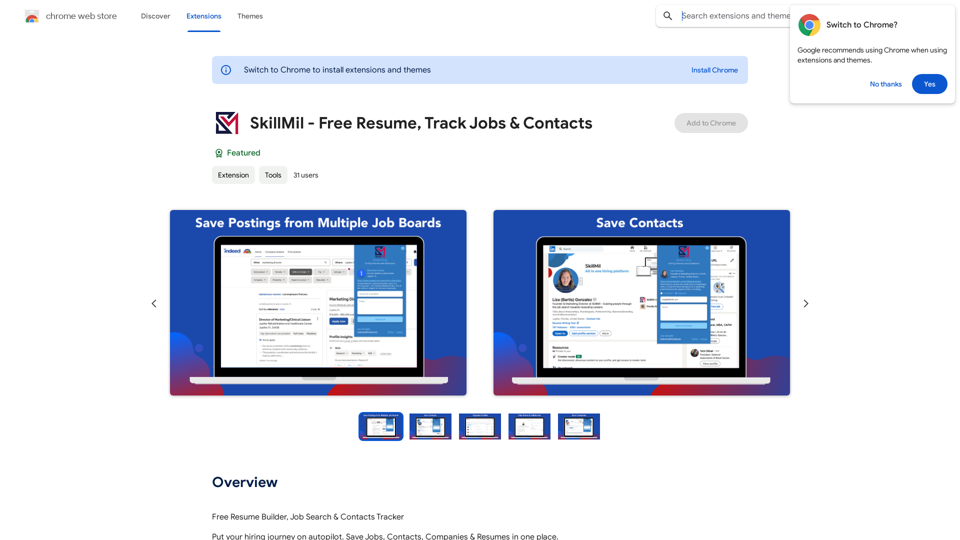
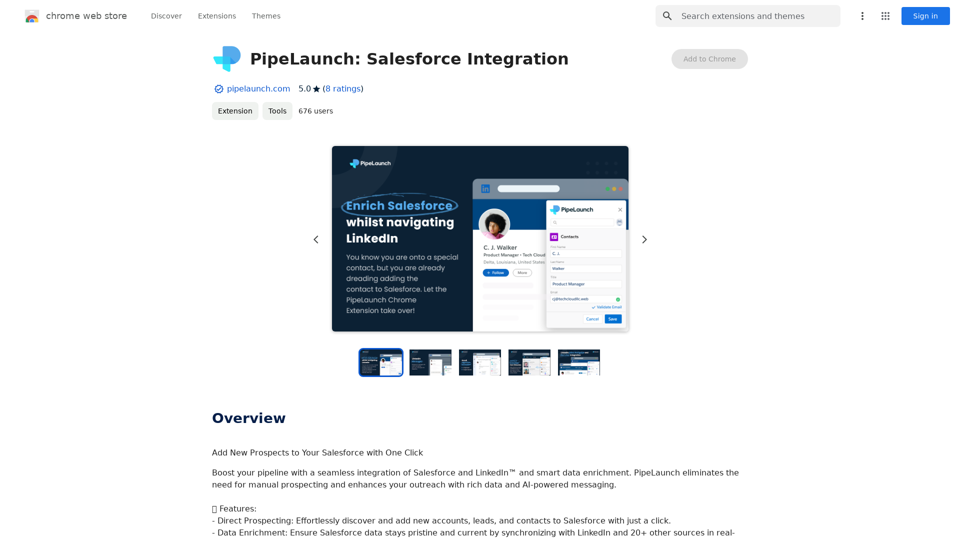
PipeLaunch: Salesforce Integration

Add New Prospects to Your Salesforce with One Click
Visit Website
PipeLaunch: Salesforce Integration
Visit Website

Introduction

PipeLaunch is an innovative AI-powered platform that seamlessly integrates Salesforce and LinkedIn. It revolutionizes the sales process by enabling teams to effortlessly discover and add new accounts, leads, and contacts to Salesforce with a single click. By eliminating manual prospecting and enriching outreach with comprehensive data and AI-generated messaging, PipeLaunch significantly enhances productivity and engagement for sales professionals.

Feature

Direct Prospecting

  • Discover and add new accounts, leads, and contacts to Salesforce with one click
  • Eliminate manual copy-pasting, saving up to 9 hours per week for each sales rep

Data Enrichment

  • Synchronize Salesforce data with LinkedIn and 20+ other sources in real-time
  • Maintain pristine and current CRM data
  • Extract fresh contacts from Gmail, Google Calendar, Google Meet, and websites

Sales Insights

  • Amplify outreach with deep sales intelligence
  • Access job histories and company tech stacks
  • Utilize AI-generated messages for enhanced engagement

Seamless Integration

  • LinkedIn-to-Salesforce integration
  • Support for LinkedIn Sales Navigator, Recruiter, and Recruiter Lite

Versatile Use Cases

  • Prospecting for sales teams
  • List building for marketing campaigns
  • Alumni career tracking
  • Streamlined recruitment process

User-Friendly Setup

  • Quick and easy setup within minutes
  • 7-day risk-free trial with no credit card required
  • Full GDPR compliance for data security

FAQ

What is PipeLaunch?

PipeLaunch is an AI-driven platform that integrates Salesforce and LinkedIn, offering sales teams a seamless experience to discover and add new accounts, leads, and contacts to Salesforce with just a click.

What are the key features of PipeLaunch?

The key features of PipeLaunch include:

  • Direct prospecting
  • Data enrichment
  • Sales insights
  • Seamless LinkedIn-to-Salesforce integration
  • Instantaneous data enrichment
  • Single-click addition of contacts matching your ICP

How does PipeLaunch enhance engagement with prospects?

PipeLaunch enhances engagement with prospects by providing:

  • Insights on company updates
  • Information on tech stacks
  • AI-generated messages for personalized outreach

Is PipeLaunch GDPR compliant?

Yes, PipeLaunch is fully GDPR compliant, ensuring data security and privacy for its users.

Latest Traffic Insights

  • Monthly Visits

    193.90 M

  • Bounce Rate

    56.27%

  • Pages Per Visit

    2.71

  • Time on Site(s)

    115.91

  • Global Rank

    -

  • Country Rank

    -

Recent Visits

Traffic Sources

  • Social Media:
    0.48%
  • Paid Referrals:
    0.55%
  • Email:
    0.15%
  • Referrals:
    12.81%
  • Search Engines:
    16.21%
  • Direct:
    69.81%
More Data

Related Websites

Chat-GPT PDF

What is Chat-GPT PDF?

Chat-GPT PDF is a tool that allows users to generate PDF files from Chat-GPT conversations. This innovative tool enables users to save and share their conversations in a more organized and visually appealing format.

How does Chat-GPT PDF work?

The process is simple and straightforward. Here's a step-by-step guide:

1. Copy the conversation: Copy the entire conversation from the Chat-GPT platform.
2. Paste the conversation: Paste the copied conversation into the Chat-GPT PDF tool.
3. Customize the layout: Customize the layout, font, and design of the PDF file according to your preferences.
4. Generate the PDF: Click the "Generate PDF" button to create a downloadable PDF file.

Features of Chat-GPT PDF

Chat-GPT PDF offers several features that make it an essential tool for users:

* Customizable layout: Customize the layout, font, and design of the PDF file to suit your needs.
* Easy sharing: Share the PDF file with others via email, social media, or messaging apps.
* Offline access: Access your conversations offline, even without an internet connection.
* Organization: Organize your conversations in a neat and tidy format, making it easier to review and reference.

Benefits of Chat-GPT PDF

The benefits of using Chat-GPT PDF are numerous:

* Improved productivity: Save time and increase productivity by having all your conversations in one place.
* Enhanced collaboration: Collaborate with others more effectively by sharing conversations in a clear and concise format.
* Better organization: Keep your conversations organized, making it easier to review and reference them later.

Conclusion

Chat-GPT PDF is a game-changer for anyone who uses Chat-GPT regularly. With its ease of use, customization options, and benefits, it's an essential tool for anyone looking to get the most out of their conversations.
View Detail

Chat-GPT PDF What is Chat-GPT PDF? Chat-GPT PDF is a tool that allows users to generate PDF files from Chat-GPT conversations. This innovative tool enables users to save and share their conversations in a more organized and visually appealing format. How does Chat-GPT PDF work? The process is simple and straightforward. Here's a step-by-step guide: 1. Copy the conversation: Copy the entire conversation from the Chat-GPT platform. 2. Paste the conversation: Paste the copied conversation into the Chat-GPT PDF tool. 3. Customize the layout: Customize the layout, font, and design of the PDF file according to your preferences. 4. Generate the PDF: Click the "Generate PDF" button to create a downloadable PDF file. Features of Chat-GPT PDF Chat-GPT PDF offers several features that make it an essential tool for users: * Customizable layout: Customize the layout, font, and design of the PDF file to suit your needs. * Easy sharing: Share the PDF file with others via email, social media, or messaging apps. * Offline access: Access your conversations offline, even without an internet connection. * Organization: Organize your conversations in a neat and tidy format, making it easier to review and reference. Benefits of Chat-GPT PDF The benefits of using Chat-GPT PDF are numerous: * Improved productivity: Save time and increase productivity by having all your conversations in one place. * Enhanced collaboration: Collaborate with others more effectively by sharing conversations in a clear and concise format. * Better organization: Keep your conversations organized, making it easier to review and reference them later. Conclusion Chat-GPT PDF is a game-changer for anyone who uses Chat-GPT regularly. With its ease of use, customization options, and benefits, it's an essential tool for anyone looking to get the most out of their conversations.

Chat-GPT PDF What is Chat-GPT PDF? Chat-GPT PDF is a tool that allows users to generate PDF files from Chat-GPT conversations. This innovative tool enables users to save and share their conversations in a more organized and visually appealing format. How does Chat-GPT PDF work? The process is simple and straightforward. Here's a step-by-step guide: 1. Copy the conversation: Copy the entire conversation from the Chat-GPT platform. 2. Paste the conversation: Paste the copied conversation into the Chat-GPT PDF tool. 3. Customize the layout: Customize the layout, font, and design of the PDF file according to your preferences. 4. Generate the PDF: Click the "Generate PDF" button to create a downloadable PDF file. Features of Chat-GPT PDF Chat-GPT PDF offers several features that make it an essential tool for users: * Customizable layout: Customize the layout, font, and design of the PDF file to suit your needs. * Easy sharing: Share the PDF file with others via email, social media, or messaging apps. * Offline access: Access your conversations offline, even without an internet connection. * Organization: Organize your conversations in a neat and tidy format, making it easier to review and reference. Benefits of Chat-GPT PDF The benefits of using Chat-GPT PDF are numerous: * Improved productivity: Save time and increase productivity by having all your conversations in one place. * Enhanced collaboration: Collaborate with others more effectively by sharing conversations in a clear and concise format. * Better organization: Keep your conversations organized, making it easier to review and reference them later. Conclusion Chat-GPT PDF is a game-changer for anyone who uses Chat-GPT regularly. With its ease of use, customization options, and benefits, it's an essential tool for anyone looking to get the most out of their conversations.

Exporting Chat History to PDF You can export your chat history with Chat-GPT to a PDF file using the following methods: #Method 1: Browser Print Function 1. Open your chat conversation with Chat-GPT in a web browser. 2. Press `Ctrl + P` (Windows) or `Cmd + P` (Mac) to open the print dialog box. 3. Select "Save as PDF" as the printer destination. 4. Choose a location to save the PDF file and set the file name. 5. Click "Save" to export the chat history to a PDF file. #Method 2: Online PDF Conversion Tools 1. Copy the entire chat conversation by pressing `Ctrl + A` (Windows) or `Cmd + A` (Mac) and then `Ctrl + C` (Windows) or `Cmd + C` (Mac). 2. Go to an online PDF conversion tool, such as SmallPDF or Convertio. 3. Paste the chat conversation into the conversion tool's text box. 4. Select the PDF format and click "Convert" to generate the PDF file. 5. Download the PDF file to your computer. #Method 3: Browser Extensions 1. Install a browser extension, such as Print Friendly & PDF or FireShot, that allows you to save web pages as PDF files. 2. Open your chat conversation with Chat-GPT in a web browser. 3. Click the browser extension's icon in the toolbar. 4. Select the "Save as PDF" option and choose a location to save the file. 5. Click "Save" to export the chat history to a PDF file. By following these methods, you can easily export your chat history with Chat-GPT to a PDF file for future reference or sharing.

193.90 M
Converting JPG Images to Text

Converting a JPG image to text is a process known as Optical Character Recognition (OCR). This technology enables you to extract text from images, scanned documents, and photos. Here's how to do it:

Method 1: Online OCR Tools

You can use online OCR tools to convert JPG images to text. Here are the steps:

1. Upload your JPG image: Go to an online OCR tool website, such as Online OCR Tools or OCR.space, and upload your JPG image.
2. Select the language: Choose the language of the text in your image.
3. Click on "Convert": The tool will convert the image to text.
4. Download the text: You can download the extracted text as a Word document, PDF, or plain text file.

Method 2: Google Drive

You can also use Google Drive to convert JPG images to text. Here's how:

1. Upload your JPG image: Upload your JPG image to Google Drive.
2. Right-click on the image: Right-click on the uploaded image and select "Open with" > "Google Docs".
3. The image will be converted: Google Docs will automatically convert the image to text.
4. Edit and download: You can edit the extracted text and download it as a Word document or PDF.

Method 3: Adobe Acrobat

If you have Adobe Acrobat installed on your computer, you can use it to convert JPG images to text. Here's how:

1. Open Adobe Acrobat: Open Adobe Acrobat on your computer.
2. Create a new document: Create a new document and click on "Tools" > "Recognize Text".
3. Select the image: Select the JPG image you want to convert.
4. Click on "Recognize": Adobe Acrobat will convert the image to text.
5. Edit and save: You can edit the extracted text and save it as a Word document or PDF.

These are the three methods to convert JPG images to text. Choose the method that works best for you!
View Detail

Converting JPG Images to Text Converting a JPG image to text is a process known as Optical Character Recognition (OCR). This technology enables you to extract text from images, scanned documents, and photos. Here's how to do it: Method 1: Online OCR Tools You can use online OCR tools to convert JPG images to text. Here are the steps: 1. Upload your JPG image: Go to an online OCR tool website, such as Online OCR Tools or OCR.space, and upload your JPG image. 2. Select the language: Choose the language of the text in your image. 3. Click on "Convert": The tool will convert the image to text. 4. Download the text: You can download the extracted text as a Word document, PDF, or plain text file. Method 2: Google Drive You can also use Google Drive to convert JPG images to text. Here's how: 1. Upload your JPG image: Upload your JPG image to Google Drive. 2. Right-click on the image: Right-click on the uploaded image and select "Open with" > "Google Docs". 3. The image will be converted: Google Docs will automatically convert the image to text. 4. Edit and download: You can edit the extracted text and download it as a Word document or PDF. Method 3: Adobe Acrobat If you have Adobe Acrobat installed on your computer, you can use it to convert JPG images to text. Here's how: 1. Open Adobe Acrobat: Open Adobe Acrobat on your computer. 2. Create a new document: Create a new document and click on "Tools" > "Recognize Text". 3. Select the image: Select the JPG image you want to convert. 4. Click on "Recognize": Adobe Acrobat will convert the image to text. 5. Edit and save: You can edit the extracted text and save it as a Word document or PDF. These are the three methods to convert JPG images to text. Choose the method that works best for you!

Converting JPG Images to Text Converting a JPG image to text is a process known as Optical Character Recognition (OCR). This technology enables you to extract text from images, scanned documents, and photos. Here's how to do it: Method 1: Online OCR Tools You can use online OCR tools to convert JPG images to text. Here are the steps: 1. Upload your JPG image: Go to an online OCR tool website, such as Online OCR Tools or OCR.space, and upload your JPG image. 2. Select the language: Choose the language of the text in your image. 3. Click on "Convert": The tool will convert the image to text. 4. Download the text: You can download the extracted text as a Word document, PDF, or plain text file. Method 2: Google Drive You can also use Google Drive to convert JPG images to text. Here's how: 1. Upload your JPG image: Upload your JPG image to Google Drive. 2. Right-click on the image: Right-click on the uploaded image and select "Open with" > "Google Docs". 3. The image will be converted: Google Docs will automatically convert the image to text. 4. Edit and download: You can edit the extracted text and download it as a Word document or PDF. Method 3: Adobe Acrobat If you have Adobe Acrobat installed on your computer, you can use it to convert JPG images to text. Here's how: 1. Open Adobe Acrobat: Open Adobe Acrobat on your computer. 2. Create a new document: Create a new document and click on "Tools" > "Recognize Text". 3. Select the image: Select the JPG image you want to convert. 4. Click on "Recognize": Adobe Acrobat will convert the image to text. 5. Edit and save: You can edit the extracted text and save it as a Word document or PDF. These are the three methods to convert JPG images to text. Choose the method that works best for you!

It is an online tool that uses Optical Character Recognition (OCR) to make it possible to extract text from images in JPG format.

193.90 M
GPT Netherlands Assistant
View Detail

GPT Netherlands Assistant

GPT Netherlands Assistant

A free, ad-free, fast add-on for ChatGPT on the German community page with links to top websites.

193.90 M
Notion Flow
View Detail

Notion Flow

Notion Flow

Show Notion Page Table of Contents Publish Notion Pages to a GitHub Jekyll Blog Upload Blog Images to an OSS Service

193.90 M
Wonder AI - Your GPT Writing Assistant
View Detail

Wonder AI - Your GPT Writing Assistant

Wonder AI - Your GPT Writing Assistant

Wonder AI: The AI Writing Assistant That Makes Your Content Stand Out Wonder AI is an AI writing assistant that uses the power of artificial intelligence to help you create high-quality, engaging content that resonates with your audience.

193.90 M
LocalhostAI - Your AI Assistant for Chrome and Gemini Nano
View Detail

LocalhostAI - Your AI Assistant for Chrome and Gemini Nano

LocalhostAI - Your AI Assistant for Chrome and Gemini Nano

LocalhostAI: Your AI assistant designed to work seamlessly with Chrome and Gemini Nano. Enhance your productivity with advanced AI models.

0
Genspark

Genspark is a technology company that provides AI-powered education and talent development solutions.
View Detail

Genspark Genspark is a technology company that provides AI-powered education and talent development solutions.

Genspark Genspark is a technology company that provides AI-powered education and talent development solutions.

GenSpark GenSpark is a training program that focuses on providing skills and knowledge to individuals in the field of software development, data science, and other related technologies. The program aims to bridge the gap between the skills possessed by the students and the requirements of the industry.

8.76 M
Open ChatGPT in a New Tab

You can open ChatGPT in a new tab by following these steps:

#Method 1: Using the Browser's Context Menu

1. Right-click on the ChatGPT link or button.
2. Select "Open in new tab" or "Open link in new tab" from the context menu.

#Method 2: Using the Keyboard Shortcut

1. Press `Ctrl + Click` (Windows/Linux) or `Cmd + Click` (Mac) on the ChatGPT link or button.

#Method 3: Using the Browser's Toolbar

1. Click on the ChatGPT link or button while holding down the `Ctrl` key (Windows/Linux) or `Cmd` key (Mac).
2. Release the key after the new tab is opened.

By following these methods, you can easily open ChatGPT in a new tab and start chatting without leaving your current page.
View Detail

Open ChatGPT in a New Tab You can open ChatGPT in a new tab by following these steps: #Method 1: Using the Browser's Context Menu 1. Right-click on the ChatGPT link or button. 2. Select "Open in new tab" or "Open link in new tab" from the context menu. #Method 2: Using the Keyboard Shortcut 1. Press `Ctrl + Click` (Windows/Linux) or `Cmd + Click` (Mac) on the ChatGPT link or button. #Method 3: Using the Browser's Toolbar 1. Click on the ChatGPT link or button while holding down the `Ctrl` key (Windows/Linux) or `Cmd` key (Mac). 2. Release the key after the new tab is opened. By following these methods, you can easily open ChatGPT in a new tab and start chatting without leaving your current page.

Open ChatGPT in a New Tab You can open ChatGPT in a new tab by following these steps: #Method 1: Using the Browser's Context Menu 1. Right-click on the ChatGPT link or button. 2. Select "Open in new tab" or "Open link in new tab" from the context menu. #Method 2: Using the Keyboard Shortcut 1. Press `Ctrl + Click` (Windows/Linux) or `Cmd + Click` (Mac) on the ChatGPT link or button. #Method 3: Using the Browser's Toolbar 1. Click on the ChatGPT link or button while holding down the `Ctrl` key (Windows/Linux) or `Cmd` key (Mac). 2. Release the key after the new tab is opened. By following these methods, you can easily open ChatGPT in a new tab and start chatting without leaving your current page.

New Tab with Quick ChatGPT Access

193.90 M