Open-source RightAI Tools Directory
  • Discover AI
  • Submit
  • Startup
  • Blog
Open-source RightAI Tools Directory
Discover the best AI tools of 2025 with the RightAI Tools Directory!

Friend Links

AI Anime GeneratorToolsApp AI

Support

Tap4
Privacy policyTerms & ConditionsContact Us
Loading...
loading...

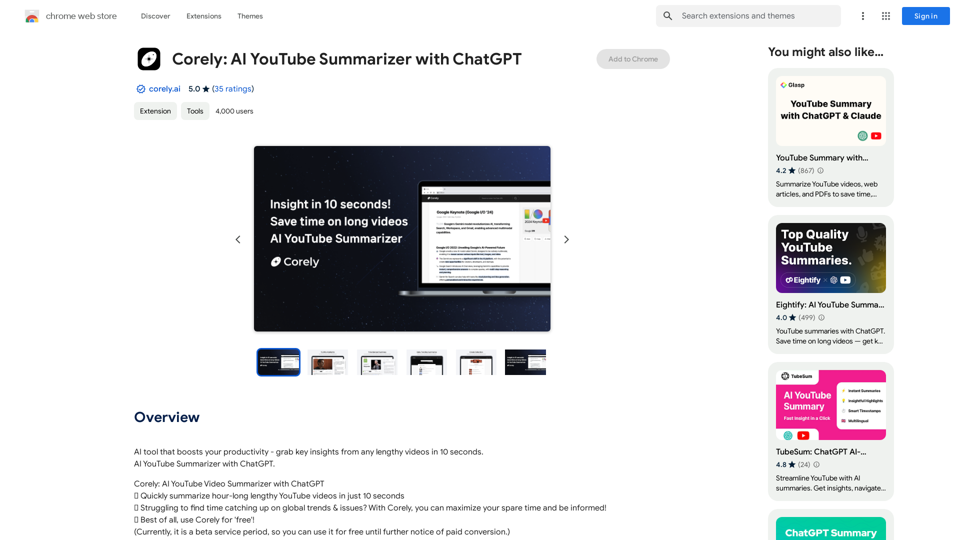
Corely: AI YouTube Summarizer with ChatGPT

AI tool that boosts your productivity - grab key insights from any lengthy videos in 10 seconds. AI YouTube Summarizer with ChatGPT.
Visit Website
Corely: AI YouTube Summarizer with ChatGPT
Visit Website

Introduction

Corely is an AI-powered platform that utilizes ChatGPT to summarize YouTube videos, delivering key insights in just 10 seconds. This innovative tool helps users quickly grasp the main points of lengthy videos, enhancing productivity and saving time. Corely is particularly useful for corporate professionals, current affairs enthusiasts, and college students seeking efficient learning methods.

Feature

3-Step Summary

Corely provides a comprehensive summary in three parts:

  • TLDR (Too Long; Didn't Read)
  • Highlights
  • Timestamp

Sophisticated AI Pipeline

The platform employs a constantly evolving AI pipeline to ensure:

  • Accurate summaries
  • Easy-to-read content

Daily Trending Videos

Corely automatically delivers:

  • Fresh content
  • Hot topics from top channels

User-Friendly Interface

Getting started with Corely is simple:

  1. Install the extension
  2. Pin it to your browser
  3. Click the [Summarize Video] button to view summaries

Multilingual Support

Current LanguagesFuture Plans
English40+ languages
Korean

Upcoming Features

  • Testing and combining LLMs for improved summary quality and speed
  • Advanced prompt chaining based on video category and topic

FAQ

What types of YouTube videos can Corely summarize?

Currently, Corely can summarize videos with subtitles only.

How long does it take for Corely to summarize a video?

Regardless of the video length, Corely provides summaries in 10-20 seconds.

How does Corely generate summaries?

Corely fine-tunes its training data from top LLM models to extract, analyze, and summarize main YouTube video content from subtitles.

Is Corely a free service?

Corely is currently free, but paid plans are planned for the future.

How does Corely handle user privacy and security?

Corely prioritizes user data protection by:

  • Implementing robust security measures
  • Never sharing user information with third parties
  • Ensuring secure protection of all personal data

Latest Traffic Insights

  • Monthly Visits

    193.90 M

  • Bounce Rate

    56.27%

  • Pages Per Visit

    2.71

  • Time on Site(s)

    115.91

  • Global Rank

    -

  • Country Rank

    -

Recent Visits

Traffic Sources

  • Social Media:
    0.48%
  • Paid Referrals:
    0.55%
  • Email:
    0.15%
  • Referrals:
    12.81%
  • Search Engines:
    16.21%
  • Direct:
    69.81%
More Data

Related Websites

What is a Prompster?

A Prompster is a person who assists a speaker, actor, or presenter by providing them with lines or cues, usually in a subtle and discreet manner, during a performance, presentation, or speech.
View Detail

What is a Prompster? A Prompster is a person who assists a speaker, actor, or presenter by providing them with lines or cues, usually in a subtle and discreet manner, during a performance, presentation, or speech.

What is a Prompster? A Prompster is a person who assists a speaker, actor, or presenter by providing them with lines or cues, usually in a subtle and discreet manner, during a performance, presentation, or speech.

Slash Commands for ChatGPT and Bard ===================================== Introduction Slash commands are a convenient way to interact with ChatGPT and Bard, allowing you to perform various tasks and actions within the chat interface. This guide provides an overview of the available slash commands for both ChatGPT and Bard. ChatGPT Slash Commands #General Commands * `/help`: Displays a list of available slash commands and their descriptions. * `/reset`: Resets the conversation, clearing all previous messages and context. #Conversation Management * `/start`: Starts a new conversation, allowing you to begin a fresh topic or task. * `/stop`: Ends the current conversation, stopping any ongoing tasks or topics. #Language and Tone * `/lang <language_code>`: Sets the language for the conversation (e.g., `/lang en` for English). * `/tone <tone>`: Adjusts the tone of the responses (e.g., `/tone formal` for formal tone). #Task Management * `/task <task_name>`: Creates a new task or topic for the conversation (e.g., `/task math problem`). * `/done`: Marks the current task as completed. #Information and Resources * `/define <word>`: Provides the definition of a word or phrase. * `/wiki <topic>`: Displays information about a topic from Wikipedia. Bard Slash Commands #General Commands * `/help`: Displays a list of available slash commands and their descriptions. * `/reset`: Resets the conversation, clearing all previous messages and context. #Conversation Management * `/start`: Starts a new conversation, allowing you to begin a fresh topic or task. * `/stop`: Ends the current conversation, stopping any ongoing tasks or topics. #Language and Tone * `/lang <language_code>`: Sets the language for the conversation (e.g., `/lang en` for English). * `/tone <tone>`: Adjusts the tone of the responses (e.g., `/tone formal` for formal tone). #Task Management * `/task <task_name>`: Creates a new task or topic for the conversation (e.g., `/task math problem`). * `/done`: Marks the current task as completed. #Information and Resources * `/define <word>`: Provides the definition of a word or phrase. * `/wiki <topic>`: Displays information about a topic from Wikipedia. * `/news <topic>`: Displays news articles related to a specific topic. Conclusion Slash commands provide a convenient way to interact with ChatGPT and Bard, allowing you to manage conversations, adjust language and tone, and access various resources. By mastering these commands, you can optimize your experience and get the most out of your interactions with these AI models.

193.90 M
Here is the English translation:

πŸ“– AI Story Generator (free, unlimited, no sign-up)
View Detail

Here is the English translation: πŸ“– AI Story Generator (free, unlimited, no sign-up)

Here is the English translation: πŸ“– AI Story Generator (free, unlimited, no sign-up)

Completely free & unlimited AI story generator/writer based on a prompt. No sign-up or login.

17.40 M
Outmeet: Cohost
View Detail

Outmeet: Cohost

Outmeet: Cohost

Interview assistant. Manage interviews efficiently, providing real-time feedback and suggestions to improve the conversation flow.

193.90 M
Converting JPG Images to Text

Converting a JPG image to text is a process known as Optical Character Recognition (OCR). This technology enables you to extract text from images, scanned documents, and photos. Here's how to do it:

Method 1: Online OCR Tools

You can use online OCR tools to convert JPG images to text. Here are the steps:

1. Upload your JPG image: Go to an online OCR tool website, such as Online OCR Tools or OCR.space, and upload your JPG image.
2. Select the language: Choose the language of the text in your image.
3. Click on "Convert": The tool will convert the image to text.
4. Download the text: You can download the extracted text as a Word document, PDF, or plain text file.

Method 2: Google Drive

You can also use Google Drive to convert JPG images to text. Here's how:

1. Upload your JPG image: Upload your JPG image to Google Drive.
2. Right-click on the image: Right-click on the uploaded image and select "Open with" > "Google Docs".
3. The image will be converted: Google Docs will automatically convert the image to text.
4. Edit and download: You can edit the extracted text and download it as a Word document or PDF.

Method 3: Adobe Acrobat

If you have Adobe Acrobat installed on your computer, you can use it to convert JPG images to text. Here's how:

1. Open Adobe Acrobat: Open Adobe Acrobat on your computer.
2. Create a new document: Create a new document and click on "Tools" > "Recognize Text".
3. Select the image: Select the JPG image you want to convert.
4. Click on "Recognize": Adobe Acrobat will convert the image to text.
5. Edit and save: You can edit the extracted text and save it as a Word document or PDF.

These are the three methods to convert JPG images to text. Choose the method that works best for you!
View Detail

Converting JPG Images to Text Converting a JPG image to text is a process known as Optical Character Recognition (OCR). This technology enables you to extract text from images, scanned documents, and photos. Here's how to do it: Method 1: Online OCR Tools You can use online OCR tools to convert JPG images to text. Here are the steps: 1. Upload your JPG image: Go to an online OCR tool website, such as Online OCR Tools or OCR.space, and upload your JPG image. 2. Select the language: Choose the language of the text in your image. 3. Click on "Convert": The tool will convert the image to text. 4. Download the text: You can download the extracted text as a Word document, PDF, or plain text file. Method 2: Google Drive You can also use Google Drive to convert JPG images to text. Here's how: 1. Upload your JPG image: Upload your JPG image to Google Drive. 2. Right-click on the image: Right-click on the uploaded image and select "Open with" > "Google Docs". 3. The image will be converted: Google Docs will automatically convert the image to text. 4. Edit and download: You can edit the extracted text and download it as a Word document or PDF. Method 3: Adobe Acrobat If you have Adobe Acrobat installed on your computer, you can use it to convert JPG images to text. Here's how: 1. Open Adobe Acrobat: Open Adobe Acrobat on your computer. 2. Create a new document: Create a new document and click on "Tools" > "Recognize Text". 3. Select the image: Select the JPG image you want to convert. 4. Click on "Recognize": Adobe Acrobat will convert the image to text. 5. Edit and save: You can edit the extracted text and save it as a Word document or PDF. These are the three methods to convert JPG images to text. Choose the method that works best for you!

Converting JPG Images to Text Converting a JPG image to text is a process known as Optical Character Recognition (OCR). This technology enables you to extract text from images, scanned documents, and photos. Here's how to do it: Method 1: Online OCR Tools You can use online OCR tools to convert JPG images to text. Here are the steps: 1. Upload your JPG image: Go to an online OCR tool website, such as Online OCR Tools or OCR.space, and upload your JPG image. 2. Select the language: Choose the language of the text in your image. 3. Click on "Convert": The tool will convert the image to text. 4. Download the text: You can download the extracted text as a Word document, PDF, or plain text file. Method 2: Google Drive You can also use Google Drive to convert JPG images to text. Here's how: 1. Upload your JPG image: Upload your JPG image to Google Drive. 2. Right-click on the image: Right-click on the uploaded image and select "Open with" > "Google Docs". 3. The image will be converted: Google Docs will automatically convert the image to text. 4. Edit and download: You can edit the extracted text and download it as a Word document or PDF. Method 3: Adobe Acrobat If you have Adobe Acrobat installed on your computer, you can use it to convert JPG images to text. Here's how: 1. Open Adobe Acrobat: Open Adobe Acrobat on your computer. 2. Create a new document: Create a new document and click on "Tools" > "Recognize Text". 3. Select the image: Select the JPG image you want to convert. 4. Click on "Recognize": Adobe Acrobat will convert the image to text. 5. Edit and save: You can edit the extracted text and save it as a Word document or PDF. These are the three methods to convert JPG images to text. Choose the method that works best for you!

It is an online tool that uses Optical Character Recognition (OCR) to make it possible to extract text from images in JPG format.

193.90 M
Best AI Sound Effects Generator | Soundify.
View Detail

Best AI Sound Effects Generator | Soundify.

Best AI Sound Effects Generator | Soundify.

Discover the best AI sound effects generator for free. Generate unique sound effects for your videos and memes effortlessly with our AI tools!

2.37 K
scale.jobs - AI Copilot
View Detail

scale.jobs - AI Copilot

scale.jobs - AI Copilot

Delegate applying to jobs to your assistants or use AI Copilot Applying to jobs can be a tedious and time-consuming task. Delegate this task to your assistants and let them handle the initial application process, including resume submission and cover letter writing. Alternatively, utilize AI Copilot, an innovative tool that can automate the job application process, saving you time and energy. By delegating or automating this task, you can focus on more important things, such as preparing for interviews, networking, and building meaningful connections in your industry. This approach can also increase your chances of getting hired, as your assistants or AI Copilot can help you apply to more job openings, thereby increasing your visibility and reach. Remember, time is valuable, and by delegating or automating the job application process, you can make the most of your time and achieve your career goals more efficiently.

193.90 M
Fabric - Your assistant for all your files and cloud storage.
View Detail

Fabric - Your assistant for all your files and cloud storage.

Fabric - Your assistant for all your files and cloud storage.

🍱 All your things in one place. πŸ‘‹ Work together on anything.

193.90 M
Coursera Summary with ChatGPT and Take Notes
=====================================================

What is Coursera?

Coursera is an online learning platform that partners with top universities and organizations to offer courses and degree programs in a wide range of fields.

What is ChatGPT?

ChatGPT is a conversational AI tool that can understand and respond to human input in a human-like way. It can be used to generate text, answer questions, and even create content.

How to Use ChatGPT for Coursera Summary?

You can use ChatGPT to summarize Coursera courses by:

* Providing the course material or lecture notes to ChatGPT
* Asking ChatGPT to summarize the key points or main ideas
* Reviewing and editing the summary generated by ChatGPT

Benefits of Using ChatGPT for Coursera Summary

Using ChatGPT for Coursera summary can help you:

* Save time by automating the summarization process
* Improve understanding and retention of course material
* Focus on key concepts and ideas
* Enhance learning experience

How to Take Notes with ChatGPT?

You can use ChatGPT to take notes by:

* Providing the course material or lecture notes to ChatGPT
* Asking ChatGPT to generate notes or key points
* Reviewing and editing the notes generated by ChatGPT
* Organizing and structuring the notes for easy reference

Benefits of Using ChatGPT for Taking Notes

Using ChatGPT for taking notes can help you:

* Save time by automating the note-taking process
* Improve organization and structure of notes
* Enhance understanding and retention of course material
* Focus on key concepts and ideas
View Detail

Coursera Summary with ChatGPT and Take Notes ===================================================== What is Coursera? Coursera is an online learning platform that partners with top universities and organizations to offer courses and degree programs in a wide range of fields. What is ChatGPT? ChatGPT is a conversational AI tool that can understand and respond to human input in a human-like way. It can be used to generate text, answer questions, and even create content. How to Use ChatGPT for Coursera Summary? You can use ChatGPT to summarize Coursera courses by: * Providing the course material or lecture notes to ChatGPT * Asking ChatGPT to summarize the key points or main ideas * Reviewing and editing the summary generated by ChatGPT Benefits of Using ChatGPT for Coursera Summary Using ChatGPT for Coursera summary can help you: * Save time by automating the summarization process * Improve understanding and retention of course material * Focus on key concepts and ideas * Enhance learning experience How to Take Notes with ChatGPT? You can use ChatGPT to take notes by: * Providing the course material or lecture notes to ChatGPT * Asking ChatGPT to generate notes or key points * Reviewing and editing the notes generated by ChatGPT * Organizing and structuring the notes for easy reference Benefits of Using ChatGPT for Taking Notes Using ChatGPT for taking notes can help you: * Save time by automating the note-taking process * Improve organization and structure of notes * Enhance understanding and retention of course material * Focus on key concepts and ideas

Coursera Summary with ChatGPT and Take Notes ===================================================== What is Coursera? Coursera is an online learning platform that partners with top universities and organizations to offer courses and degree programs in a wide range of fields. What is ChatGPT? ChatGPT is a conversational AI tool that can understand and respond to human input in a human-like way. It can be used to generate text, answer questions, and even create content. How to Use ChatGPT for Coursera Summary? You can use ChatGPT to summarize Coursera courses by: * Providing the course material or lecture notes to ChatGPT * Asking ChatGPT to summarize the key points or main ideas * Reviewing and editing the summary generated by ChatGPT Benefits of Using ChatGPT for Coursera Summary Using ChatGPT for Coursera summary can help you: * Save time by automating the summarization process * Improve understanding and retention of course material * Focus on key concepts and ideas * Enhance learning experience How to Take Notes with ChatGPT? You can use ChatGPT to take notes by: * Providing the course material or lecture notes to ChatGPT * Asking ChatGPT to generate notes or key points * Reviewing and editing the notes generated by ChatGPT * Organizing and structuring the notes for easy reference Benefits of Using ChatGPT for Taking Notes Using ChatGPT for taking notes can help you: * Save time by automating the note-taking process * Improve organization and structure of notes * Enhance understanding and retention of course material * Focus on key concepts and ideas

Automate Your Learning: Coursera Videos Transcript and Summary with ChatGPT ============================================================ Are you tired of manually taking notes while watching Coursera videos? Do you wish you had a summary of the video to review later? Look no further! With the power of ChatGPT, you can now generate transcripts and summaries of Coursera videos with ease. How it Works --------------- 1. Transcribe the Video: Use a transcription tool to convert the audio from the Coursera video into text. 2. Feed it to ChatGPT: Input the transcript into ChatGPT, and it will generate a concise summary of the video. 3. Review and Refine: Review the summary, refine it as needed, and you're good to go! Benefits ------------ * Save Time: No more manual note-taking or re-watching videos to understand the content. * Improve Retention: A summary of the video helps you retain information better and review it quickly. * Enhance Learning: Focus on understanding the concepts rather than taking notes. Get Started -------------- Try it out today and take your learning to the next level!

193.90 M