Open-source RightAI Tools Directory
  • Discover AI
  • Submit
  • Startup
  • Blog
Open-source RightAI Tools Directory
Discover the best AI tools of 2025 with the RightAI Tools Directory!

Friend Links

AI Anime GeneratorToolsApp AI

Support

Tap4
Privacy policyTerms & ConditionsContact Us
Loading...
loading...

CaptainGPT

Best AI Assistant for Cross-Border E-commerce Operations
Visit Website
CaptainGPT
Visit Website

Introduction

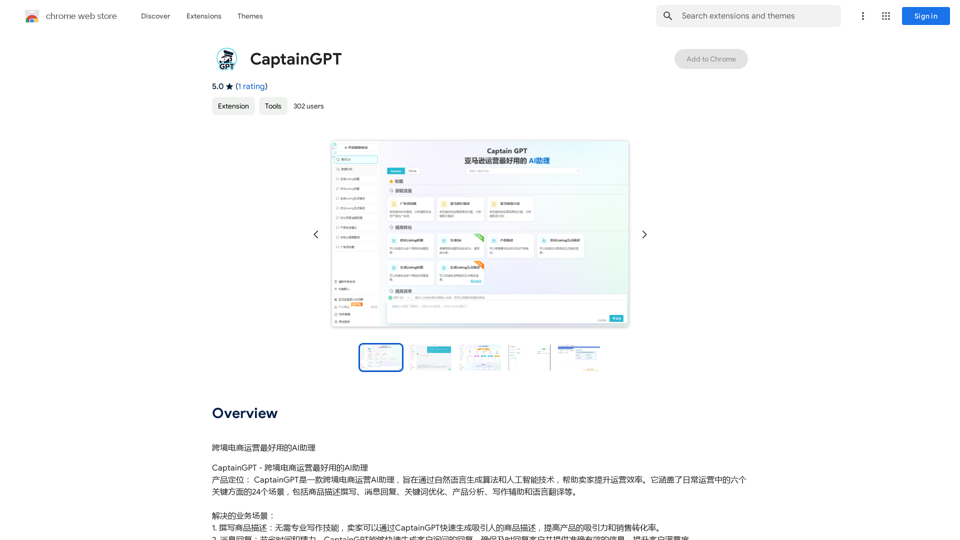
CaptainGPT is an AI-powered platform designed to assist e-commerce sellers in optimizing their operations. It leverages natural language generation algorithms and artificial intelligence to streamline daily tasks, improve efficiency, and increase sales for online merchants. The platform offers a range of features to help sellers enhance their product listings, customer communication, and overall market competitiveness.

Feature

Product Description Writing

CaptainGPT generates attractive product descriptions quickly, enhancing product appeal and improving conversion rates.

Message Response

Automatically generates customer inquiry responses, ensuring timely and accurate information delivery while saving time.

Keyword Optimization

Analyzes keyword data to provide targeted recommendations, helping sellers optimize product titles and content for better search rankings.

Product Analysis

Offers comprehensive product analysis, comparing with competitors and providing key competitive advantage suggestions for effective marketing strategies.

Writing Assistance

Provides writing inspiration and tools, including generated headings, conclusions, and keyword reminders for high-quality content creation.

Language Translation

Supports multilingual translation services, enabling easy translation of product descriptions, reviews, and other content to expand global market reach.

FAQ

What is CaptainGPT?

CaptainGPT is an AI-powered platform designed to assist e-commerce sellers in optimizing their operations through various features like product description writing, message response, and keyword optimization.

What features does CaptainGPT offer?

CaptainGPT offers features such as product description writing, message response, keyword optimization, product analysis, writing assistance, and language translation.

How do I use CaptainGPT?

CaptainGPT is designed to be user-friendly, with an intuitive interface that allows sellers to easily access and utilize its features for streamlining daily operations, improving efficiency, and increasing sales.

What is the pricing plan for CaptainGPT?

CaptainGPT offers an affordable pricing plan with flexible subscription options to suit different business needs.

Latest Traffic Insights

  • Monthly Visits

    193.90 M

  • Bounce Rate

    56.27%

  • Pages Per Visit

    2.71

  • Time on Site(s)

    115.91

  • Global Rank

    -

  • Country Rank

    -

Recent Visits

Traffic Sources

  • Social Media:
    0.48%
  • Paid Referrals:
    0.55%
  • Email:
    0.15%
  • Referrals:
    12.81%
  • Search Engines:
    16.21%
  • Direct:
    69.81%
More Data

Related Websites

AI Voice Generator & Text to Speech | Deepgram

Transform written text into natural-sounding speech with our AI voice generator and text-to-speech technology.
View Detail

AI Voice Generator & Text to Speech | Deepgram Transform written text into natural-sounding speech with our AI voice generator and text-to-speech technology.

AI Voice Generator & Text to Speech | Deepgram Transform written text into natural-sounding speech with our AI voice generator and text-to-speech technology.

Unlock the potential of Deepgram's AI Voice Generator. Experience natural-sounding text to speech for all your projects.

835.16 K
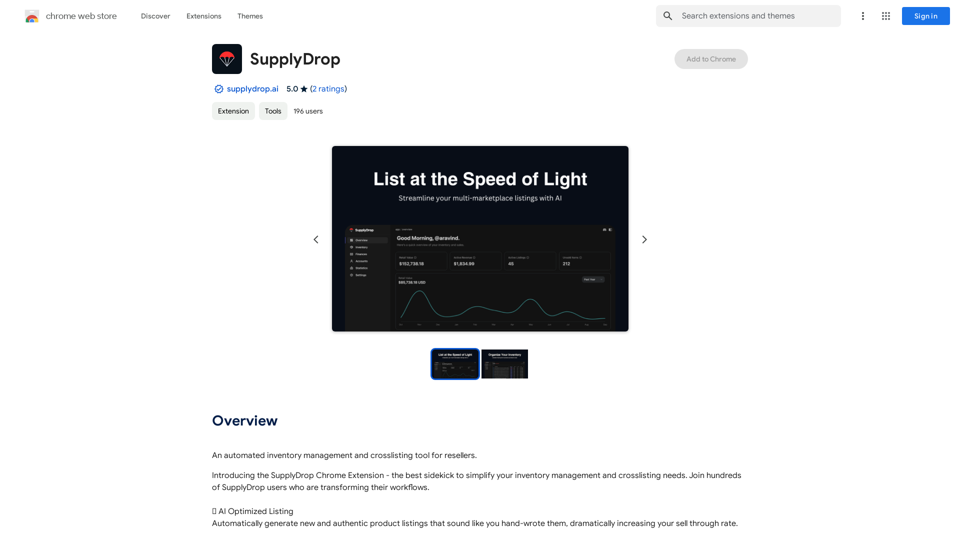
Everest Data Scraper
View Detail

Everest Data Scraper

Everest Data Scraper

Everest Data Bot: turning your web data into useful information right away.

193.90 M
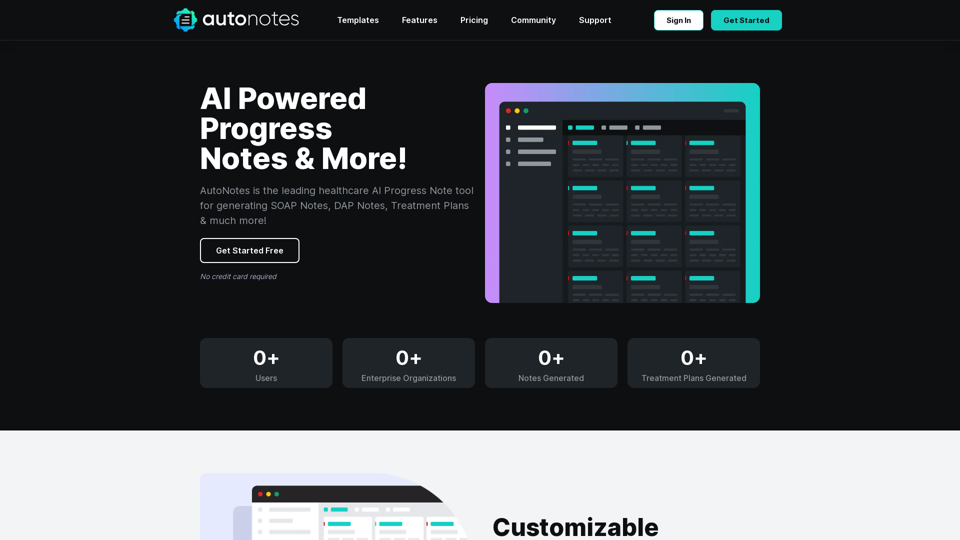
AI Text Shortener | Precise Text Adjuster | WordLimiter
View Detail

AI Text Shortener | Precise Text Adjuster | WordLimiter

AI Text Shortener | Precise Text Adjuster | WordLimiter

WordLimit helps you to shorten your text precisely without losing key information and your unique writing style. Feel free to use it because it will never make your Human-Written content become AI-Written!

834
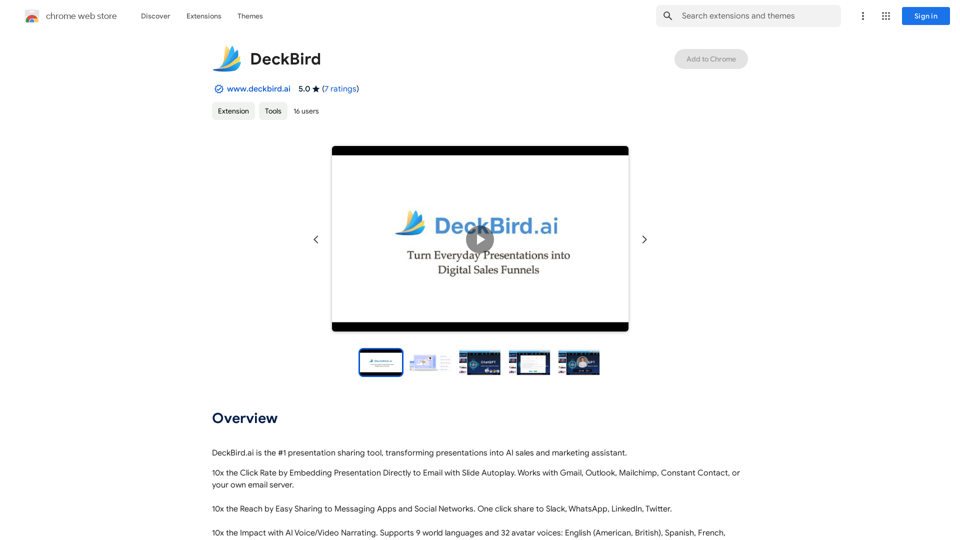
ChatGPT Prompt Builder
View Detail

ChatGPT Prompt Builder

ChatGPT Prompt Builder

Master ChatGPT with ease! Use pre-made prompts or create and save your own for later.

193.90 M
Converting JPG Images to Text

Converting a JPG image to text is a process known as Optical Character Recognition (OCR). This technology enables you to extract text from images, scanned documents, and photos. Here's how to do it:

Method 1: Online OCR Tools

You can use online OCR tools to convert JPG images to text. Here are the steps:

1. Upload your JPG image: Go to an online OCR tool website, such as Online OCR Tools or OCR.space, and upload your JPG image.
2. Select the language: Choose the language of the text in your image.
3. Click on "Convert": The tool will convert the image to text.
4. Download the text: You can download the extracted text as a Word document, PDF, or plain text file.

Method 2: Google Drive

You can also use Google Drive to convert JPG images to text. Here's how:

1. Upload your JPG image: Upload your JPG image to Google Drive.
2. Right-click on the image: Right-click on the uploaded image and select "Open with" > "Google Docs".
3. The image will be converted: Google Docs will automatically convert the image to text.
4. Edit and download: You can edit the extracted text and download it as a Word document or PDF.

Method 3: Adobe Acrobat

If you have Adobe Acrobat installed on your computer, you can use it to convert JPG images to text. Here's how:

1. Open Adobe Acrobat: Open Adobe Acrobat on your computer.
2. Create a new document: Create a new document and click on "Tools" > "Recognize Text".
3. Select the image: Select the JPG image you want to convert.
4. Click on "Recognize": Adobe Acrobat will convert the image to text.
5. Edit and save: You can edit the extracted text and save it as a Word document or PDF.

These are the three methods to convert JPG images to text. Choose the method that works best for you!
View Detail

Converting JPG Images to Text Converting a JPG image to text is a process known as Optical Character Recognition (OCR). This technology enables you to extract text from images, scanned documents, and photos. Here's how to do it: Method 1: Online OCR Tools You can use online OCR tools to convert JPG images to text. Here are the steps: 1. Upload your JPG image: Go to an online OCR tool website, such as Online OCR Tools or OCR.space, and upload your JPG image. 2. Select the language: Choose the language of the text in your image. 3. Click on "Convert": The tool will convert the image to text. 4. Download the text: You can download the extracted text as a Word document, PDF, or plain text file. Method 2: Google Drive You can also use Google Drive to convert JPG images to text. Here's how: 1. Upload your JPG image: Upload your JPG image to Google Drive. 2. Right-click on the image: Right-click on the uploaded image and select "Open with" > "Google Docs". 3. The image will be converted: Google Docs will automatically convert the image to text. 4. Edit and download: You can edit the extracted text and download it as a Word document or PDF. Method 3: Adobe Acrobat If you have Adobe Acrobat installed on your computer, you can use it to convert JPG images to text. Here's how: 1. Open Adobe Acrobat: Open Adobe Acrobat on your computer. 2. Create a new document: Create a new document and click on "Tools" > "Recognize Text". 3. Select the image: Select the JPG image you want to convert. 4. Click on "Recognize": Adobe Acrobat will convert the image to text. 5. Edit and save: You can edit the extracted text and save it as a Word document or PDF. These are the three methods to convert JPG images to text. Choose the method that works best for you!

Converting JPG Images to Text Converting a JPG image to text is a process known as Optical Character Recognition (OCR). This technology enables you to extract text from images, scanned documents, and photos. Here's how to do it: Method 1: Online OCR Tools You can use online OCR tools to convert JPG images to text. Here are the steps: 1. Upload your JPG image: Go to an online OCR tool website, such as Online OCR Tools or OCR.space, and upload your JPG image. 2. Select the language: Choose the language of the text in your image. 3. Click on "Convert": The tool will convert the image to text. 4. Download the text: You can download the extracted text as a Word document, PDF, or plain text file. Method 2: Google Drive You can also use Google Drive to convert JPG images to text. Here's how: 1. Upload your JPG image: Upload your JPG image to Google Drive. 2. Right-click on the image: Right-click on the uploaded image and select "Open with" > "Google Docs". 3. The image will be converted: Google Docs will automatically convert the image to text. 4. Edit and download: You can edit the extracted text and download it as a Word document or PDF. Method 3: Adobe Acrobat If you have Adobe Acrobat installed on your computer, you can use it to convert JPG images to text. Here's how: 1. Open Adobe Acrobat: Open Adobe Acrobat on your computer. 2. Create a new document: Create a new document and click on "Tools" > "Recognize Text". 3. Select the image: Select the JPG image you want to convert. 4. Click on "Recognize": Adobe Acrobat will convert the image to text. 5. Edit and save: You can edit the extracted text and save it as a Word document or PDF. These are the three methods to convert JPG images to text. Choose the method that works best for you!

It is an online tool that uses Optical Character Recognition (OCR) to make it possible to extract text from images in JPG format.

193.90 M
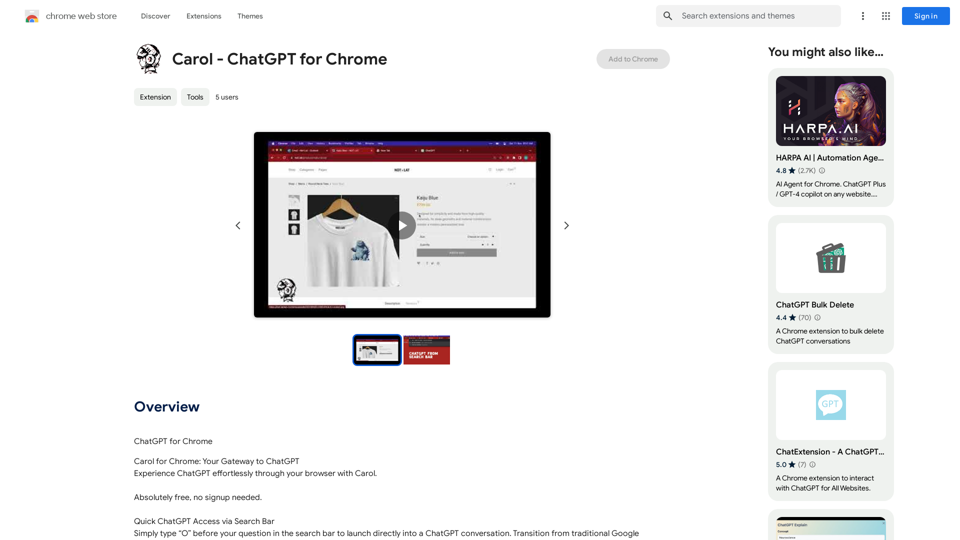
Quest
View Detail

Quest

Quest

Find information fast.

193.90 M
ChatGPT Keyboard Shortcuts

#Navigation

* Ctrl + →: Move to the next message
* Ctrl + ←: Move to the previous message
* Home: Move to the beginning of the conversation
* End: Move to the end of the conversation

#Editing

* Ctrl + A: Select all text
* Ctrl + C: Copy selected text
* Ctrl + X: Cut selected text
* Ctrl + V: Paste copied or cut text
* Ctrl + Z: Undo
* Ctrl + Y: Redo
* Ctrl + Shift + F: Format text as code

#Actions

* Enter: Send the message
* Shift + Enter: Insert a new line
* Ctrl + Shift + Enter: Send the message and insert a new line
* Esc: Cancel editing and close the message input field
* Ctrl + Shift + Space: Open the emoji picker
* Ctrl + Shift + /: Open the help menu

#Accessibility

* Ctrl + +: Increase font size
* Ctrl + -: Decrease font size
* Ctrl + 0: Reset font size to default
View Detail

ChatGPT Keyboard Shortcuts #Navigation * Ctrl + →: Move to the next message * Ctrl + ←: Move to the previous message * Home: Move to the beginning of the conversation * End: Move to the end of the conversation #Editing * Ctrl + A: Select all text * Ctrl + C: Copy selected text * Ctrl + X: Cut selected text * Ctrl + V: Paste copied or cut text * Ctrl + Z: Undo * Ctrl + Y: Redo * Ctrl + Shift + F: Format text as code #Actions * Enter: Send the message * Shift + Enter: Insert a new line * Ctrl + Shift + Enter: Send the message and insert a new line * Esc: Cancel editing and close the message input field * Ctrl + Shift + Space: Open the emoji picker * Ctrl + Shift + /: Open the help menu #Accessibility * Ctrl + +: Increase font size * Ctrl + -: Decrease font size * Ctrl + 0: Reset font size to default

ChatGPT Keyboard Shortcuts #Navigation * Ctrl + →: Move to the next message * Ctrl + ←: Move to the previous message * Home: Move to the beginning of the conversation * End: Move to the end of the conversation #Editing * Ctrl + A: Select all text * Ctrl + C: Copy selected text * Ctrl + X: Cut selected text * Ctrl + V: Paste copied or cut text * Ctrl + Z: Undo * Ctrl + Y: Redo * Ctrl + Shift + F: Format text as code #Actions * Enter: Send the message * Shift + Enter: Insert a new line * Ctrl + Shift + Enter: Send the message and insert a new line * Esc: Cancel editing and close the message input field * Ctrl + Shift + Space: Open the emoji picker * Ctrl + Shift + /: Open the help menu #Accessibility * Ctrl + +: Increase font size * Ctrl + -: Decrease font size * Ctrl + 0: Reset font size to default

Enhance your ChatGPT experience with easy-to-use keyboard shortcuts.

193.90 M
Intelligent Web Translation - Automatic Translation, Bilingual Comparison, AI Dialogue
View Detail

Intelligent Web Translation - Automatic Translation, Bilingual Comparison, AI Dialogue

Intelligent Web Translation - Automatic Translation, Bilingual Comparison, AI Dialogue

Supports 20+ foreign languages/national languages, one-key rapid translation, supports bilingual comparison, automatic translation, AI summary, and phrase translation.

193.90 M