Open-source RightAI Tools Directory
  • Discover AI
  • Submit
  • Startup
  • Blog
Open-source RightAI Tools Directory
Discover the best AI tools of 2025 with the RightAI Tools Directory!

Friend Links

AI Anime GeneratorToolsApp AI

Support

Tap4
Privacy policyTerms & ConditionsContact Us
Loading...
loading...

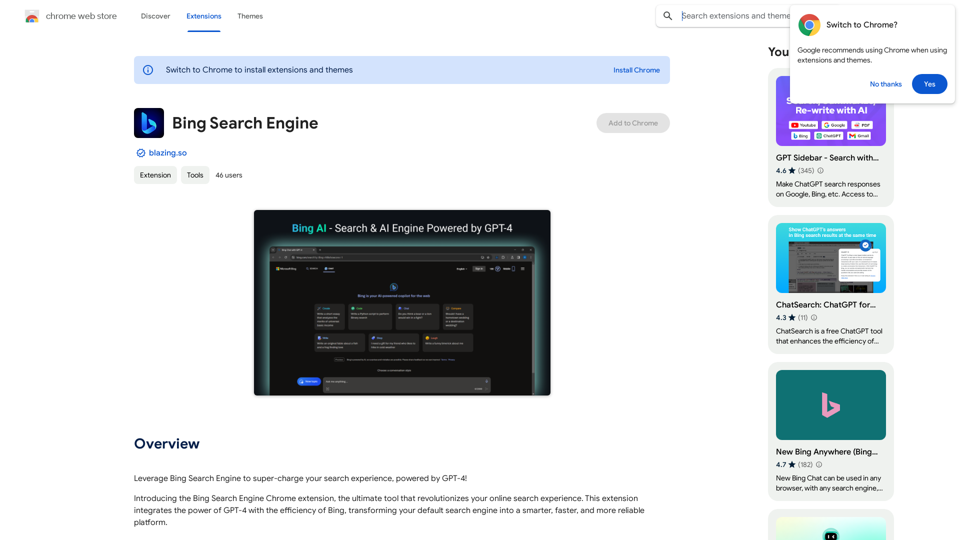
Bing AI Chatbot Bing AI Chatbot is a conversational AI developed by Microsoft, which uses natural language processing (NLP) technology to understand and respond to user queries.

Enhance Chrome with Bing AI Chatbot: Unlock Bing AI chatbot conversation and easily access Bing AI for a better browsing experience.
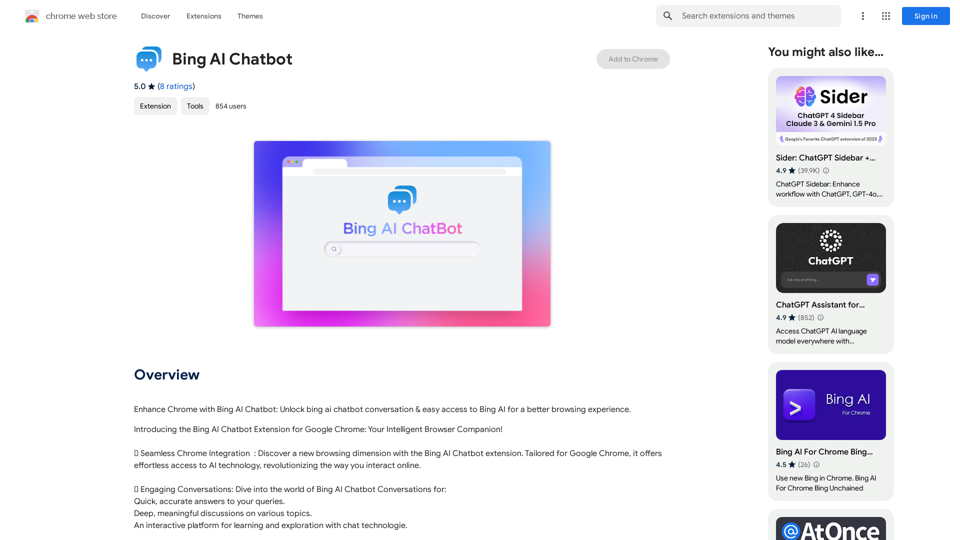
Visit Website
Bing AI Chatbot

Bing AI Chatbot is a conversational AI developed by Microsoft, which uses natural language processing (NLP) technology to understand and respond to user queries.
Visit Website

Introduction

Bing AI Chatbot is a revolutionary Chrome extension that integrates Bing's AI technology directly into your browser. This innovative tool enhances online interactions by providing easy access to AI-driven conversations, making browsing more engaging and informative. It's designed to be user-friendly, catering to all levels of technical expertise, and offers a range of features to improve your online experience.

Feature

Seamless Chrome Integration

The Bing AI Chatbot extension is specifically tailored for Google Chrome, offering effortless access to AI technology and transforming the way users interact online.

Engaging Conversations

Users can engage in AI-powered conversations for:

  • Quick and accurate answers to queries
  • Deep, meaningful discussions on various topics
  • Interactive learning and exploration through chat technology

Easy Access

The extension is designed with user convenience in mind, making sophisticated AI technology accessible to all users, regardless of their technical expertise.

Direct Connectivity

A straightforward Bing AI Chatbot Link within the extension provides an efficient pathway to intelligent interactions, emphasizing simplicity and ease of use.

Cost-Effective Solution

The Bing AI Chatbot extension is completely free to use, with no subscription fees, making advanced artificial intelligence accessible to everyone.

FAQ

Is the Bing AI Chatbot extension free to use?

Yes, the Bing AI Chatbot extension is entirely free to use, with no subscription fees required.

What are the main features of the Bing AI Chatbot extension?

The main features include:

  • Seamless Chrome integration
  • Engaging AI-driven conversations
  • Easy access for all users
  • Direct connectivity to Bing AI technology
  • Free usage without subscription fees

How do I use the Bing AI Chatbot extension?

Using the Bing AI Chatbot extension is simple:

  1. Download the extension from the Chrome Web Store
  2. Install it in your Google Chrome browser
  3. Start using it immediately for free to enhance your browsing experience

Latest Traffic Insights

  • Monthly Visits

    193.90 M

  • Bounce Rate

    56.27%

  • Pages Per Visit

    2.71

  • Time on Site(s)

    115.91

  • Global Rank

    -

  • Country Rank

    -

Recent Visits

Traffic Sources

  • Social Media:
    0.48%
  • Paid Referrals:
    0.55%
  • Email:
    0.15%
  • Referrals:
    12.81%
  • Search Engines:
    16.21%
  • Direct:
    69.81%
More Data

Related Websites

Fast and Affordable Logo Generator for Small Businesses
View Detail

Fast and Affordable Logo Generator for Small Businesses

Fast and Affordable Logo Generator for Small Businesses

Generate unique logos quickly and affordably with Aikiu Studio. Create professional designs for small businesses and solopreneurs in minutes. Get high-quality, hassle-free logo creation.

0
Page Assist - A Web UI for Local AI Models
View Detail

Page Assist - A Web UI for Local AI Models

Page Assist - A Web UI for Local AI Models

Use your computer's own AI programs to help you explore the internet.

193.90 M
Prompts Manager - ChatGPT, Bard, Bing AI
View Detail

Prompts Manager - ChatGPT, Bard, Bing AI

Prompts Manager - ChatGPT, Bard, Bing AI

Organize and sort templates designed to give instructions to ChatGPT, Google Bard, and Bing AI.

193.90 M
Receipt & Invoice Capture, Match, Categorize
View Detail

Receipt & Invoice Capture, Match, Categorize

Receipt & Invoice Capture, Match, Categorize

Automatically manage your expenses by taking pictures of your receipts and invoices online. They will then be automatically matched with transactions on any of your credit cards or bank accounts!

193.90 M
Moodle GPT Quiz Solver
View Detail

Moodle GPT Quiz Solver

Moodle GPT Quiz Solver

A Chrome extension that helps you find answers for Moodle quizzes by using the ChatGPT API. Press Shift + S to show or hide the answers.

193.90 M
Rivelio AI: Sentiment Analysis and Conversation Summary
View Detail

Rivelio AI: Sentiment Analysis and Conversation Summary

Rivelio AI: Sentiment Analysis and Conversation Summary

FREE AI-powered tool that analyzes customer feelings and summarizes conversations. It works with most popular customer service platforms.

193.90 M
IntelliMark
View Detail

IntelliMark

IntelliMark

An intelligent bookmark finder! Just tell it what you're looking for in your own words, and it will find the most useful bookmarks for you!

193.90 M
AI Voice Over for YouTube 

This is a guide to using AI voice over for your YouTube videos. 

Why Use AI Voice Over?

* Cost-Effective: AI voice over is much cheaper than hiring a professional voice actor.
* Time-Saving: You can generate voice over quickly and easily, without needing to schedule recording sessions.
* Variety of Voices: Choose from a wide range of AI voices, including male, female, and even robotic voices.
* Accessibility: Make your videos accessible to viewers who are deaf or hard of hearing by adding captions generated by AI.

How to Use AI Voice Over

1. Choose a Platform: There are many different platforms that offer AI voice over services, such as:
    * Google Cloud Text-to-Speech
    * Amazon Polly
    * Microsoft Azure Text to Speech
    * Murf.ai
    * NaturalReader
2. Write Your Script:  Write a clear and concise script for your video.
3. Upload Your Script:  Upload your script to the chosen platform.
4. Select a Voice: Choose the voice that best suits your video.
5. Adjust Settings:  Adjust settings such as speed, pitch, and volume.
6. Generate Voice Over:  Click the "Generate" button to create your voice over.
7. Download and Edit: Download the generated voice over file and edit it as needed.
8. Add to Your Video:  Add the voice over to your YouTube video.

Tips for Using AI Voice Over

* Use Natural Language:  Write your script as if you were speaking naturally.
* Vary Your Tone:  Use different tones of voice to keep your viewers engaged.
* Add Pauses:  Include pauses in your script to allow viewers to process information.
* Proofread Carefully:  Always proofread your script before generating the voice over.
* Experiment:  Try different voices, settings, and styles to find what works best for you.
View Detail

AI Voice Over for YouTube This is a guide to using AI voice over for your YouTube videos. Why Use AI Voice Over? * Cost-Effective: AI voice over is much cheaper than hiring a professional voice actor. * Time-Saving: You can generate voice over quickly and easily, without needing to schedule recording sessions. * Variety of Voices: Choose from a wide range of AI voices, including male, female, and even robotic voices. * Accessibility: Make your videos accessible to viewers who are deaf or hard of hearing by adding captions generated by AI. How to Use AI Voice Over 1. Choose a Platform: There are many different platforms that offer AI voice over services, such as: * Google Cloud Text-to-Speech * Amazon Polly * Microsoft Azure Text to Speech * Murf.ai * NaturalReader 2. Write Your Script: Write a clear and concise script for your video. 3. Upload Your Script: Upload your script to the chosen platform. 4. Select a Voice: Choose the voice that best suits your video. 5. Adjust Settings: Adjust settings such as speed, pitch, and volume. 6. Generate Voice Over: Click the "Generate" button to create your voice over. 7. Download and Edit: Download the generated voice over file and edit it as needed. 8. Add to Your Video: Add the voice over to your YouTube video. Tips for Using AI Voice Over * Use Natural Language: Write your script as if you were speaking naturally. * Vary Your Tone: Use different tones of voice to keep your viewers engaged. * Add Pauses: Include pauses in your script to allow viewers to process information. * Proofread Carefully: Always proofread your script before generating the voice over. * Experiment: Try different voices, settings, and styles to find what works best for you.

AI Voice Over for YouTube This is a guide to using AI voice over for your YouTube videos. Why Use AI Voice Over? * Cost-Effective: AI voice over is much cheaper than hiring a professional voice actor. * Time-Saving: You can generate voice over quickly and easily, without needing to schedule recording sessions. * Variety of Voices: Choose from a wide range of AI voices, including male, female, and even robotic voices. * Accessibility: Make your videos accessible to viewers who are deaf or hard of hearing by adding captions generated by AI. How to Use AI Voice Over 1. Choose a Platform: There are many different platforms that offer AI voice over services, such as: * Google Cloud Text-to-Speech * Amazon Polly * Microsoft Azure Text to Speech * Murf.ai * NaturalReader 2. Write Your Script: Write a clear and concise script for your video. 3. Upload Your Script: Upload your script to the chosen platform. 4. Select a Voice: Choose the voice that best suits your video. 5. Adjust Settings: Adjust settings such as speed, pitch, and volume. 6. Generate Voice Over: Click the "Generate" button to create your voice over. 7. Download and Edit: Download the generated voice over file and edit it as needed. 8. Add to Your Video: Add the voice over to your YouTube video. Tips for Using AI Voice Over * Use Natural Language: Write your script as if you were speaking naturally. * Vary Your Tone: Use different tones of voice to keep your viewers engaged. * Add Pauses: Include pauses in your script to allow viewers to process information. * Proofread Carefully: Always proofread your script before generating the voice over. * Experiment: Try different voices, settings, and styles to find what works best for you.

Watch foreign language YouTube videos in your own language.

193.90 M