Open-source RightAI Tools Directory
  • Discover AI
  • Submit
  • Startup
  • Blog
Open-source RightAI Tools Directory
Discover the best AI tools of 2025 with the RightAI Tools Directory!

Friend Links

AI Anime GeneratorToolsApp AI

Support

Tap4
Privacy policyTerms & ConditionsContact Us
Loading...
loading...

ZapCardz: Flashcard Time Saver on the App Store

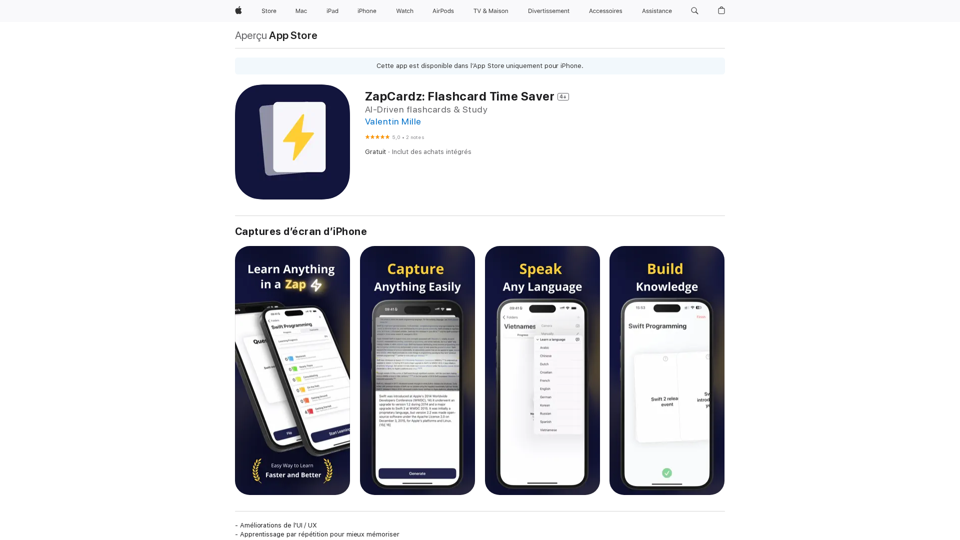
Welcome to ZapCardz - the ultimate memory card app that revolutionizes the way you learn! Our innovative application combines the power of…
Visit Website
ZapCardz: Flashcard Time Saver on the App Store
Visit Website

Introduction

ZapCardz is an innovative AI-powered flashcard application designed to enhance the learning experience. It combines artificial intelligence with a user-friendly interface to make studying more efficient and enjoyable. The app offers features such as AI-generated flashcards, interactive learning, manual card creation, and progress tracking. ZapCardz caters to various learning styles and subjects, making it a versatile tool for students and lifelong learners alike.

Feature

AI-Driven Flashcard Creation

ZapCardz utilizes artificial intelligence to generate personalized flashcards tailored to individual learning needs. This feature saves time and ensures comprehensive coverage of study materials.

Interactive Learning Experience

The app provides an engaging, dynamic learning environment through interactive flashcard features, promoting active recall and better information retention.

Manual Flashcard Creation

Users have the option to create their own flashcards, allowing for a personalized touch and customization of study materials.

Customization and Updates

Flashcards can be updated and personalized at any time, ensuring that study materials remain relevant and up-to-date.

Spaced Repetition Learning

ZapCardz incorporates repetition-based learning techniques to enhance information retention and long-term memory.

Progress Tracking

The app includes features to monitor learning progress, enabling users to adjust their study plans as needed for optimal results.

Extensive Flashcard Library

ZapCardz offers a vast collection of pre-made flashcards covering various subjects and topics, supplementing user-created content.

FAQ

How do I get started with ZapCardz?

  1. Download the app from the iOS App Store
  2. Create an account
  3. Choose your learning material
  4. Create or generate flashcards
  5. Begin studying using the app's interactive features
  6. Track your progress and adjust your learning plan as needed

What are the flashcard creation options in ZapCardz?

ZapCardz offers three main options for flashcard creation:

  1. AI-generated flashcards
  2. Manual creation of flashcards
  3. Importing existing flashcards

Is ZapCardz available on multiple platforms?

Currently, ZapCardz is only available for iOS devices. There is no Android version at this time.

Does ZapCardz require an internet connection?

Yes, ZapCardz requires an internet connection to function properly.

Is ZapCardz free to use?

ZapCardz is free to download and use. However, it offers optional in-app purchases for premium features and additional flashcards.

How does ZapCardz handle user data and privacy?

ZapCardz prioritizes user privacy:

  • Personal information is not collected or used for training data
  • Data collection practices are transparent
  • The app complies with relevant regulations

When should I consider a ZapCardz subscription?

Consider a subscription if you:

  • Need access to premium features
  • Want additional flashcards
  • Wish to support the app's development
  • Desire priority customer support

Latest Traffic Insights

  • Monthly Visits

    124.77 M

  • Bounce Rate

    74.15%

  • Pages Per Visit

    1.56

  • Time on Site(s)

    46.64

  • Global Rank

    -

  • Country Rank

    -

Recent Visits

Traffic Sources

  • Social Media:
    2.88%
  • Paid Referrals:
    2.50%
  • Email:
    0.18%
  • Referrals:
    19.65%
  • Search Engines:
    29.02%
  • Direct:
    45.78%
More Data

Related Websites

Audeo AI: Audio Stem Splitter & Audio Enhancer
View Detail

Audeo AI: Audio Stem Splitter & Audio Enhancer

Audeo AI: Audio Stem Splitter & Audio Enhancer

Easily record, separate stems, isolate vocals, improve audio quality, and download audio directly from your web browser.

193.90 M
FisherAI - Your Best Summary Copilot, Supporting ChatGPT & Gemini
View Detail

FisherAI - Your Best Summary Copilot, Supporting ChatGPT & Gemini

FisherAI - Your Best Summary Copilot, Supporting ChatGPT & Gemini

Your Best AI Summary Assistant

193.90 M
Yoom Knowledge
View Detail

Yoom Knowledge

Yoom Knowledge

Using the Yoom Knowledge Chrome extension, you can automatically generate email content in Gmail or Outlook. AI will create emails for you using the company knowledge accumulated in Yoom Knowledge, allowing you to complete email responses in an instant.

193.90 M
Image Translator - ai photo/image Translator use ChatGPT

This is a tool that uses ChatGPT to describe images. 

You can upload a photo and ChatGPT will generate a written description of what it sees.
View Detail

Image Translator - ai photo/image Translator use ChatGPT This is a tool that uses ChatGPT to describe images. You can upload a photo and ChatGPT will generate a written description of what it sees.

Image Translator - ai photo/image Translator use ChatGPT This is a tool that uses ChatGPT to describe images. You can upload a photo and ChatGPT will generate a written description of what it sees.

AI Photo/Image Translator, Supports 130 Languages

193.90 M
Converting JPG Images to Text

Converting a JPG image to text is a process known as Optical Character Recognition (OCR). This technology enables you to extract text from images, scanned documents, and photos. Here's how to do it:

Method 1: Online OCR Tools

You can use online OCR tools to convert JPG images to text. Here are the steps:

1. Upload your JPG image: Go to an online OCR tool website, such as Online OCR Tools or OCR.space, and upload your JPG image.
2. Select the language: Choose the language of the text in your image.
3. Click on "Convert": The tool will convert the image to text.
4. Download the text: You can download the extracted text as a Word document, PDF, or plain text file.

Method 2: Google Drive

You can also use Google Drive to convert JPG images to text. Here's how:

1. Upload your JPG image: Upload your JPG image to Google Drive.
2. Right-click on the image: Right-click on the uploaded image and select "Open with" > "Google Docs".
3. The image will be converted: Google Docs will automatically convert the image to text.
4. Edit and download: You can edit the extracted text and download it as a Word document or PDF.

Method 3: Adobe Acrobat

If you have Adobe Acrobat installed on your computer, you can use it to convert JPG images to text. Here's how:

1. Open Adobe Acrobat: Open Adobe Acrobat on your computer.
2. Create a new document: Create a new document and click on "Tools" > "Recognize Text".
3. Select the image: Select the JPG image you want to convert.
4. Click on "Recognize": Adobe Acrobat will convert the image to text.
5. Edit and save: You can edit the extracted text and save it as a Word document or PDF.

These are the three methods to convert JPG images to text. Choose the method that works best for you!
View Detail

Converting JPG Images to Text Converting a JPG image to text is a process known as Optical Character Recognition (OCR). This technology enables you to extract text from images, scanned documents, and photos. Here's how to do it: Method 1: Online OCR Tools You can use online OCR tools to convert JPG images to text. Here are the steps: 1. Upload your JPG image: Go to an online OCR tool website, such as Online OCR Tools or OCR.space, and upload your JPG image. 2. Select the language: Choose the language of the text in your image. 3. Click on "Convert": The tool will convert the image to text. 4. Download the text: You can download the extracted text as a Word document, PDF, or plain text file. Method 2: Google Drive You can also use Google Drive to convert JPG images to text. Here's how: 1. Upload your JPG image: Upload your JPG image to Google Drive. 2. Right-click on the image: Right-click on the uploaded image and select "Open with" > "Google Docs". 3. The image will be converted: Google Docs will automatically convert the image to text. 4. Edit and download: You can edit the extracted text and download it as a Word document or PDF. Method 3: Adobe Acrobat If you have Adobe Acrobat installed on your computer, you can use it to convert JPG images to text. Here's how: 1. Open Adobe Acrobat: Open Adobe Acrobat on your computer. 2. Create a new document: Create a new document and click on "Tools" > "Recognize Text". 3. Select the image: Select the JPG image you want to convert. 4. Click on "Recognize": Adobe Acrobat will convert the image to text. 5. Edit and save: You can edit the extracted text and save it as a Word document or PDF. These are the three methods to convert JPG images to text. Choose the method that works best for you!

Converting JPG Images to Text Converting a JPG image to text is a process known as Optical Character Recognition (OCR). This technology enables you to extract text from images, scanned documents, and photos. Here's how to do it: Method 1: Online OCR Tools You can use online OCR tools to convert JPG images to text. Here are the steps: 1. Upload your JPG image: Go to an online OCR tool website, such as Online OCR Tools or OCR.space, and upload your JPG image. 2. Select the language: Choose the language of the text in your image. 3. Click on "Convert": The tool will convert the image to text. 4. Download the text: You can download the extracted text as a Word document, PDF, or plain text file. Method 2: Google Drive You can also use Google Drive to convert JPG images to text. Here's how: 1. Upload your JPG image: Upload your JPG image to Google Drive. 2. Right-click on the image: Right-click on the uploaded image and select "Open with" > "Google Docs". 3. The image will be converted: Google Docs will automatically convert the image to text. 4. Edit and download: You can edit the extracted text and download it as a Word document or PDF. Method 3: Adobe Acrobat If you have Adobe Acrobat installed on your computer, you can use it to convert JPG images to text. Here's how: 1. Open Adobe Acrobat: Open Adobe Acrobat on your computer. 2. Create a new document: Create a new document and click on "Tools" > "Recognize Text". 3. Select the image: Select the JPG image you want to convert. 4. Click on "Recognize": Adobe Acrobat will convert the image to text. 5. Edit and save: You can edit the extracted text and save it as a Word document or PDF. These are the three methods to convert JPG images to text. Choose the method that works best for you!

It is an online tool that uses Optical Character Recognition (OCR) to make it possible to extract text from images in JPG format.

193.90 M
Google for Jobs Structured Data by Tarta.ai
View Detail

Google for Jobs Structured Data by Tarta.ai

Google for Jobs Structured Data by Tarta.ai

SEO Job Postings Structured Data by Tarta.ai is an AI-driven platform that enhances job postings with structured data for improved search engine optimization.

193.90 M
VNEdu Tool
View Detail

VNEdu Tool

VNEdu Tool

VNEDU Data Processing Tool

193.90 M
Empathy AI
View Detail

Empathy AI

Empathy AI

A medical assistant for primary care physicians, transcribes patient visits and automatically creates medical records, improving patient care and service.

193.90 M