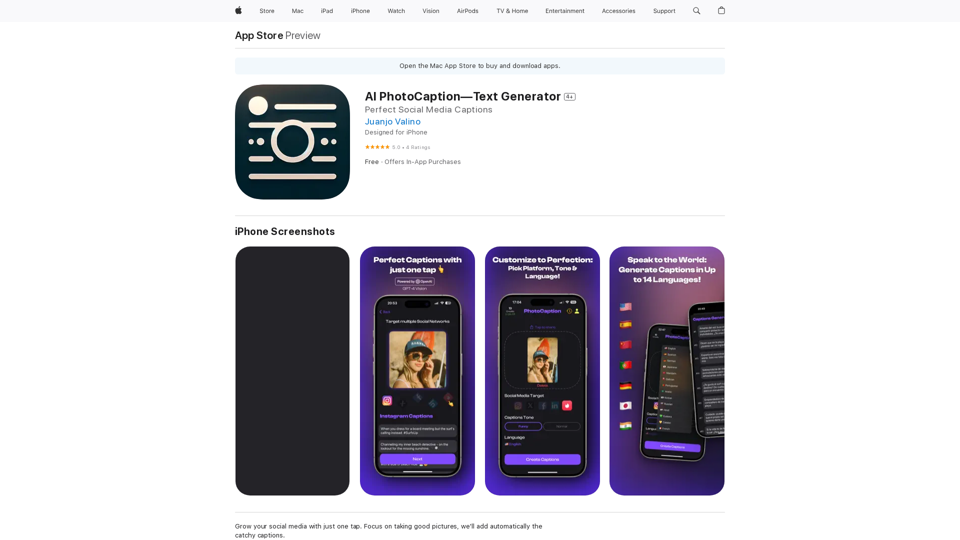
AI PhotoCaption is an innovative AI-powered platform designed to revolutionize social media content creation. It offers a wide range of AI technologies for text generation and image understanding, allowing users to enhance their social media presence effortlessly. By focusing on taking quality pictures, users can rely on the app to automatically generate engaging captions, saving time and boosting creativity.
AI Photo Caption - Text Generator on the App Store
Welcome to PhotoCaption AI – where your photos speak a thousand words in multiple languages!
Do you often find yourself struggling to come up with the perfect caption for your amazing photos?
Introduction
Feature
AI-Driven Caption Generation
Upload a photo and let GPT-4 Vision AI analyze it to create perfectly suited captions.
Customizable Tone Options
Choose between humorous or standard tones to match your style or mood.
Multilingual Support
Reach a global audience with captions available in up to 14 different languages.
Social Media Platform Optimization
Tailor captions for specific platforms like Twitter, Instagram, Facebook, and Tinder.
User-Friendly Interface
Enjoy a sleek and intuitive interface for a seamless experience from start to finish.
Easy Sharing Functionality
Share captions directly from the app or copy them to the clipboard with ease.
Text-to-Image Generation
Create images using AI, sharing credits with GPT-4 Vision for a comprehensive creative experience.
Vast GPT Model Library
Access nearly 200,000 GPT models for various applications in work, study, and daily life.
FAQ
How does the credit system work?
Every user gets 3 free credits with the app's free version. Subscribing grants additional benefits and extended access beyond free usage limits.
Is image generation possible with AI PhotoCaption?
Yes, the app offers text-to-image generation capability, allowing users to create images using AI technology.
How many GPT models are available?
AI PhotoCaption provides access to nearly 200,000 GPT models for a wide variety of applications, usable without a subscription.
How can I maximize my use of AI PhotoCaption?
Leverage the daily free uses of GPT-4 Vision document reading and image generation to explore a range of AI-powered tools for various tasks.
Is my information used for training data?
No, user privacy is highly valued. Your data will not be used for training purposes, and you can delete your account and all associated data at any time.
When should I consider a subscription?
If the 3 free credits are insufficient for your needs and you heavily rely on the app's features, consider subscribing to the affordable products offered.
Related Websites
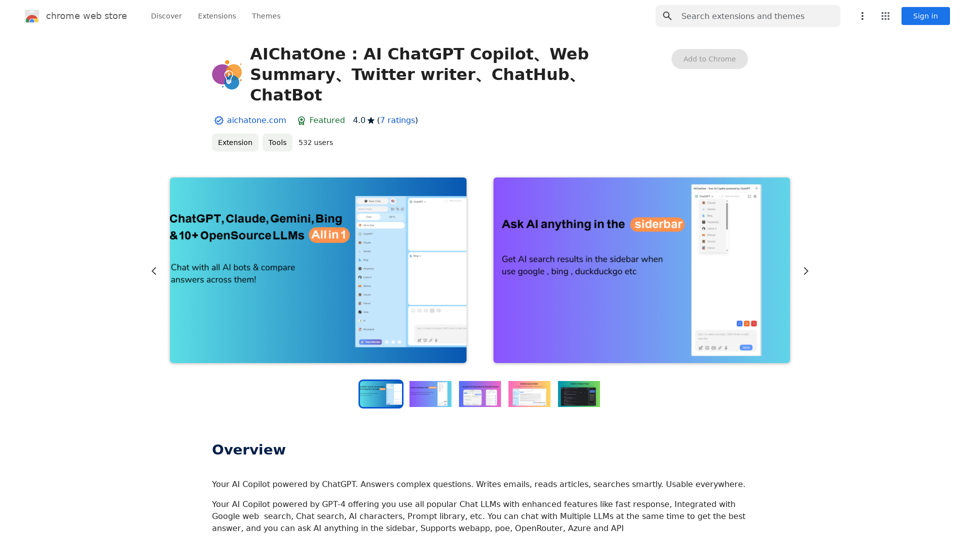
AIChatOne: AI ChatGPT Copilot, Web Summary, Twitter Writer, ChatHub, ChatBot
AIChatOne: AI ChatGPT Copilot, Web Summary, Twitter Writer, ChatHub, ChatBotYour AI Copilot powered by ChatGPT. Answers complex questions. Writes emails. Reads articles. Searches smartly. Usable everywhere.
193.90 M
)
* Create a new notebook
* Install the `transformers` library by running `!pip install transformers`
* Import the `transformers` library and load the ChatGPT model using `from transformers import AutoModelForCausalLM, AutoTokenizer; model = AutoModelForCausalLM.from_pretrained('chatgpt'); tokenizer = AutoTokenizer.from_pretrained('chatgpt')`
* Use the model to generate text using `input_text = "Your input here"; inputs = tokenizer.encode_plus(input_text, return_tensors='pt', max_length=1024, padding='max_length', truncation=True); output = model(inputs['input_ids'], attention_mask=inputs['attention_mask']); print(tokenizer.decode(output.logits[0], skip_special_tokens=True))`
Method 2: Google Apps Script
* Open Google Apps Script ([script.google.com](http://script.google.com))
* Create a new project
* Install the `transformers` library by running `npm install transformers`
* Import the `transformers` library and load the ChatGPT model using `const { AutoModelForCausalLM, AutoTokenizer } = require('transformers'); const model = new AutoModelForCausalLM('chatgpt'); const tokenizer = new AutoTokenizer('chatgpt');`
* Use the model to generate text using `const inputText = "Your input here"; const inputs = tokenizer.encodePlus(inputText, { return_tensors: 'pt', max_length: 1024, padding: 'max_length', truncation: true }); const output = model(inputs.inputIds, inputs.attentionMask); console.log(tokenizer.decode(output.logits[0], { skipSpecialTokens: true }));`
Note: These methods require some technical knowledge and may have limitations compared to the original ChatGPT model.](https://static.right-ai.com/tools/2024/7/3/chromewebstore-google-com-detail-chatgpt-for-google-for-fr-pabeminldebomngnkgffiejipjjaaogi-thumbnail-1720037311.png "Get ChatGPT for Free with Google
You can now access ChatGPT, a powerful language model, for free with Google. Here's how:
Method 1: Google Colab
* Open Google Colab ([colab.research.google.com](http://colab.research.google.com))
* Create a new notebook
* Install the `transformers` library by running `!pip install transformers`
* Import the `transformers` library and load the ChatGPT model using `from transformers import AutoModelForCausalLM, AutoTokenizer; model = AutoModelForCausalLM.from_pretrained('chatgpt'); tokenizer = AutoTokenizer.from_pretrained('chatgpt')`
* Use the model to generate text using `input_text = \"Your input here\"; inputs = tokenizer.encode_plus(input_text, return_tensors='pt', max_length=1024, padding='max_length', truncation=True); output = model(inputs['input_ids'], attention_mask=inputs['attention_mask']); print(tokenizer.decode(output.logits[0], skip_special_tokens=True))`
Method 2: Google Apps Script
* Open Google Apps Script ([script.google.com](http://script.google.com))
* Create a new project
* Install the `transformers` library by running `npm install transformers`
* Import the `transformers` library and load the ChatGPT model using `const { AutoModelForCausalLM, AutoTokenizer } = require('transformers'); const model = new AutoModelForCausalLM('chatgpt'); const tokenizer = new AutoTokenizer('chatgpt');`
* Use the model to generate text using `const inputText = \"Your input here\"; const inputs = tokenizer.encodePlus(inputText, { return_tensors: 'pt', max_length: 1024, padding: 'max_length', truncation: true }); const output = model(inputs.inputIds, inputs.attentionMask); console.log(tokenizer.decode(output.logits[0], { skipSpecialTokens: true }));`
Note: These methods require some technical knowledge and may have limitations compared to the original ChatGPT model.")
Get ChatGPT for Free with Google You can now access ChatGPT, a powerful language model, for free with Google. Here's how: Method 1: Google Colab * Open Google Colab ([colab.research.google.com](http://colab.research.google.com)) * Create a new notebook * Install the `transformers` library by running `!pip install transformers` * Import the `transformers` library and load the ChatGPT model using `from transformers import AutoModelForCausalLM, AutoTokenizer; model = AutoModelForCausalLM.from_pretrained('chatgpt'); tokenizer = AutoTokenizer.from_pretrained('chatgpt')` * Use the model to generate text using `input_text = "Your input here"; inputs = tokenizer.encode_plus(input_text, return_tensors='pt', max_length=1024, padding='max_length', truncation=True); output = model(inputs['input_ids'], attention_mask=inputs['attention_mask']); print(tokenizer.decode(output.logits[0], skip_special_tokens=True))` Method 2: Google Apps Script * Open Google Apps Script ([script.google.com](http://script.google.com)) * Create a new project * Install the `transformers` library by running `npm install transformers` * Import the `transformers` library and load the ChatGPT model using `const { AutoModelForCausalLM, AutoTokenizer } = require('transformers'); const model = new AutoModelForCausalLM('chatgpt'); const tokenizer = new AutoTokenizer('chatgpt');` * Use the model to generate text using `const inputText = "Your input here"; const inputs = tokenizer.encodePlus(inputText, { return_tensors: 'pt', max_length: 1024, padding: 'max_length', truncation: true }); const output = model(inputs.inputIds, inputs.attentionMask); console.log(tokenizer.decode(output.logits[0], { skipSpecialTokens: true }));` Note: These methods require some technical knowledge and may have limitations compared to the original ChatGPT model.
Get ChatGPT for Free with Google You can now access ChatGPT, a powerful language model, for free with Google. Here's how: Method 1: Google Colab * Open Google Colab ([colab.research.google.com](http://colab.research.google.com)) * Create a new notebook * Install the `transformers` library by running `!pip install transformers` * Import the `transformers` library and load the ChatGPT model using `from transformers import AutoModelForCausalLM, AutoTokenizer; model = AutoModelForCausalLM.from_pretrained('chatgpt'); tokenizer = AutoTokenizer.from_pretrained('chatgpt')` * Use the model to generate text using `input_text = "Your input here"; inputs = tokenizer.encode_plus(input_text, return_tensors='pt', max_length=1024, padding='max_length', truncation=True); output = model(inputs['input_ids'], attention_mask=inputs['attention_mask']); print(tokenizer.decode(output.logits[0], skip_special_tokens=True))` Method 2: Google Apps Script * Open Google Apps Script ([script.google.com](http://script.google.com)) * Create a new project * Install the `transformers` library by running `npm install transformers` * Import the `transformers` library and load the ChatGPT model using `const { AutoModelForCausalLM, AutoTokenizer } = require('transformers'); const model = new AutoModelForCausalLM('chatgpt'); const tokenizer = new AutoTokenizer('chatgpt');` * Use the model to generate text using `const inputText = "Your input here"; const inputs = tokenizer.encodePlus(inputText, { return_tensors: 'pt', max_length: 1024, padding: 'max_length', truncation: true }); const output = model(inputs.inputIds, inputs.attentionMask); console.log(tokenizer.decode(output.logits[0], { skipSpecialTokens: true }));` Note: These methods require some technical knowledge and may have limitations compared to the original ChatGPT model.How to Add ChatGPT to All Google Searches ===================================================== Step 1: Create a Custom Search Engine -------------------------------------- * Go to the [Google Custom Search Engine](https://cse.google.com/) website and sign in with your Google account. * Click on the "New Search Engine" button. * Fill in the required information, such as the name and description of your search engine. * Click on the "Create" button. Step 2: Add ChatGPT to the Search Engine ----------------------------------------- * In the "Setup" tab, click on the "Add" button next to "Sites to search". * Enter the following URL: `https://chat.openai.com/` * Click on the "Add" button. Step 3: Configure the Search Engine -------------------------------------- * In the "Setup" tab, click on the "Edit" button next to "Search engine keywords". * Add the following keywords: `ChatGPT` * Click on the "Save" button. Step 4: Get the Search Engine Code ------------------------------------- * In the "Setup" tab, click on the "Get code" button. * Copy the HTML code provided. Step 5: Add the Search Engine to Your Browser ------------------------------------------------ * Open your browser and go to the "Settings" or "Options" page. * Look for the "Search engine" or "Default search engine" option. * Click on the "Add" or "Manage search engines" button. * Paste the HTML code you copied earlier. * Click on the "Add" or "Save" button. You're Done! =============== Now, whenever you search on Google, ChatGPT will be included in the search results. You can also use the custom search engine URL provided by Google to search directly.
193.90 M
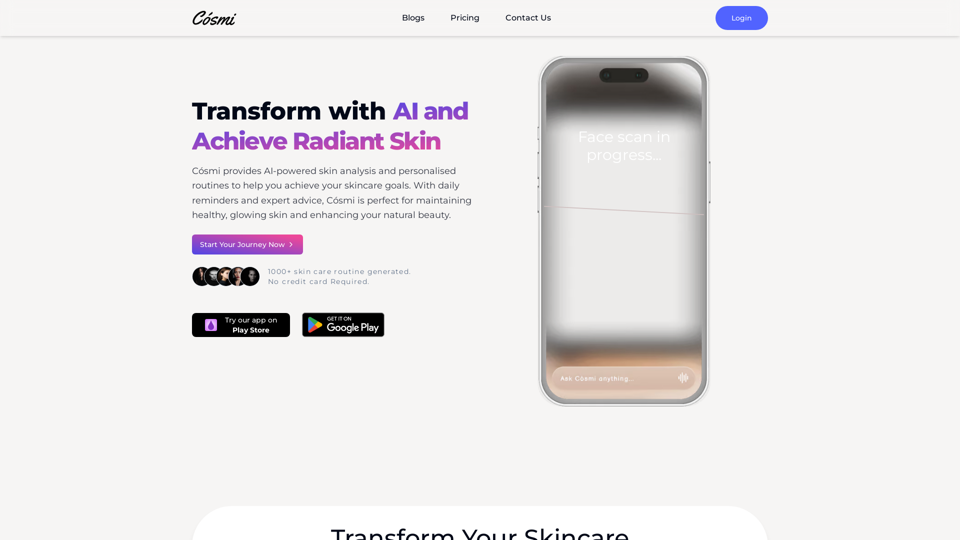
Cosmi | The Best AI Skincare Advisor You will Ever Need
Cosmi | The Best AI Skincare Advisor You will Ever NeedGlow with AI-Powered Skincare Solutions. Cosmi's advanced AI offers tailored, daily reminders and expert product recommendations.
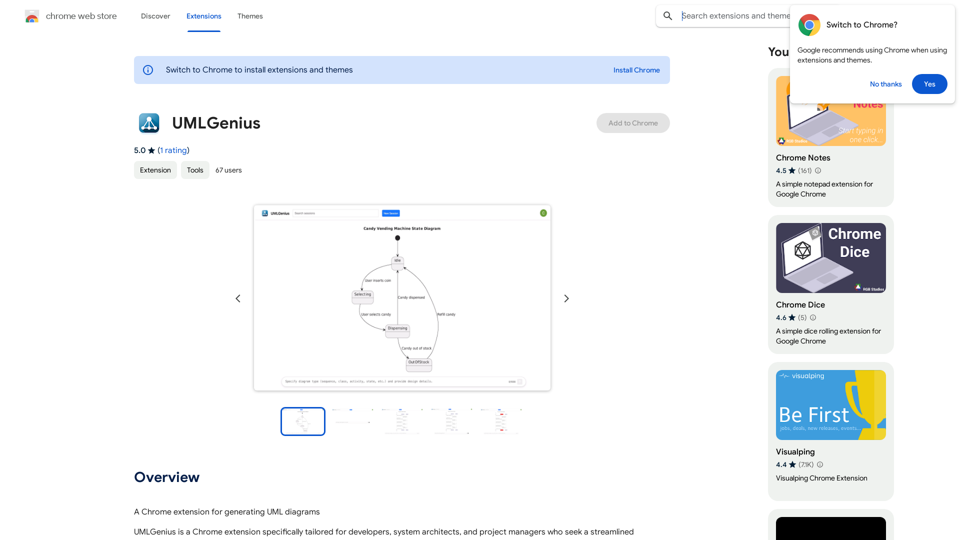
0
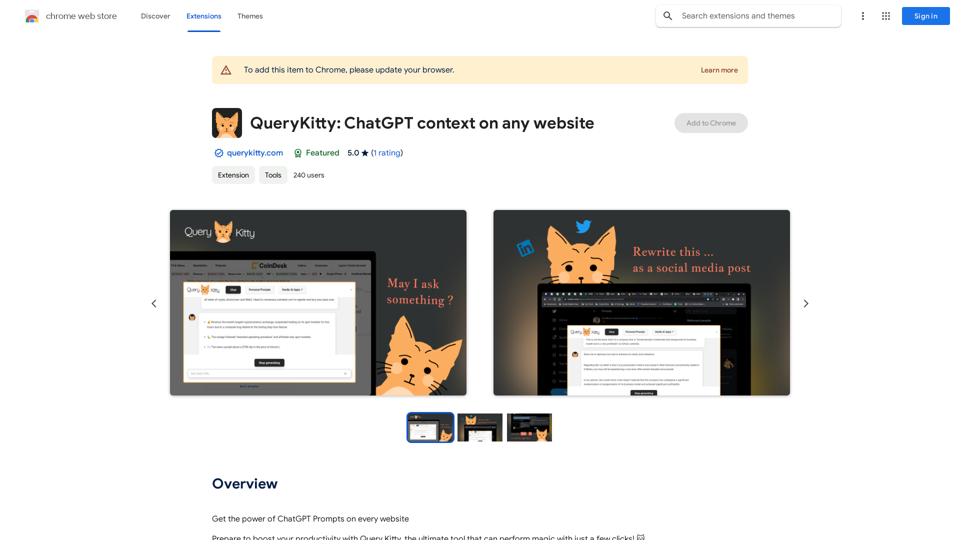
Unlock the Power of ChatGPT Prompts on Any Website Are you tired of switching between multiple tabs to find the perfect prompt for your ChatGPT conversations? Imagine having the power to generate prompts on any website, at any time, with just a few clicks. #Introducing the ChatGPT Prompt Extension Our innovative browser extension brings the magic of ChatGPT prompts directly to your fingertips. With this game-changing tool, you can: * Generate prompts on any webpage: Highlight a sentence, phrase, or paragraph, and our AI will suggest relevant prompts to spark insightful conversations. * Explore new topics and ideas: Get instant access to a vast library of prompts, carefully curated to inspire creativity and foster meaningful discussions. * Enhance your research and learning: Use our prompts to delve deeper into topics, uncover new perspectives, and gain a deeper understanding of complex subjects. #How it Works 1. Install the extension: Add our browser extension to your favorite browser. 2. Highlight and generate: Highlight any text on a webpage, and our AI will suggest relevant prompts. 3. Explore and refine: Browse through the suggested prompts, refine them to your liking, and start conversing with ChatGPT. #Unlock the Full Potential of ChatGPT Don't let the limitations of traditional prompt searching hold you back. With our ChatGPT Prompt Extension, you'll unlock a world of possibilities, including: * Faster research and learning: Get instant access to relevant prompts, saving you time and effort. * Improved conversation quality: Engage in more meaningful and insightful conversations with ChatGPT. * Enhanced creativity and productivity: Spark new ideas and explore fresh perspectives with our AI-generated prompts. #Try it Today! Install our ChatGPT Prompt Extension now and discover the power of AI-driven prompts on any website.
193.90 M
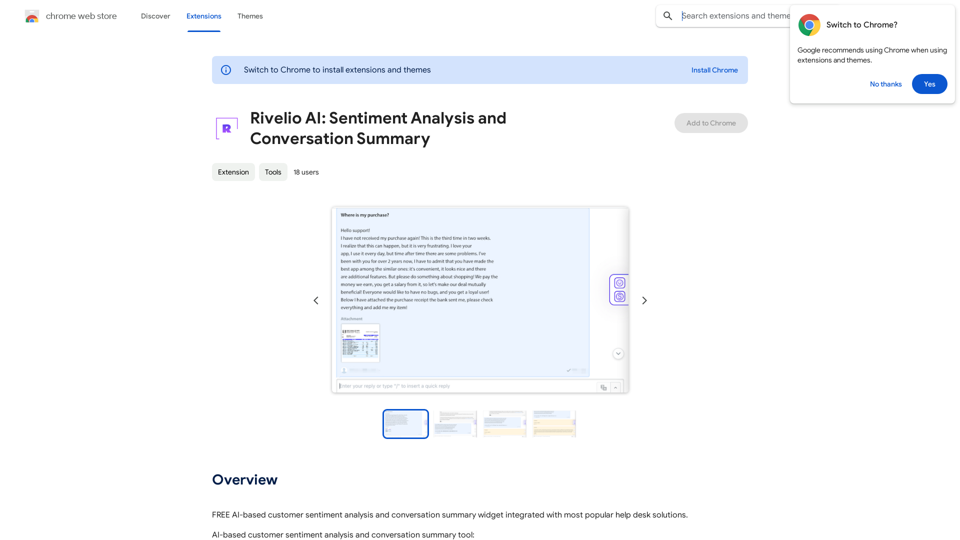
Rivelio AI: Sentiment Analysis and Conversation Summary
Rivelio AI: Sentiment Analysis and Conversation SummaryFREE AI-powered tool that analyzes customer feelings and summarizes conversations. It works with most popular customer service platforms.
193.90 M
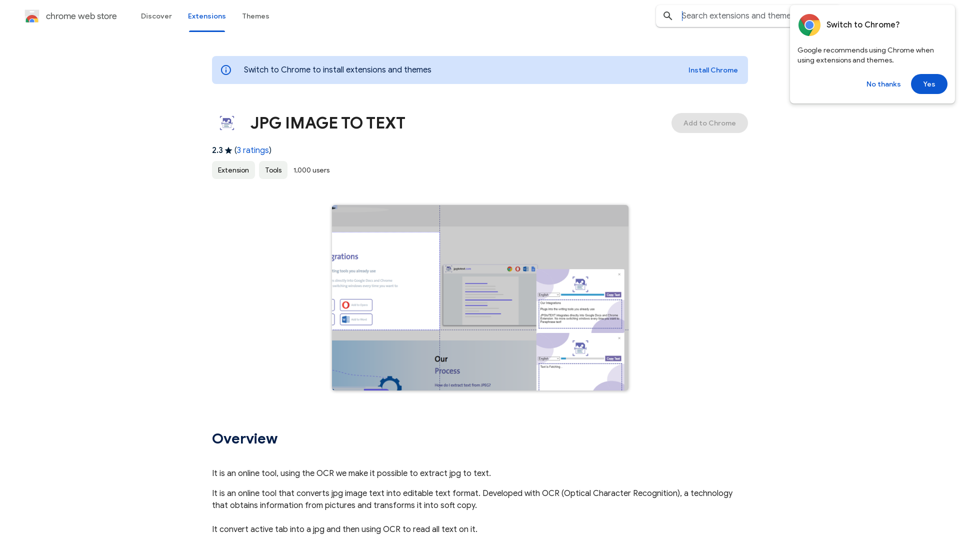
Converting JPG Images to Text Converting a JPG image to text is a process known as Optical Character Recognition (OCR). This technology enables you to extract text from images, scanned documents, and photos. Here's how to do it: Method 1: Online OCR Tools You can use online OCR tools to convert JPG images to text. Here are the steps: 1. Upload your JPG image: Go to an online OCR tool website, such as Online OCR Tools or OCR.space, and upload your JPG image. 2. Select the language: Choose the language of the text in your image. 3. Click on "Convert": The tool will convert the image to text. 4. Download the text: You can download the extracted text as a Word document, PDF, or plain text file. Method 2: Google Drive You can also use Google Drive to convert JPG images to text. Here's how: 1. Upload your JPG image: Upload your JPG image to Google Drive. 2. Right-click on the image: Right-click on the uploaded image and select "Open with" > "Google Docs". 3. The image will be converted: Google Docs will automatically convert the image to text. 4. Edit and download: You can edit the extracted text and download it as a Word document or PDF. Method 3: Adobe Acrobat If you have Adobe Acrobat installed on your computer, you can use it to convert JPG images to text. Here's how: 1. Open Adobe Acrobat: Open Adobe Acrobat on your computer. 2. Create a new document: Create a new document and click on "Tools" > "Recognize Text". 3. Select the image: Select the JPG image you want to convert. 4. Click on "Recognize": Adobe Acrobat will convert the image to text. 5. Edit and save: You can edit the extracted text and save it as a Word document or PDF. These are the three methods to convert JPG images to text. Choose the method that works best for you!
Converting JPG Images to Text Converting a JPG image to text is a process known as Optical Character Recognition (OCR). This technology enables you to extract text from images, scanned documents, and photos. Here's how to do it: Method 1: Online OCR Tools You can use online OCR tools to convert JPG images to text. Here are the steps: 1. Upload your JPG image: Go to an online OCR tool website, such as Online OCR Tools or OCR.space, and upload your JPG image. 2. Select the language: Choose the language of the text in your image. 3. Click on "Convert": The tool will convert the image to text. 4. Download the text: You can download the extracted text as a Word document, PDF, or plain text file. Method 2: Google Drive You can also use Google Drive to convert JPG images to text. Here's how: 1. Upload your JPG image: Upload your JPG image to Google Drive. 2. Right-click on the image: Right-click on the uploaded image and select "Open with" > "Google Docs". 3. The image will be converted: Google Docs will automatically convert the image to text. 4. Edit and download: You can edit the extracted text and download it as a Word document or PDF. Method 3: Adobe Acrobat If you have Adobe Acrobat installed on your computer, you can use it to convert JPG images to text. Here's how: 1. Open Adobe Acrobat: Open Adobe Acrobat on your computer. 2. Create a new document: Create a new document and click on "Tools" > "Recognize Text". 3. Select the image: Select the JPG image you want to convert. 4. Click on "Recognize": Adobe Acrobat will convert the image to text. 5. Edit and save: You can edit the extracted text and save it as a Word document or PDF. These are the three methods to convert JPG images to text. Choose the method that works best for you!It is an online tool that uses Optical Character Recognition (OCR) to make it possible to extract text from images in JPG format.
193.90 M