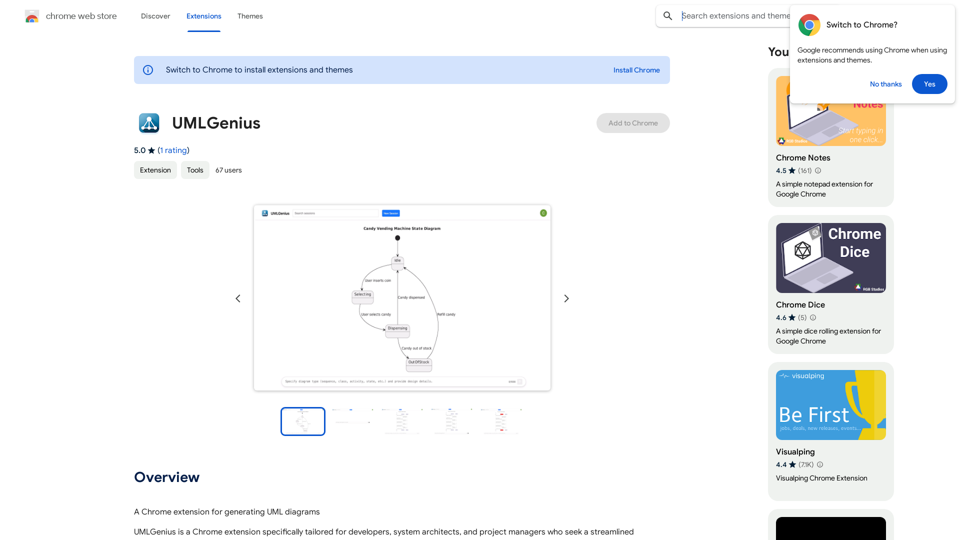
UMLGenius is a Chrome extension that revolutionizes the creation of Unified Modeling Language (UML) diagrams. By harnessing the power of ChatGPT and PlantUML, it transforms natural language descriptions into precise UML diagrams. This tool is invaluable for developers, system architects, and project managers who need to visualize complex system designs quickly and accurately.
UMLGenius
A Chrome extension for generating UML diagrams
Introduction
Feature
Effortless Diagram Creation
Input system descriptions in natural language and receive detailed UML diagrams instantly.
Time-Saving Automation
Reduces hours of manual diagramming to just minutes of automated generation, significantly boosting productivity.
Accuracy and Clarity
Ensures complex system designs are represented clearly and accurately, enhancing communication among team members.
User-Friendly Interface
No steep learning curve, making it accessible for users at any skill level in software development and system design.
Seamless Chrome Integration
As a Chrome extension, it fits effortlessly into existing workflows and is accessible across various devices with Chrome installed.
Free to Use
UMLGenius is a free Chrome extension, allowing immediate use without any cost barriers.
Versatile Applications
- Quick drafting and refining of UML diagrams during the coding process
- Visualization and iteration of complex system architectures
- Enhancement of project plans and workflow communication
- Production of accurate diagrams for technical documentation
FAQ
What is UMLGenius?
UMLGenius is a Chrome extension that transforms natural language descriptions of system designs into precise UML diagrams using ChatGPT and PlantUML technologies.
How do I use UMLGenius?
Simply input your system descriptions in natural language, and the extension will automatically generate detailed UML diagrams for you.
Is UMLGenius free?
Yes, UMLGenius is a free Chrome extension available for immediate use.
Who can benefit from using UMLGenius?
UMLGenius is beneficial for developers, system architects, project managers, and anyone involved in software development, system design, and technical documentation.
What types of diagrams can UMLGenius create?
While specific diagram types aren't mentioned, UMLGenius can likely create various UML diagrams such as class diagrams, sequence diagrams, and use case diagrams based on the input provided.
Related Websites
![AIScraper
This is a Python library for scraping data from websites that use the Amazon Interactive Search (AIS) API.
Features:
* Easy to use: Simply provide a search query and the library will return a list of product results.
* Flexible: You can customize your scraping by specifying filters, such as price range, brand, and category.
* Efficient: The library uses asynchronous requests to speed up the scraping process.
* Reliable: The library is designed to handle rate limits and other website restrictions.
Installation:
```bash
pip install aiscraper
```
Usage:
```python
from aiscraper import AIScraper
Create an instance of the AIScraper class
scraper = AIScraper()
Perform a search for "laptops"
results = scraper.search("laptops")
Print the product titles
for result in results:
print(result["title"])
```
Documentation:
https://github.com/aiscraper/aiscraper](https://static.right-ai.com/tools/2024/7/4/chromewebstore-google-com-detail-aiscraper-mfjniiodgjhlmleaakofgijfccdgppbc-thumbnail-1720072105.png "AIScraper
This is a Python library for scraping data from websites that use the Amazon Interactive Search (AIS) API.
Features:
* Easy to use: Simply provide a search query and the library will return a list of product results.
* Flexible: You can customize your scraping by specifying filters, such as price range, brand, and category.
* Efficient: The library uses asynchronous requests to speed up the scraping process.
* Reliable: The library is designed to handle rate limits and other website restrictions.
Installation:
```bash
pip install aiscraper
```
Usage:
```python
from aiscraper import AIScraper
Create an instance of the AIScraper class
scraper = AIScraper()
Perform a search for \"laptops\"
results = scraper.search(\"laptops\")
Print the product titles
for result in results:
print(result[\"title\"])
```
Documentation:
https://github.com/aiscraper/aiscraper")
AIScraper This is a Python library for scraping data from websites that use the Amazon Interactive Search (AIS) API. Features: * Easy to use: Simply provide a search query and the library will return a list of product results. * Flexible: You can customize your scraping by specifying filters, such as price range, brand, and category. * Efficient: The library uses asynchronous requests to speed up the scraping process. * Reliable: The library is designed to handle rate limits and other website restrictions. Installation: ```bash pip install aiscraper ``` Usage: ```python from aiscraper import AIScraper Create an instance of the AIScraper class scraper = AIScraper() Perform a search for "laptops" results = scraper.search("laptops") Print the product titles for result in results: print(result["title"]) ``` Documentation: https://github.com/aiscraper/aiscraper
AIScraper This is a Python library for scraping data from websites that use the Amazon Interactive Search (AIS) API. Features: * Easy to use: Simply provide a search query and the library will return a list of product results. * Flexible: You can customize your scraping by specifying filters, such as price range, brand, and category. * Efficient: The library uses asynchronous requests to speed up the scraping process. * Reliable: The library is designed to handle rate limits and other website restrictions. Installation: ```bash pip install aiscraper ``` Usage: ```python from aiscraper import AIScraper Create an instance of the AIScraper class scraper = AIScraper() Perform a search for "laptops" results = scraper.search("laptops") Print the product titles for result in results: print(result["title"]) ``` Documentation: https://github.com/aiscraper/aiscraperWeb scraper, powered by AI! Collect structured data from web pages in just a few clicks! What's new 🔹Simplified data collection…
193.90 M
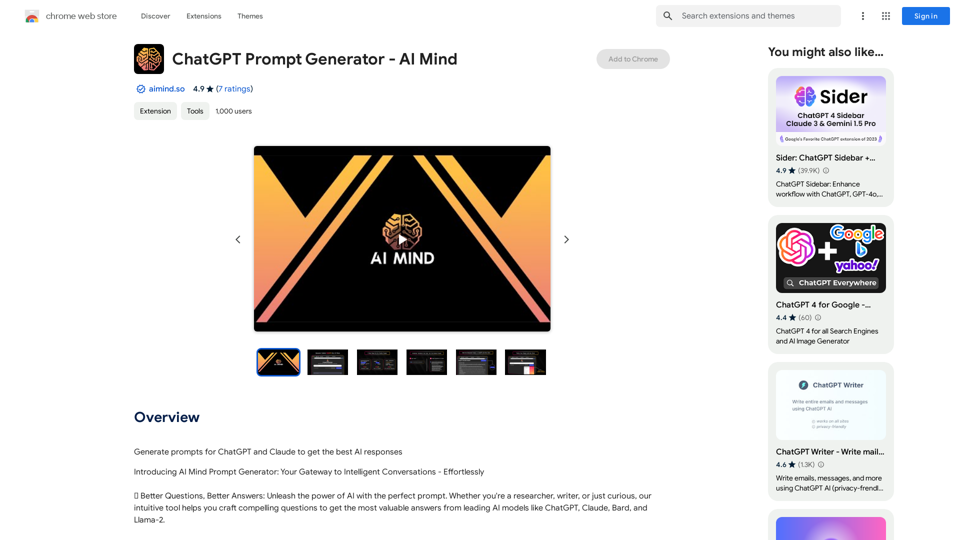
ChatGPT Prompt Generator - AI Mind This is a tool to help you generate creative and effective prompts for ChatGPT. Features: * Diverse Prompt Types: Explore various prompt categories like story writing, dialogue, code generation, and more. * Customization Options: Tailor your prompts with specific details, tone, style, and length preferences. * Inspiration & Examples: Discover a library of pre-made prompts and examples to spark your imagination. * AI-Powered Suggestions: Get intelligent suggestions and refinements for your prompts based on your input. How it Works: 1. Choose a Prompt Type: Select the type of output you desire from ChatGPT. 2. Provide Input: Enter your desired keywords, themes, or specific instructions. 3. Customize Settings: Adjust parameters like tone, style, length, and format. 4. Generate Prompt: Click "Generate" to receive a unique and optimized prompt tailored to your needs. Start Creating! Let your imagination run wild and explore the possibilities of ChatGPT with our AI-powered prompt generator.
ChatGPT Prompt Generator - AI Mind This is a tool to help you generate creative and effective prompts for ChatGPT. Features: * Diverse Prompt Types: Explore various prompt categories like story writing, dialogue, code generation, and more. * Customization Options: Tailor your prompts with specific details, tone, style, and length preferences. * Inspiration & Examples: Discover a library of pre-made prompts and examples to spark your imagination. * AI-Powered Suggestions: Get intelligent suggestions and refinements for your prompts based on your input. How it Works: 1. Choose a Prompt Type: Select the type of output you desire from ChatGPT. 2. Provide Input: Enter your desired keywords, themes, or specific instructions. 3. Customize Settings: Adjust parameters like tone, style, length, and format. 4. Generate Prompt: Click "Generate" to receive a unique and optimized prompt tailored to your needs. Start Creating! Let your imagination run wild and explore the possibilities of ChatGPT with our AI-powered prompt generator.Generate prompts for ChatGPT and Claude to get the best AI responses
193.90 M
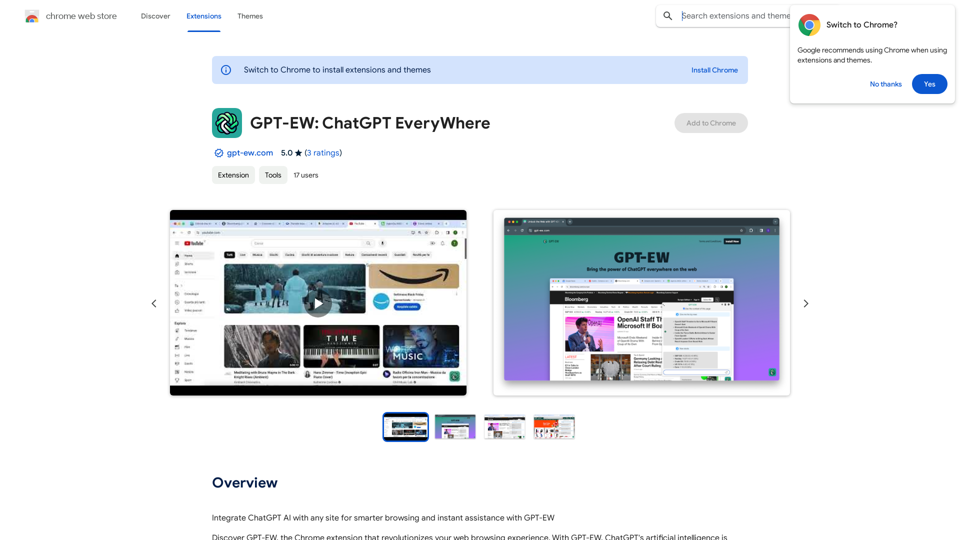
Add ChatGPT AI to Any Website for Smarter Browsing and Instant Help with GPT-EW Imagine having ChatGPT's powerful AI right there on any website you visit. That's what GPT-EW makes possible! It lets you seamlessly integrate ChatGPT into your favorite sites, giving you: * Smarter Browsing: Get instant answers to your questions about the content on the page. * Instant Assistance: Have ChatGPT help you summarize articles, translate text, or even write emails based on the information you're reading. GPT-EW unlocks a whole new level of interactivity and intelligence for your online experience.
193.90 M
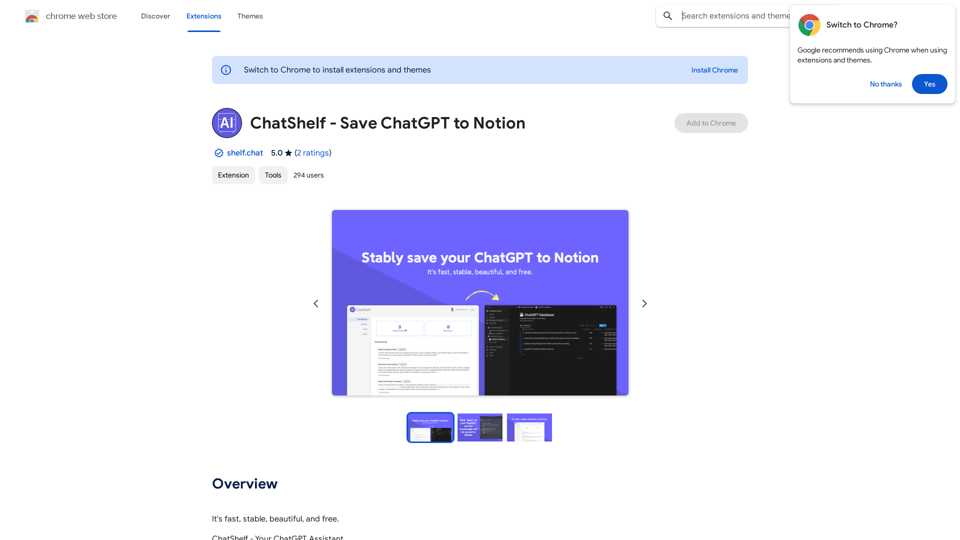
ChatShelf - Save ChatGPT to Notion ChatShelf is a tool that lets you save your ChatGPT conversations directly into Notion. It's a simple way to keep track of your AI interactions and use them later. Just copy the link to your ChatGPT conversation and paste it into ChatShelf. It will then extract the conversation and create a Notion page for you.
ChatShelf - Save ChatGPT to Notion ChatShelf is a tool that lets you save your ChatGPT conversations directly into Notion. It's a simple way to keep track of your AI interactions and use them later. Just copy the link to your ChatGPT conversation and paste it into ChatShelf. It will then extract the conversation and create a Notion page for you.It's fast, stable, beautiful, and free.
193.90 M
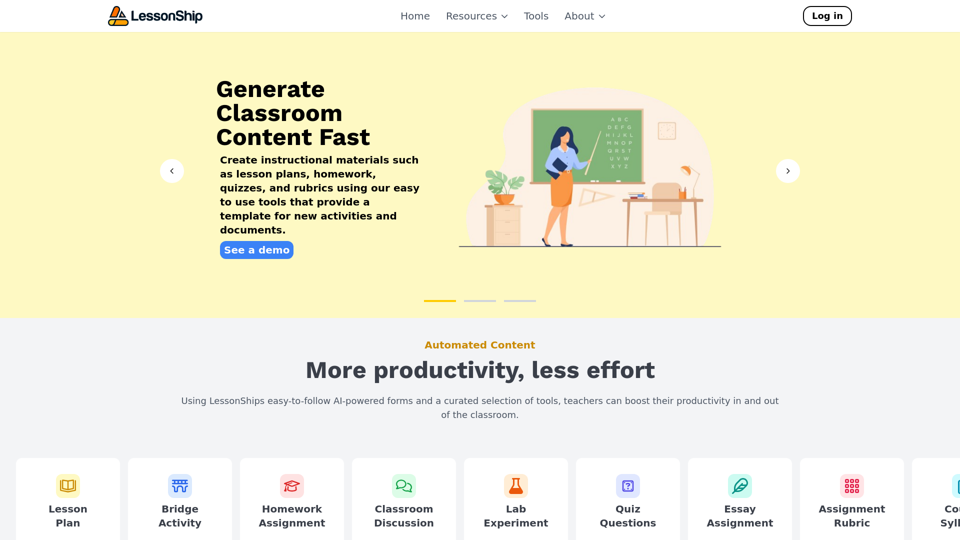
LessonShip is an AI-powered LMS that allows teachers to quickly generate classroom instructional materials with our easy-to-use forms.
0
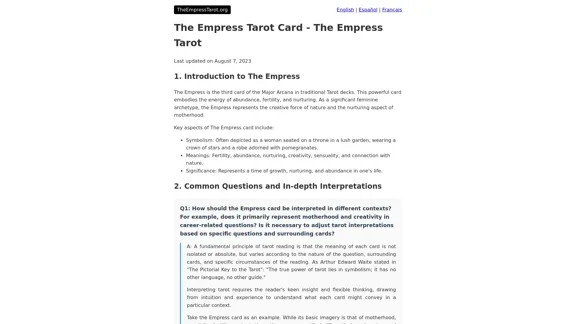
The Empress Tarot Card: Symbolism, Interpretations, and Significance The Empress is the third card in the Major Arcana of the tarot deck. This powerful and nurturing figure represents feminine energy, abundance, creativity, and fertility. Here's a comprehensive look at the Empress card: Symbolism: 1. The Empress herself: A regal woman seated on a throne, often depicted as pregnant or holding a scepter. 2. Crown: Usually adorned with 12 stars, representing the zodiac and her connection to the celestial realm. 3. Venus symbol: Often visible on her shield or clothing, emphasizing love and beauty. 4. Lush surroundings: Abundant nature, trees, and flowing water symbolize fertility and growth. 5. Wheat or grain: Represents the harvest and abundance. 6. Cushions and comfort: Signify luxury, comfort, and nurturing. Interpretations: Upright: 1. Fertility and creation 2. Nurturing and motherhood 3. Abundance and prosperity 4. Beauty and sensuality 5. Connection with nature 6. Creativity and artistic expression 7. Feminine power and energy Reversed: 1. Creative block or stagnation 2. Neglect of self-care or others 3. Codependency or overprotectiveness 4. Lack of growth or progress 5. Infertility or reproductive issues 6. Materialism or vanity 7. Disconnection from nature or intuition Significance in Tarot Readings: 1. Personal Growth: The Empress encourages embracing one's nurturing side and creative potential. 2. Relationships: Indicates a time of love, care, and emotional fulfillment in partnerships. 3. Career: Suggests a period of growth, abundance, and creative breakthroughs in professional endeavors. 4. Health: Often associated with pregnancy, fertility, and overall well-being. 5. Spirituality: Represents a connection to the divine feminine and the nurturing aspects of the universe. 6. Finances: Indicates a time of material abundance and prosperity. 7. Decision Making: Encourages trusting intuition and embracing a nurturing approach to problem-solving. The Empress in Combinations: - With The Emperor: Balance of masculine and feminine energies, strong partnerships. - With The High Priestess: Powerful feminine wisdom and intuition. - With The Star: Hope, inspiration, and creative renewal. - With Pentacle cards: Material abundance and financial growth. The Empress is a card of creation, nurturing, and abundance. When it appears in a reading, it often signals a time of growth, fertility (literal or metaphorical), and the blossoming of creative or nurturing energies. It reminds the querent to connect with their feminine side, regardless of gender, and to embrace the abundance that surrounds them.
0