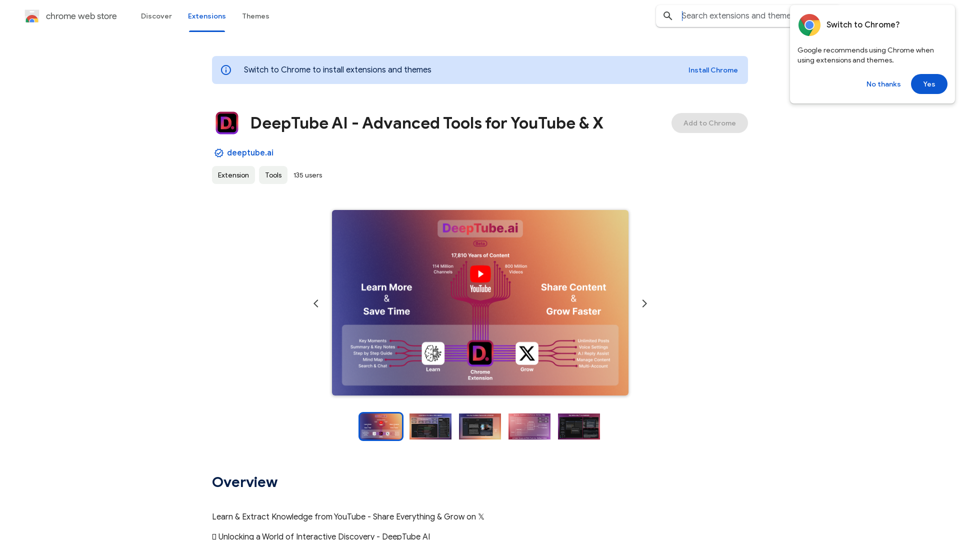
SellingPilot is an AI-powered assistant designed to revolutionize e-commerce operations. It offers a suite of innovative features to help businesses streamline their processes, manage creators efficiently, and leverage AI for customer interactions and product management. From batch messaging to AI-driven email assistance and customer review analysis, SellingPilot aims to accelerate e-commerce growth and efficiency.
SellingPilot - Your AI-powered assistant for e-commerce.
SellingPilot is your AI-powered assistant for e-commerce. It helps you streamline your operations and accelerate your e-commerce business.
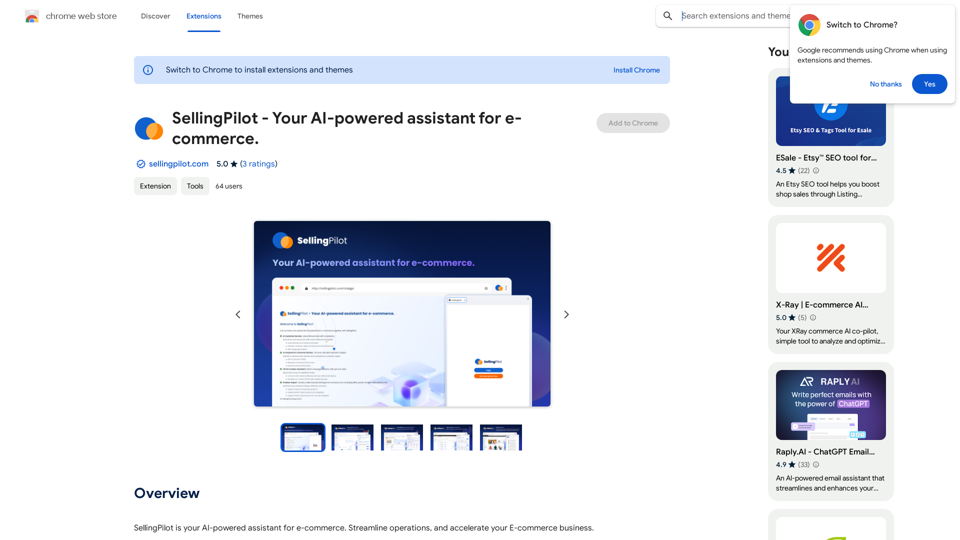
Introduction
Feature
Batch Messaging and Templates
- Batch message creators with a single click
- Pre-defined messaging templates for easy communication
Creator Management
- Organize creator lists through targeted groupings
- Improve efficiency in managing multiple creators
AI Email Assistant
- Email summary for quick understanding of customer intentions
- Sentiment analysis to prioritize replies
- AI-recommended responses and draft previews
- Multi-language support (English, Simplified Chinese, Traditional Chinese)
AI Analysis for Customer Reviews
- Build detailed customer profiles with demographic and behavioral insights
- Research product pros and cons
- Reveal purchase motivations for tailored marketing strategies
Product Import
- Collect product listings from Amazon.com
- Support for individual and batch import
- Gather details including titles, prices, images, and descriptions
User-Friendly Interface
- Easy integration with existing e-commerce operations
- Intuitive design for quick start and immediate benefits
FAQ
What is SellingPilot?
SellingPilot is an AI-powered assistant for e-commerce, designed to streamline operations and accelerate your e-commerce business through innovative features and efficient management tools.
What are the main features of SellingPilot?
The main features include:
- Batch messaging and pre-defined templates
- Efficient creator management
- AI email assistant with multi-language support
- AI analysis for customer reviews
- Product import from Amazon.com
- User-friendly interface for easy integration
How do I use SellingPilot?
SellingPilot is designed with a user-friendly interface, allowing for easy integration into your existing e-commerce operations. You can quickly start using its features to experience the benefits of AI-powered e-commerce management.
What pricing options does SellingPilot offer?
SellingPilot provides a range of pricing plans to suit various e-commerce needs, from basic to advanced. Each plan is tailored to provide the necessary tools and features for success in the competitive e-commerce landscape.
Related Websites
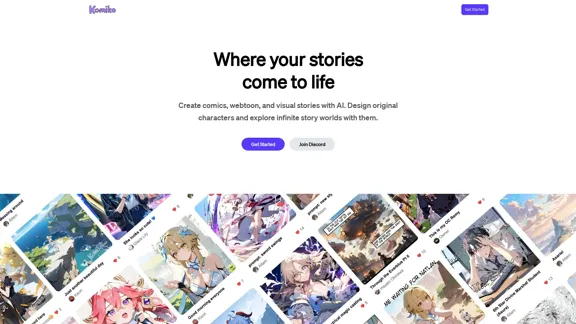
Bring your stories to life with AI. Create captivating comics, webtoon, and visual stories. Design original characters and dive into limitless story worlds.
743.50 K

Picsart is the biggest comprehensive creative platform offering photo and video editing tools along with design capabilities. It provides an ecosystem of freely available content and inspiration drawn from other creators.
13.31 M
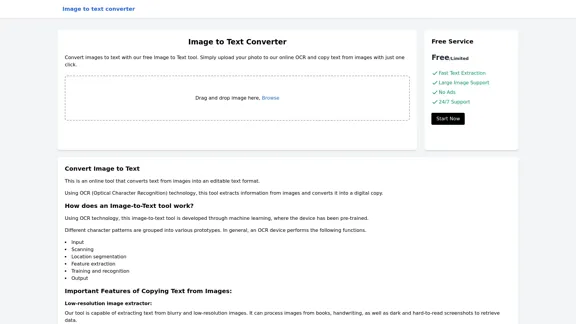
Image to text converter, converting image text to text, how to extract text from an image.
Image to text converter, converting image text to text, how to extract text from an image.Transform images with text into editable, searchable content instantly. Our advanced AI technology extracts text from any image with remarkable accuracy, supporting multiple languages and document types. Simply upload your picture, and watch as handwritten notes, printed documents, screenshots, and signs are converted to crisp, copyable text in seconds.
0
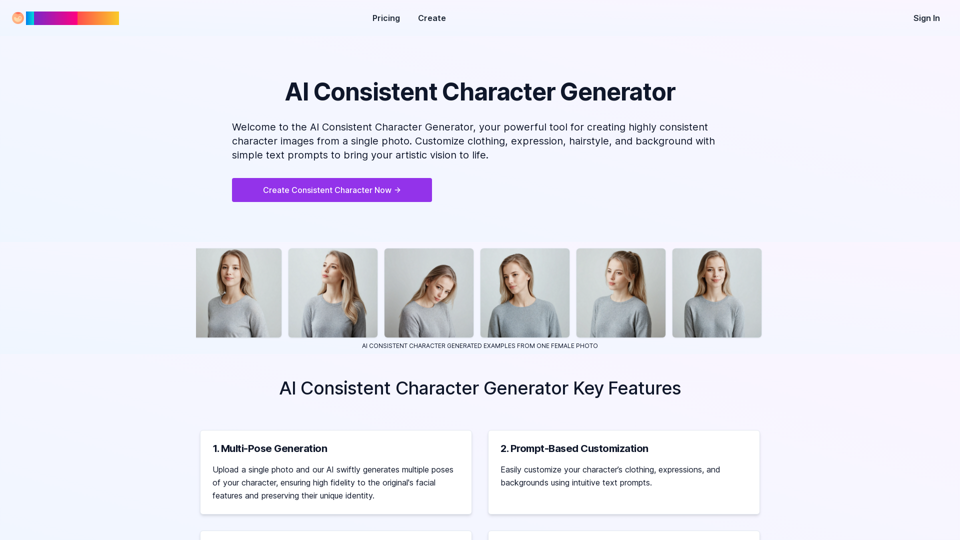
Create a Consistent Character Across Different Looks! Imagine this: * Your character rocking a cool new outfit. * Your character with a fresh hairstyle. * Your character in a variety of exciting backgrounds. But... * They always look like *themselves*. * Their personality shines through, no matter the change. That's where a Consistent Character Generator comes in! This powerful tool lets you: * Generate variations of your character with different: * Poses * Clothing * Hairstyles * Backgrounds * Maintain consistency in your character's appearance and essence. Say goodbye to: * Inconsistent character designs that break immersion. * Spending hours tweaking details to keep your character recognizable. Say hello to: * A library of diverse character variations, all true to your vision. * Effortless character customization for your projects.
Create a Consistent Character Across Different Looks! Imagine this: * Your character rocking a cool new outfit. * Your character with a fresh hairstyle. * Your character in a variety of exciting backgrounds. But... * They always look like *themselves*. * Their personality shines through, no matter the change. That's where a Consistent Character Generator comes in! This powerful tool lets you: * Generate variations of your character with different: * Poses * Clothing * Hairstyles * Backgrounds * Maintain consistency in your character's appearance and essence. Say goodbye to: * Inconsistent character designs that break immersion. * Spending hours tweaking details to keep your character recognizable. Say hello to: * A library of diverse character variations, all true to your vision. * Effortless character customization for your projects.Unlock your creative potential with the AI Consistent Character Generator. Effortlessly generate, customize, and transform characters with consistent features for photography, gaming, art, and more. Start your creative journey today!
37.98 K
ScreenRedact on the Mac App Store #Description ScreenRedact is a powerful and easy-to-use screenshot editing tool that allows you to quickly and easily remove sensitive information from your screenshots. With its intuitive interface and advanced features, ScreenRedact is the perfect solution for anyone who needs to share screenshots online or with others. #Features * Easy to use: ScreenRedact's intuitive interface makes it easy to get started, even if you're not tech-savvy. * Advanced editing tools: ScreenRedact offers a range of advanced editing tools, including blur, pixelate, and redact, to help you remove sensitive information from your screenshots. * Customizable: ScreenRedact allows you to customize the appearance of your redactions, including the color, opacity, and style. * Support for multiple file formats: ScreenRedact supports a range of file formats, including JPEG, PNG, and TIFF. * Share easily: ScreenRedact makes it easy to share your edited screenshots with others, either by saving them to your computer or sharing them directly to social media or email. #What's New * Improved performance: ScreenRedact is now faster and more efficient, making it easier to edit your screenshots. * New editing tools: ScreenRedact now includes new editing tools, including a magic wand and a lasso tool, to make it even easier to remove sensitive information from your screenshots. * Enhanced customization options: ScreenRedact now offers even more customization options, including the ability to change the color and opacity of your redactions. #Ratings and Reviews * 4.5/5 stars: ScreenRedact has an average rating of 4.5 out of 5 stars on the Mac App Store. * "Easy to use and effective": One reviewer praised ScreenRedact's ease of use and effectiveness, saying "I was able to quickly and easily remove sensitive information from my screenshots." * "A must-have for anyone who shares screenshots online": Another reviewer called ScreenRedact "a must-have for anyone who shares screenshots online," citing its ease of use and advanced features.
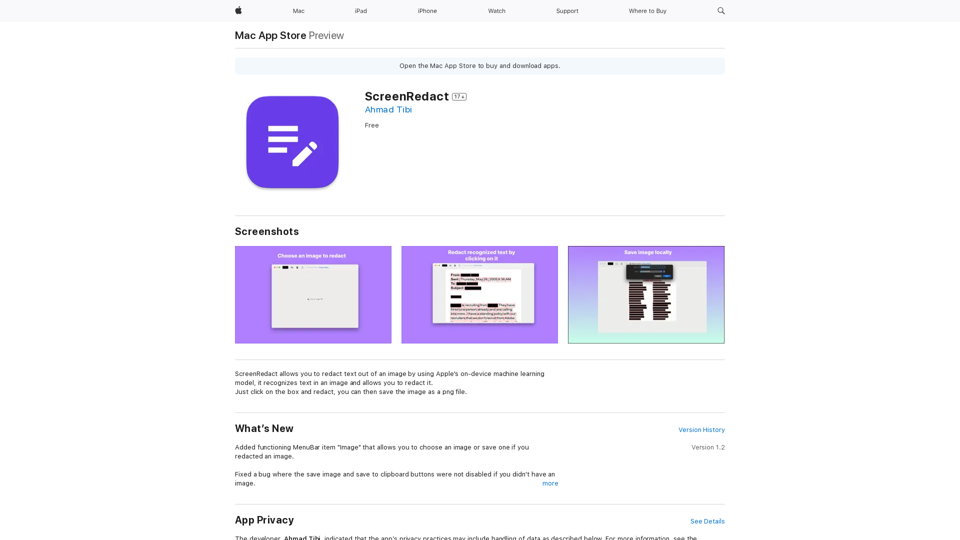
ScreenRedact on the Mac App Store #Description ScreenRedact is a powerful and easy-to-use screenshot editing tool that allows you to quickly and easily remove sensitive information from your screenshots. With its intuitive interface and advanced features, ScreenRedact is the perfect solution for anyone who needs to share screenshots online or with others. #Features * Easy to use: ScreenRedact's intuitive interface makes it easy to get started, even if you're not tech-savvy. * Advanced editing tools: ScreenRedact offers a range of advanced editing tools, including blur, pixelate, and redact, to help you remove sensitive information from your screenshots. * Customizable: ScreenRedact allows you to customize the appearance of your redactions, including the color, opacity, and style. * Support for multiple file formats: ScreenRedact supports a range of file formats, including JPEG, PNG, and TIFF. * Share easily: ScreenRedact makes it easy to share your edited screenshots with others, either by saving them to your computer or sharing them directly to social media or email. #What's New * Improved performance: ScreenRedact is now faster and more efficient, making it easier to edit your screenshots. * New editing tools: ScreenRedact now includes new editing tools, including a magic wand and a lasso tool, to make it even easier to remove sensitive information from your screenshots. * Enhanced customization options: ScreenRedact now offers even more customization options, including the ability to change the color and opacity of your redactions. #Ratings and Reviews * 4.5/5 stars: ScreenRedact has an average rating of 4.5 out of 5 stars on the Mac App Store. * "Easy to use and effective": One reviewer praised ScreenRedact's ease of use and effectiveness, saying "I was able to quickly and easily remove sensitive information from my screenshots." * "A must-have for anyone who shares screenshots online": Another reviewer called ScreenRedact "a must-have for anyone who shares screenshots online," citing its ease of use and advanced features.ScreenRedact allows you to remove sensitive text from an image by utilizing Apple's on-device machine learning model, which identifies text within an image and enables you to redact it with ease.
124.77 M
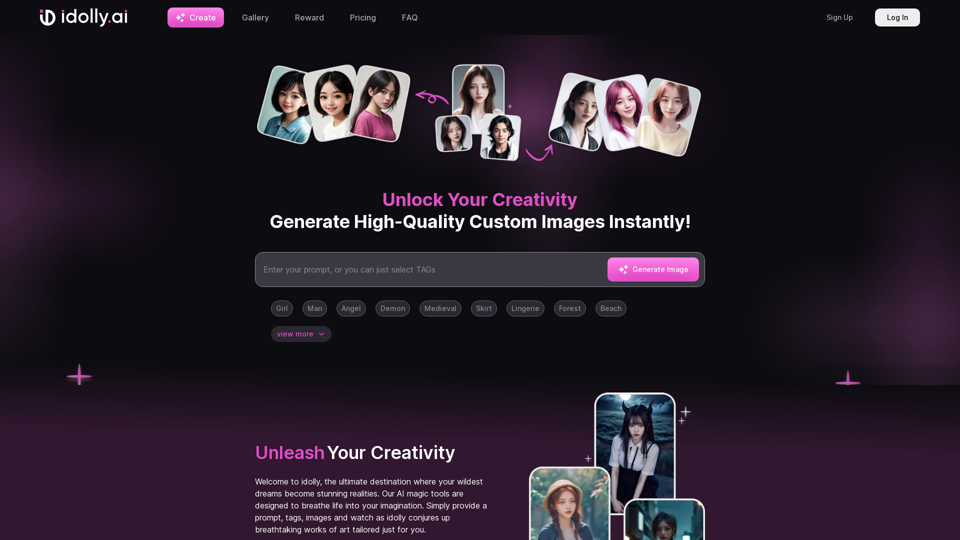
Explore idolly.ai, where imagination meets AI image creation and BlockChain. Create stunning visuals with ease using our Face Transfer and Mood Fusion technology.
9.70 K