CaptainGPT is an AI-powered platform designed to assist e-commerce sellers in optimizing their operations. It leverages natural language generation algorithms and artificial intelligence to streamline daily tasks, improve efficiency, and increase sales for online merchants. The platform offers a range of features to help sellers enhance their product listings, customer communication, and overall market competitiveness.
CaptainGPT
Best AI Assistant for Cross-Border E-commerce Operations
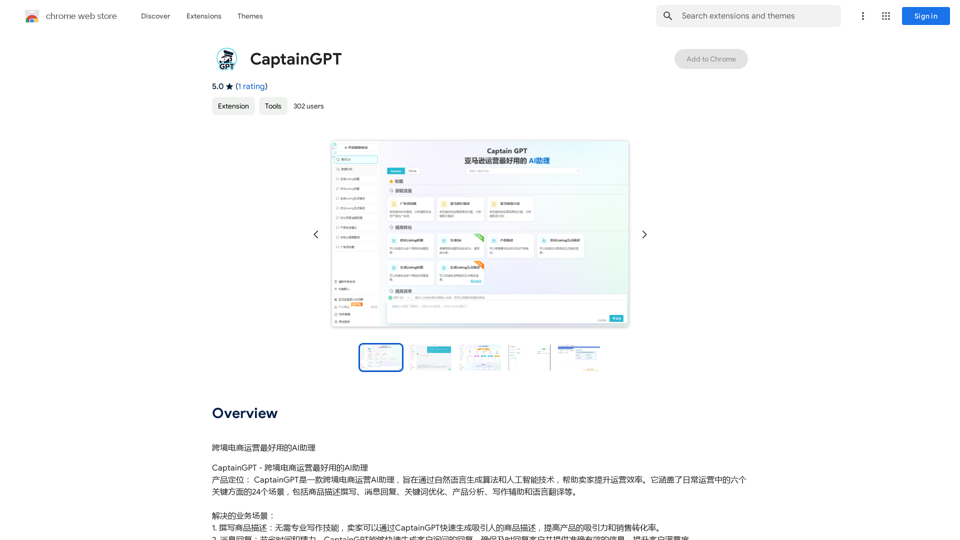
Introduction
Feature
Product Description Writing
CaptainGPT generates attractive product descriptions quickly, enhancing product appeal and improving conversion rates.
Message Response
Automatically generates customer inquiry responses, ensuring timely and accurate information delivery while saving time.
Keyword Optimization
Analyzes keyword data to provide targeted recommendations, helping sellers optimize product titles and content for better search rankings.
Product Analysis
Offers comprehensive product analysis, comparing with competitors and providing key competitive advantage suggestions for effective marketing strategies.
Writing Assistance
Provides writing inspiration and tools, including generated headings, conclusions, and keyword reminders for high-quality content creation.
Language Translation
Supports multilingual translation services, enabling easy translation of product descriptions, reviews, and other content to expand global market reach.
FAQ
What is CaptainGPT?
CaptainGPT is an AI-powered platform designed to assist e-commerce sellers in optimizing their operations through various features like product description writing, message response, and keyword optimization.
What features does CaptainGPT offer?
CaptainGPT offers features such as product description writing, message response, keyword optimization, product analysis, writing assistance, and language translation.
How do I use CaptainGPT?
CaptainGPT is designed to be user-friendly, with an intuitive interface that allows sellers to easily access and utilize its features for streamlining daily operations, improving efficiency, and increasing sales.
What is the pricing plan for CaptainGPT?
CaptainGPT offers an affordable pricing plan with flexible subscription options to suit different business needs.
Related Websites
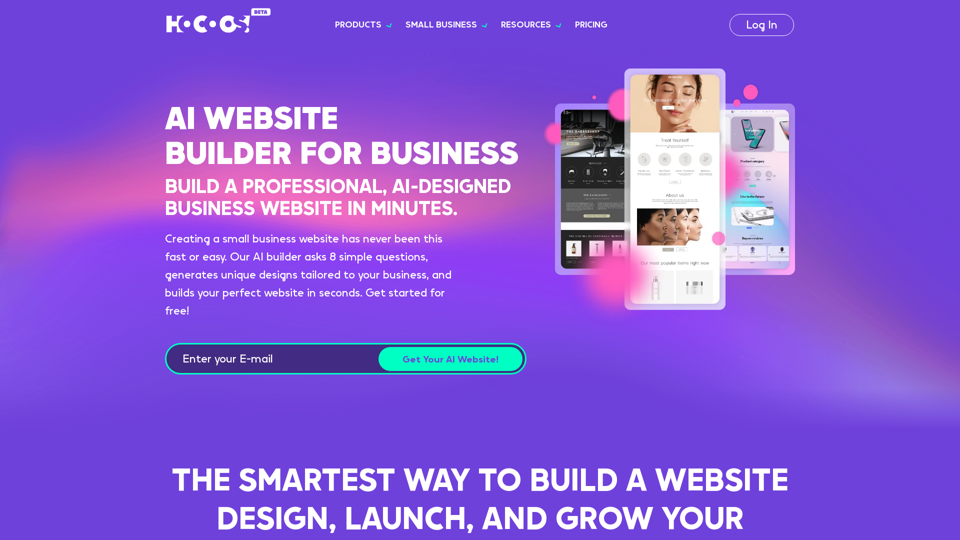
Hocoos AI Website Builder - Create Your Website in 5 Minutes
Hocoos AI Website Builder - Create Your Website in 5 MinutesCreate professional websites in seconds with Hocoos AI website builder. Get all the sales and marketing tools to start & grow your online business now.
111.35 K
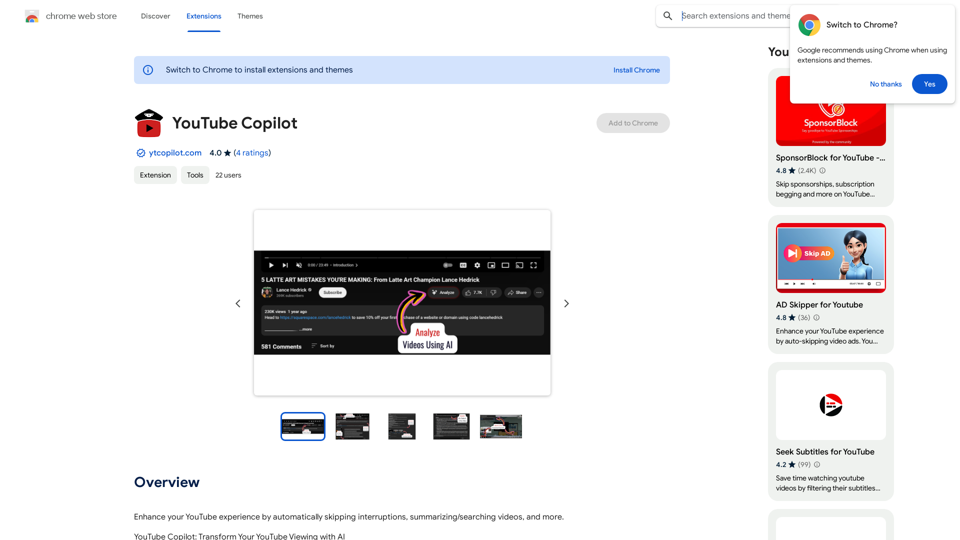
Improve your YouTube viewing by automatically skipping ads, summarizing videos, and searching within them.
193.90 M
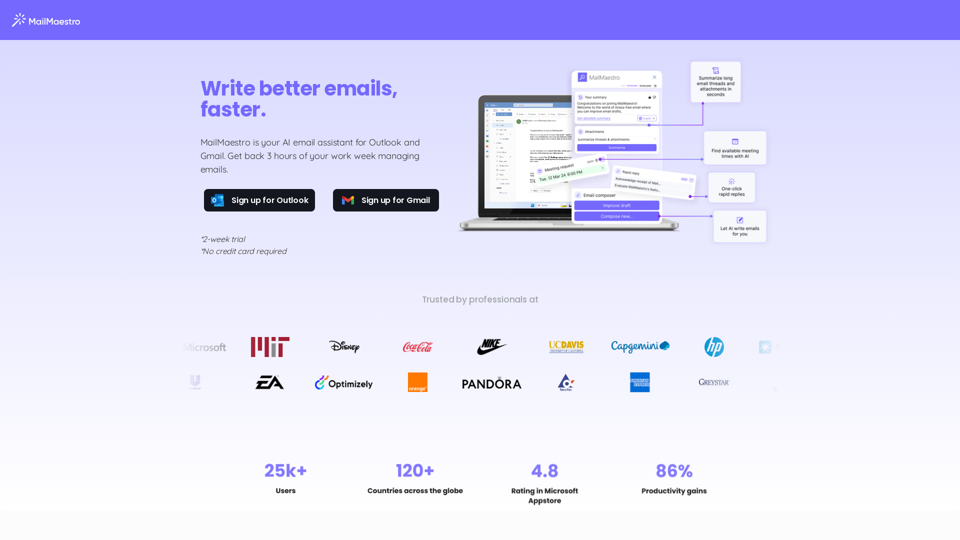
Enhance your email productivity with MailMaestro. Enjoy AI-assisted email summaries, unique style personalization, and top-quality drafts. Check our features today!
222.20 K
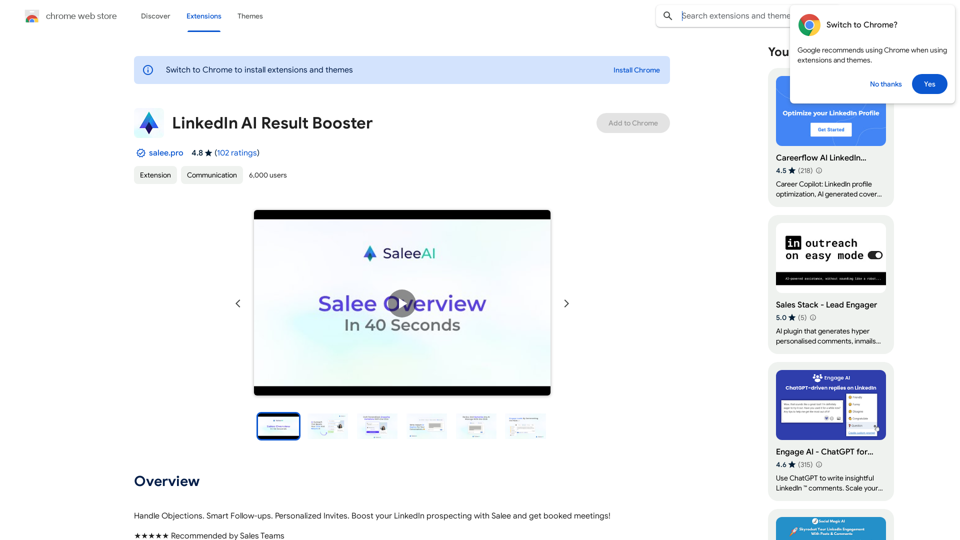
Handle Objections. Smart Follow-ups. Personalized Invites. Boost your LinkedIn prospecting with Salee and get booked meetings!
193.90 M
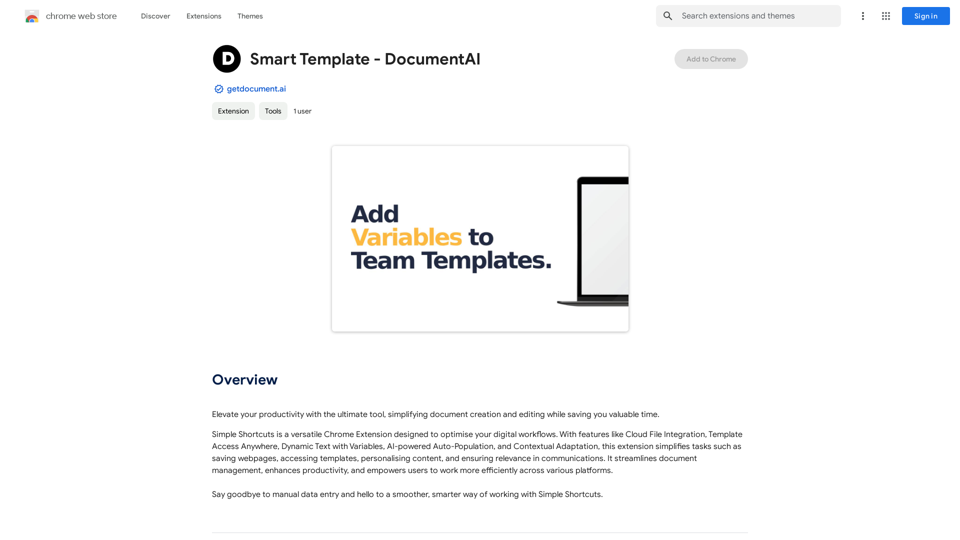
Smart Template - DocumentAI This is a placeholder for content about Smart Templates in DocumentAI. Please provide me with the content you'd like me to translate.
Smart Template - DocumentAI This is a placeholder for content about Smart Templates in DocumentAI. Please provide me with the content you'd like me to translate.Boost your productivity with the best tool around, making it easy to create and edit documents and saving you precious time.
193.90 M
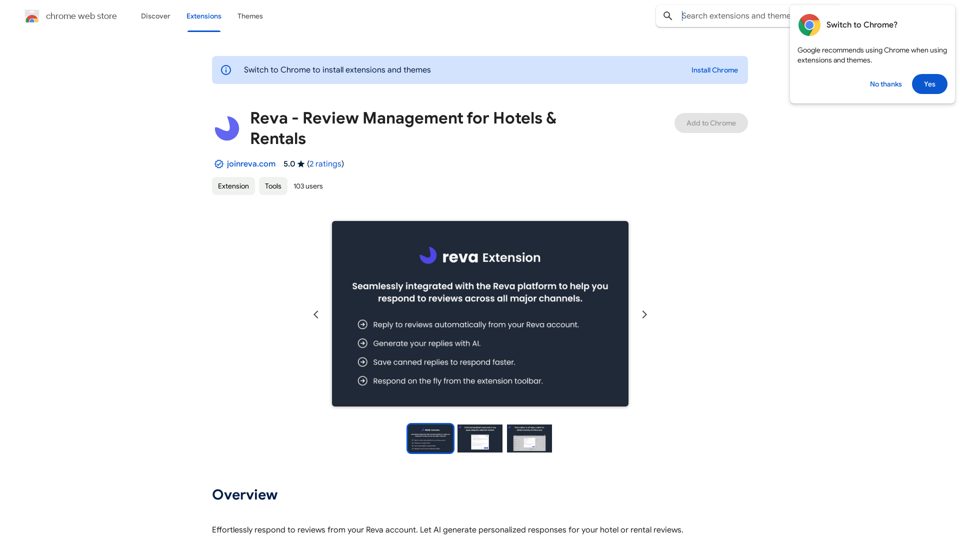
Easily reply to reviews from your Reva account. Let AI create custom responses for your hotel or rental reviews.
193.90 M
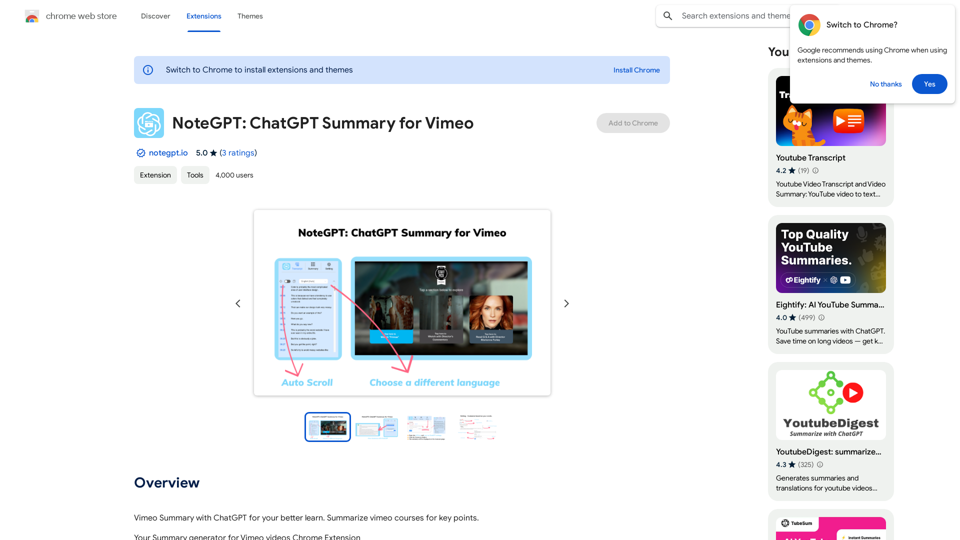
NoteGPT: ChatGPT Summary for Vimeo =============== What is NoteGPT? NoteGPT is an AI-powered note-taking tool that utilizes the capabilities of ChatGPT to assist users in summarizing and organizing their video content on Vimeo. Key Features * Automatic Summarization: NoteGPT can automatically generate a concise summary of Vimeo videos, saving users time and effort. * Customizable Notes: Users can add their own notes and tags to the generated summary, making it easy to review and reference later. * Organization: NoteGPT allows users to organize their video content by categorizing and tagging their notes, making it simple to find specific information. Benefits * Time-Saving: NoteGPT's automatic summarization feature saves users time and effort, allowing them to focus on more important tasks. * Improved Productivity: With NoteGPT, users can quickly review and reference their video content, improving their overall productivity. * Enhanced Learning: NoteGPT's customizable notes and organization features enable users to engage more effectively with their video content, leading to enhanced learning and retention. Use Cases * Education: NoteGPT is ideal for students and educators who need to review and summarize video lectures and online courses. * Business: NoteGPT can be used by professionals to summarize and organize video content for meetings, training sessions, and presentations. * Personal Development: Individuals can use NoteGPT to summarize and review video content for personal development, such as language learning or skill-building.
NoteGPT: ChatGPT Summary for Vimeo =============== What is NoteGPT? NoteGPT is an AI-powered note-taking tool that utilizes the capabilities of ChatGPT to assist users in summarizing and organizing their video content on Vimeo. Key Features * Automatic Summarization: NoteGPT can automatically generate a concise summary of Vimeo videos, saving users time and effort. * Customizable Notes: Users can add their own notes and tags to the generated summary, making it easy to review and reference later. * Organization: NoteGPT allows users to organize their video content by categorizing and tagging their notes, making it simple to find specific information. Benefits * Time-Saving: NoteGPT's automatic summarization feature saves users time and effort, allowing them to focus on more important tasks. * Improved Productivity: With NoteGPT, users can quickly review and reference their video content, improving their overall productivity. * Enhanced Learning: NoteGPT's customizable notes and organization features enable users to engage more effectively with their video content, leading to enhanced learning and retention. Use Cases * Education: NoteGPT is ideal for students and educators who need to review and summarize video lectures and online courses. * Business: NoteGPT can be used by professionals to summarize and organize video content for meetings, training sessions, and presentations. * Personal Development: Individuals can use NoteGPT to summarize and review video content for personal development, such as language learning or skill-building.Vimeo Summary with ChatGPT for Better Learning ===================================================== What is Vimeo? --------------- Vimeo is a video-hosting platform that allows users to upload, share, and view videos. It is popular among creative professionals, businesses, and individuals who want to showcase their videos in a high-quality format. How Can ChatGPT Help with Vimeo Courses? ----------------------------------------- ChatGPT is an AI-powered language model that can assist with summarizing Vimeo courses by: * Identifying key points: ChatGPT can analyze the video content and extract the most important information, making it easier to understand and retain. * Generating summaries: ChatGPT can create concise summaries of the video courses, saving time and effort. * Improving learning: By providing a clear and concise summary, ChatGPT can help learners focus on the essential concepts and improve their understanding of the material. Benefits of Using ChatGPT for Vimeo Courses --------------------------------------------- * Time-saving: ChatGPT can quickly summarize long video courses, saving learners time and effort. * Improved comprehension: ChatGPT's summaries can help learners understand complex concepts more easily. * Enhanced retention: By providing a concise summary, ChatGPT can help learners retain information better. How to Use ChatGPT for Vimeo Courses ----------------------------------------- 1. Upload the video course: Upload the Vimeo course to ChatGPT. 2. Analyze the content: ChatGPT will analyze the video content and extract key points. 3. Generate a summary: ChatGPT will create a concise summary of the video course. 4. Review and learn: Review the summary and use it to learn and retain the information. Conclusion ---------- ChatGPT can be a valuable tool for summarizing Vimeo courses, making it easier to learn and retain information. By using ChatGPT, learners can save time, improve comprehension, and enhance retention.
193.90 M