Open-source RightAI Tools Directory
  • Discover AI
  • Submit
  • Startup
  • Blog
Open-source RightAI Tools Directory
Discover the best AI tools of 2025 with the RightAI Tools Directory!

Friend Links

AI Anime GeneratorToolsApp AI

Support

Tap4
Privacy policyTerms & ConditionsContact Us
Loading...
loading...

Reliv

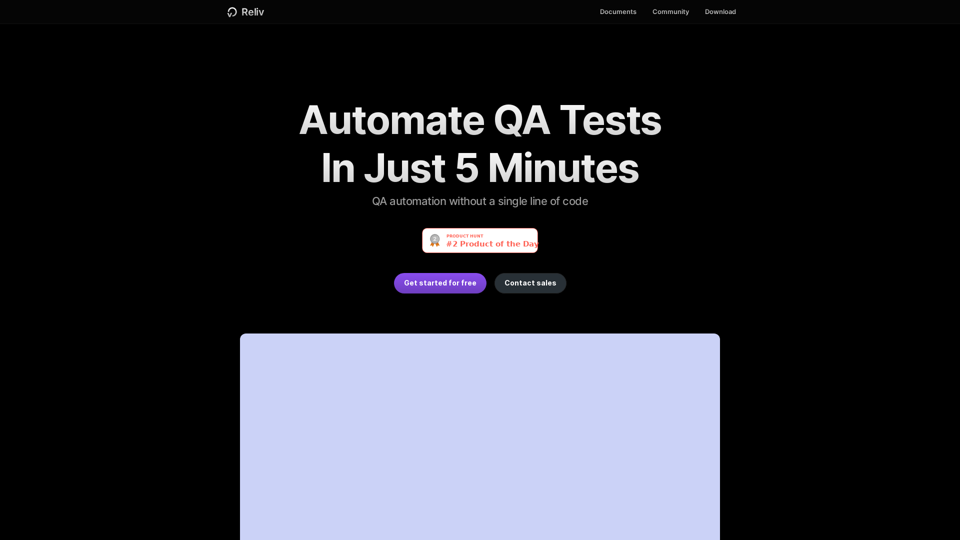
Automate QA Tests in Just 5 Minutes
Visit Website
Reliv
Visit Website

Introduction

Reliv is an AI-driven platform that revolutionizes QA testing by automating the process without requiring any coding. It enables users to effortlessly record test scenarios, create tests, and execute them, providing an efficient and reliable solution for software testing. Reliv's user-friendly interface and AI capabilities make it accessible to both technical and non-technical team members, streamlining the QA process and improving overall software quality.

Feature

Record and Playback

Record test scenarios by simply pressing a button and performing actions in your browser. Reliv's AI recognizes these actions and automatically creates a test.

One-Click Test Execution

Run created tests with a single click. The system automatically executes the test and provides comprehensive results for review.

No-Code Testing

Reliv's intuitive interface allows anyone on the team to create and edit tests without coding knowledge, promoting collaboration in test management.

AI-Powered Simplicity

Describe desired actions in plain text, and let AI handle the complexities. Reliv's AI interprets and executes test scenarios based on natural language descriptions.

Resilient Element Identification

Reliv's Locator Engine identifies UI elements like buttons, even as interfaces change, ensuring tests remain functional despite frequent updates.

Time-Saving Automation

Eliminate the need for manual QA checks with every deployment, significantly reducing time and effort in the testing process.

Confidence in Deployment

Automate critical scenarios to prevent serious bugs, enhancing the reliability of software releases.

Efficient Test Creation

Create tests 10 times faster compared to traditional coding methods using frameworks like Selenium.

Flexible Test Execution

Run unlimited tests without additional fees (with some limitations for cloud runs).

24/7 Service Monitoring

Regularly scheduled tests provide constant monitoring of service status.

CI/CD Integration

Seamlessly integrate with popular CI/CD tools to identify bugs early in the development process.

Team Collaboration

Invite team members to collaboratively write and manage tests, fostering a unified approach to QA.

FAQ

How is Reliv different from existing testing tools?

Reliv stands out as an AI-driven platform that automates QA tests without requiring any coding. Its user-friendly interface and AI capabilities make it accessible to both technical and non-technical team members.

Can I use Reliv without any development knowledge?

Yes, Reliv is designed to be user-friendly and accessible to anyone, regardless of their technical background. Its no-code approach allows even non-developers to create and manage tests effectively.

Which platforms does Reliv support?

Reliv supports a wide range of platforms and services, making it versatile for various testing needs across different technologies and environments.

What pricing plans does Reliv offer?

Reliv offers four pricing tiers:

PlanPriceKey Features
Free$0/monthRecord and playback, unlimited test runs, 5 test files, 1 project, 1 team member
Basic$20/monthEverything in Free Plan, 30 test files, unlimited projects and team members
Pro$50/monthEverything in Basic Plan, 100 test files, 100 hours/month of Cloud Run usage, CI/CD Integration
EnterpriseCustomEverything in Pro Plan, unlimited test files, dedicated technical support team

How does Reliv ensure tests remain functional as interfaces change?

Reliv uses its Locator Engine to identify elements like buttons, even as the service interface changes. This ensures that tests are resilient against frequent updates and modifications to the UI.

Latest Traffic Insights

  • Monthly Visits

    0

  • Bounce Rate

    0.00%

  • Pages Per Visit

    0.00

  • Time on Site(s)

    0.00

  • Global Rank

    -

  • Country Rank

    -

Recent Visits

Traffic Sources

  • Social Media:
    0.00%
  • Paid Referrals:
    0.00%
  • Email:
    0.00%
  • Referrals:
    0.00%
  • Search Engines:
    0.00%
  • Direct:
    0.00%
More Data

Related Websites

Leisure
View Detail

Leisure

Leisure

Your personal librarian for the internet

193.90 M
SEOAIBOT
View Detail

SEOAIBOT

SEOAIBOT

SEOAIBOT is an AI-powered content creation platform designed to automate the process of researching, writing, and indexing high-quality articles for SEO purposes

3.87 K
Coursera Summary with ChatGPT and Take Notes
=====================================================

What is Coursera?

Coursera is an online learning platform that partners with top universities and organizations to offer courses and degree programs in a wide range of fields.

What is ChatGPT?

ChatGPT is a conversational AI tool that can understand and respond to human input in a human-like way. It can be used to generate text, answer questions, and even create content.

How to Use ChatGPT for Coursera Summary?

You can use ChatGPT to summarize Coursera courses by:

* Providing the course material or lecture notes to ChatGPT
* Asking ChatGPT to summarize the key points or main ideas
* Reviewing and editing the summary generated by ChatGPT

Benefits of Using ChatGPT for Coursera Summary

Using ChatGPT for Coursera summary can help you:

* Save time by automating the summarization process
* Improve understanding and retention of course material
* Focus on key concepts and ideas
* Enhance learning experience

How to Take Notes with ChatGPT?

You can use ChatGPT to take notes by:

* Providing the course material or lecture notes to ChatGPT
* Asking ChatGPT to generate notes or key points
* Reviewing and editing the notes generated by ChatGPT
* Organizing and structuring the notes for easy reference

Benefits of Using ChatGPT for Taking Notes

Using ChatGPT for taking notes can help you:

* Save time by automating the note-taking process
* Improve organization and structure of notes
* Enhance understanding and retention of course material
* Focus on key concepts and ideas
View Detail

Coursera Summary with ChatGPT and Take Notes ===================================================== What is Coursera? Coursera is an online learning platform that partners with top universities and organizations to offer courses and degree programs in a wide range of fields. What is ChatGPT? ChatGPT is a conversational AI tool that can understand and respond to human input in a human-like way. It can be used to generate text, answer questions, and even create content. How to Use ChatGPT for Coursera Summary? You can use ChatGPT to summarize Coursera courses by: * Providing the course material or lecture notes to ChatGPT * Asking ChatGPT to summarize the key points or main ideas * Reviewing and editing the summary generated by ChatGPT Benefits of Using ChatGPT for Coursera Summary Using ChatGPT for Coursera summary can help you: * Save time by automating the summarization process * Improve understanding and retention of course material * Focus on key concepts and ideas * Enhance learning experience How to Take Notes with ChatGPT? You can use ChatGPT to take notes by: * Providing the course material or lecture notes to ChatGPT * Asking ChatGPT to generate notes or key points * Reviewing and editing the notes generated by ChatGPT * Organizing and structuring the notes for easy reference Benefits of Using ChatGPT for Taking Notes Using ChatGPT for taking notes can help you: * Save time by automating the note-taking process * Improve organization and structure of notes * Enhance understanding and retention of course material * Focus on key concepts and ideas

Coursera Summary with ChatGPT and Take Notes ===================================================== What is Coursera? Coursera is an online learning platform that partners with top universities and organizations to offer courses and degree programs in a wide range of fields. What is ChatGPT? ChatGPT is a conversational AI tool that can understand and respond to human input in a human-like way. It can be used to generate text, answer questions, and even create content. How to Use ChatGPT for Coursera Summary? You can use ChatGPT to summarize Coursera courses by: * Providing the course material or lecture notes to ChatGPT * Asking ChatGPT to summarize the key points or main ideas * Reviewing and editing the summary generated by ChatGPT Benefits of Using ChatGPT for Coursera Summary Using ChatGPT for Coursera summary can help you: * Save time by automating the summarization process * Improve understanding and retention of course material * Focus on key concepts and ideas * Enhance learning experience How to Take Notes with ChatGPT? You can use ChatGPT to take notes by: * Providing the course material or lecture notes to ChatGPT * Asking ChatGPT to generate notes or key points * Reviewing and editing the notes generated by ChatGPT * Organizing and structuring the notes for easy reference Benefits of Using ChatGPT for Taking Notes Using ChatGPT for taking notes can help you: * Save time by automating the note-taking process * Improve organization and structure of notes * Enhance understanding and retention of course material * Focus on key concepts and ideas

Automate Your Learning: Coursera Videos Transcript and Summary with ChatGPT ============================================================ Are you tired of manually taking notes while watching Coursera videos? Do you wish you had a summary of the video to review later? Look no further! With the power of ChatGPT, you can now generate transcripts and summaries of Coursera videos with ease. How it Works --------------- 1. Transcribe the Video: Use a transcription tool to convert the audio from the Coursera video into text. 2. Feed it to ChatGPT: Input the transcript into ChatGPT, and it will generate a concise summary of the video. 3. Review and Refine: Review the summary, refine it as needed, and you're good to go! Benefits ------------ * Save Time: No more manual note-taking or re-watching videos to understand the content. * Improve Retention: A summary of the video helps you retain information better and review it quickly. * Enhance Learning: Focus on understanding the concepts rather than taking notes. Get Started -------------- Try it out today and take your learning to the next level!

193.90 M
GoodReply | AI-responder for customer reviews
View Detail

GoodReply | AI-responder for customer reviews

GoodReply | AI-responder for customer reviews

Respond to customer reviews 10x faster with GoodReply!

193.90 M
Click
View Detail

Click

Click

Discover your core beliefs and put them into practice with your unique alignment score, powered by Google search data.

193.90 M
Shinkai Visor: Supercharged AI for Tasks
View Detail

Shinkai Visor: Supercharged AI for Tasks

Shinkai Visor: Supercharged AI for Tasks

Shinkai enhances AI capabilities to better manage your daily tasks and keeps the AI current with worldwide information.

193.90 M
Converting JPG Images to Text

Converting a JPG image to text is a process known as Optical Character Recognition (OCR). This technology enables you to extract text from images, scanned documents, and photos. Here's how to do it:

Method 1: Online OCR Tools

You can use online OCR tools to convert JPG images to text. Here are the steps:

1. Upload your JPG image: Go to an online OCR tool website, such as Online OCR Tools or OCR.space, and upload your JPG image.
2. Select the language: Choose the language of the text in your image.
3. Click on "Convert": The tool will convert the image to text.
4. Download the text: You can download the extracted text as a Word document, PDF, or plain text file.

Method 2: Google Drive

You can also use Google Drive to convert JPG images to text. Here's how:

1. Upload your JPG image: Upload your JPG image to Google Drive.
2. Right-click on the image: Right-click on the uploaded image and select "Open with" > "Google Docs".
3. The image will be converted: Google Docs will automatically convert the image to text.
4. Edit and download: You can edit the extracted text and download it as a Word document or PDF.

Method 3: Adobe Acrobat

If you have Adobe Acrobat installed on your computer, you can use it to convert JPG images to text. Here's how:

1. Open Adobe Acrobat: Open Adobe Acrobat on your computer.
2. Create a new document: Create a new document and click on "Tools" > "Recognize Text".
3. Select the image: Select the JPG image you want to convert.
4. Click on "Recognize": Adobe Acrobat will convert the image to text.
5. Edit and save: You can edit the extracted text and save it as a Word document or PDF.

These are the three methods to convert JPG images to text. Choose the method that works best for you!
View Detail

Converting JPG Images to Text Converting a JPG image to text is a process known as Optical Character Recognition (OCR). This technology enables you to extract text from images, scanned documents, and photos. Here's how to do it: Method 1: Online OCR Tools You can use online OCR tools to convert JPG images to text. Here are the steps: 1. Upload your JPG image: Go to an online OCR tool website, such as Online OCR Tools or OCR.space, and upload your JPG image. 2. Select the language: Choose the language of the text in your image. 3. Click on "Convert": The tool will convert the image to text. 4. Download the text: You can download the extracted text as a Word document, PDF, or plain text file. Method 2: Google Drive You can also use Google Drive to convert JPG images to text. Here's how: 1. Upload your JPG image: Upload your JPG image to Google Drive. 2. Right-click on the image: Right-click on the uploaded image and select "Open with" > "Google Docs". 3. The image will be converted: Google Docs will automatically convert the image to text. 4. Edit and download: You can edit the extracted text and download it as a Word document or PDF. Method 3: Adobe Acrobat If you have Adobe Acrobat installed on your computer, you can use it to convert JPG images to text. Here's how: 1. Open Adobe Acrobat: Open Adobe Acrobat on your computer. 2. Create a new document: Create a new document and click on "Tools" > "Recognize Text". 3. Select the image: Select the JPG image you want to convert. 4. Click on "Recognize": Adobe Acrobat will convert the image to text. 5. Edit and save: You can edit the extracted text and save it as a Word document or PDF. These are the three methods to convert JPG images to text. Choose the method that works best for you!

Converting JPG Images to Text Converting a JPG image to text is a process known as Optical Character Recognition (OCR). This technology enables you to extract text from images, scanned documents, and photos. Here's how to do it: Method 1: Online OCR Tools You can use online OCR tools to convert JPG images to text. Here are the steps: 1. Upload your JPG image: Go to an online OCR tool website, such as Online OCR Tools or OCR.space, and upload your JPG image. 2. Select the language: Choose the language of the text in your image. 3. Click on "Convert": The tool will convert the image to text. 4. Download the text: You can download the extracted text as a Word document, PDF, or plain text file. Method 2: Google Drive You can also use Google Drive to convert JPG images to text. Here's how: 1. Upload your JPG image: Upload your JPG image to Google Drive. 2. Right-click on the image: Right-click on the uploaded image and select "Open with" > "Google Docs". 3. The image will be converted: Google Docs will automatically convert the image to text. 4. Edit and download: You can edit the extracted text and download it as a Word document or PDF. Method 3: Adobe Acrobat If you have Adobe Acrobat installed on your computer, you can use it to convert JPG images to text. Here's how: 1. Open Adobe Acrobat: Open Adobe Acrobat on your computer. 2. Create a new document: Create a new document and click on "Tools" > "Recognize Text". 3. Select the image: Select the JPG image you want to convert. 4. Click on "Recognize": Adobe Acrobat will convert the image to text. 5. Edit and save: You can edit the extracted text and save it as a Word document or PDF. These are the three methods to convert JPG images to text. Choose the method that works best for you!

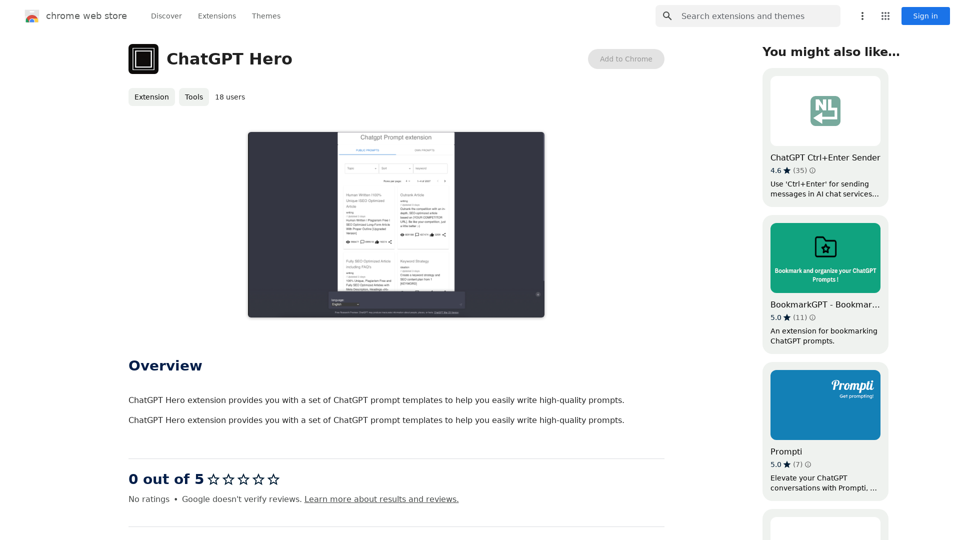
It is an online tool that uses Optical Character Recognition (OCR) to make it possible to extract text from images in JPG format.

193.90 M
Youdao Speed Reading Plugin
View Detail

Youdao Speed Reading Plugin

Youdao Speed Reading Plugin

Recognize PDF files on the page, one-click jump to Youdao Speed Reading and upload to open.

193.90 M