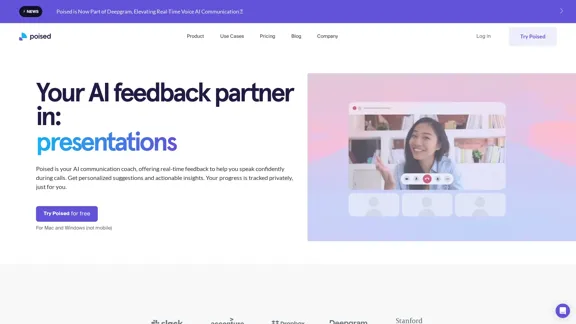
QuickMail AI is a personal email assistant that leverages AI-powered technology to help users craft professional emails in seconds. It offers a range of features designed to streamline the email writing process, save time, and produce customizable outputs. The platform provides various pricing options, including a free trial, to cater to different user needs.
QuickMail AI - Your Personal Email Assistant
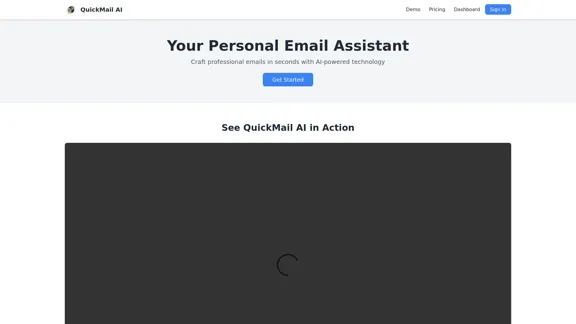
QuickMail AI is a personal email assistant that leverages AI-powered technology to help users craft professional emails in seconds.
Introduction
Feature
AI-Powered Generation
QuickMail AI utilizes advanced artificial intelligence to create full, well-structured emails from brief prompts. This feature allows users to quickly generate professional-quality emails without spending extensive time on composition.
Time-Saving Efficiency
By using QuickMail AI, users can significantly reduce the time spent on email writing. The platform transforms what typically takes minutes into a process that only requires seconds, boosting productivity and efficiency in communication tasks.
Customizable Outputs
The AI assistant offers the ability to fine-tune generated emails, ensuring they match the user's personal style. This customization feature allows for a more authentic and personalized communication experience, even when using AI-generated content.
Free Trial Option
QuickMail AI provides a 7-day free trial that includes:
- 15 email generations
- No credit card required
- Access to basic features
- Email support
Flexible Pricing Plans
The platform offers different pricing tiers to suit various needs:
| Plan | Price | Features |
|---|---|---|
| Free Trial | $0 (7 days) | 15 emails, basic features, email support |
| Basic | $8.99/mo (limited time 50% off) | 100 emails/month, basic customization, email support |
User-Friendly Interface
QuickMail AI provides an intuitive dashboard for easy access to its features, along with a demo option for users to explore the platform's capabilities before committing.
FAQ
What is QuickMail AI?
QuickMail AI is a personal email assistant that uses artificial intelligence to help users create professional emails quickly and efficiently. It's designed to save time and improve the quality of email communication.
How does QuickMail AI work?
QuickMail AI uses AI-powered technology to generate well-structured emails from brief prompts provided by the user. It then allows for customization to match the user's personal style, ensuring the final output is both professional and personalized.
Is there a free option to try QuickMail AI?
Yes, QuickMail AI offers a 7-day free trial that includes 15 email generations, access to basic features, and email support. No credit card is required to start the free trial.
What are the pricing options for QuickMail AI?
After the free trial, QuickMail AI offers a Basic plan priced at $8.99 per month (currently discounted from $15.99). This plan includes 100 emails per month, basic customization options, and email support.
Can I customize the emails generated by QuickMail AI?
Yes, QuickMail AI allows users to fine-tune the generated emails to match their personal style. This ensures that while the initial content is AI-generated, the final output reflects the user's unique voice and preferences.
Latest Traffic Insights
Monthly Visits
0
Bounce Rate
0.00%
Pages Per Visit
0.00
Time on Site(s)
0.00
Global Rank
7544184
Country Rank
-
Recent Visits
Traffic Sources
- Social Media:0.00%
- Paid Referrals:0.00%
- Email:0.00%
- Referrals:0.00%
- Search Engines:0.00%
- Direct:0.00%
Related Websites
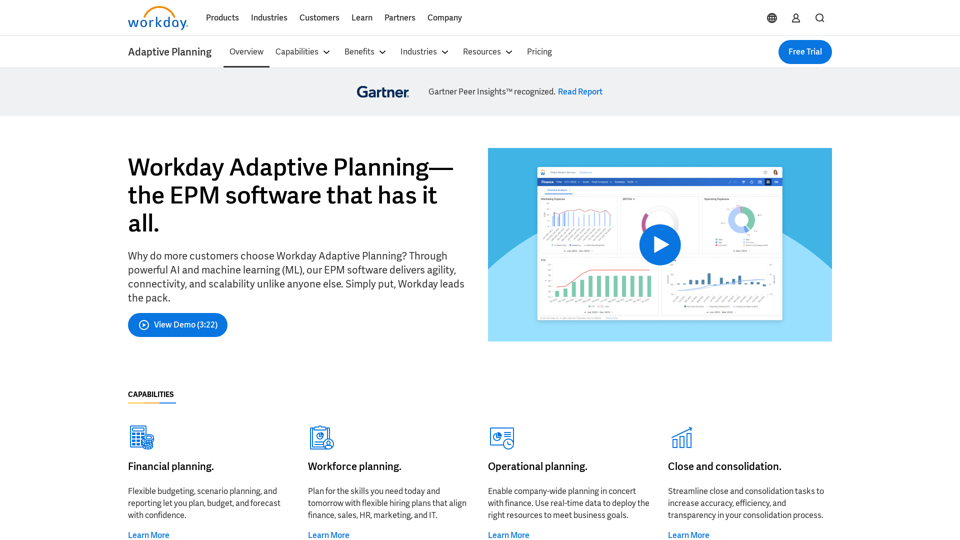
Drive enterprise-wide business planning with Workday Adaptive Planning Cloud. Our EPM platform helps organizations plan smarter, report faster, and analyze better.
511.80 K
![AI-Based Test Automation Tool [2024] - testRigor Software Testing](https://static.right-ai.com/tools/2024/7/24/testrigor-com-thumbnail-1721853975.png "AI-Based Test Automation Tool [2024] - testRigor Software Testing")
AI-Based Test Automation Tool [2024] - testRigor Software Testing
AI-Based Test Automation Tool [2024] - testRigor Software TestingTest automation tool - testRigor. Automated software testing for end-to-end test cases using plain English. Looking for software testing tools? Contact us now!
197.24 K

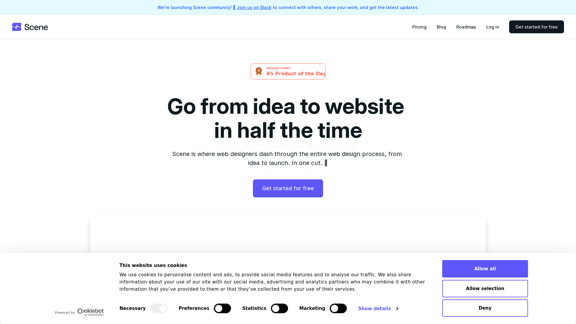
Scene is where web designers race through the complete web design process, from concept to launch. In a single take. 🎬
5.81 K
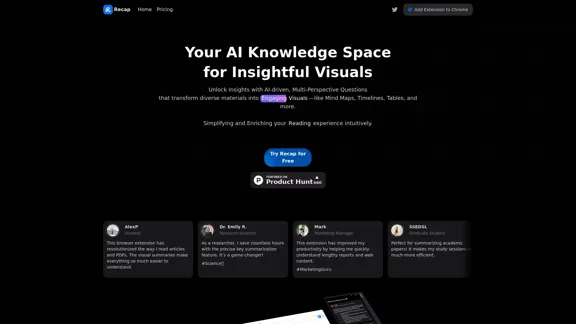
Recap | AI-Driven Summaries and Visual Insights Instantly
Recap | AI-Driven Summaries and Visual Insights InstantlyRecap, an AI platform, transforms complex information into concise summaries and intuitive visuals, such as mind maps, timelines, and tables, enhancing productivity and saving time by extracting key details from various sources. |Recap
2.37 K
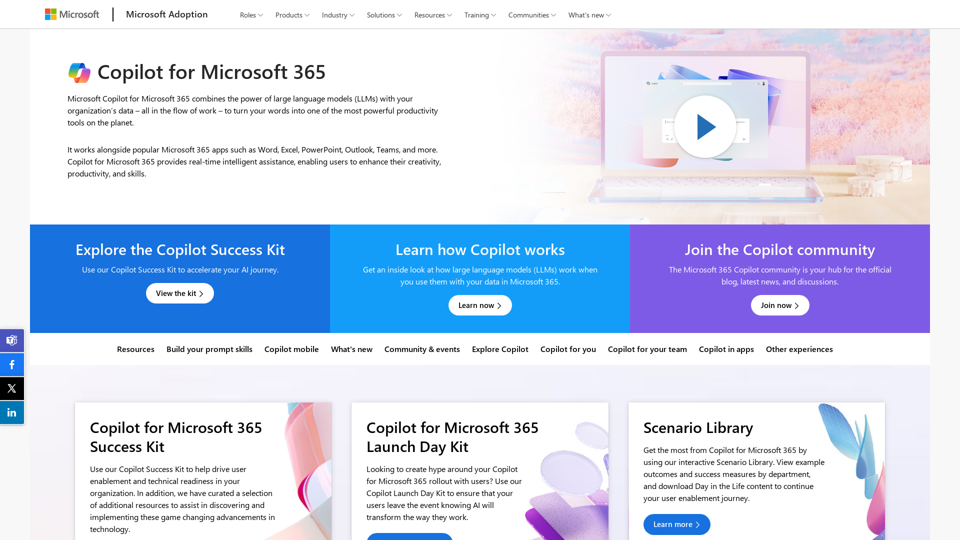
Copilot for Microsoft 365 – Microsoft Adoption Copilot for Microsoft 365 is a powerful AI assistant that helps you work smarter and faster across Microsoft 365 apps and services. It combines the power of large language models (LLMs) with your organization's data in the Microsoft Graph and Microsoft 365 apps to turn your words into the most powerful productivity tool on the planet. Copilot is designed to help you: • Unleash creativity • Unlock productivity • Uplevel skills Copilot is built on Microsoft's comprehensive approach to security, compliance, and privacy. Copilot in Microsoft 365 apps and services: • Does not use your data to train the underlying LLM • Does not replace human ingenuity and judgment • Is designed to keep humans in the loop Copilot is currently available in Word, Excel, PowerPoint, Outlook, Teams, and more. Getting Started with Copilot To get started with Copilot, follow these steps: 1. Check availability: Ensure your organization has access to Copilot. 2. Learn the basics: Familiarize yourself with Copilot's capabilities and how to use it effectively. 3. Explore use cases: Discover how Copilot can help you in your specific role and tasks. 4. Practice and refine: Use Copilot regularly and refine your prompts for better results. 5. Share and collaborate: Collaborate with colleagues using Copilot and share best practices. Best Practices for Using Copilot 1. Be specific in your prompts 2. Provide context for better results 3. Review and edit Copilot's output 4. Use Copilot as a starting point, not a final product 5. Experiment with different approaches 6. Stay informed about new features and updates Copilot in Different Microsoft 365 Apps • Word: Draft, edit, summarize, and rewrite content • Excel: Analyze data, create formulas, and generate insights • PowerPoint: Create presentations, design slides, and generate content • Outlook: Compose emails, summarize threads, and manage your inbox • Teams: Summarize meetings, generate action items, and create meeting notes Responsible AI and Copilot Microsoft is committed to developing AI systems responsibly. When using Copilot, keep in mind: • AI-generated content may contain biases or inaccuracies • Always review and verify Copilot's output • Use your judgment and expertise alongside Copilot's suggestions • Be aware of your organization's policies regarding AI use Conclusion Copilot for Microsoft 365 is a powerful tool that can significantly enhance your productivity and creativity. By understanding its capabilities, following best practices, and using it responsibly, you can make the most of this AI assistant in your daily work.
Copilot for Microsoft 365 – Microsoft Adoption Copilot for Microsoft 365 is a powerful AI assistant that helps you work smarter and faster across Microsoft 365 apps and services. It combines the power of large language models (LLMs) with your organization's data in the Microsoft Graph and Microsoft 365 apps to turn your words into the most powerful productivity tool on the planet. Copilot is designed to help you: • Unleash creativity • Unlock productivity • Uplevel skills Copilot is built on Microsoft's comprehensive approach to security, compliance, and privacy. Copilot in Microsoft 365 apps and services: • Does not use your data to train the underlying LLM • Does not replace human ingenuity and judgment • Is designed to keep humans in the loop Copilot is currently available in Word, Excel, PowerPoint, Outlook, Teams, and more. Getting Started with Copilot To get started with Copilot, follow these steps: 1. Check availability: Ensure your organization has access to Copilot. 2. Learn the basics: Familiarize yourself with Copilot's capabilities and how to use it effectively. 3. Explore use cases: Discover how Copilot can help you in your specific role and tasks. 4. Practice and refine: Use Copilot regularly and refine your prompts for better results. 5. Share and collaborate: Collaborate with colleagues using Copilot and share best practices. Best Practices for Using Copilot 1. Be specific in your prompts 2. Provide context for better results 3. Review and edit Copilot's output 4. Use Copilot as a starting point, not a final product 5. Experiment with different approaches 6. Stay informed about new features and updates Copilot in Different Microsoft 365 Apps • Word: Draft, edit, summarize, and rewrite content • Excel: Analyze data, create formulas, and generate insights • PowerPoint: Create presentations, design slides, and generate content • Outlook: Compose emails, summarize threads, and manage your inbox • Teams: Summarize meetings, generate action items, and create meeting notes Responsible AI and Copilot Microsoft is committed to developing AI systems responsibly. When using Copilot, keep in mind: • AI-generated content may contain biases or inaccuracies • Always review and verify Copilot's output • Use your judgment and expertise alongside Copilot's suggestions • Be aware of your organization's policies regarding AI use Conclusion Copilot for Microsoft 365 is a powerful tool that can significantly enhance your productivity and creativity. By understanding its capabilities, following best practices, and using it responsibly, you can make the most of this AI assistant in your daily work.Microsoft Copilot combines the power of large language models (LLMs) with your organization's data to turn your words into one of the most powerful productivity tools on the planet.
608.60 K