testRigor is an advanced AI-based test automation tool designed for software testing in 2024. It revolutionizes the testing process by allowing users to create tests using plain English, making it accessible to both technical and non-technical team members. This innovative approach combines AI-powered testing, no-code capabilities, and comprehensive testing features to streamline software quality assurance.
AI-Based Test Automation Tool [2024] - testRigor Software Testing
Test automation tool - testRigor. Automated software testing for end-to-end test cases using plain English. Looking for software testing tools? Contact us now!
![AI-Based Test Automation Tool [2024] - testRigor Software Testing](https://static.right-ai.com/tools/2024/7/24/testrigor-com-thumbnail-1721853975.png "AI-Based Test Automation Tool [2024] - testRigor Software Testing")
Introduction
Feature
AI-Powered Testing
- Generative AI for test creation
- AI-based self-healing capabilities
- AI agents for advanced testing scenarios
No-Code / Codeless Testing
- Write tests in plain English
- Automatic test generation based on user behavior
- Easy-to-understand test scripts
Comprehensive Testing Capabilities
- Web, mobile (iOS and Android), desktop, API testing
- Email and SMS testing
- Two-factor authentication (2FA) testing
Integration and Workflow
- Seamless integration with popular tools (GitLab, GitHub Actions, Jenkins, Jira)
- Support for CI/CD pipelines
Security and Compliance
- SOC2 and HIPAA compliant
- Robust data protection and privacy measures
Efficient Test Creation and Execution
- Copy-paste or import manual test cases
- AI translates high-level instructions into specific steps
- Tests run across multiple platforms and browsers
Maintenance and Updates
- AI-based self-healing reduces test maintenance
- Easy adaptation to new functionality changes
FAQ
What are the main benefits of using testRigor?
- Build test automation 100x faster
- Spend 200x less time on maintenance
- Achieve 90% or more test coverage in under a year
- Quickly retest functionality in under 15 minutes
- Enable manual QA to create and maintain automated tests
- Reallocate QA engineers to focus on API testing and other complex tasks
How does testRigor improve test coverage?
testRigor helps organizations achieve 90% or more test coverage in under a year. It allows for quick retesting of functionality in under 15 minutes, enabling teams to maintain high test coverage efficiently.
Is testRigor suitable for non-technical team members?
Yes, testRigor is designed to be accessible to both technical and non-technical team members. It allows users to write tests in plain English, making it easy for manual QA and other non-technical staff to create and maintain automated tests.
Has testRigor received any industry recognition?
Yes, testRigor has been named a Cool Vendor in the 2023 Gartner Cool Vendors™ in Software Engineering: Improving Digital Resilience report, highlighting its innovative approach to test automation.
Latest Traffic Insights
Monthly Visits
197.24 K
Bounce Rate
47.77%
Pages Per Visit
2.77
Time on Site(s)
340.93
Global Rank
201113
Country Rank
India 34651
Recent Visits
Traffic Sources
- Social Media:2.11%
- Paid Referrals:0.71%
- Email:0.09%
- Referrals:7.32%
- Search Engines:46.71%
- Direct:43.05%
Related Websites
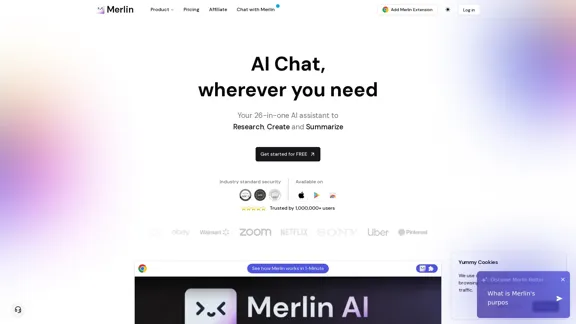
Merlin AI | Ask AI to Research, Write, Summarize in 1-click
Merlin AI | Ask AI to Research, Write, Summarize in 1-clickFree AI Chat to answer all your questions. Ask Merlin to summarize videos, articles, PDFs, and websites, write emails and content for social media, and review content using an AI detector.
1.84 M
We built the ultimate ChatPDF app that allows you to chat with any PDF: ask questions, get summaries, find anything you need!
341.40 K
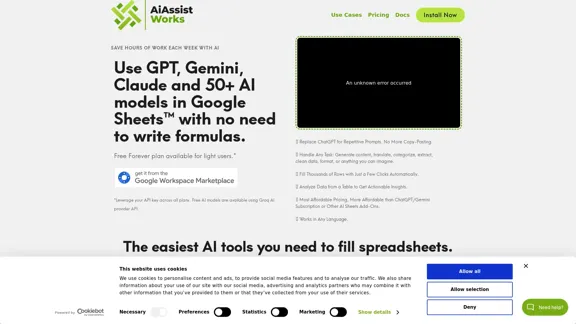
AiAssistWorks - AI for Google Sheets™ - GPT- Claude - Gemini - Llama, Mistral, OpenRouter, Groq.
AiAssistWorks - AI for Google Sheets™ - GPT- Claude - Gemini - Llama, Mistral, OpenRouter, Groq.4.99 K
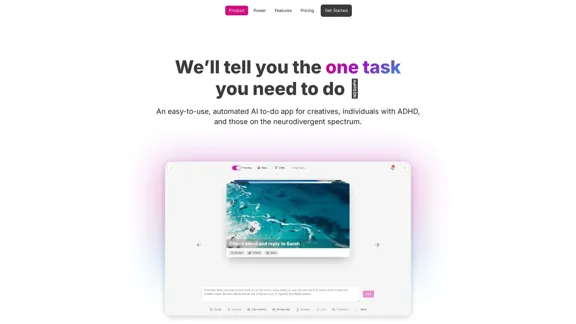
OneTask is an AI to-do app that assists you in organizing and prioritizing your tasks, allowing you to concentrate on what really matters.
13.99 K
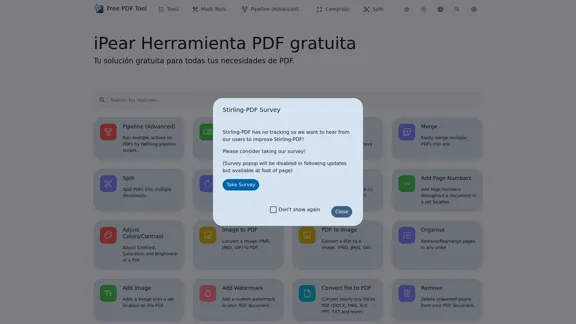
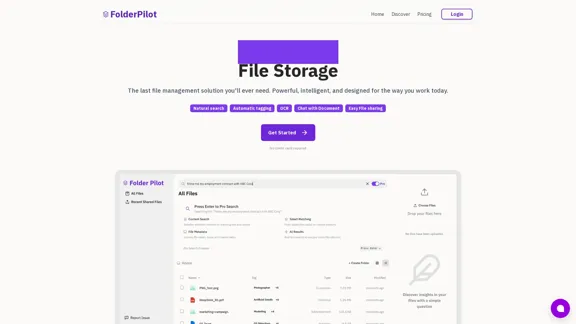
FolderPilot - AI-Driven Document Intelligence Platform
FolderPilot - AI-Driven Document Intelligence PlatformExperience intelligent document interaction with FolderPilot. Chat naturally with your PDFs, documents, files, and videos. Get instant insights, answers, and analysis through AI-powered conversations with your content. Smart document management made simple.
0
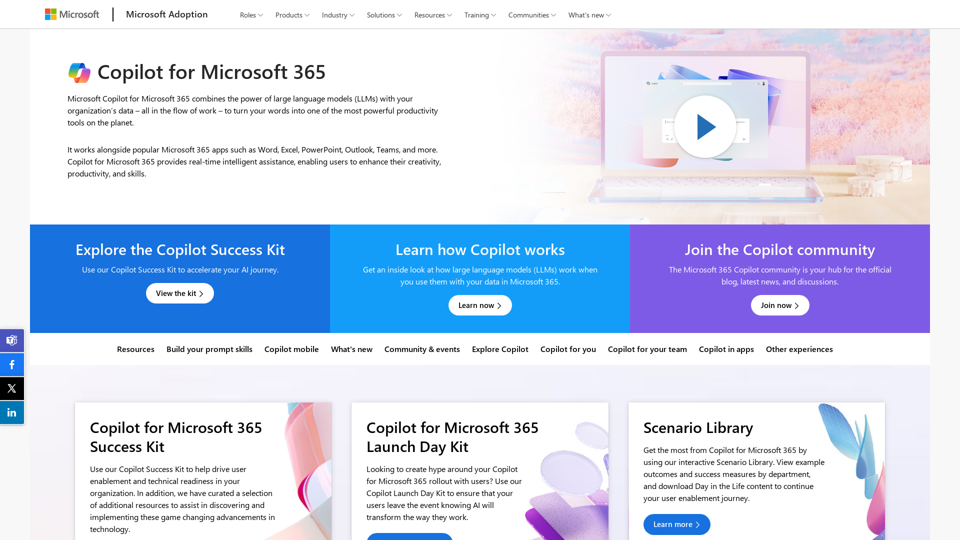
Copilot for Microsoft 365 – Microsoft Adoption Copilot for Microsoft 365 is a powerful AI assistant that helps you work smarter and faster across Microsoft 365 apps and services. It combines the power of large language models (LLMs) with your organization's data in the Microsoft Graph and Microsoft 365 apps to turn your words into the most powerful productivity tool on the planet. Copilot is designed to help you: • Unleash creativity • Unlock productivity • Uplevel skills Copilot is built on Microsoft's comprehensive approach to security, compliance, and privacy. Copilot in Microsoft 365 apps and services: • Does not use your data to train the underlying LLM • Does not replace human ingenuity and judgment • Is designed to keep humans in the loop Copilot is currently available in Word, Excel, PowerPoint, Outlook, Teams, and more. Getting Started with Copilot To get started with Copilot, follow these steps: 1. Check availability: Ensure your organization has access to Copilot. 2. Learn the basics: Familiarize yourself with Copilot's capabilities and how to use it effectively. 3. Explore use cases: Discover how Copilot can help you in your specific role and tasks. 4. Practice and refine: Use Copilot regularly and refine your prompts for better results. 5. Share and collaborate: Collaborate with colleagues using Copilot and share best practices. Best Practices for Using Copilot 1. Be specific in your prompts 2. Provide context for better results 3. Review and edit Copilot's output 4. Use Copilot as a starting point, not a final product 5. Experiment with different approaches 6. Stay informed about new features and updates Copilot in Different Microsoft 365 Apps • Word: Draft, edit, summarize, and rewrite content • Excel: Analyze data, create formulas, and generate insights • PowerPoint: Create presentations, design slides, and generate content • Outlook: Compose emails, summarize threads, and manage your inbox • Teams: Summarize meetings, generate action items, and create meeting notes Responsible AI and Copilot Microsoft is committed to developing AI systems responsibly. When using Copilot, keep in mind: • AI-generated content may contain biases or inaccuracies • Always review and verify Copilot's output • Use your judgment and expertise alongside Copilot's suggestions • Be aware of your organization's policies regarding AI use Conclusion Copilot for Microsoft 365 is a powerful tool that can significantly enhance your productivity and creativity. By understanding its capabilities, following best practices, and using it responsibly, you can make the most of this AI assistant in your daily work.
Copilot for Microsoft 365 – Microsoft Adoption Copilot for Microsoft 365 is a powerful AI assistant that helps you work smarter and faster across Microsoft 365 apps and services. It combines the power of large language models (LLMs) with your organization's data in the Microsoft Graph and Microsoft 365 apps to turn your words into the most powerful productivity tool on the planet. Copilot is designed to help you: • Unleash creativity • Unlock productivity • Uplevel skills Copilot is built on Microsoft's comprehensive approach to security, compliance, and privacy. Copilot in Microsoft 365 apps and services: • Does not use your data to train the underlying LLM • Does not replace human ingenuity and judgment • Is designed to keep humans in the loop Copilot is currently available in Word, Excel, PowerPoint, Outlook, Teams, and more. Getting Started with Copilot To get started with Copilot, follow these steps: 1. Check availability: Ensure your organization has access to Copilot. 2. Learn the basics: Familiarize yourself with Copilot's capabilities and how to use it effectively. 3. Explore use cases: Discover how Copilot can help you in your specific role and tasks. 4. Practice and refine: Use Copilot regularly and refine your prompts for better results. 5. Share and collaborate: Collaborate with colleagues using Copilot and share best practices. Best Practices for Using Copilot 1. Be specific in your prompts 2. Provide context for better results 3. Review and edit Copilot's output 4. Use Copilot as a starting point, not a final product 5. Experiment with different approaches 6. Stay informed about new features and updates Copilot in Different Microsoft 365 Apps • Word: Draft, edit, summarize, and rewrite content • Excel: Analyze data, create formulas, and generate insights • PowerPoint: Create presentations, design slides, and generate content • Outlook: Compose emails, summarize threads, and manage your inbox • Teams: Summarize meetings, generate action items, and create meeting notes Responsible AI and Copilot Microsoft is committed to developing AI systems responsibly. When using Copilot, keep in mind: • AI-generated content may contain biases or inaccuracies • Always review and verify Copilot's output • Use your judgment and expertise alongside Copilot's suggestions • Be aware of your organization's policies regarding AI use Conclusion Copilot for Microsoft 365 is a powerful tool that can significantly enhance your productivity and creativity. By understanding its capabilities, following best practices, and using it responsibly, you can make the most of this AI assistant in your daily work.Microsoft Copilot combines the power of large language models (LLMs) with your organization's data to turn your words into one of the most powerful productivity tools on the planet.
608.60 K