Open-source RightAI Tools Directory
  • Discover AI
  • Submit
  • Startup
  • Blog
Open-source RightAI Tools Directory
Discover the best AI tools of 2025 with the RightAI Tools Directory!

Friend Links

AI Anime GeneratorToolsApp AI

Support

Tap4
Privacy policyTerms & ConditionsContact Us
Loading...
loading...

TransHono: All-in-One Translation

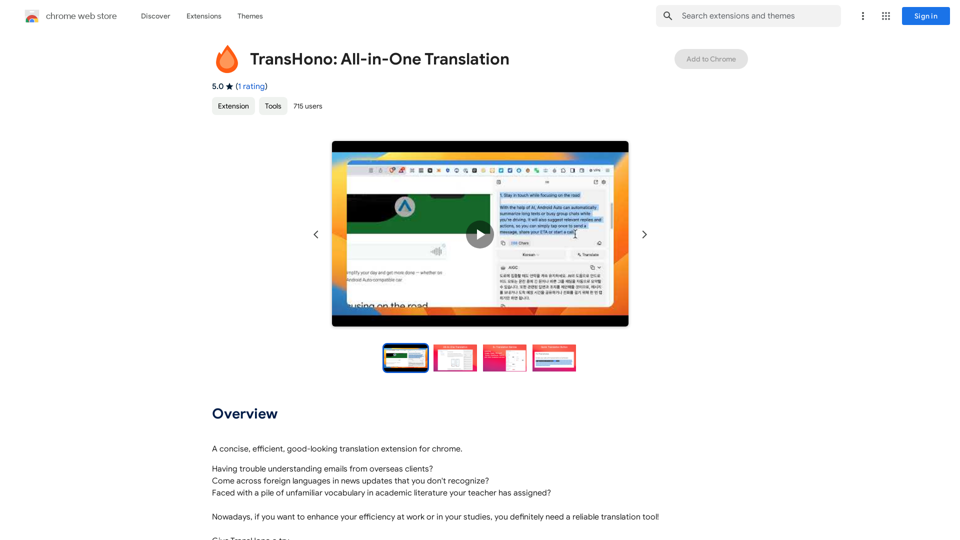
A concise, efficient, and visually appealing translation extension for Chrome.
Visit Website
TransHono: All-in-One Translation
Visit Website

Introduction

TransHono is an AI-powered Chrome extension designed for efficient and visually appealing translations. It offers multiple translation services, including Deepl, OpenAI, Microsoft Translator, Google Translate, and Tencent Translate. This versatile tool supports quick translations, multiple result displays, and is completely free to use.

Feature

Multiple Translation Services

TransHono integrates over 5 translation services, allowing users to select the most appropriate one for their specific needs.

Display Multiple Translation Results

Users can view and compare translations from different services simultaneously, enabling them to choose the most accurate or suitable translation.

Quick Translation

The extension provides convenient shortcuts for translating text into various languages, streamlining the translation process for different scenarios.

Free to Use

TransHono is available at no cost, with no subscription or payment required for full functionality.

User-Friendly Interface

The extension boasts a concise and good-looking design, enhancing the overall user experience.

Versatile Application

TransHono can be used for both personal and commercial purposes, subject to the developer's privacy policy.

FAQ

What is TransHono?

TransHono is a free AI-powered Chrome extension that offers efficient and visually appealing translations using multiple translation services.

How many translation services does TransHono support?

TransHono supports more than 5 translation services, including Deepl, OpenAI, Microsoft Translator, Google Translate, and Tencent Translate.

Is TransHono free to use?

Yes, TransHono is completely free to use, with no subscription or payment required.

Can TransHono be used for commercial purposes?

Yes, TransHono can be used for commercial purposes, but users should be aware of and adhere to the developer's privacy policy.

How do I use TransHono?

To use TransHono, install the Chrome extension and follow the instructions provided in the How-to-use-TransHono guide.

Latest Traffic Insights

  • Monthly Visits

    193.90 M

  • Bounce Rate

    56.27%

  • Pages Per Visit

    2.71

  • Time on Site(s)

    115.91

  • Global Rank

    -

  • Country Rank

    -

Recent Visits

Traffic Sources

  • Social Media:
    0.48%
  • Paid Referrals:
    0.55%
  • Email:
    0.15%
  • Referrals:
    12.81%
  • Search Engines:
    16.21%
  • Direct:
    69.81%
More Data

Related Websites

Converting JPG Images to Text

Converting a JPG image to text is a process known as Optical Character Recognition (OCR). This technology enables you to extract text from images, scanned documents, and photos. Here's how to do it:

Method 1: Online OCR Tools

You can use online OCR tools to convert JPG images to text. Here are the steps:

1. Upload your JPG image: Go to an online OCR tool website, such as Online OCR Tools or OCR.space, and upload your JPG image.
2. Select the language: Choose the language of the text in your image.
3. Click on "Convert": The tool will convert the image to text.
4. Download the text: You can download the extracted text as a Word document, PDF, or plain text file.

Method 2: Google Drive

You can also use Google Drive to convert JPG images to text. Here's how:

1. Upload your JPG image: Upload your JPG image to Google Drive.
2. Right-click on the image: Right-click on the uploaded image and select "Open with" > "Google Docs".
3. The image will be converted: Google Docs will automatically convert the image to text.
4. Edit and download: You can edit the extracted text and download it as a Word document or PDF.

Method 3: Adobe Acrobat

If you have Adobe Acrobat installed on your computer, you can use it to convert JPG images to text. Here's how:

1. Open Adobe Acrobat: Open Adobe Acrobat on your computer.
2. Create a new document: Create a new document and click on "Tools" > "Recognize Text".
3. Select the image: Select the JPG image you want to convert.
4. Click on "Recognize": Adobe Acrobat will convert the image to text.
5. Edit and save: You can edit the extracted text and save it as a Word document or PDF.

These are the three methods to convert JPG images to text. Choose the method that works best for you!
View Detail

Converting JPG Images to Text Converting a JPG image to text is a process known as Optical Character Recognition (OCR). This technology enables you to extract text from images, scanned documents, and photos. Here's how to do it: Method 1: Online OCR Tools You can use online OCR tools to convert JPG images to text. Here are the steps: 1. Upload your JPG image: Go to an online OCR tool website, such as Online OCR Tools or OCR.space, and upload your JPG image. 2. Select the language: Choose the language of the text in your image. 3. Click on "Convert": The tool will convert the image to text. 4. Download the text: You can download the extracted text as a Word document, PDF, or plain text file. Method 2: Google Drive You can also use Google Drive to convert JPG images to text. Here's how: 1. Upload your JPG image: Upload your JPG image to Google Drive. 2. Right-click on the image: Right-click on the uploaded image and select "Open with" > "Google Docs". 3. The image will be converted: Google Docs will automatically convert the image to text. 4. Edit and download: You can edit the extracted text and download it as a Word document or PDF. Method 3: Adobe Acrobat If you have Adobe Acrobat installed on your computer, you can use it to convert JPG images to text. Here's how: 1. Open Adobe Acrobat: Open Adobe Acrobat on your computer. 2. Create a new document: Create a new document and click on "Tools" > "Recognize Text". 3. Select the image: Select the JPG image you want to convert. 4. Click on "Recognize": Adobe Acrobat will convert the image to text. 5. Edit and save: You can edit the extracted text and save it as a Word document or PDF. These are the three methods to convert JPG images to text. Choose the method that works best for you!

Converting JPG Images to Text Converting a JPG image to text is a process known as Optical Character Recognition (OCR). This technology enables you to extract text from images, scanned documents, and photos. Here's how to do it: Method 1: Online OCR Tools You can use online OCR tools to convert JPG images to text. Here are the steps: 1. Upload your JPG image: Go to an online OCR tool website, such as Online OCR Tools or OCR.space, and upload your JPG image. 2. Select the language: Choose the language of the text in your image. 3. Click on "Convert": The tool will convert the image to text. 4. Download the text: You can download the extracted text as a Word document, PDF, or plain text file. Method 2: Google Drive You can also use Google Drive to convert JPG images to text. Here's how: 1. Upload your JPG image: Upload your JPG image to Google Drive. 2. Right-click on the image: Right-click on the uploaded image and select "Open with" > "Google Docs". 3. The image will be converted: Google Docs will automatically convert the image to text. 4. Edit and download: You can edit the extracted text and download it as a Word document or PDF. Method 3: Adobe Acrobat If you have Adobe Acrobat installed on your computer, you can use it to convert JPG images to text. Here's how: 1. Open Adobe Acrobat: Open Adobe Acrobat on your computer. 2. Create a new document: Create a new document and click on "Tools" > "Recognize Text". 3. Select the image: Select the JPG image you want to convert. 4. Click on "Recognize": Adobe Acrobat will convert the image to text. 5. Edit and save: You can edit the extracted text and save it as a Word document or PDF. These are the three methods to convert JPG images to text. Choose the method that works best for you!

It is an online tool that uses Optical Character Recognition (OCR) to make it possible to extract text from images in JPG format.

193.90 M
Justdone: AI Writing & Copywriting Assistant
View Detail

Justdone: AI Writing & Copywriting Assistant

Justdone: AI Writing & Copywriting Assistant

Justdone AI Chrome Extension

193.90 M
What is a Prompster?

A Prompster is a person who assists a speaker, actor, or presenter by providing them with lines or cues, usually in a subtle and discreet manner, during a performance, presentation, or speech.
View Detail

What is a Prompster? A Prompster is a person who assists a speaker, actor, or presenter by providing them with lines or cues, usually in a subtle and discreet manner, during a performance, presentation, or speech.

What is a Prompster? A Prompster is a person who assists a speaker, actor, or presenter by providing them with lines or cues, usually in a subtle and discreet manner, during a performance, presentation, or speech.

Slash Commands for ChatGPT and Bard ===================================== Introduction Slash commands are a convenient way to interact with ChatGPT and Bard, allowing you to perform various tasks and actions within the chat interface. This guide provides an overview of the available slash commands for both ChatGPT and Bard. ChatGPT Slash Commands #General Commands * `/help`: Displays a list of available slash commands and their descriptions. * `/reset`: Resets the conversation, clearing all previous messages and context. #Conversation Management * `/start`: Starts a new conversation, allowing you to begin a fresh topic or task. * `/stop`: Ends the current conversation, stopping any ongoing tasks or topics. #Language and Tone * `/lang <language_code>`: Sets the language for the conversation (e.g., `/lang en` for English). * `/tone <tone>`: Adjusts the tone of the responses (e.g., `/tone formal` for formal tone). #Task Management * `/task <task_name>`: Creates a new task or topic for the conversation (e.g., `/task math problem`). * `/done`: Marks the current task as completed. #Information and Resources * `/define <word>`: Provides the definition of a word or phrase. * `/wiki <topic>`: Displays information about a topic from Wikipedia. Bard Slash Commands #General Commands * `/help`: Displays a list of available slash commands and their descriptions. * `/reset`: Resets the conversation, clearing all previous messages and context. #Conversation Management * `/start`: Starts a new conversation, allowing you to begin a fresh topic or task. * `/stop`: Ends the current conversation, stopping any ongoing tasks or topics. #Language and Tone * `/lang <language_code>`: Sets the language for the conversation (e.g., `/lang en` for English). * `/tone <tone>`: Adjusts the tone of the responses (e.g., `/tone formal` for formal tone). #Task Management * `/task <task_name>`: Creates a new task or topic for the conversation (e.g., `/task math problem`). * `/done`: Marks the current task as completed. #Information and Resources * `/define <word>`: Provides the definition of a word or phrase. * `/wiki <topic>`: Displays information about a topic from Wikipedia. * `/news <topic>`: Displays news articles related to a specific topic. Conclusion Slash commands provide a convenient way to interact with ChatGPT and Bard, allowing you to manage conversations, adjust language and tone, and access various resources. By mastering these commands, you can optimize your experience and get the most out of your interactions with these AI models.

193.90 M
HexarAI
View Detail

HexarAI

HexarAI

Unlock your business's full potential with HexarAI, the all-in-one AI platform. Seamlessly integrate marketing, tech development, accounting, design, and business management for unparalleled efficiency and success.

0
Chrome Web Store
View Detail

Chrome Web Store

Chrome Web Store

Enhance your browser with new features and customize your browsing experience.

193.90 M
AG Intelligent Assistant - GPT Chat, Drawing, Vision, Networking
View Detail

AG Intelligent Assistant - GPT Chat, Drawing, Vision, Networking

AG Intelligent Assistant - GPT Chat, Drawing, Vision, Networking

Driven by models such as GPT-4 Turbo and GPT-4 O, this private AI work assistant supports a wide range of functions, including GPT networking, PDF analysis, GPT-4 Vision, SD drawing, and DALL·E 3 drawing, making it your most powerful AI work assistant!

193.90 M
Sloth Search
View Detail

Sloth Search

Sloth Search

A browser extension that uses artificial intelligence to perform a deeper understanding search of web pages.

193.90 M
Imagifi: 1-Click AI Art Anywhere
View Detail

Imagifi: 1-Click AI Art Anywhere

Imagifi: 1-Click AI Art Anywhere

Create original AI images from any page on the web Introducing Imagifi from Easyfi.ai, your personal AI image generator! With…

193.90 M