Open-source RightAI Tools Directory
  • Discover AI
  • Submit
  • Startup
  • Blog
Open-source RightAI Tools Directory
Discover the best AI tools of 2025 with the RightAI Tools Directory!

Friend Links

AI Anime GeneratorToolsApp AI

Support

Tap4
Privacy policyTerms & ConditionsContact Us
Loading...
loading...

The Iliad

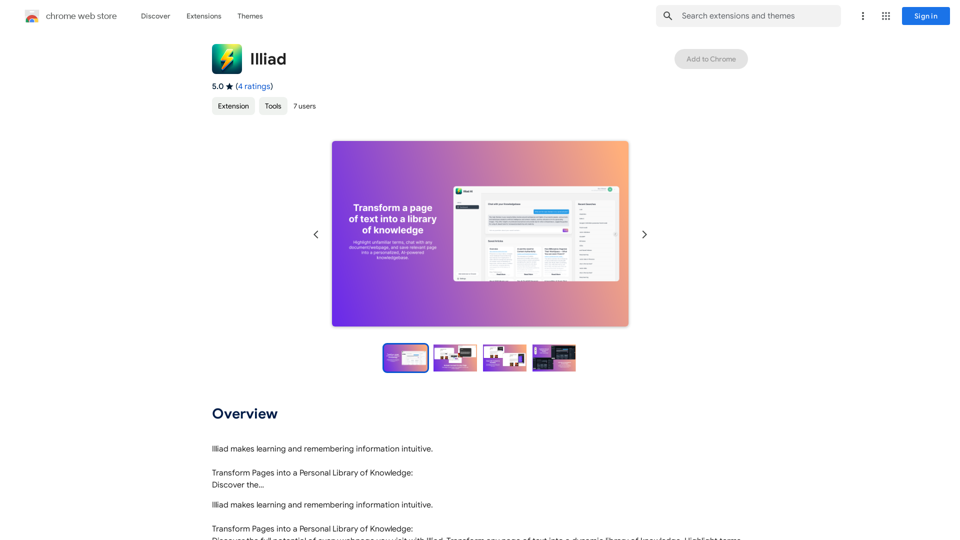
Iliad makes learning and remembering information intuitive. Transform Pages into a Personal Library of Knowledge: Discover the...
Visit Website
The Iliad
Visit Website

Introduction

Illiad is a Chrome extension that transforms webpages into personal knowledge libraries. It allows users to highlight text for instant explanations, chat with content in real-time, save articles effortlessly, and interact with a growing knowledgebase. This innovative tool enhances the browsing experience by providing deeper context and engagement with online content.

Feature

Instant Context and Explanations

Highlight any term or phrase on a webpage to receive immediate explanations, definitions, and context, deepening your understanding of the content you're reading.

Real-time Content Interaction

Chat with the content as if conversing with the author, asking detailed questions about what you're reading for a more interactive learning experience.

One-Click Content Saving

Seamlessly save articles, research papers, or blog posts with a simple click, building your personal knowledge repository as you browse.

AI-Powered Knowledgebase

Interact with your saved content through a personalized AI assistant. Ask questions, request summaries, or explore topics in-depth, turning your saved pages into a dynamic, evolving knowledge resource.

Free Chrome Extension

Illiad is available as a free Chrome extension, allowing users to access all features without any subscription or payment.

Multi-Device Compatibility

Use Illiad across multiple devices and browsers, ensuring a consistent experience wherever you browse.

FAQ

How do I start using Illiad?

  1. Install Illiad from the Chrome Web Store
  2. Click the Illiad icon in your Chrome toolbar to activate
  3. Highlight text on webpages for instant context
  4. Chat with content in real-time
  5. Save content with a single click

Is Illiad a paid service?

No, Illiad is completely free to use as a Chrome extension.

Can I use Illiad on multiple devices?

Yes, Illiad is compatible with multiple devices and browsers, allowing for a seamless experience across your devices.

How do I uninstall Illiad?

To uninstall, go to Chrome settings, click "Extensions," and select "Remove" next to Illiad.

Latest Traffic Insights

  • Monthly Visits

    193.90 M

  • Bounce Rate

    56.27%

  • Pages Per Visit

    2.71

  • Time on Site(s)

    115.91

  • Global Rank

    -

  • Country Rank

    -

Recent Visits

Traffic Sources

  • Social Media:
    0.48%
  • Paid Referrals:
    0.55%
  • Email:
    0.15%
  • Referrals:
    12.81%
  • Search Engines:
    16.21%
  • Direct:
    69.81%
More Data

Related Websites

Converting JPG Images to Text

Converting a JPG image to text is a process known as Optical Character Recognition (OCR). This technology enables you to extract text from images, scanned documents, and photos. Here's how to do it:

Method 1: Online OCR Tools

You can use online OCR tools to convert JPG images to text. Here are the steps:

1. Upload your JPG image: Go to an online OCR tool website, such as Online OCR Tools or OCR.space, and upload your JPG image.
2. Select the language: Choose the language of the text in your image.
3. Click on "Convert": The tool will convert the image to text.
4. Download the text: You can download the extracted text as a Word document, PDF, or plain text file.

Method 2: Google Drive

You can also use Google Drive to convert JPG images to text. Here's how:

1. Upload your JPG image: Upload your JPG image to Google Drive.
2. Right-click on the image: Right-click on the uploaded image and select "Open with" > "Google Docs".
3. The image will be converted: Google Docs will automatically convert the image to text.
4. Edit and download: You can edit the extracted text and download it as a Word document or PDF.

Method 3: Adobe Acrobat

If you have Adobe Acrobat installed on your computer, you can use it to convert JPG images to text. Here's how:

1. Open Adobe Acrobat: Open Adobe Acrobat on your computer.
2. Create a new document: Create a new document and click on "Tools" > "Recognize Text".
3. Select the image: Select the JPG image you want to convert.
4. Click on "Recognize": Adobe Acrobat will convert the image to text.
5. Edit and save: You can edit the extracted text and save it as a Word document or PDF.

These are the three methods to convert JPG images to text. Choose the method that works best for you!
View Detail

Converting JPG Images to Text Converting a JPG image to text is a process known as Optical Character Recognition (OCR). This technology enables you to extract text from images, scanned documents, and photos. Here's how to do it: Method 1: Online OCR Tools You can use online OCR tools to convert JPG images to text. Here are the steps: 1. Upload your JPG image: Go to an online OCR tool website, such as Online OCR Tools or OCR.space, and upload your JPG image. 2. Select the language: Choose the language of the text in your image. 3. Click on "Convert": The tool will convert the image to text. 4. Download the text: You can download the extracted text as a Word document, PDF, or plain text file. Method 2: Google Drive You can also use Google Drive to convert JPG images to text. Here's how: 1. Upload your JPG image: Upload your JPG image to Google Drive. 2. Right-click on the image: Right-click on the uploaded image and select "Open with" > "Google Docs". 3. The image will be converted: Google Docs will automatically convert the image to text. 4. Edit and download: You can edit the extracted text and download it as a Word document or PDF. Method 3: Adobe Acrobat If you have Adobe Acrobat installed on your computer, you can use it to convert JPG images to text. Here's how: 1. Open Adobe Acrobat: Open Adobe Acrobat on your computer. 2. Create a new document: Create a new document and click on "Tools" > "Recognize Text". 3. Select the image: Select the JPG image you want to convert. 4. Click on "Recognize": Adobe Acrobat will convert the image to text. 5. Edit and save: You can edit the extracted text and save it as a Word document or PDF. These are the three methods to convert JPG images to text. Choose the method that works best for you!

Converting JPG Images to Text Converting a JPG image to text is a process known as Optical Character Recognition (OCR). This technology enables you to extract text from images, scanned documents, and photos. Here's how to do it: Method 1: Online OCR Tools You can use online OCR tools to convert JPG images to text. Here are the steps: 1. Upload your JPG image: Go to an online OCR tool website, such as Online OCR Tools or OCR.space, and upload your JPG image. 2. Select the language: Choose the language of the text in your image. 3. Click on "Convert": The tool will convert the image to text. 4. Download the text: You can download the extracted text as a Word document, PDF, or plain text file. Method 2: Google Drive You can also use Google Drive to convert JPG images to text. Here's how: 1. Upload your JPG image: Upload your JPG image to Google Drive. 2. Right-click on the image: Right-click on the uploaded image and select "Open with" > "Google Docs". 3. The image will be converted: Google Docs will automatically convert the image to text. 4. Edit and download: You can edit the extracted text and download it as a Word document or PDF. Method 3: Adobe Acrobat If you have Adobe Acrobat installed on your computer, you can use it to convert JPG images to text. Here's how: 1. Open Adobe Acrobat: Open Adobe Acrobat on your computer. 2. Create a new document: Create a new document and click on "Tools" > "Recognize Text". 3. Select the image: Select the JPG image you want to convert. 4. Click on "Recognize": Adobe Acrobat will convert the image to text. 5. Edit and save: You can edit the extracted text and save it as a Word document or PDF. These are the three methods to convert JPG images to text. Choose the method that works best for you!

It is an online tool that uses Optical Character Recognition (OCR) to make it possible to extract text from images in JPG format.

193.90 M
Discord Translator
View Detail

Discord Translator

Discord Translator

Translate Messages in Discord ============================= What is the "Translate" feature in Discord? The "Translate" feature in Discord allows users to translate messages in real-time, making it easier for people who speak different languages to communicate with each other. How to use the "Translate" feature in Discord? #1. Enable the "Translate" feature To enable the "Translate" feature, you need to go to the "User Settings" and click on the "Language" tab. Then, toggle the switch next to "Translator" to the "On" position. #2. Set your preferred language After enabling the "Translate" feature, you need to set your preferred language. You can do this by clicking on the "Language" dropdown menu and selecting your preferred language from the list. #3. Translate messages Once you've set your preferred language, you can start translating messages. To translate a message, simply hover over the message and click on the "Translate" button that appears. #4. View translated messages After clicking the "Translate" button, the message will be translated into your preferred language. You can view the translated message below the original message. Benefits of the "Translate" feature in Discord The "Translate" feature in Discord has several benefits, including: * Improved communication: The "Translate" feature helps to break down language barriers, making it easier for people who speak different languages to communicate with each other. * Increased accessibility: The "Translate" feature makes Discord more accessible to people who may not speak the dominant language of a server or community. * Enhanced collaboration: The "Translate" feature enables people to collaborate more effectively, even if they speak different languages.

193.90 M
AI Book Writer for Non-Fiction and Poetry
View Detail

AI Book Writer for Non-Fiction and Poetry

AI Book Writer for Non-Fiction and Poetry

BookScribi is a platform for creating non-fiction and poetry books. Powered by AI. No writing needed.

445
Verify
View Detail

Verify

Verify

Verify is a tool that uses artificial intelligence to determine the trustworthiness of articles on Czech news websites.

193.90 M
Stable Diffusion 3 Medium Demo Online
View Detail

Stable Diffusion 3 Medium Demo Online

Stable Diffusion 3 Medium Demo Online

Stable Diffusion 3 Medium is the latest and most advanced text-to-image AI model. You can use the Stable Diffusion 3 Medium demo online for free.

0
Potis.AI | Your Hiring Copilot
View Detail

Potis.AI | Your Hiring Copilot

Potis.AI | Your Hiring Copilot

Hiring Copilot for Clean and Fast Bulk Candidates Screening with Behavioral Interview and Real Cases

6.63 K
GPTOnline - Free ChatGPT Extension
View Detail

GPTOnline - Free ChatGPT Extension

GPTOnline - Free ChatGPT Extension

Talk to ChatGPT right away, you don't need to create an account. Get answers from AI on Google, Bing, and other search engines.

193.90 M
Searching for ChatGPT Plugins

Searching for ChatGPT plugins can be an exciting experience, as it allows you to explore and discover new features and functionalities to enhance your conversational AI model. Here are some ways to search for ChatGPT plugins:

Official Plugin Directory

The official ChatGPT plugin directory is a great place to start your search. This directory provides a curated list of plugins that are compatible with ChatGPT, along with their descriptions, features, and installation instructions.

GitHub and Open-Source Repositories

GitHub and other open-source repositories are treasure troves for ChatGPT plugins. You can search for plugins using keywords like "ChatGPT plugin" or "conversational AI plugin" to find relevant repositories. You can also explore popular open-source repositories like the ChatGPT community repository.

Plugin Marketplaces

Some plugin marketplaces, like the ChatGPT Marketplace, offer a wide range of plugins for ChatGPT. These marketplaces often provide user reviews, ratings, and descriptions to help you make informed decisions.

Forums and Communities

ChatGPT forums and communities are great places to ask for plugin recommendations or search for plugins. You can ask other users about their favorite plugins or search for threads related to specific plugin categories.

Search Engines

Finally, you can use search engines like Google to search for ChatGPT plugins. Use specific keywords like "ChatGPT plugin for [specific feature]" or "best ChatGPT plugins" to get relevant results.

Remember to always evaluate the plugins you find based on their compatibility, features, and user reviews before installing them. Happy searching!
View Detail

Searching for ChatGPT Plugins Searching for ChatGPT plugins can be an exciting experience, as it allows you to explore and discover new features and functionalities to enhance your conversational AI model. Here are some ways to search for ChatGPT plugins: Official Plugin Directory The official ChatGPT plugin directory is a great place to start your search. This directory provides a curated list of plugins that are compatible with ChatGPT, along with their descriptions, features, and installation instructions. GitHub and Open-Source Repositories GitHub and other open-source repositories are treasure troves for ChatGPT plugins. You can search for plugins using keywords like "ChatGPT plugin" or "conversational AI plugin" to find relevant repositories. You can also explore popular open-source repositories like the ChatGPT community repository. Plugin Marketplaces Some plugin marketplaces, like the ChatGPT Marketplace, offer a wide range of plugins for ChatGPT. These marketplaces often provide user reviews, ratings, and descriptions to help you make informed decisions. Forums and Communities ChatGPT forums and communities are great places to ask for plugin recommendations or search for plugins. You can ask other users about their favorite plugins or search for threads related to specific plugin categories. Search Engines Finally, you can use search engines like Google to search for ChatGPT plugins. Use specific keywords like "ChatGPT plugin for [specific feature]" or "best ChatGPT plugins" to get relevant results. Remember to always evaluate the plugins you find based on their compatibility, features, and user reviews before installing them. Happy searching!

Searching for ChatGPT Plugins Searching for ChatGPT plugins can be an exciting experience, as it allows you to explore and discover new features and functionalities to enhance your conversational AI model. Here are some ways to search for ChatGPT plugins: Official Plugin Directory The official ChatGPT plugin directory is a great place to start your search. This directory provides a curated list of plugins that are compatible with ChatGPT, along with their descriptions, features, and installation instructions. GitHub and Open-Source Repositories GitHub and other open-source repositories are treasure troves for ChatGPT plugins. You can search for plugins using keywords like "ChatGPT plugin" or "conversational AI plugin" to find relevant repositories. You can also explore popular open-source repositories like the ChatGPT community repository. Plugin Marketplaces Some plugin marketplaces, like the ChatGPT Marketplace, offer a wide range of plugins for ChatGPT. These marketplaces often provide user reviews, ratings, and descriptions to help you make informed decisions. Forums and Communities ChatGPT forums and communities are great places to ask for plugin recommendations or search for plugins. You can ask other users about their favorite plugins or search for threads related to specific plugin categories. Search Engines Finally, you can use search engines like Google to search for ChatGPT plugins. Use specific keywords like "ChatGPT plugin for [specific feature]" or "best ChatGPT plugins" to get relevant results. Remember to always evaluate the plugins you find based on their compatibility, features, and user reviews before installing them. Happy searching!

Here are some of the best, top, and popular ChatGPT plugins: 1. WebChat: A plugin that allows users to interact with ChatGPT through a web interface. 2. ChatGPT Writer: A plugin that helps users generate high-quality content, such as articles, stories, and emails, using ChatGPT's language generation capabilities. 3. ChatGPT Code Interpreter: A plugin that enables users to write code in various programming languages and have ChatGPT interpret and execute it. 4. ChatGPT Conversational AI: A plugin that allows users to create conversational AI models using ChatGPT's language understanding capabilities. 5. ChatGPT Language Translator: A plugin that enables users to translate text from one language to another using ChatGPT's language translation capabilities. 6. ChatGPT Summarizer: A plugin that helps users summarize long pieces of text, such as articles or documents, into concise summaries using ChatGPT's text summarization capabilities. 7. ChatGPT Q&A: A plugin that enables users to ask questions and receive answers from ChatGPT on a wide range of topics. 8. ChatGPT Creative Writing: A plugin that helps users generate creative writing, such as poetry, stories, and dialogues, using ChatGPT's language generation capabilities. 9. ChatGPT Dialogue System: A plugin that enables users to create conversational dialogue systems using ChatGPT's language understanding capabilities. 10. ChatGPT Sentiment Analyzer: A plugin that helps users analyze the sentiment of text, such as determining whether a piece of text is positive, negative, or neutral, using ChatGPT's sentiment analysis capabilities.

193.90 M