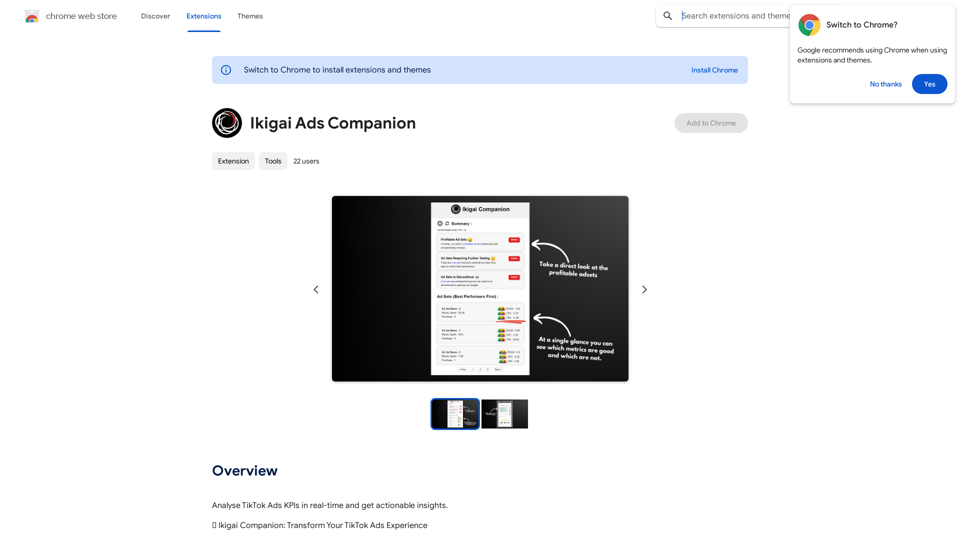
CrackerJack Resume is a Chrome extension designed to help job seekers optimize their resumes for specific job descriptions on LinkedIn. It uses advanced technology to scan both the user's resume and the job posting simultaneously, identifying crucial keywords and bullet points that can make a candidate stand out. This tool aims to increase the chances of passing Applicant Tracking System (ATS) filters and landing more interviews.
CrackerJack Resume Objective: To obtain a challenging and rewarding position in a fast-paced environment where I can utilize my skills and experience to contribute to the success of a dynamic team. Summary of Qualifications: * Highly motivated and results-oriented individual with a proven track record of success in [mention your field]. * Excellent communication, interpersonal, and problem-solving skills. * Strong analytical and critical thinking abilities. * Proficient in [list your relevant skills]. * Adaptable and eager to learn new technologies and processes. Experience: * [Job Title], [Company Name], [City, State] - [Dates of Employment] * [List your responsibilities and achievements using action verbs] * [Job Title], [Company Name], [City, State] - [Dates of Employment] * [List your responsibilities and achievements using action verbs] Education: * [Degree Name], [Major], [University Name], [City, State] - [Year of Graduation] * [List any relevant coursework, honors, or awards] Skills: * [List your hard and soft skills] Projects: * [List any relevant projects you have worked on, including a brief description and your role] Awards and Recognition: * [List any awards or recognition you have received] Volunteer Experience: * [List any volunteer experience you have] References: * Available upon request.
Are you frustrated by the lack of response to your job applications? The secret may lie within your resume. Stop getting rejected…
![CrackerJack Resume
Objective: To obtain a challenging and rewarding position in a fast-paced environment where I can utilize my skills and experience to contribute to the success of a dynamic team.
Summary of Qualifications:
* Highly motivated and results-oriented individual with a proven track record of success in [mention your field].
* Excellent communication, interpersonal, and problem-solving skills.
* Strong analytical and critical thinking abilities.
* Proficient in [list your relevant skills].
* Adaptable and eager to learn new technologies and processes.
Experience:
* [Job Title], [Company Name], [City, State] - [Dates of Employment]
* [List your responsibilities and achievements using action verbs]
* [Job Title], [Company Name], [City, State] - [Dates of Employment]
* [List your responsibilities and achievements using action verbs]
Education:
* [Degree Name], [Major], [University Name], [City, State] - [Year of Graduation]
* [List any relevant coursework, honors, or awards]
Skills:
* [List your hard and soft skills]
Projects:
* [List any relevant projects you have worked on, including a brief description and your role]
Awards and Recognition:
* [List any awards or recognition you have received]
Volunteer Experience:
* [List any volunteer experience you have]
References:
* Available upon request.](https://static.right-ai.com/tools/2024/7/4/chromewebstore-google-com-detail-crackerjack-resume-fgbdkdeofkmfocghddgppkdelglifokg-thumbnail-1720061173.png "CrackerJack Resume
Objective: To obtain a challenging and rewarding position in a fast-paced environment where I can utilize my skills and experience to contribute to the success of a dynamic team.
Summary of Qualifications:
* Highly motivated and results-oriented individual with a proven track record of success in [mention your field].
* Excellent communication, interpersonal, and problem-solving skills.
* Strong analytical and critical thinking abilities.
* Proficient in [list your relevant skills].
* Adaptable and eager to learn new technologies and processes.
Experience:
* [Job Title], [Company Name], [City, State] - [Dates of Employment]
* [List your responsibilities and achievements using action verbs]
* [Job Title], [Company Name], [City, State] - [Dates of Employment]
* [List your responsibilities and achievements using action verbs]
Education:
* [Degree Name], [Major], [University Name], [City, State] - [Year of Graduation]
* [List any relevant coursework, honors, or awards]
Skills:
* [List your hard and soft skills]
Projects:
* [List any relevant projects you have worked on, including a brief description and your role]
Awards and Recognition:
* [List any awards or recognition you have received]
Volunteer Experience:
* [List any volunteer experience you have]
References:
* Available upon request.")
Introduction
Feature
Real-time Resume Scanning
The extension scans your resume and the job description simultaneously, identifying essential keywords and bullet points to help you stand out from other applicants.
Customization Tools
Easily tailor your resume to match job requirements using targeted keywords and skills recommended by the built-in resume grader.
ATS Filter Optimization
Increase your chances of passing through Applicant Tracking System (ATS) filters used by hiring managers, ensuring your resume reaches human reviewers.
LinkedIn Integration
Works directly on LinkedIn job postings, allowing for seamless resume optimization while browsing job opportunities.
Instant Suggestions
Receive real-time recommendations on how to optimize your resume keywords within the context of the specific job posting.
Affordable Subscription Plan
Offers an affordable subscription option that provides additional benefits and extended access beyond free usage limits.
FAQ
How does CrackerJack Resume work?
CrackerJack Resume works by:
- Installing the extension from the Google Chrome Store
- Navigating to a LinkedIn job posting
- Activating the extension to scan your resume and the job description
- Providing instant suggestions for resume optimization
- Allowing you to submit a tailored, targeted resume
What are the benefits of using CrackerJack Resume?
Benefits include:
- Increased chances of passing ATS filters
- Standing out from competition with a tailored resume
- Time and effort savings in resume customization
- Boosted confidence when submitting applications
How can I maximize my use of CrackerJack Resume?
To maximize usage:
- Leverage daily free uses to explore AI-powered tools
- Customize your resume for each job application
- Utilize recommended keywords and skills
- Submit optimized resumes with confidence
Is there a cost associated with CrackerJack Resume?
CrackerJack Resume offers an affordable subscription plan that provides additional benefits and extended access beyond the free usage limits.
Related Websites
ChatGPT Sidebar: Improve your workflow with ChatGPT for advanced searching, reading, and writing.
193.90 M
Intelligent Web Translation - Automatic Translation, Bilingual Comparison, AI Dialogue
Intelligent Web Translation - Automatic Translation, Bilingual Comparison, AI DialogueSupports 20+ foreign languages/national languages, one-key rapid translation, supports bilingual comparison, automatic translation, AI summary, and phrase translation.
193.90 M
Assistant Meow: Any page using a personal AI assistant
Assistant Meow: Any page using a personal AI assistantChat, create, and enhance your browsing experience - there's more to discover! This personal AI assistant, powered by ChatGPT, works on any webpage to boost your online experience.
193.90 M
An AI-powered travel companion that crafts personalized travel plans based on your preferences.
593.63 K
A tool that automatically manages inventory and lists products on multiple platforms for resellers.
193.90 M
Converting JPG Images to Text Converting a JPG image to text is a process known as Optical Character Recognition (OCR). This technology enables you to extract text from images, scanned documents, and photos. Here's how to do it: Method 1: Online OCR Tools You can use online OCR tools to convert JPG images to text. Here are the steps: 1. Upload your JPG image: Go to an online OCR tool website, such as Online OCR Tools or OCR.space, and upload your JPG image. 2. Select the language: Choose the language of the text in your image. 3. Click on "Convert": The tool will convert the image to text. 4. Download the text: You can download the extracted text as a Word document, PDF, or plain text file. Method 2: Google Drive You can also use Google Drive to convert JPG images to text. Here's how: 1. Upload your JPG image: Upload your JPG image to Google Drive. 2. Right-click on the image: Right-click on the uploaded image and select "Open with" > "Google Docs". 3. The image will be converted: Google Docs will automatically convert the image to text. 4. Edit and download: You can edit the extracted text and download it as a Word document or PDF. Method 3: Adobe Acrobat If you have Adobe Acrobat installed on your computer, you can use it to convert JPG images to text. Here's how: 1. Open Adobe Acrobat: Open Adobe Acrobat on your computer. 2. Create a new document: Create a new document and click on "Tools" > "Recognize Text". 3. Select the image: Select the JPG image you want to convert. 4. Click on "Recognize": Adobe Acrobat will convert the image to text. 5. Edit and save: You can edit the extracted text and save it as a Word document or PDF. These are the three methods to convert JPG images to text. Choose the method that works best for you!
Converting JPG Images to Text Converting a JPG image to text is a process known as Optical Character Recognition (OCR). This technology enables you to extract text from images, scanned documents, and photos. Here's how to do it: Method 1: Online OCR Tools You can use online OCR tools to convert JPG images to text. Here are the steps: 1. Upload your JPG image: Go to an online OCR tool website, such as Online OCR Tools or OCR.space, and upload your JPG image. 2. Select the language: Choose the language of the text in your image. 3. Click on "Convert": The tool will convert the image to text. 4. Download the text: You can download the extracted text as a Word document, PDF, or plain text file. Method 2: Google Drive You can also use Google Drive to convert JPG images to text. Here's how: 1. Upload your JPG image: Upload your JPG image to Google Drive. 2. Right-click on the image: Right-click on the uploaded image and select "Open with" > "Google Docs". 3. The image will be converted: Google Docs will automatically convert the image to text. 4. Edit and download: You can edit the extracted text and download it as a Word document or PDF. Method 3: Adobe Acrobat If you have Adobe Acrobat installed on your computer, you can use it to convert JPG images to text. Here's how: 1. Open Adobe Acrobat: Open Adobe Acrobat on your computer. 2. Create a new document: Create a new document and click on "Tools" > "Recognize Text". 3. Select the image: Select the JPG image you want to convert. 4. Click on "Recognize": Adobe Acrobat will convert the image to text. 5. Edit and save: You can edit the extracted text and save it as a Word document or PDF. These are the three methods to convert JPG images to text. Choose the method that works best for you!It is an online tool that uses Optical Character Recognition (OCR) to make it possible to extract text from images in JPG format.
193.90 M