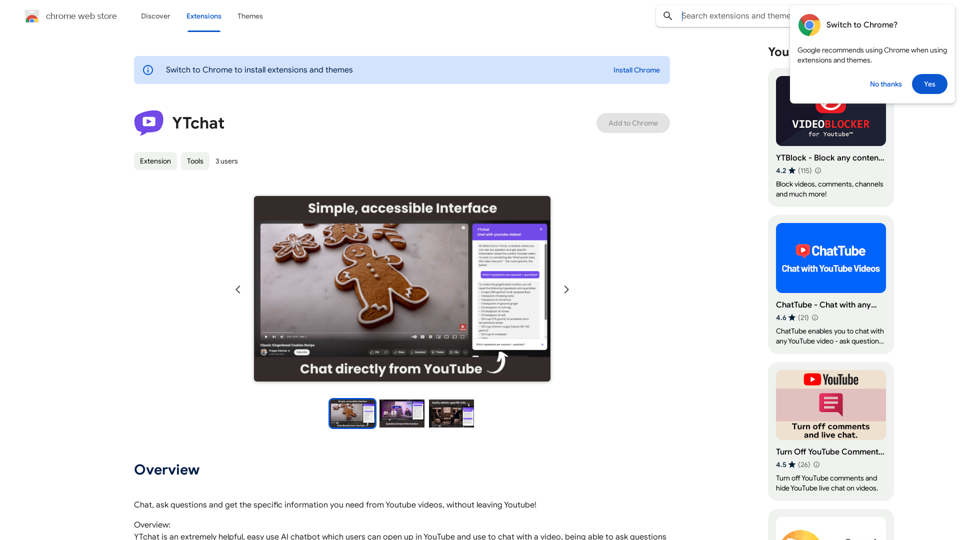
ChatGPT Sugar is an open-source Chrome extension that enhances your ChatGPT experience. It integrates seamlessly with ChatGPT, providing additional tools to make your conversations more engaging and insightful. This free extension offers features like ChatGPT Journey, which allows users to visualize their interaction history and track usage statistics throughout the year.
ChatGPT Sugar: Make Your ChatGPT Sweeter
A collection of subtle and delightful tools, seamlessly integrated into your ChatGPT experience.
Introduction
Feature
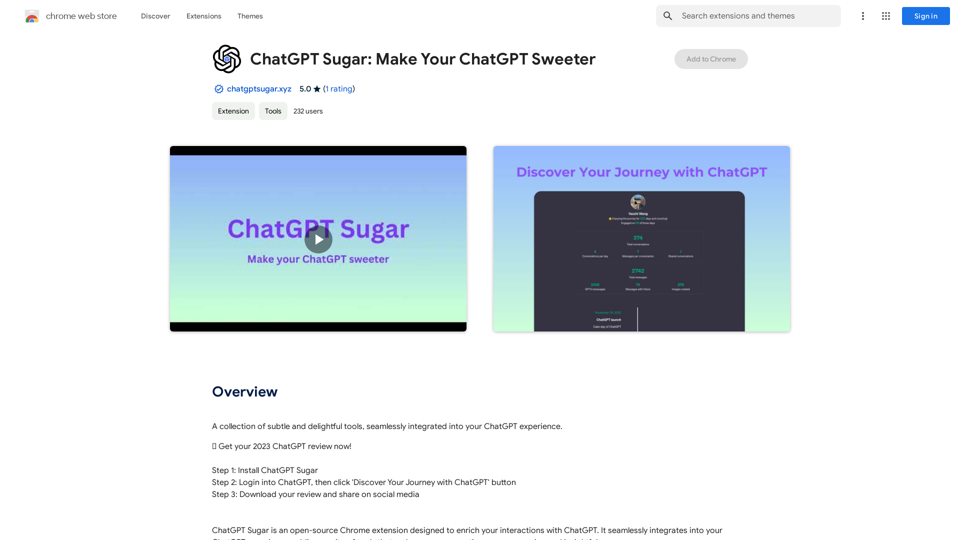
ChatGPT Journey
- Visualize interaction history in a dynamic timeline
- Track ChatGPT usage with comprehensive yearly statistics
Easy Installation and Usage
- Install ChatGPT Sugar
- Login to ChatGPT
- Click 'Discover Your Journey with ChatGPT' button
- Download your review and share on social media
Customizable Interface
- Choose colors and backgrounds to personalize your experience
Free to Use
- No cost associated with using the extension
FAQ
Is ChatGPT Sugar free?
Yes, ChatGPT Sugar is a free extension that can be used without any cost.
How do I use ChatGPT Sugar?
To use ChatGPT Sugar:
- Install the extension
- Login to ChatGPT
- Click the 'Discover Your Journey with ChatGPT' button
- Download your review and share on social media
Can I customize the ChatGPT Sugar interface?
Yes, you can customize the ChatGPT Sugar interface by choosing colors, backgrounds, and more to personalize your experience.
Related Websites
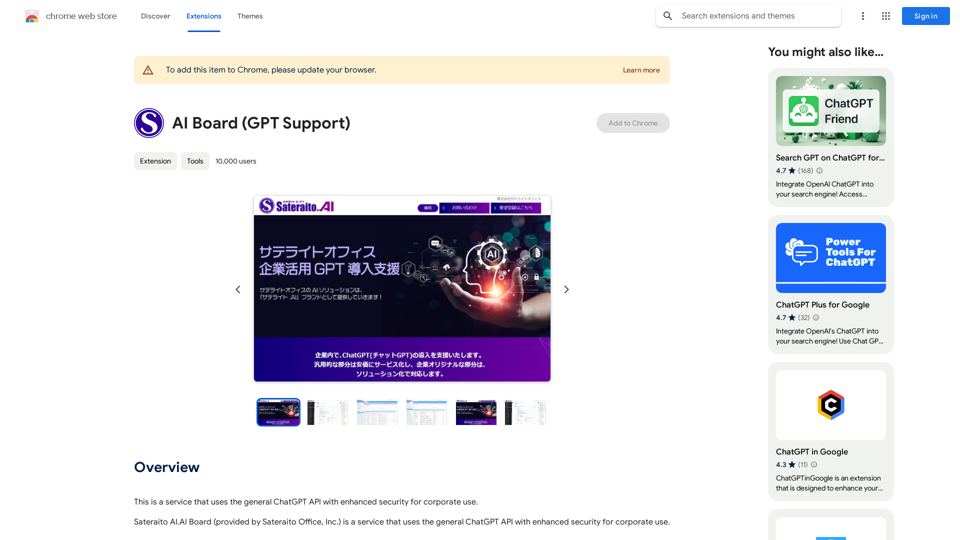
This is a service that uses the general ChatGPT API with enhanced security for corporate use.
193.90 M
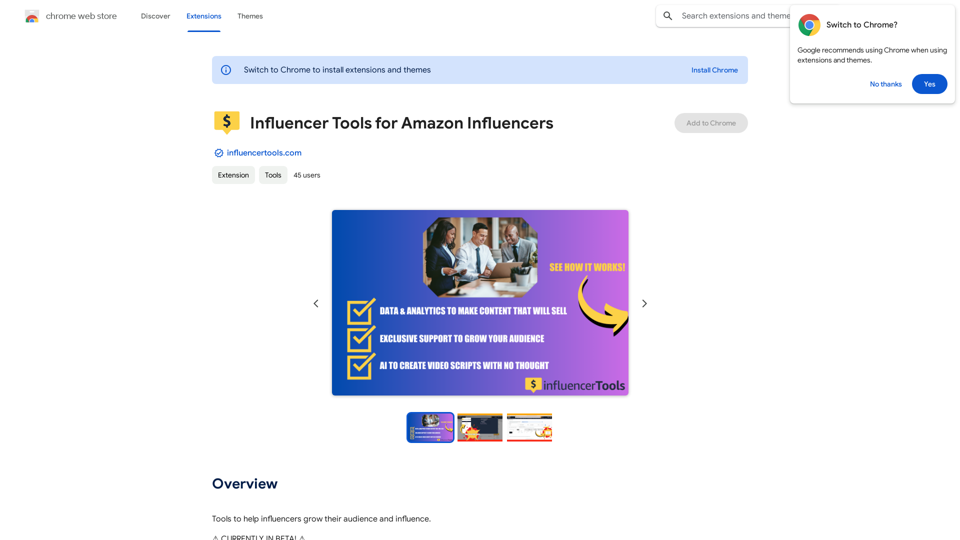
Influencer Tools for Amazon Influencers This guide explores essential tools to help Amazon influencers succeed. 1. Content Creation Tools: * Canva: Design eye-catching graphics, videos, and social media posts. * Lumen5: Create engaging videos from blog posts or scripts. * InShot: Edit and enhance videos for mobile devices. 2. Product Research Tools: * Jungle Scout: Analyze product trends, competition, and sales data. * Helium 10: Discover profitable products, track keywords, and optimize listings. * Viral Launch: Identify trending products and conduct market research. 3. Social Media Management Tools: * Buffer: Schedule and manage social media posts across multiple platforms. * Hootsuite: Monitor brand mentions, engage with followers, and track social media performance. * Later: Plan and visualize Instagram content. 4. Analytics and Tracking Tools: * Amazon Influencer Program Dashboard: Track your performance, earnings, and audience engagement. * Google Analytics: Monitor website traffic and user behavior. * UTM Parameters: Track the effectiveness of your marketing campaigns. 5. Email Marketing Tools: * Mailchimp: Create and send email newsletters to your subscribers. * ConvertKit: Build an email list and automate your marketing workflows. * Klaviyo: Segment your audience and personalize email campaigns.
Influencer Tools for Amazon Influencers This guide explores essential tools to help Amazon influencers succeed. 1. Content Creation Tools: * Canva: Design eye-catching graphics, videos, and social media posts. * Lumen5: Create engaging videos from blog posts or scripts. * InShot: Edit and enhance videos for mobile devices. 2. Product Research Tools: * Jungle Scout: Analyze product trends, competition, and sales data. * Helium 10: Discover profitable products, track keywords, and optimize listings. * Viral Launch: Identify trending products and conduct market research. 3. Social Media Management Tools: * Buffer: Schedule and manage social media posts across multiple platforms. * Hootsuite: Monitor brand mentions, engage with followers, and track social media performance. * Later: Plan and visualize Instagram content. 4. Analytics and Tracking Tools: * Amazon Influencer Program Dashboard: Track your performance, earnings, and audience engagement. * Google Analytics: Monitor website traffic and user behavior. * UTM Parameters: Track the effectiveness of your marketing campaigns. 5. Email Marketing Tools: * Mailchimp: Create and send email newsletters to your subscribers. * ConvertKit: Build an email list and automate your marketing workflows. * Klaviyo: Segment your audience and personalize email campaigns.Tools to help influencers grow their audience and influence.
193.90 M
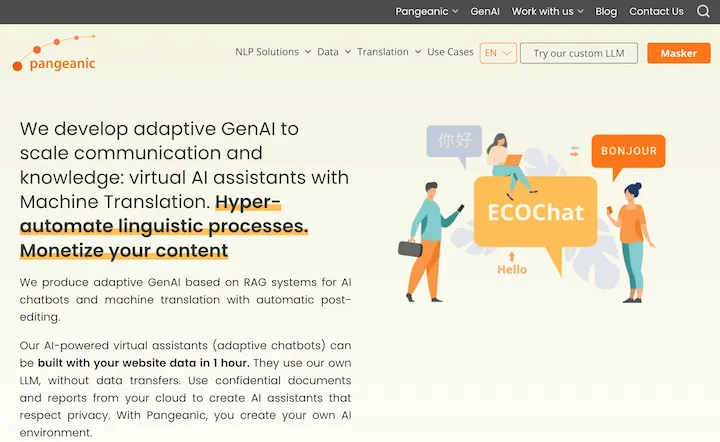
Hyper-automate linguistic services: AI assistants with your data, privacy, automatic translation with automatic post-editing, no hallucinations, human fluency
45.58 K
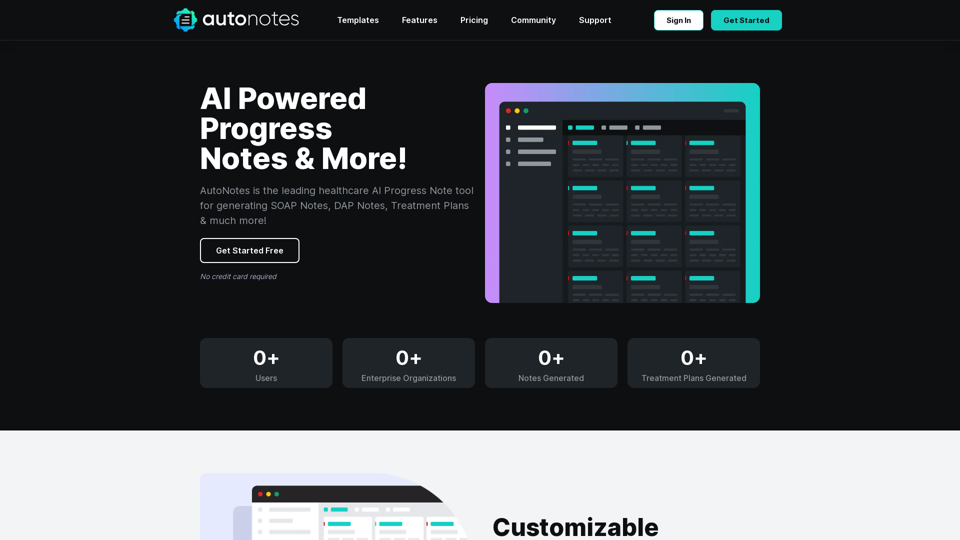
AutoNotes | AI Progress Notes, Assessments & More!
AutoNotes | AI Progress Notes, Assessments & More!AutoNotes is the top AI Progress Notes tool for Mental Health, Speech, and Occupational Therapy. Try AutoNotes for Free Now!
82.19 K
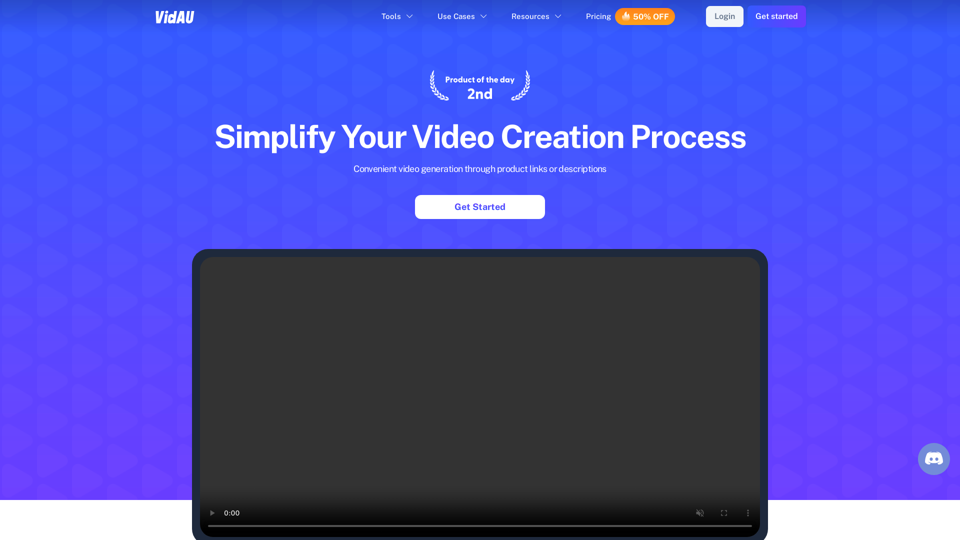
VidAu AI video generator creates high-quality videos for you with features such as avatar spokesperson, face swap, multi-language translation, subtitles, and watermarks removal, as well as video mixing and editing capabilities—get started for free.
684