Open-source RightAI Tools Directory
  • Discover AI
  • Submit
  • Startup
  • Blog
Open-source RightAI Tools Directory
Discover the best AI tools of 2025 with the RightAI Tools Directory!

Friend Links

AI Anime GeneratorToolsApp AI

Support

Tap4
Privacy policyTerms & ConditionsContact Us
Loading...
loading...

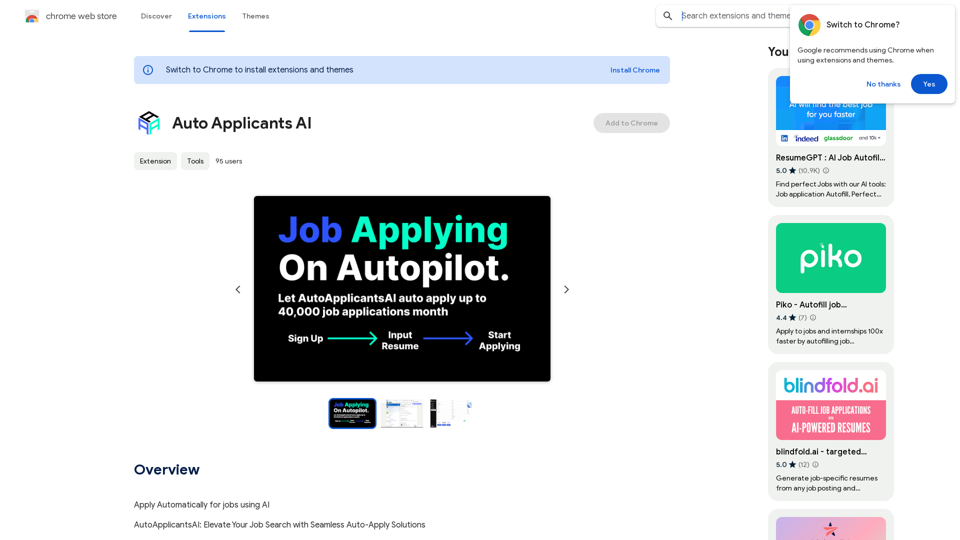
AI for Auto Applicants

Automatically Apply for Jobs Using AI Imagine a world where you can apply for jobs with just a few clicks, powered by the intelligence of artificial intelligence. That's the promise of AI-powered job application tools. These tools can: * Scan your resume and identify relevant jobs: AI algorithms can analyze your skills and experience to match you with suitable opportunities. * Customize your cover letter for each application: Say goodbye to generic cover letters! AI can tailor your message to highlight the specific requirements of each job description. * Automate the application process: From filling out forms to submitting your documents, AI can handle the tedious tasks, saving you time and effort. * Track your applications and provide insights: Stay informed about the status of your applications and receive valuable feedback on your performance. By leveraging the power of AI, you can streamline your job search, increase your chances of getting noticed, and focus on what matters most: landing your dream job.
Visit Website
AI for Auto Applicants
Visit Website

Introduction

AutoApplicants AI revolutionizes job searching by offering an automated application process. This innovative tool uses artificial intelligence to streamline job applications, allowing users to apply to numerous positions with just a single click. By automating tedious tasks, AutoApplicants AI enables job seekers to focus on finding their ideal career opportunities, saving valuable time and effort in the process.

Feature

Automated Application Process

AutoApplicants AI utilizes cutting-edge technology to automate job applications. With a single click, users can apply to thousands of jobs effortlessly, significantly reducing the time and effort typically required in job hunting.

AI-Powered Resume Generation

The platform offers AI-driven resume and cover letter creation. This feature allows users to generate tailored, professional CVs and cover letters with ease, enhancing their chances of standing out to potential employers.

Time-Saving Solution

By automating the application process, AutoApplicants AI saves users hours of tedious work. This efficiency allows job seekers to focus on more critical aspects of their job search, such as researching companies and preparing for interviews.

User-Friendly Interface

AutoApplicants AI is designed for ease of use. Users can get started by simply installing the extension, making the job application process accessible to all, regardless of technical expertise.

Privacy Protection

The platform prioritizes user privacy. AutoApplicants AI ensures that user information is not used for any training purposes, maintaining the confidentiality of personal and professional data.

Flexible Subscription Options

While AutoApplicants AI offers a free version, it also provides affordable subscription options for users who require more advanced features or rely heavily on the automated application process.

FAQ

How do I get started with AutoApplicants AI?

To begin using AutoApplicants AI, simply install the extension. Once installed, you can start applying to jobs effortlessly with a single click.

Can I customize my resume using AutoApplicants AI?

Yes, AutoApplicants AI offers AI-powered resume generation. This feature allows you to create customized, perfect CVs and cover letters with ease, tailored to your specific needs and job requirements.

How many jobs can I apply to using AutoApplicants AI?

With AutoApplicants AI, you can apply to thousands of jobs effortlessly. The automated application process allows you to explore a vast range of job opportunities quickly and efficiently.

Is my personal information safe with AutoApplicants AI?

Yes, AutoApplicants AI highly values user privacy. The platform ensures that your data will not be used for any training purposes, maintaining the confidentiality of your personal and professional information.

When should I consider subscribing to AutoApplicants AI?

If you find that the free version doesn't meet your needs and you heavily rely on the automated application process, you may want to consider subscribing to one of AutoApplicants AI's affordable products for enhanced features and capabilities.

Latest Traffic Insights

  • Monthly Visits

    193.90 M

  • Bounce Rate

    56.27%

  • Pages Per Visit

    2.71

  • Time on Site(s)

    115.91

  • Global Rank

    -

  • Country Rank

    -

Recent Visits

Traffic Sources

  • Social Media:
    0.48%
  • Paid Referrals:
    0.55%
  • Email:
    0.15%
  • Referrals:
    12.81%
  • Search Engines:
    16.21%
  • Direct:
    69.81%
More Data

Related Websites

MagicTranslate - AI-Powered Translation - MagicTranslate
View Detail

MagicTranslate - AI-Powered Translation - MagicTranslate

MagicTranslate - AI-Powered Translation - MagicTranslate

Experience seamless, intelligent translation powered by cutting-edge AI technology with MagicTranslate.

0
Chrome Web Store
View Detail

Chrome Web Store

Chrome Web Store

Enhance your browser with new features and customize your web browsing.

193.90 M
Converting JPG Images to Text

Converting a JPG image to text is a process known as Optical Character Recognition (OCR). This technology enables you to extract text from images, scanned documents, and photos. Here's how to do it:

Method 1: Online OCR Tools

You can use online OCR tools to convert JPG images to text. Here are the steps:

1. Upload your JPG image: Go to an online OCR tool website, such as Online OCR Tools or OCR.space, and upload your JPG image.
2. Select the language: Choose the language of the text in your image.
3. Click on "Convert": The tool will convert the image to text.
4. Download the text: You can download the extracted text as a Word document, PDF, or plain text file.

Method 2: Google Drive

You can also use Google Drive to convert JPG images to text. Here's how:

1. Upload your JPG image: Upload your JPG image to Google Drive.
2. Right-click on the image: Right-click on the uploaded image and select "Open with" > "Google Docs".
3. The image will be converted: Google Docs will automatically convert the image to text.
4. Edit and download: You can edit the extracted text and download it as a Word document or PDF.

Method 3: Adobe Acrobat

If you have Adobe Acrobat installed on your computer, you can use it to convert JPG images to text. Here's how:

1. Open Adobe Acrobat: Open Adobe Acrobat on your computer.
2. Create a new document: Create a new document and click on "Tools" > "Recognize Text".
3. Select the image: Select the JPG image you want to convert.
4. Click on "Recognize": Adobe Acrobat will convert the image to text.
5. Edit and save: You can edit the extracted text and save it as a Word document or PDF.

These are the three methods to convert JPG images to text. Choose the method that works best for you!
View Detail

Converting JPG Images to Text Converting a JPG image to text is a process known as Optical Character Recognition (OCR). This technology enables you to extract text from images, scanned documents, and photos. Here's how to do it: Method 1: Online OCR Tools You can use online OCR tools to convert JPG images to text. Here are the steps: 1. Upload your JPG image: Go to an online OCR tool website, such as Online OCR Tools or OCR.space, and upload your JPG image. 2. Select the language: Choose the language of the text in your image. 3. Click on "Convert": The tool will convert the image to text. 4. Download the text: You can download the extracted text as a Word document, PDF, or plain text file. Method 2: Google Drive You can also use Google Drive to convert JPG images to text. Here's how: 1. Upload your JPG image: Upload your JPG image to Google Drive. 2. Right-click on the image: Right-click on the uploaded image and select "Open with" > "Google Docs". 3. The image will be converted: Google Docs will automatically convert the image to text. 4. Edit and download: You can edit the extracted text and download it as a Word document or PDF. Method 3: Adobe Acrobat If you have Adobe Acrobat installed on your computer, you can use it to convert JPG images to text. Here's how: 1. Open Adobe Acrobat: Open Adobe Acrobat on your computer. 2. Create a new document: Create a new document and click on "Tools" > "Recognize Text". 3. Select the image: Select the JPG image you want to convert. 4. Click on "Recognize": Adobe Acrobat will convert the image to text. 5. Edit and save: You can edit the extracted text and save it as a Word document or PDF. These are the three methods to convert JPG images to text. Choose the method that works best for you!

Converting JPG Images to Text Converting a JPG image to text is a process known as Optical Character Recognition (OCR). This technology enables you to extract text from images, scanned documents, and photos. Here's how to do it: Method 1: Online OCR Tools You can use online OCR tools to convert JPG images to text. Here are the steps: 1. Upload your JPG image: Go to an online OCR tool website, such as Online OCR Tools or OCR.space, and upload your JPG image. 2. Select the language: Choose the language of the text in your image. 3. Click on "Convert": The tool will convert the image to text. 4. Download the text: You can download the extracted text as a Word document, PDF, or plain text file. Method 2: Google Drive You can also use Google Drive to convert JPG images to text. Here's how: 1. Upload your JPG image: Upload your JPG image to Google Drive. 2. Right-click on the image: Right-click on the uploaded image and select "Open with" > "Google Docs". 3. The image will be converted: Google Docs will automatically convert the image to text. 4. Edit and download: You can edit the extracted text and download it as a Word document or PDF. Method 3: Adobe Acrobat If you have Adobe Acrobat installed on your computer, you can use it to convert JPG images to text. Here's how: 1. Open Adobe Acrobat: Open Adobe Acrobat on your computer. 2. Create a new document: Create a new document and click on "Tools" > "Recognize Text". 3. Select the image: Select the JPG image you want to convert. 4. Click on "Recognize": Adobe Acrobat will convert the image to text. 5. Edit and save: You can edit the extracted text and save it as a Word document or PDF. These are the three methods to convert JPG images to text. Choose the method that works best for you!

It is an online tool that uses Optical Character Recognition (OCR) to make it possible to extract text from images in JPG format.

193.90 M
BrrrWrite - Create Compelling Cold Emails Using AI
View Detail

BrrrWrite - Create Compelling Cold Emails Using AI

BrrrWrite - Create Compelling Cold Emails Using AI

Craft tailored emails effortlessly with our GPT-4 AI-powered solution, saving you time and money while achieving improved response rates and successful deals.

0
Candy Jar
View Detail

Candy Jar

Candy Jar

Find IT candidates via CandyJar

193.90 M
Google Transcribe & Summarize Live

Automatically transcribe and summarize live audio and video streams in real-time using Google's AI technology.
View Detail

Google Transcribe & Summarize Live Automatically transcribe and summarize live audio and video streams in real-time using Google's AI technology.

Google Transcribe & Summarize Live Automatically transcribe and summarize live audio and video streams in real-time using Google's AI technology.

meetXcc: Instantly summarize Google Meet transcripts. Your AI meeting assistant.

193.90 M
Monica - Your ChatGPT AI Assistant for Anywhere
View Detail

Monica - Your ChatGPT AI Assistant for Anywhere

Monica - Your ChatGPT AI Assistant for Anywhere

Monica integrates leading AI models (GPT-4, Claude 3, Gemini) for one-click chat, search, writing, coding and more. Try it on Chrome, Edge, or our APP.

9.55 M
File Zen, a tool for AI-powered intelligent file organization and classification.
View Detail

File Zen, a tool for AI-powered intelligent file organization and classification.

File Zen, a tool for AI-powered intelligent file organization and classification.

FileNeatAI is a professional AI-powered file organization tool designed to streamline the process of categorizing and organizing text files on your computer. By leveraging advanced AI capabilities, FileNeatAI reads the content of each file within a specified folder and intelligently categorizes these files into different folders based on their content.

2.42 K