Open-source RightAI Tools Directory
  • Discover AI
  • Submit
  • Startup
  • Blog
Open-source RightAI Tools Directory
Discover the best AI tools of 2025 with the RightAI Tools Directory!

Friend Links

AI Anime GeneratorToolsApp AI

Support

Tap4
Privacy policyTerms & ConditionsContact Us
Loading...
loading...

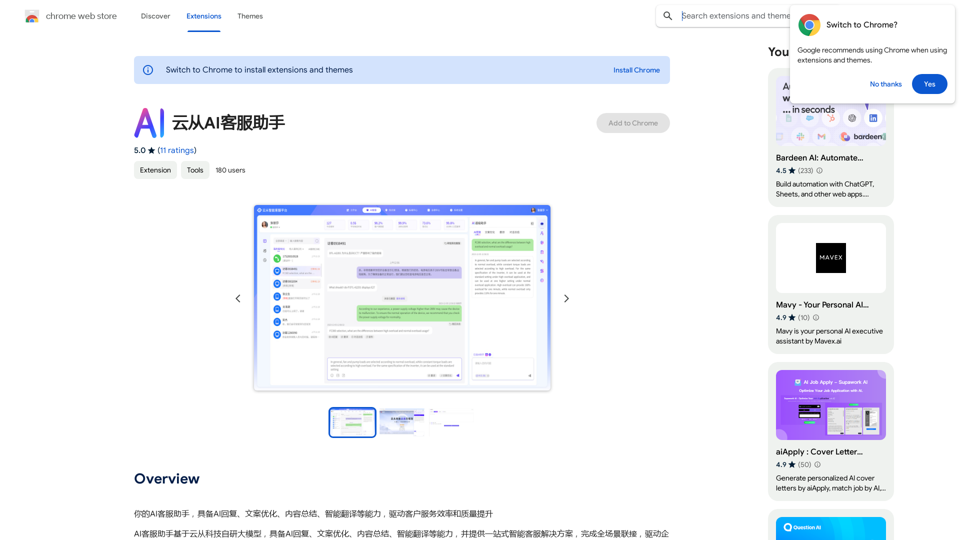
AI Customer Service Assistant

Your AI customer service assistant has the capabilities of AI replies, copywriting optimization, content summarization, and intelligent translation, driving improvements in customer service efficiency and quality.
Visit Website
AI Customer Service Assistant
Visit Website

Introduction

AI Customer Service Assistant is an innovative extension designed to enhance customer service efficiency and quality. It offers AI-driven capabilities including automated responses, content optimization, summarization, and smart translation. This tool is perfect for businesses looking to streamline their customer service operations and provide quick, accurate assistance to their clients.

Feature

AI Response

The extension utilizes artificial intelligence to generate quick and accurate responses to customer inquiries, significantly reducing response times and improving overall service quality.

Content Optimization

AI Customer Service Assistant optimizes content for better readability and comprehension, ensuring that customer inquiries are addressed effectively and clearly.

Content Summary

Long pieces of text can be summarized by the AI, providing a concise overview of the main points. This feature helps in quickly understanding and addressing complex customer issues.

Smart Translation

With its ability to translate text in multiple languages, the extension enables seamless communication with customers from diverse linguistic backgrounds, breaking down language barriers in customer service.

Easy Installation and Configuration

Users can easily install the extension from the Chrome Web Store and configure it to suit their specific customer service needs, making it adaptable to various business requirements.

Cost-Effective Solution

The AI Customer Service Assistant is offered as a free extension, with no subscription fees or hidden costs, making it an accessible tool for businesses of all sizes.

FAQ

What are the main features of AI Customer Service Assistant?

The main features include:

  1. AI-generated responses
  2. Content optimization
  3. Text summarization
  4. Smart translation across multiple languages

How do I start using the AI Customer Service Assistant?

To start using the AI Customer Service Assistant:

  1. Install the extension from the Chrome Web Store
  2. Configure the extension according to your customer service needs
  3. Begin using it to respond to customer inquiries

Is there a cost associated with using this extension?

No, the AI Customer Service Assistant is completely free. There are no subscription fees or hidden costs associated with its use.

Can the AI Customer Service Assistant handle multiple languages?

Yes, the extension includes a smart translation feature that can translate text in multiple languages, facilitating communication with customers from diverse linguistic backgrounds.

How does the AI Customer Service Assistant improve efficiency?

The extension improves efficiency by:

  1. Providing quick AI-generated responses
  2. Optimizing content for better comprehension
  3. Summarizing long texts
  4. Offering instant translation services These features combined help in reducing response times and improving the overall quality of customer service.

Latest Traffic Insights

  • Monthly Visits

    193.90 M

  • Bounce Rate

    56.27%

  • Pages Per Visit

    2.71

  • Time on Site(s)

    115.91

  • Global Rank

    -

  • Country Rank

    -

Recent Visits

Traffic Sources

  • Social Media:
    0.48%
  • Paid Referrals:
    0.55%
  • Email:
    0.15%
  • Referrals:
    12.81%
  • Search Engines:
    16.21%
  • Direct:
    69.81%
More Data

Related Websites

Grimo - Cursor for Writing
View Detail

Grimo - Cursor for Writing

Grimo - Cursor for Writing

The most powerful AI text editor. Coherent editing. Customized styling. Collaborate seamlessly.

1.36 K
Enterprise Bot: AI Chatbot For Website | EntBot.ai
View Detail

Enterprise Bot: AI Chatbot For Website | EntBot.ai

Enterprise Bot: AI Chatbot For Website | EntBot.ai

EntBot.ai can build an AI chatbot for your website in just 5 minutes, no technical skills required. You can easily embed it on your website, resulting in a 100% increase in customer response speed.

0
Converting JPG Images to Text

Converting a JPG image to text is a process known as Optical Character Recognition (OCR). This technology enables you to extract text from images, scanned documents, and photos. Here's how to do it:

Method 1: Online OCR Tools

You can use online OCR tools to convert JPG images to text. Here are the steps:

1. Upload your JPG image: Go to an online OCR tool website, such as Online OCR Tools or OCR.space, and upload your JPG image.
2. Select the language: Choose the language of the text in your image.
3. Click on "Convert": The tool will convert the image to text.
4. Download the text: You can download the extracted text as a Word document, PDF, or plain text file.

Method 2: Google Drive

You can also use Google Drive to convert JPG images to text. Here's how:

1. Upload your JPG image: Upload your JPG image to Google Drive.
2. Right-click on the image: Right-click on the uploaded image and select "Open with" > "Google Docs".
3. The image will be converted: Google Docs will automatically convert the image to text.
4. Edit and download: You can edit the extracted text and download it as a Word document or PDF.

Method 3: Adobe Acrobat

If you have Adobe Acrobat installed on your computer, you can use it to convert JPG images to text. Here's how:

1. Open Adobe Acrobat: Open Adobe Acrobat on your computer.
2. Create a new document: Create a new document and click on "Tools" > "Recognize Text".
3. Select the image: Select the JPG image you want to convert.
4. Click on "Recognize": Adobe Acrobat will convert the image to text.
5. Edit and save: You can edit the extracted text and save it as a Word document or PDF.

These are the three methods to convert JPG images to text. Choose the method that works best for you!
View Detail

Converting JPG Images to Text Converting a JPG image to text is a process known as Optical Character Recognition (OCR). This technology enables you to extract text from images, scanned documents, and photos. Here's how to do it: Method 1: Online OCR Tools You can use online OCR tools to convert JPG images to text. Here are the steps: 1. Upload your JPG image: Go to an online OCR tool website, such as Online OCR Tools or OCR.space, and upload your JPG image. 2. Select the language: Choose the language of the text in your image. 3. Click on "Convert": The tool will convert the image to text. 4. Download the text: You can download the extracted text as a Word document, PDF, or plain text file. Method 2: Google Drive You can also use Google Drive to convert JPG images to text. Here's how: 1. Upload your JPG image: Upload your JPG image to Google Drive. 2. Right-click on the image: Right-click on the uploaded image and select "Open with" > "Google Docs". 3. The image will be converted: Google Docs will automatically convert the image to text. 4. Edit and download: You can edit the extracted text and download it as a Word document or PDF. Method 3: Adobe Acrobat If you have Adobe Acrobat installed on your computer, you can use it to convert JPG images to text. Here's how: 1. Open Adobe Acrobat: Open Adobe Acrobat on your computer. 2. Create a new document: Create a new document and click on "Tools" > "Recognize Text". 3. Select the image: Select the JPG image you want to convert. 4. Click on "Recognize": Adobe Acrobat will convert the image to text. 5. Edit and save: You can edit the extracted text and save it as a Word document or PDF. These are the three methods to convert JPG images to text. Choose the method that works best for you!

Converting JPG Images to Text Converting a JPG image to text is a process known as Optical Character Recognition (OCR). This technology enables you to extract text from images, scanned documents, and photos. Here's how to do it: Method 1: Online OCR Tools You can use online OCR tools to convert JPG images to text. Here are the steps: 1. Upload your JPG image: Go to an online OCR tool website, such as Online OCR Tools or OCR.space, and upload your JPG image. 2. Select the language: Choose the language of the text in your image. 3. Click on "Convert": The tool will convert the image to text. 4. Download the text: You can download the extracted text as a Word document, PDF, or plain text file. Method 2: Google Drive You can also use Google Drive to convert JPG images to text. Here's how: 1. Upload your JPG image: Upload your JPG image to Google Drive. 2. Right-click on the image: Right-click on the uploaded image and select "Open with" > "Google Docs". 3. The image will be converted: Google Docs will automatically convert the image to text. 4. Edit and download: You can edit the extracted text and download it as a Word document or PDF. Method 3: Adobe Acrobat If you have Adobe Acrobat installed on your computer, you can use it to convert JPG images to text. Here's how: 1. Open Adobe Acrobat: Open Adobe Acrobat on your computer. 2. Create a new document: Create a new document and click on "Tools" > "Recognize Text". 3. Select the image: Select the JPG image you want to convert. 4. Click on "Recognize": Adobe Acrobat will convert the image to text. 5. Edit and save: You can edit the extracted text and save it as a Word document or PDF. These are the three methods to convert JPG images to text. Choose the method that works best for you!

It is an online tool that uses Optical Character Recognition (OCR) to make it possible to extract text from images in JPG format.

193.90 M
GPTCheck — fact-check ChatGPT
View Detail

GPTCheck — fact-check ChatGPT

GPTCheck — fact-check ChatGPT

✅ Highlight, right-click, verify with references

193.90 M
Met Genius Extension
View Detail

Met Genius Extension

Met Genius Extension

The Power of React and TypeScript for Building Interactive Chrome Extensions React and TypeScript are a powerful combination for developing engaging and robust Chrome extensions. Here's why: * React's Component-Based Architecture: React's component-based approach makes building complex UIs for your extensions manageable and reusable. * TypeScript's Static Typing: TypeScript's type system catches errors early in development, leading to more reliable and maintainable code. * Improved Developer Experience: Both React and TypeScript offer excellent tooling and a strong community, making development smoother and more enjoyable. By leveraging these technologies, you can create Chrome extensions that are: * Interactive and User-Friendly: React's declarative style and virtual DOM enable smooth and responsive user interfaces. * Scalable and Maintainable: TypeScript's type safety and React's component structure promote code organization and extensibility. * Bug-Free and Reliable: TypeScript's static typing helps prevent runtime errors, resulting in more robust extensions. Let's explore how to harness the power of React and TypeScript to build your next amazing Chrome extension!

193.90 M
Octopuses VAX (Virtual Assistant Experience)
View Detail

Octopuses VAX (Virtual Assistant Experience)

Octopuses VAX (Virtual Assistant Experience)

Octopi.health: Revolutionizing healthcare with computer vision, language processing, and Motion Assessment.

193.90 M
Aksharakuppy TextMagic
View Detail

Aksharakuppy TextMagic

Aksharakuppy TextMagic

Aksharakuppy TextMagic is a versatile tool that enriches text, generates content, and facilitates translations into Malayalam.

193.90 M
TruthGPT for Google™
View Detail

TruthGPT for Google™

TruthGPT for Google™

TruthGPT for all Google™ searches.

193.90 M