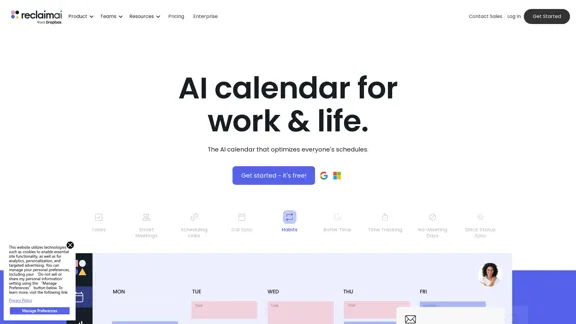
Reclaim is an AI-powered calendar tool designed to optimize work-life balance and enhance productivity. It integrates seamlessly with Google Calendar, allowing users to manage their schedules, tasks, and meetings efficiently. The platform offers features like smart meeting scheduling, time tracking, and people analytics, making it suitable for individuals and teams looking to improve their time management.
Reclaim – AI Calendar for Work and Life
Reclaim is an AI-powered app that creates 40% more time for teams by automatically scheduling tasks, habits, meetings, and breaks — available for free on Google Calendar and Outlook Calendar.
Introduction
Feature
-
Smart Meetings
Automatically schedule meetings at optimal times based on participants' availability, reducing the back-and-forth typically associated with scheduling.
-
Calendar Sync
Merge multiple calendars into one view, ensuring all commitments are visible and manageable in a single interface.
-
Time Tracking
Analyze how time is spent across meetings, tasks, and personal commitments to identify areas for improvement in productivity.
-
Buffer Time
Automatically schedule breaks and travel time between meetings to prevent burnout and maintain focus.
-
People Analytics
Gain insights into team productivity and work-life balance metrics, helping organizations make informed decisions about workload and scheduling.
-
Tasks Integration
Flexibly schedule tasks within the calendar, ensuring that important to-dos are prioritized alongside meetings.
-
No-Meeting Days
Protect certain days from meetings to allow for uninterrupted work time, enhancing focus and productivity.
How to Use?
- Sign up for a free trial on the Reclaim website to explore its features.
- Integrate your existing calendars for a comprehensive view of your schedule.
- Use the smart meeting feature to find the best times for group meetings.
- Set up buffer times to ensure you have breaks between meetings.
- Regularly review your time tracking analytics to identify productivity patterns.
FAQ
What is Reclaim?
Reclaim is an AI calendar tool that helps users manage their schedules, tasks, and meetings more effectively, promoting better work-life balance.
How does Reclaim work?
Reclaim uses AI to analyze users' schedules and preferences, automatically scheduling meetings and tasks while providing insights into time management.
Can I use Reclaim with other calendar applications?
Yes, Reclaim integrates with Google Calendar and can sync with other task management tools like Asana, Todoist, and Jira.
Is Reclaim suitable for teams?
Absolutely, Reclaim is designed for both individuals and teams, offering features that enhance collaboration and productivity.
How can I get started with Reclaim?
Visit the Reclaim website to sign up for a free trial and explore its features.
Price
- Free Plan: $0/month
- Basic Plan: $9.99/month
- Standard Plan: $19.99/month
- Professional Plan: $49.99/month
The price is for reference only, please refer to the latest official data for actual information.
Evaluation
Reclaim offers a robust set of features that significantly enhance productivity and time management. Its smart scheduling capabilities and integration with various tools make it a valuable asset for both individuals and teams. Users have reported improved work-life balance and increased productivity, with many finding the AI-driven automation particularly beneficial.
However, there are areas for improvement. Some users may find the learning curve steep, especially when integrating multiple calendars and tools. Additionally, while the analytics features are useful, they could be expanded to provide deeper insights into individual and team performance. Overall, Reclaim is a powerful tool that can transform how users manage their time, but ongoing enhancements could further elevate its effectiveness.
Latest Traffic Insights
Monthly Visits
1.06 M
Bounce Rate
37.38%
Pages Per Visit
8.47
Time on Site(s)
236.08
Global Rank
34082
Country Rank
United States 20841
Recent Visits
Traffic Sources
- Social Media:1.46%
- Paid Referrals:0.67%
- Email:0.11%
- Referrals:4.98%
- Search Engines:36.58%
- Direct:56.19%
Related Websites

Engage AI | Generative AI for LinkedIn Comments and Content
Engage AI | Generative AI for LinkedIn Comments and ContentEngage AI empowers LinkedIn power users with Generative AI. Craft meaningful LinkedIn comments and content that allow you to stand out, break the ice, and start conversations even with prospects who are usually unresponsive to calls, messages, and emails.
71.94 K
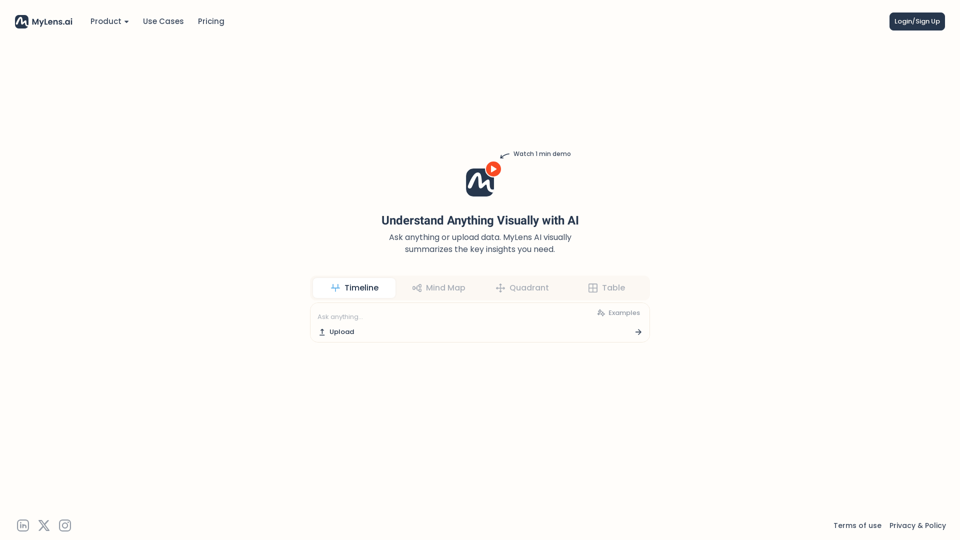
Discover the intersections of history with our AI-powered timelines. Dive deep into the narratives of the past and see where two unique histories meet. Create, explore, and connect stories seamlessly.
193.06 K
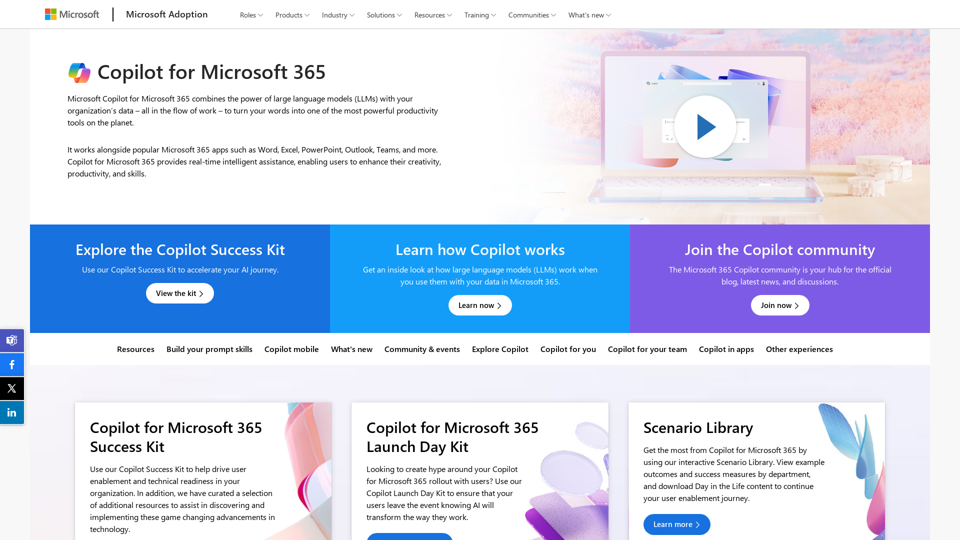
Copilot for Microsoft 365 – Microsoft Adoption Copilot for Microsoft 365 is a powerful AI assistant that helps you work smarter and faster across Microsoft 365 apps and services. It combines the power of large language models (LLMs) with your organization's data in the Microsoft Graph and Microsoft 365 apps to turn your words into the most powerful productivity tool on the planet. Copilot is designed to help you: • Unleash creativity • Unlock productivity • Uplevel skills Copilot is built on Microsoft's comprehensive approach to security, compliance, and privacy. Copilot in Microsoft 365 apps and services: • Does not use your data to train the underlying LLM • Does not replace human ingenuity and judgment • Is designed to keep humans in the loop Copilot is currently available in Word, Excel, PowerPoint, Outlook, Teams, and more. Getting Started with Copilot To get started with Copilot, follow these steps: 1. Check availability: Ensure your organization has access to Copilot. 2. Learn the basics: Familiarize yourself with Copilot's capabilities and how to use it effectively. 3. Explore use cases: Discover how Copilot can help you in your specific role and tasks. 4. Practice and refine: Use Copilot regularly and refine your prompts for better results. 5. Share and collaborate: Collaborate with colleagues using Copilot and share best practices. Best Practices for Using Copilot 1. Be specific in your prompts 2. Provide context for better results 3. Review and edit Copilot's output 4. Use Copilot as a starting point, not a final product 5. Experiment with different approaches 6. Stay informed about new features and updates Copilot in Different Microsoft 365 Apps • Word: Draft, edit, summarize, and rewrite content • Excel: Analyze data, create formulas, and generate insights • PowerPoint: Create presentations, design slides, and generate content • Outlook: Compose emails, summarize threads, and manage your inbox • Teams: Summarize meetings, generate action items, and create meeting notes Responsible AI and Copilot Microsoft is committed to developing AI systems responsibly. When using Copilot, keep in mind: • AI-generated content may contain biases or inaccuracies • Always review and verify Copilot's output • Use your judgment and expertise alongside Copilot's suggestions • Be aware of your organization's policies regarding AI use Conclusion Copilot for Microsoft 365 is a powerful tool that can significantly enhance your productivity and creativity. By understanding its capabilities, following best practices, and using it responsibly, you can make the most of this AI assistant in your daily work.
Copilot for Microsoft 365 – Microsoft Adoption Copilot for Microsoft 365 is a powerful AI assistant that helps you work smarter and faster across Microsoft 365 apps and services. It combines the power of large language models (LLMs) with your organization's data in the Microsoft Graph and Microsoft 365 apps to turn your words into the most powerful productivity tool on the planet. Copilot is designed to help you: • Unleash creativity • Unlock productivity • Uplevel skills Copilot is built on Microsoft's comprehensive approach to security, compliance, and privacy. Copilot in Microsoft 365 apps and services: • Does not use your data to train the underlying LLM • Does not replace human ingenuity and judgment • Is designed to keep humans in the loop Copilot is currently available in Word, Excel, PowerPoint, Outlook, Teams, and more. Getting Started with Copilot To get started with Copilot, follow these steps: 1. Check availability: Ensure your organization has access to Copilot. 2. Learn the basics: Familiarize yourself with Copilot's capabilities and how to use it effectively. 3. Explore use cases: Discover how Copilot can help you in your specific role and tasks. 4. Practice and refine: Use Copilot regularly and refine your prompts for better results. 5. Share and collaborate: Collaborate with colleagues using Copilot and share best practices. Best Practices for Using Copilot 1. Be specific in your prompts 2. Provide context for better results 3. Review and edit Copilot's output 4. Use Copilot as a starting point, not a final product 5. Experiment with different approaches 6. Stay informed about new features and updates Copilot in Different Microsoft 365 Apps • Word: Draft, edit, summarize, and rewrite content • Excel: Analyze data, create formulas, and generate insights • PowerPoint: Create presentations, design slides, and generate content • Outlook: Compose emails, summarize threads, and manage your inbox • Teams: Summarize meetings, generate action items, and create meeting notes Responsible AI and Copilot Microsoft is committed to developing AI systems responsibly. When using Copilot, keep in mind: • AI-generated content may contain biases or inaccuracies • Always review and verify Copilot's output • Use your judgment and expertise alongside Copilot's suggestions • Be aware of your organization's policies regarding AI use Conclusion Copilot for Microsoft 365 is a powerful tool that can significantly enhance your productivity and creativity. By understanding its capabilities, following best practices, and using it responsibly, you can make the most of this AI assistant in your daily work.Microsoft Copilot combines the power of large language models (LLMs) with your organization's data to turn your words into one of the most powerful productivity tools on the planet.
608.60 K
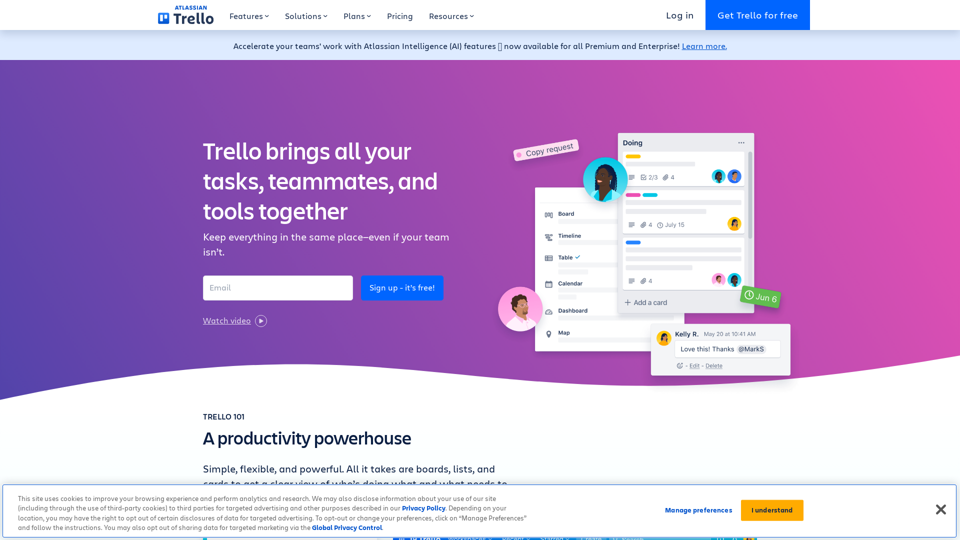
Manage Your Team's Projects From Anywhere | Trello
Manage Your Team's Projects From Anywhere | TrelloMake the impossible, possible with Trello. The ultimate teamwork project management tool. Start up a board in seconds, automate tedious tasks, and collaborate anywhere, even on mobile.
76.84 M
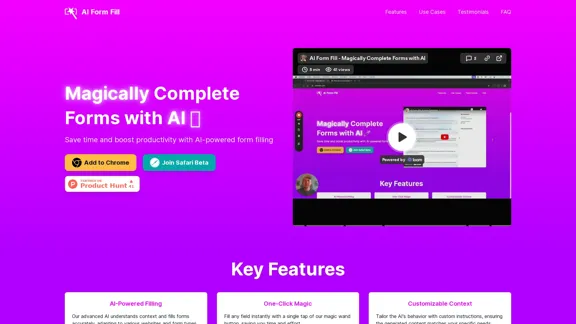
AI Form Fill: The browser extension that uses AI to automatically fill out forms for you. Save time and boost productivity with magical form completion.
2.35 K
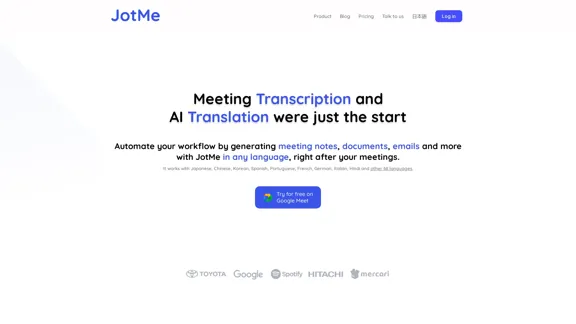
JotMe transcribes and translates your meetings, generating meeting notes, documents, emails, task tickets, and more, all based on the context that is important to you.
129.69 K
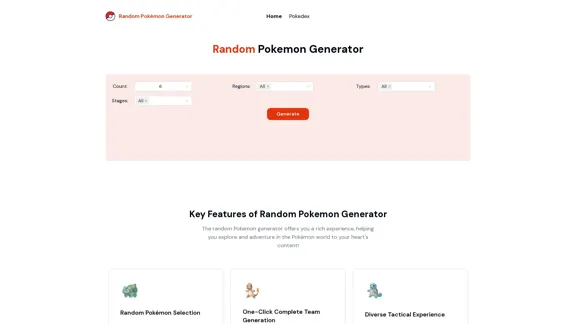
Random Pokemon Generator - Quickly customize and randomly generate Pokemon.
Random Pokemon Generator - Quickly customize and randomly generate Pokemon.Discover the world of Pokémon with our interactive website! Unleash the excitement of random Pokémon generation, and delve into comprehensive Pokédex entries to learn about each creature's unique characteristics, abilities, and evolutions.
94