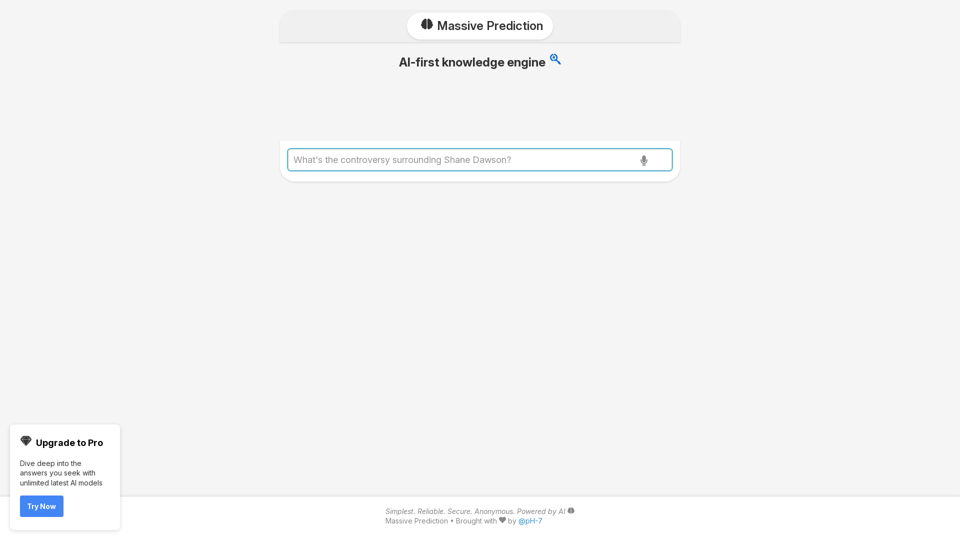
Massive Prediction is an innovative AI search engine designed to provide instant and relevant answers to important queries. Leveraging an AI-first knowledge engine, it offers users unlimited access to the latest AI models, allowing for deep exploration of sought-after information. The platform stands out for its simplicity, reliability, and commitment to user privacy through anonymous access.
An AI-powered search engine that provides immediate answers to your most important questions.
MassivePrediction: A specialized AI search engine that is always available and runs directly in your browser. It instantly retrieves highly relevant content from the internet that was created by AI.
Introduction
Feature
AI-Driven Search Engine
Massive Prediction utilizes advanced AI technology to instantly deliver relevant answers to user queries, ensuring quick and accurate information retrieval.
Pro Upgrade for Enhanced Access
Users can upgrade to Pro to unlock unlimited access to the latest AI models, enabling deeper dives into complex topics and more comprehensive answers.
Simple, Reliable, and Secure
The platform is designed with user experience in mind, offering a simple interface, reliable performance, and secure, anonymous access to its AI-powered search capabilities.
Easy-to-Use Interface
Massive Prediction boasts a user-friendly interface where users can simply enter their queries and receive instant, relevant answers powered by AI.
Flexible Pricing Options
The service offers both a free version and a Pro upgrade, catering to different user needs and preferences.
Bookmarking Feature
Users can bookmark their favorite answers for easy reference, enhancing the overall user experience and information management.
FAQ
How does Massive Prediction protect user privacy?
Massive Prediction values user privacy and does not use user data for training purposes. The platform is designed to be anonymous, allowing users to access the AI-powered search engine without revealing their identity.
What are the benefits of upgrading to Pro?
Upgrading to Pro provides users with unlimited access to the latest AI models, enabling them to dive deeper into the answers they seek and explore complex topics more comprehensively.
How can I improve my search results on Massive Prediction?
To get more accurate results, use specific keywords in your queries. This helps the AI better understand your information needs and provide more relevant answers.
Related Websites
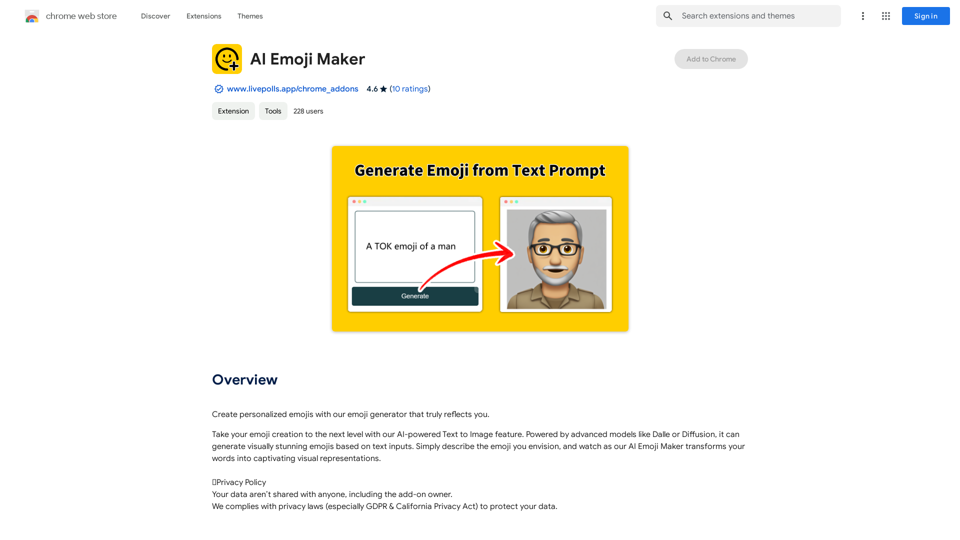
AI Emoji Maker This is a fun tool that lets you create your own custom emojis using artificial intelligence! Just type in a description of the emoji you want, and our AI will generate some unique options for you to choose from. You can then customize your emoji further by adjusting its colors, size, and other features. Share your creations with friends and family, or use them to add a personal touch to your online conversations. Let your creativity flow and make some awesome emojis!
AI Emoji Maker This is a fun tool that lets you create your own custom emojis using artificial intelligence! Just type in a description of the emoji you want, and our AI will generate some unique options for you to choose from. You can then customize your emoji further by adjusting its colors, size, and other features. Share your creations with friends and family, or use them to add a personal touch to your online conversations. Let your creativity flow and make some awesome emojis!Make your own unique emojis with our emoji creator that shows off your personality!
193.90 M
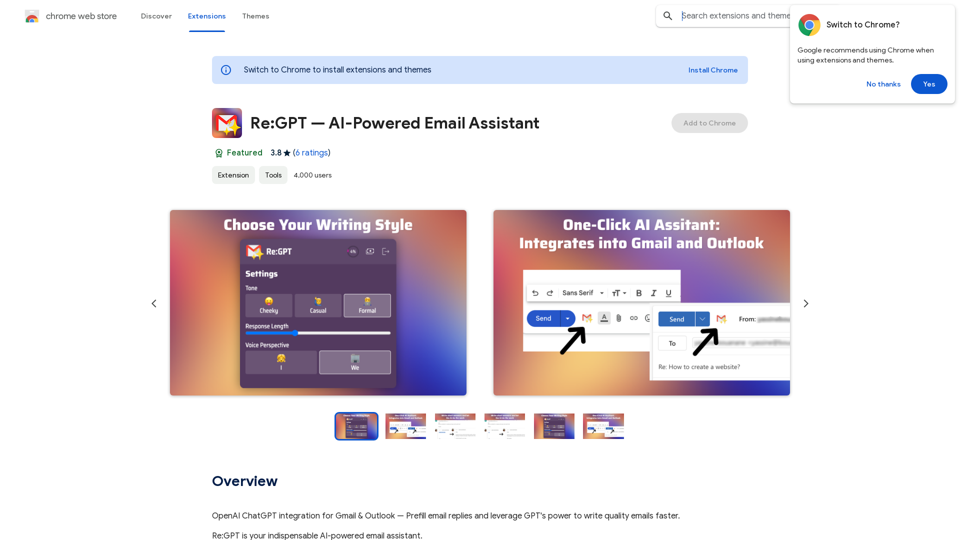
OpenAI ChatGPT integration for Gmail & Outlook — Automatically fill in email replies and harness the power of GPT to compose high-quality emails at a faster pace.
193.90 M
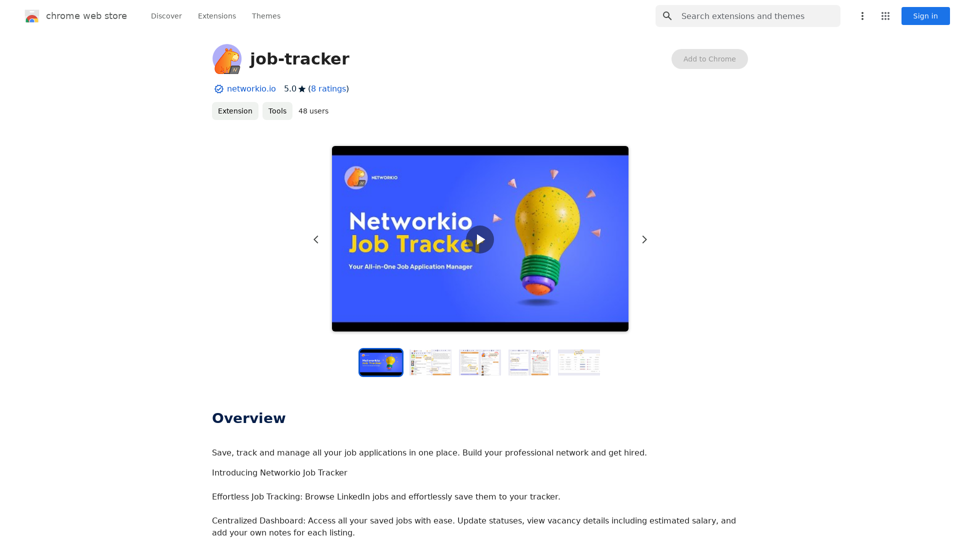
Save, track, and manage all your job applications in one place. Build your professional network and get hired.
193.90 M
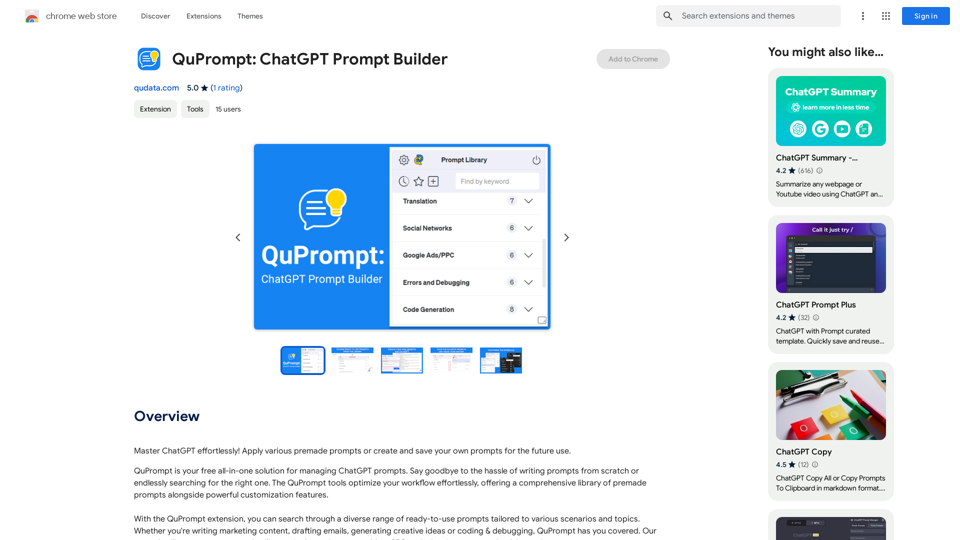
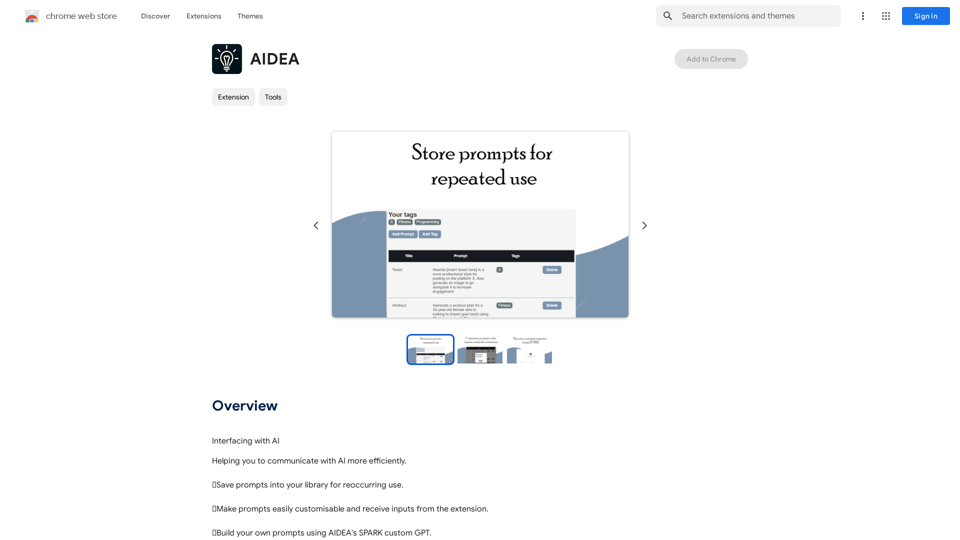
Interfacing with AI This document explores the various ways humans interact with artificial intelligence (AI). Types of Interfaces * Text-based Interfaces: These interfaces allow users to communicate with AI systems through written language. * Examples include chatbots, command-line interfaces, and search engines. * Voice-based Interfaces: Users interact with AI using spoken words. * Examples include virtual assistants like Siri, Alexa, and Google Assistant. * Graphical User Interfaces (GUIs): These interfaces use visual elements like icons, buttons, and menus to enable interaction with AI. * Examples include AI-powered image editing software and virtual reality experiences. * Gesture-based Interfaces: Users control AI systems through physical movements. * Examples include motion-controlled gaming and sign language recognition. Challenges of AI Interfacing * Natural Language Understanding (NLU): AI systems struggle to fully understand the nuances of human language. * Contextual Awareness: AI often lacks the ability to understand the broader context of a conversation or interaction. * Personalization: Creating AI interfaces that are tailored to individual user preferences and needs can be complex. * Ethical Considerations: * Bias in AI algorithms can lead to unfair or discriminatory outcomes. * Privacy concerns arise when AI systems collect and process personal data. Future of AI Interfacing * More Natural and Intuitive Interactions: Advancements in NLU and machine learning will lead to AI systems that can understand and respond to human input more naturally. * Multi-modal Interfaces: Future interfaces will likely combine multiple input methods (e.g., text, voice, gesture) for a richer and more immersive experience. * Personalized AI Assistants: AI assistants will become increasingly personalized, anticipating user needs and providing customized support. * Ethical AI Development: * Researchers and developers will continue to work on mitigating bias and ensuring responsible use of AI.
193.90 M
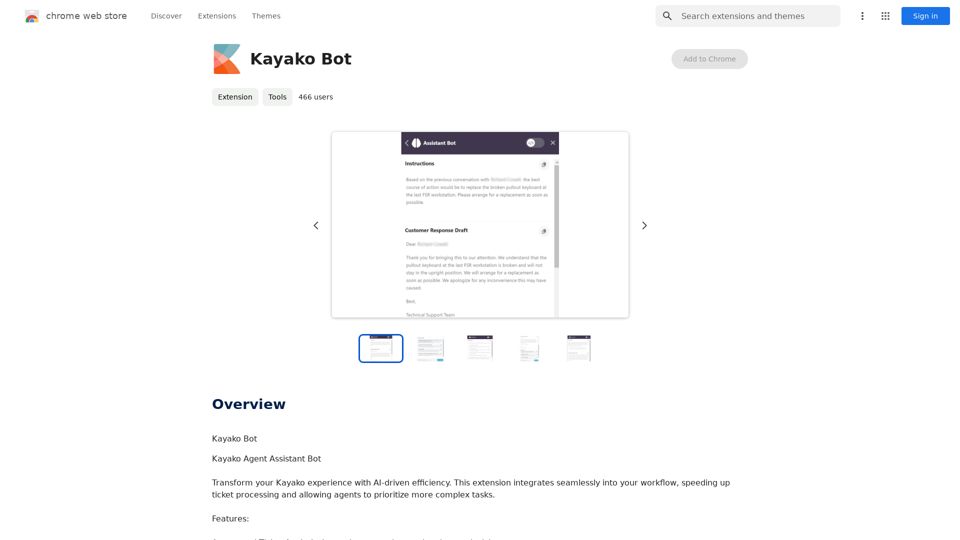
ChatGPT Context Menu * Copy: Copies the selected text. * Paste: Pastes the copied text. * Delete: Deletes the selected text. * Edit: Opens a text editor to modify the selected text. * Generate: Uses ChatGPT to generate new text based on the selected context. * Summarize: Creates a concise summary of the selected text. * Translate: Translates the selected text into another language. * Translate to English: Translates the selected text into English. * Code: Attempts to identify and format the selected text as code. * Help: Provides information about the context menu options.
ChatGPT Context Menu * Copy: Copies the selected text. * Paste: Pastes the copied text. * Delete: Deletes the selected text. * Edit: Opens a text editor to modify the selected text. * Generate: Uses ChatGPT to generate new text based on the selected context. * Summarize: Creates a concise summary of the selected text. * Translate: Translates the selected text into another language. * Translate to English: Translates the selected text into English. * Code: Attempts to identify and format the selected text as code. * Help: Provides information about the context menu options.Please provide the text you would like to send to ChatGPT.
193.90 M