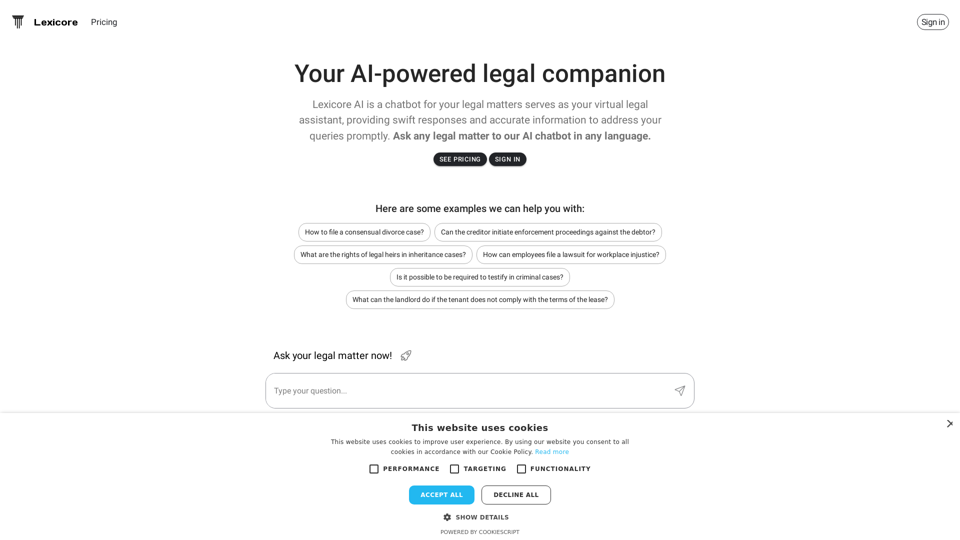
Lexicore is an AI-powered virtual legal assistant designed to provide quick and accurate responses to legal queries. It offers multilingual support, allowing users to ask questions in their preferred language and receive reliable answers promptly. Lexicore aims to make legal information more accessible and efficient for users dealing with various legal matters.
Lexicore - AI for Legal Practices
Lexicore is an AI-powered chatbot designed to be a virtual legal assistant. It can give you quick answers and accurate information to help you with your legal questions.
Introduction
Feature
Multilingual Support
Lexicore's AI chatbot supports multiple languages, enabling users to ask legal questions in their preferred language, making legal assistance more accessible to a diverse user base.
Accurate Information
The AI technology behind Lexicore provides reliable and precise information to address legal queries, ensuring users receive the best possible advice for their specific situations.
Swift Responses
Lexicore's AI chatbot is designed to respond quickly to legal questions, saving users valuable time and effort in their quest for legal information.
Wide Range of Legal Topics
Lexicore can assist with various legal matters, including:
- Consensual divorce cases
- Enforcement proceedings against debtors
- Inheritance and probate laws
- Workplace injustice lawsuits
- Criminal case testimonies
- Landlord-tenant disputes
User-Friendly Interface
Users can simply ask their legal questions to the AI chatbot and receive prompt, accurate responses, making the process of obtaining legal information straightforward and efficient.
Pricing Plans
Lexicore offers different pricing plans to cater to various user needs. Users can sign in to view the available plans and choose the one that best suits their requirements.
FAQ
How do I file a consensual divorce case?
Lexicore provides guidance on the process of filing a consensual divorce case, including necessary steps and legal requirements. Users can ask specific questions about their situation to receive tailored information.
Can creditors initiate enforcement proceedings against debtors?
Yes, Lexicore can provide information on creditors' rights and the process of initiating enforcement proceedings against debtors. The AI assistant can explain the legal procedures and requirements involved.
What are the rights of legal heirs in inheritance cases?
Lexicore offers information on the rights of legal heirs in inheritance cases, including details about probate processes and inheritance laws. Users can ask specific questions to understand their rights and obligations.
How can employees file a lawsuit for workplace injustice?
Lexicore provides guidance on the process of filing a lawsuit for workplace injustice, including the necessary steps and legal requirements. The AI assistant can offer information on employee rights and the legal procedures involved.
Is it possible to be required to testify in criminal cases?
Yes, Lexicore can explain the process of testifying in criminal cases, including the rights and responsibilities of witnesses. Users can ask about specific scenarios to better understand their obligations and protections.
What can landlords do if tenants don't comply with lease terms?
Lexicore offers information on landlord rights and the process of resolving disputes with tenants. The AI assistant can provide guidance on legal options available to landlords when tenants violate lease agreements.
Related Websites

VidAu AI video generator creates high-quality videos for you with features such as avatar spokesperson, face swap, multi-language translation, subtitles, and watermarks removal, as well as video mixing and editing capabilities—get started for free.
684
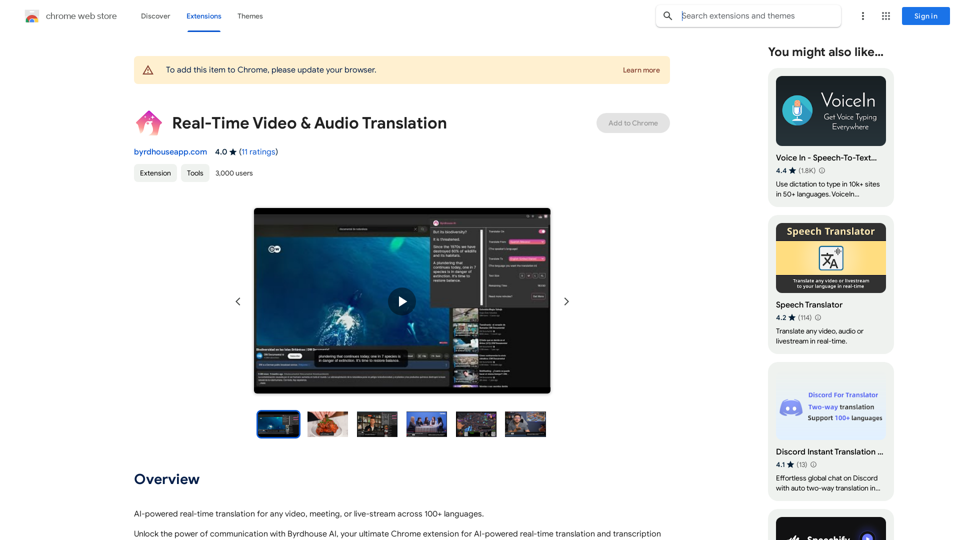
AI-powered real-time translation for any video, meeting, or live-stream across 100+ languages.
193.90 M
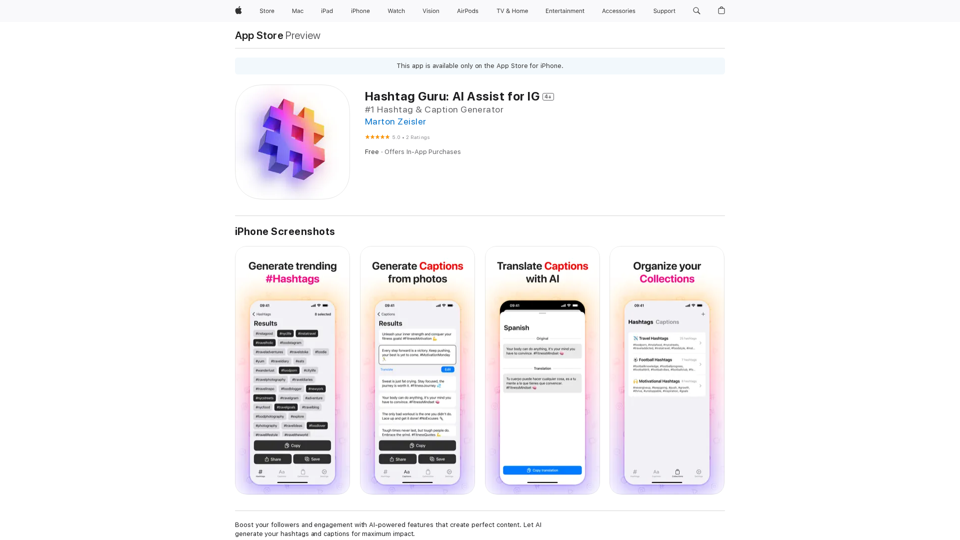
Hashtag Guru: AI Assistant for Instagram on the App Store
Hashtag Guru: AI Assistant for Instagram on the App StoreYour Ultimate AI-Powered Hashtag and Caption Generator! Unlock the secret to social media success with Hashtag Guru, the ultimate AI-driven hashtag generator and caption creator that helps you increase your online visibility, boost engagement, and grow your followers!
124.77 M

Pulse App AI Pulse App AI is an innovative artificial intelligence-powered healthcare platform that enables patients to take control of their health and wellness.
Pulse App AI Pulse App AI is an innovative artificial intelligence-powered healthcare platform that enables patients to take control of their health and wellness.The Power of Artificial Intelligence in Your Pocket
0
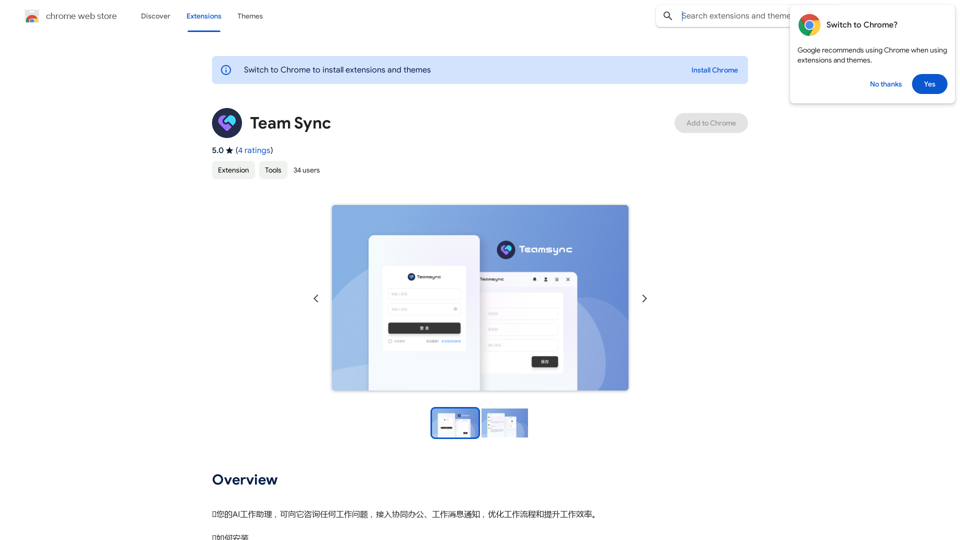
⭐ Your AI work assistant can answer any work questions you have. It integrates with collaborative work, work message notifications, to optimize your workflow and boost your productivity. ⭐ How to install Simply go to the Chrome Web Store, search for the extension, and click "Add to Chrome." Once installed, the extension will be available in your toolbar for easy access.
193.90 M
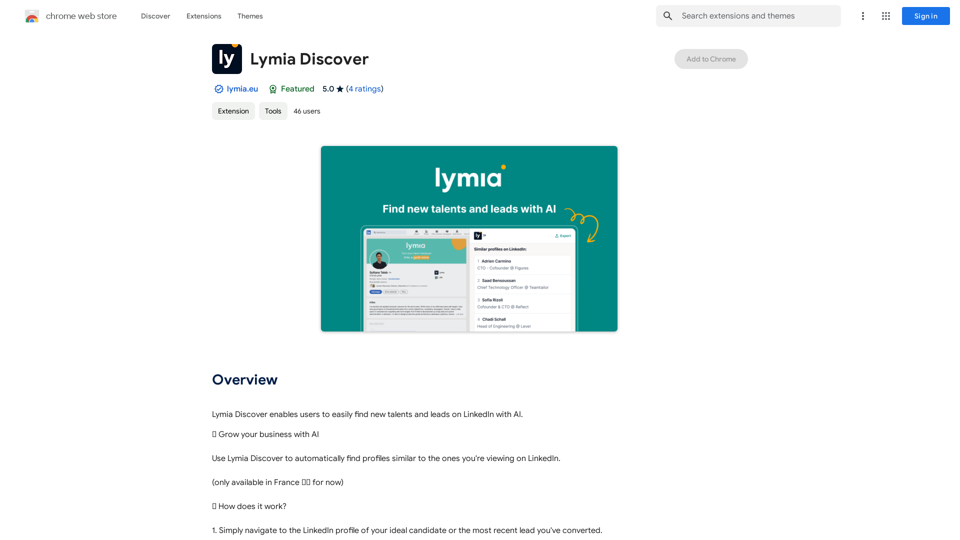
Lymia Discover helps users easily find new talents and leads on LinkedIn using artificial intelligence.
193.90 M
Hints Playbook AI This playbook provides guidance on how to effectively use hints to improve the performance of AI models. Understanding Hints Hints are additional pieces of information provided to an AI model to guide its output. They can take various forms, such as: * Textual prompts: Direct instructions or suggestions. * Examples: Demonstrating the desired output format or style. * Constraints: Specifying limitations or boundaries for the response. Types of Hints * Zero-shot: Hints are provided without any examples. * Few-shot: A small number of examples are given to illustrate the desired output. * Fine-tuning: Hints are incorporated into the training data to adjust the model's behavior. Best Practices for Using Hints * Be specific: Clearly articulate what you want the AI to do. * Provide context: Give the model enough background information to understand the task. * Use examples: Demonstrate the desired output format or style. * Iterate and refine: Experiment with different types and formats of hints to find what works best. * Evaluate results: Assess the quality of the AI's output and adjust hints accordingly.
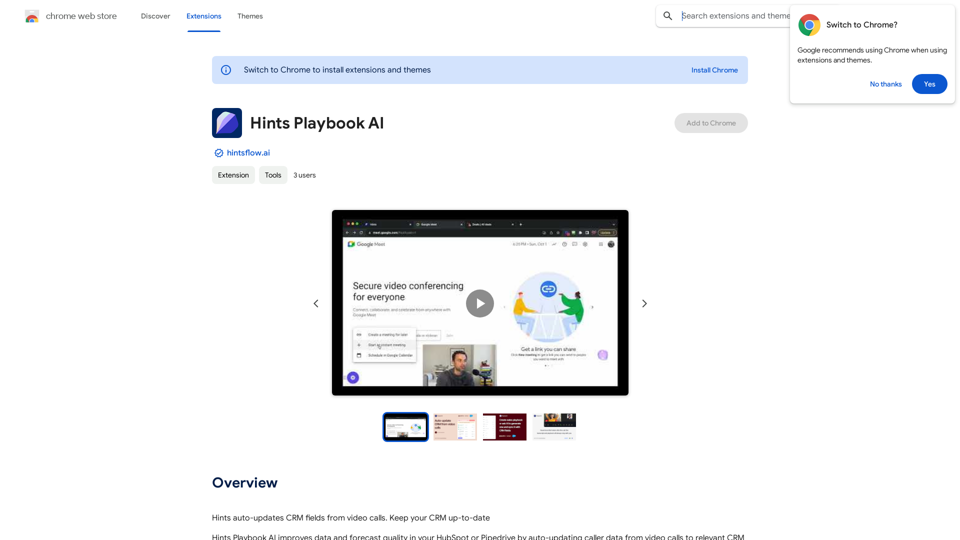
Hints Playbook AI This playbook provides guidance on how to effectively use hints to improve the performance of AI models. Understanding Hints Hints are additional pieces of information provided to an AI model to guide its output. They can take various forms, such as: * Textual prompts: Direct instructions or suggestions. * Examples: Demonstrating the desired output format or style. * Constraints: Specifying limitations or boundaries for the response. Types of Hints * Zero-shot: Hints are provided without any examples. * Few-shot: A small number of examples are given to illustrate the desired output. * Fine-tuning: Hints are incorporated into the training data to adjust the model's behavior. Best Practices for Using Hints * Be specific: Clearly articulate what you want the AI to do. * Provide context: Give the model enough background information to understand the task. * Use examples: Demonstrate the desired output format or style. * Iterate and refine: Experiment with different types and formats of hints to find what works best. * Evaluate results: Assess the quality of the AI's output and adjust hints accordingly.Hints automatically updates CRM fields from video calls. Keep your CRM up-to-date.
193.90 M
WhatToTextAi =============== WhatToTextAi is an AI-powered texting assistant that helps you come up with the perfect response to any situation.
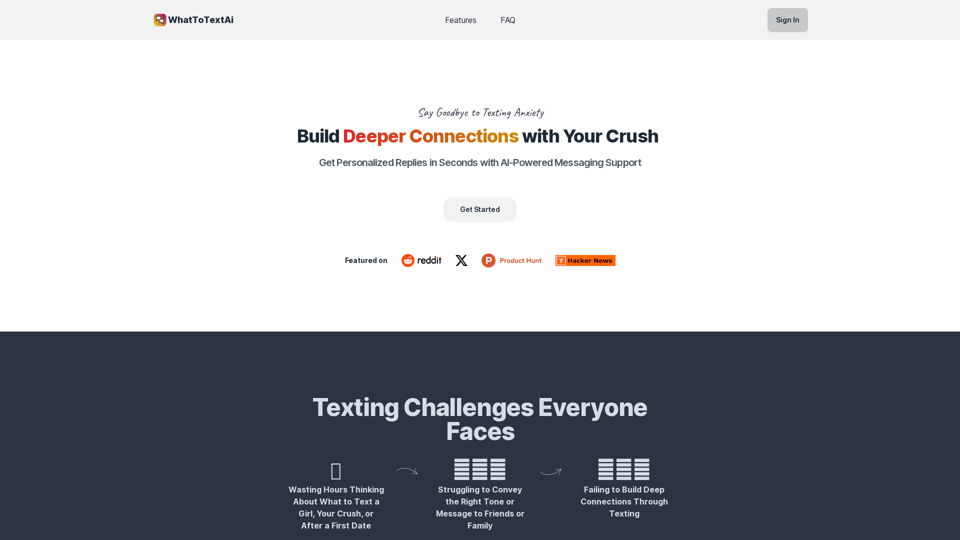
WhatToTextAi =============== WhatToTextAi is an AI-powered texting assistant that helps you come up with the perfect response to any situation.Overcome texting anxiety with WhatToText AI. Get personalized, human-like replies for any situation in seconds. Improve your English texting skills and build deeper connections. Perfect for non-native speakers and anyone looking to enhance their messaging game.
0