Open-source RightAI Tools Directory
  • Discover AI
  • Submit
  • Startup
  • Blog
Open-source RightAI Tools Directory
Discover the best AI tools of 2025 with the RightAI Tools Directory!

Friend Links

AI Anime GeneratorToolsApp AI

Support

Tap4
Privacy policyTerms & ConditionsContact Us
Loading...
loading...

Automatic Technical Documentation Updates with AI

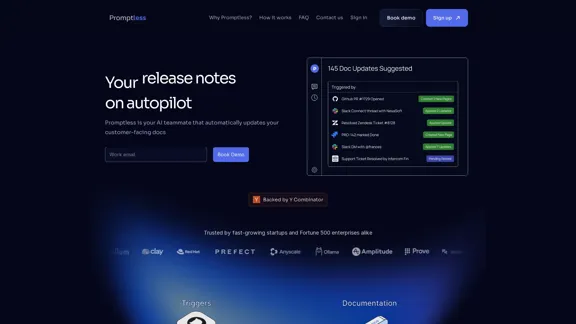
Promptless keeps your technical documents up to date by automatically drafting document updates from GitHub pull requests, enhancing customer satisfaction and increasing free user conversions while reducing implementation time and support requests.
Visit Website
Automatic Technical Documentation Updates with AI
Visit Website

Introduction

Promptless is an AI-powered tool designed to automatically update technical documentation as products evolve. It integrates seamlessly with various tools to ensure that customer-facing documents, such as API references and knowledge bases, remain current. This service is particularly beneficial for startups and large enterprises, helping to reduce support volume and implementation times.

Feature

  1. Automatic Updates

    Promptless automatically publishes new and updated API references, use-case guides, and changelog updates, ensuring that documentation is always up-to-date.

  2. Integration with Development Tools

    The tool integrates with platforms like Jira, Confluence, and Slack, allowing it to gather relevant context from various sources to facilitate documentation updates.

  3. Trigger Mechanisms

    Promptless can be triggered automatically by Pull Requests, support tickets, or tagged threads, streamlining the documentation process.

  4. Notification System

    Users receive notifications when documentation changes are drafted, allowing for quick reviews and updates in the existing CMS or documentation hosting platform.

  5. Support for SaaS Products

    It helps keep customer-facing knowledge bases updated, which can significantly reduce the volume of support inquiries.

  6. User-Friendly Interface

    Designed to save time, Promptless works in the background, allowing users to focus on more critical tasks while it manages documentation updates.

How to Use?

  1. Sign up for a Promptless account to get started.
  2. Integrate Promptless with your existing tools like Jira and Slack for seamless operation.
  3. Set up triggers for Pull Requests and support tickets to automate documentation updates.
  4. Regularly check notifications for drafted changes to ensure timely reviews.
  5. Utilize the API documentation features to keep technical guides current.

FAQ

What is Promptless?

Promptless is an AI tool that automates the updating of technical documentation, ensuring that it remains accurate and relevant as products evolve.

How does Promptless work?

Promptless integrates with various tools to gather context about changes in your product and automatically drafts updates for technical documentation.

Does Promptless integrate with my tools?

Yes, Promptless integrates with common tools where your source code and technical documentation reside, with new integrations being added regularly.

How does Promptless use my data?

Promptless uses your data to identify relevant changes and draft updates for your documentation, ensuring privacy and security throughout the process.

Do I need to replace my docs hosting provider to use Promptless?

No, Promptless can work with your existing documentation hosting provider without requiring a switch.

Price

  • Free Trial: Available
  • Pricing details are not explicitly stated; contact Promptless for specific plans.
The price is for reference only, please refer to the latest official data for actual information.

Evaluation

  1. Strengths: Promptless effectively automates the documentation process, significantly reducing the time and effort required to keep technical documents updated. Its integration with popular tools enhances its usability and efficiency.

  2. Areas for Improvement: While the automation features are robust, users may encounter challenges with the accuracy of context gathering, especially in complex projects. Continuous improvement in AI algorithms and more customizable integration options could enhance user experience.

  3. User Experience: The interface is user-friendly, but additional training resources could help users maximize the tool's potential.

  4. Overall Impression: Promptless is a valuable tool for teams looking to streamline their documentation processes, but users should remain vigilant about reviewing AI-generated updates to ensure accuracy.

Related Websites

SharpAPI - Automate with AI-powered API, AI automation for: E-Commerce, Marketing, Content Management, HR Tech, Travel -
View Detail

SharpAPI - Automate with AI-powered API, AI automation for: E-Commerce, Marketing, Content Management, HR Tech, Travel -

SharpAPI - Automate with AI-powered API, AI automation for: E-Commerce, Marketing, Content Management, HR Tech, Travel -

Leverage AI API to streamline workflow in E-Commerce, Marketing, Content Management, HR Tech, Travel, and more.

2.92 K
AskYourPDF: The Best PDF AI Chat App
View Detail

AskYourPDF: The Best PDF AI Chat App

AskYourPDF: The Best PDF AI Chat App

We created AskYourPDF as the ultimate ChatPDF AI App for all your needs. Simply upload your PDF files and interact with our smart chat AI to extract valuable information from your documents.

355.38 K
Hostinger - Bring Your Idea to Life Online With a Website
View Detail

Hostinger - Bring Your Idea to Life Online With a Website

Hostinger - Bring Your Idea to Life Online With a Website

Choose Hostinger and create the ideal website. From Shared Hosting and Domains to VPS and Cloud plans. We offer everything you need for online success.

37.72 M
Drive Business Performance With Planning Software | Anaplan
View Detail

Drive Business Performance With Planning Software | Anaplan

Drive Business Performance With Planning Software | Anaplan

See, plan, and lead financial, supply chain, and sales strategies that drive business performance using the Anaplan connected planning platform.

1.03 M
One-Click SEO Links - Chrome Web Store
View Detail

One-Click SEO Links - Chrome Web Store

One-Click SEO Links - Chrome Web Store

# User Guide for One-Click SEO Links Chrome Extension ## Overview One-Click SEO Links is a Chrome extension designed for web developers and SEO professionals. It allows users to quickly generate and copy various SEO-related links for the current webpage with just one click. ## Features - Generate and copy Google Cache link - Generate and copy Google Index link - Generate and copy Wayback Machine link - Generate and copy PageSpeed Insights link - Generate and copy Mobile-Friendly Test link - Generate and copy Rich Results Test link ## Installation 1. Open the Chrome Web Store 2. Search for "One-Click SEO Links" 3. Click "Add to Chrome" 4. Confirm the installation when prompted ## How to Use 1. Navigate to the webpage you want to analyze 2. Click on the One-Click SEO Links extension icon in your Chrome toolbar 3. Select the desired link type from the dropdown menu 4. The link will be automatically copied to your clipboard 5. Paste the link into your desired location (e.g., browser address bar, document, etc.) ## Troubleshooting If you encounter any issues: - Ensure you have the latest version of the extension installed - Try refreshing the webpage - Restart your Chrome browser - If problems persist, please contact our support team ## Privacy Policy We do not collect or store any personal data. The extension only accesses the current tab's URL to generate the SEO links. ## Feedback and Support For feedback, suggestions, or support, please email us at [email protected] or visit our website www.oneclickseolinks.com. Thank you for using One-Click SEO Links!

193.90 M
Crossword Solver AI - Get Instant Help for Any Puzzle
View Detail

Crossword Solver AI - Get Instant Help for Any Puzzle

Crossword Solver AI - Get Instant Help for Any Puzzle

Get instant crossword help with our AI-powered solver. Enter your clue and letter count to find accurate answers quickly for any puzzle, cryptic or standard.

7.02 K
OneTask | AI to-do app designed for ADHD
View Detail

OneTask | AI to-do app designed for ADHD

OneTask | AI to-do app designed for ADHD

OneTask is an AI to-do app that assists you in organizing and prioritizing your tasks, allowing you to concentrate on what really matters.

13.99 K
Copilot for Microsoft 365 – Microsoft Adoption

Copilot for Microsoft 365 is a powerful AI assistant that helps you work smarter and faster across Microsoft 365 apps and services. It combines the power of large language models (LLMs) with your organization's data in the Microsoft Graph and Microsoft 365 apps to turn your words into the most powerful productivity tool on the planet.

Copilot is designed to help you:

• Unleash creativity
• Unlock productivity
• Uplevel skills

Copilot is built on Microsoft's comprehensive approach to security, compliance, and privacy. Copilot in Microsoft 365 apps and services:

• Does not use your data to train the underlying LLM
• Does not replace human ingenuity and judgment
• Is designed to keep humans in the loop

Copilot is currently available in Word, Excel, PowerPoint, Outlook, Teams, and more.

Getting Started with Copilot

To get started with Copilot, follow these steps:

1. Check availability: Ensure your organization has access to Copilot.
2. Learn the basics: Familiarize yourself with Copilot's capabilities and how to use it effectively.
3. Explore use cases: Discover how Copilot can help you in your specific role and tasks.
4. Practice and refine: Use Copilot regularly and refine your prompts for better results.
5. Share and collaborate: Collaborate with colleagues using Copilot and share best practices.

Best Practices for Using Copilot

1. Be specific in your prompts
2. Provide context for better results
3. Review and edit Copilot's output
4. Use Copilot as a starting point, not a final product
5. Experiment with different approaches
6. Stay informed about new features and updates

Copilot in Different Microsoft 365 Apps

• Word: Draft, edit, summarize, and rewrite content
• Excel: Analyze data, create formulas, and generate insights
• PowerPoint: Create presentations, design slides, and generate content
• Outlook: Compose emails, summarize threads, and manage your inbox
• Teams: Summarize meetings, generate action items, and create meeting notes

Responsible AI and Copilot

Microsoft is committed to developing AI systems responsibly. When using Copilot, keep in mind:

• AI-generated content may contain biases or inaccuracies
• Always review and verify Copilot's output
• Use your judgment and expertise alongside Copilot's suggestions
• Be aware of your organization's policies regarding AI use

Conclusion

Copilot for Microsoft 365 is a powerful tool that can significantly enhance your productivity and creativity. By understanding its capabilities, following best practices, and using it responsibly, you can make the most of this AI assistant in your daily work.
View Detail

Copilot for Microsoft 365 – Microsoft Adoption Copilot for Microsoft 365 is a powerful AI assistant that helps you work smarter and faster across Microsoft 365 apps and services. It combines the power of large language models (LLMs) with your organization's data in the Microsoft Graph and Microsoft 365 apps to turn your words into the most powerful productivity tool on the planet. Copilot is designed to help you: • Unleash creativity • Unlock productivity • Uplevel skills Copilot is built on Microsoft's comprehensive approach to security, compliance, and privacy. Copilot in Microsoft 365 apps and services: • Does not use your data to train the underlying LLM • Does not replace human ingenuity and judgment • Is designed to keep humans in the loop Copilot is currently available in Word, Excel, PowerPoint, Outlook, Teams, and more. Getting Started with Copilot To get started with Copilot, follow these steps: 1. Check availability: Ensure your organization has access to Copilot. 2. Learn the basics: Familiarize yourself with Copilot's capabilities and how to use it effectively. 3. Explore use cases: Discover how Copilot can help you in your specific role and tasks. 4. Practice and refine: Use Copilot regularly and refine your prompts for better results. 5. Share and collaborate: Collaborate with colleagues using Copilot and share best practices. Best Practices for Using Copilot 1. Be specific in your prompts 2. Provide context for better results 3. Review and edit Copilot's output 4. Use Copilot as a starting point, not a final product 5. Experiment with different approaches 6. Stay informed about new features and updates Copilot in Different Microsoft 365 Apps • Word: Draft, edit, summarize, and rewrite content • Excel: Analyze data, create formulas, and generate insights • PowerPoint: Create presentations, design slides, and generate content • Outlook: Compose emails, summarize threads, and manage your inbox • Teams: Summarize meetings, generate action items, and create meeting notes Responsible AI and Copilot Microsoft is committed to developing AI systems responsibly. When using Copilot, keep in mind: • AI-generated content may contain biases or inaccuracies • Always review and verify Copilot's output • Use your judgment and expertise alongside Copilot's suggestions • Be aware of your organization's policies regarding AI use Conclusion Copilot for Microsoft 365 is a powerful tool that can significantly enhance your productivity and creativity. By understanding its capabilities, following best practices, and using it responsibly, you can make the most of this AI assistant in your daily work.

Copilot for Microsoft 365 – Microsoft Adoption Copilot for Microsoft 365 is a powerful AI assistant that helps you work smarter and faster across Microsoft 365 apps and services. It combines the power of large language models (LLMs) with your organization's data in the Microsoft Graph and Microsoft 365 apps to turn your words into the most powerful productivity tool on the planet. Copilot is designed to help you: • Unleash creativity • Unlock productivity • Uplevel skills Copilot is built on Microsoft's comprehensive approach to security, compliance, and privacy. Copilot in Microsoft 365 apps and services: • Does not use your data to train the underlying LLM • Does not replace human ingenuity and judgment • Is designed to keep humans in the loop Copilot is currently available in Word, Excel, PowerPoint, Outlook, Teams, and more. Getting Started with Copilot To get started with Copilot, follow these steps: 1. Check availability: Ensure your organization has access to Copilot. 2. Learn the basics: Familiarize yourself with Copilot's capabilities and how to use it effectively. 3. Explore use cases: Discover how Copilot can help you in your specific role and tasks. 4. Practice and refine: Use Copilot regularly and refine your prompts for better results. 5. Share and collaborate: Collaborate with colleagues using Copilot and share best practices. Best Practices for Using Copilot 1. Be specific in your prompts 2. Provide context for better results 3. Review and edit Copilot's output 4. Use Copilot as a starting point, not a final product 5. Experiment with different approaches 6. Stay informed about new features and updates Copilot in Different Microsoft 365 Apps • Word: Draft, edit, summarize, and rewrite content • Excel: Analyze data, create formulas, and generate insights • PowerPoint: Create presentations, design slides, and generate content • Outlook: Compose emails, summarize threads, and manage your inbox • Teams: Summarize meetings, generate action items, and create meeting notes Responsible AI and Copilot Microsoft is committed to developing AI systems responsibly. When using Copilot, keep in mind: • AI-generated content may contain biases or inaccuracies • Always review and verify Copilot's output • Use your judgment and expertise alongside Copilot's suggestions • Be aware of your organization's policies regarding AI use Conclusion Copilot for Microsoft 365 is a powerful tool that can significantly enhance your productivity and creativity. By understanding its capabilities, following best practices, and using it responsibly, you can make the most of this AI assistant in your daily work.

Microsoft Copilot combines the power of large language models (LLMs) with your organization's data to turn your words into one of the most powerful productivity tools on the planet.

608.60 K