Open-source RightAI Tools Directory
  • Discover AI
  • Submit
  • Startup
  • Blog
Open-source RightAI Tools Directory
Discover the best AI tools of 2025 with the RightAI Tools Directory!

Friend Links

AI Anime GeneratorToolsApp AI

Support

Tap4
Privacy policyTerms & ConditionsContact Us
Loading...
loading...

Farspeak - Generative AI for App Development

Farspeak is a Gen AI platform made for building apps. It makes it easy to create AI-powered knowledge bases and connect them to your MongoDB Atlas database.
Visit Website
Farspeak - Generative AI for App Development
Visit Website

Introduction

Farspeak is a Gen AI platform tailored for app development, offering a streamlined approach to creating AI-ready knowledge bases and integrating them with MongoDB Atlas databases. It simplifies the process of building AI-powered applications by allowing developers to define their requirements using natural language and YAML.

Feature

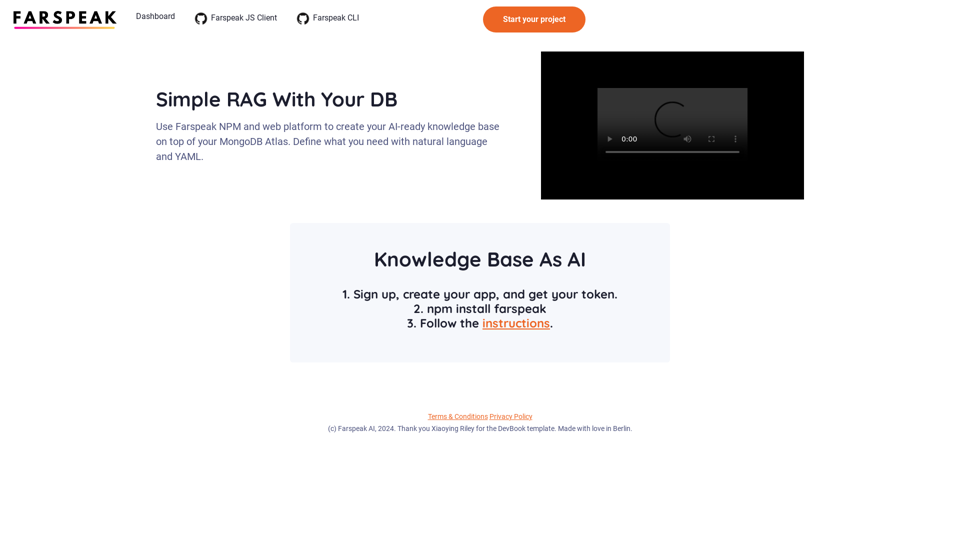
Simple RAG With Your DB

Farspeak provides an NPM package and web platform to create AI-ready knowledge bases on top of MongoDB Atlas. Users can define their needs using natural language and YAML, making the process intuitive and accessible.

Knowledge Base As AI

The platform enables users to quickly set up their AI-powered applications. After signing up and creating an app, users receive a token. They can then install Farspeak via npm and follow the provided instructions to get started.

Easy Setup Process

Farspeak offers a straightforward setup process:

  1. Sign up, create your app, and obtain your token
  2. Install Farspeak using npm: npm install farspeak
  3. Follow the provided instructions to complete the setup

MongoDB Atlas Integration

Farspeak seamlessly integrates with MongoDB Atlas, allowing developers to create and manage their AI-ready knowledge bases directly on top of their existing database infrastructure.

Natural Language and YAML Definition

Users can define their knowledge base requirements using a combination of natural language and YAML, making it easier to specify complex structures and relationships.

FAQ

What is Farspeak?

Farspeak is a Gen AI platform designed for app development, providing a way to create AI-ready knowledge bases and integrate them with MongoDB Atlas databases.

How do I get started with Farspeak?

To get started with Farspeak:

  1. Sign up on the platform
  2. Create your app and obtain your token
  3. Install Farspeak using npm: npm install farspeak
  4. Follow the provided instructions to set up your project

What are the main features of Farspeak?

The main features of Farspeak include:

  • Simple RAG (Retrieval-Augmented Generation) with your database
  • Creation of AI-ready knowledge bases
  • Seamless integration with MongoDB Atlas
  • Use of natural language and YAML for defining requirements

How does Farspeak benefit app developers?

Farspeak streamlines the app development process by enabling developers to create AI-ready knowledge bases and integrate them with MongoDB Atlas databases. This simplifies the implementation of AI capabilities in applications.

Related Websites
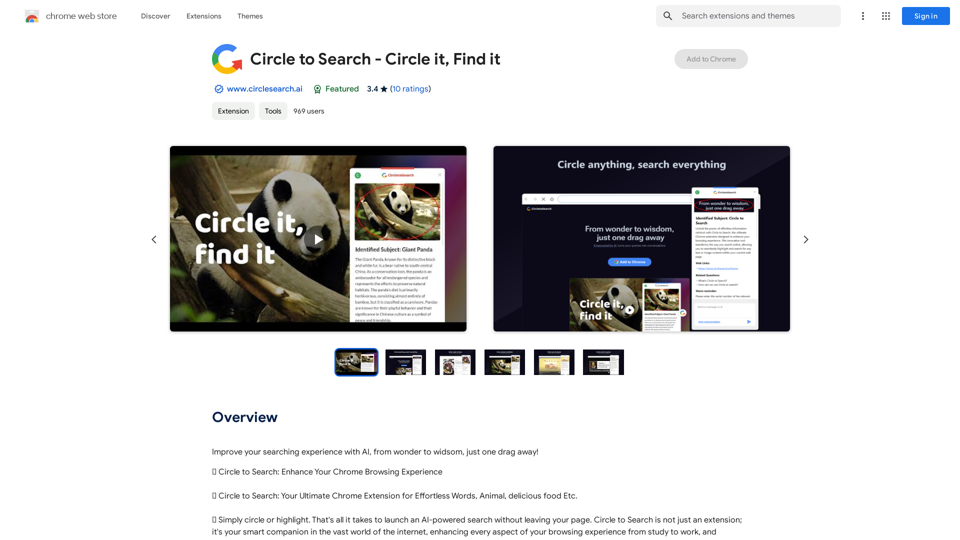
Free ChatGPT for Search Engine
View Detail

Free ChatGPT for Search Engine

Free ChatGPT for Search Engine

This is a free ChatGPT extension that helps you get better quality search engine results, making you 500% more efficient!

193.90 M
The Free Alternative to ChatGPT Powered by 4o | AIChatOnline.org
View Detail

The Free Alternative to ChatGPT Powered by 4o | AIChatOnline.org

The Free Alternative to ChatGPT Powered by 4o | AIChatOnline.org

Discover AIChatOnline.org, your ultimate platform for free online access to ChatGPT. Enjoy ChatGPT 3.5 online for free and ChatGPT 4 online for free, with no registration required. Take advantage of OpenAI's free online ChatGPT for advanced AI capabilities, including ChatGPT memory and ChatGPT API integration.

70.11 K
Join Indie
View Detail

Join Indie

Join Indie

Social Media Management on Autopilot

0
Quest
View Detail

Quest

Quest

Find information fast.

193.90 M
Free Transcription Tool | Deepgram
View Detail

Free Transcription Tool | Deepgram

Free Transcription Tool | Deepgram

Easily convert your conversations, audio files, or YouTube videos into text for free with our advanced transcription tool.

835.16 K
Claude to Notion

This is a guide on how to connect Claude, an AI assistant, with Notion, a note-taking and workspace app. 

Why connect Claude and Notion?

* Boost your productivity: Use Claude to generate content, summarize information, and automate tasks directly within Notion.
* Enhance your research: Ask Claude questions about your Notion notes and get insightful answers.
* Unlock new creative possibilities: Leverage Claude's generative capabilities to brainstorm ideas, write stories, or compose emails within your Notion workspace.

How to connect Claude and Notion:

1. API Keys: Obtain an API key for both Claude and Notion. 
2. Integration Tool: Explore integration tools like Zapier or Integromat to connect Claude and Notion. These platforms allow you to create workflows that trigger actions in one app based on events in the other.
3. Custom Development: For advanced users, you can develop your own custom integration using the Claude and Notion APIs. This gives you the most flexibility but requires coding knowledge.

Example Use Cases:

* Meeting Summarization: After a meeting, paste the transcript into Notion and use Claude to generate a concise summary.
* Content Creation:  Use Claude to write blog posts, articles, or social media captions directly within your Notion pages.
* Idea Generation: Brainstorm new ideas for projects or tasks by prompting Claude with specific questions within your Notion workspace.


Remember to review the documentation and terms of service for both Claude and Notion to ensure proper usage and security.
View Detail

Claude to Notion This is a guide on how to connect Claude, an AI assistant, with Notion, a note-taking and workspace app. Why connect Claude and Notion? * Boost your productivity: Use Claude to generate content, summarize information, and automate tasks directly within Notion. * Enhance your research: Ask Claude questions about your Notion notes and get insightful answers. * Unlock new creative possibilities: Leverage Claude's generative capabilities to brainstorm ideas, write stories, or compose emails within your Notion workspace. How to connect Claude and Notion: 1. API Keys: Obtain an API key for both Claude and Notion. 2. Integration Tool: Explore integration tools like Zapier or Integromat to connect Claude and Notion. These platforms allow you to create workflows that trigger actions in one app based on events in the other. 3. Custom Development: For advanced users, you can develop your own custom integration using the Claude and Notion APIs. This gives you the most flexibility but requires coding knowledge. Example Use Cases: * Meeting Summarization: After a meeting, paste the transcript into Notion and use Claude to generate a concise summary. * Content Creation: Use Claude to write blog posts, articles, or social media captions directly within your Notion pages. * Idea Generation: Brainstorm new ideas for projects or tasks by prompting Claude with specific questions within your Notion workspace. Remember to review the documentation and terms of service for both Claude and Notion to ensure proper usage and security.

Claude to Notion This is a guide on how to connect Claude, an AI assistant, with Notion, a note-taking and workspace app. Why connect Claude and Notion? * Boost your productivity: Use Claude to generate content, summarize information, and automate tasks directly within Notion. * Enhance your research: Ask Claude questions about your Notion notes and get insightful answers. * Unlock new creative possibilities: Leverage Claude's generative capabilities to brainstorm ideas, write stories, or compose emails within your Notion workspace. How to connect Claude and Notion: 1. API Keys: Obtain an API key for both Claude and Notion. 2. Integration Tool: Explore integration tools like Zapier or Integromat to connect Claude and Notion. These platforms allow you to create workflows that trigger actions in one app based on events in the other. 3. Custom Development: For advanced users, you can develop your own custom integration using the Claude and Notion APIs. This gives you the most flexibility but requires coding knowledge. Example Use Cases: * Meeting Summarization: After a meeting, paste the transcript into Notion and use Claude to generate a concise summary. * Content Creation: Use Claude to write blog posts, articles, or social media captions directly within your Notion pages. * Idea Generation: Brainstorm new ideas for projects or tasks by prompting Claude with specific questions within your Notion workspace. Remember to review the documentation and terms of service for both Claude and Notion to ensure proper usage and security.

Save Claude conversations to Notion with one click. Export Claude conversations.

193.90 M
Article Summary with ChatGPT and Take Notes

This is a guide on how to use ChatGPT to summarize articles and take notes effectively. 

Step 1:  Provide ChatGPT with the Article

Copy and paste the full text of the article into the ChatGPT interface. 

Step 2:  Craft Your Prompt

Tell ChatGPT what you want it to do. Here are some examples:

* Summarize: "Please summarize this article in 200 words."
* Key Points: "What are the main points of this article?"
* Bullet Points: "Summarize the key findings of this article in bullet points."
* Notes: "Take notes on this article, focusing on the author's arguments and supporting evidence."

Step 3:  Review and Refine

ChatGPT will generate a summary, key points, bullet points, or notes based on your prompt. 

* Read carefully: Make sure the output accurately reflects the article's content.
* Edit as needed:  You can ask ChatGPT to rephrase sections or provide more detail.
* Add your own insights:  Don't just copy ChatGPT's output. Use it as a starting point and add your own thoughts, questions, and connections.

Tips for Effective Use:

* Be specific: The more specific your prompt, the better the output will be.
* Experiment with different prompts: Try various phrasing to see what works best.
* Use ChatGPT as a tool:  It's a powerful aid, but it's not a replacement for critical reading and thinking.
View Detail

Article Summary with ChatGPT and Take Notes This is a guide on how to use ChatGPT to summarize articles and take notes effectively. Step 1: Provide ChatGPT with the Article Copy and paste the full text of the article into the ChatGPT interface. Step 2: Craft Your Prompt Tell ChatGPT what you want it to do. Here are some examples: * Summarize: "Please summarize this article in 200 words." * Key Points: "What are the main points of this article?" * Bullet Points: "Summarize the key findings of this article in bullet points." * Notes: "Take notes on this article, focusing on the author's arguments and supporting evidence." Step 3: Review and Refine ChatGPT will generate a summary, key points, bullet points, or notes based on your prompt. * Read carefully: Make sure the output accurately reflects the article's content. * Edit as needed: You can ask ChatGPT to rephrase sections or provide more detail. * Add your own insights: Don't just copy ChatGPT's output. Use it as a starting point and add your own thoughts, questions, and connections. Tips for Effective Use: * Be specific: The more specific your prompt, the better the output will be. * Experiment with different prompts: Try various phrasing to see what works best. * Use ChatGPT as a tool: It's a powerful aid, but it's not a replacement for critical reading and thinking.

Article Summary with ChatGPT and Take Notes This is a guide on how to use ChatGPT to summarize articles and take notes effectively. Step 1: Provide ChatGPT with the Article Copy and paste the full text of the article into the ChatGPT interface. Step 2: Craft Your Prompt Tell ChatGPT what you want it to do. Here are some examples: * Summarize: "Please summarize this article in 200 words." * Key Points: "What are the main points of this article?" * Bullet Points: "Summarize the key findings of this article in bullet points." * Notes: "Take notes on this article, focusing on the author's arguments and supporting evidence." Step 3: Review and Refine ChatGPT will generate a summary, key points, bullet points, or notes based on your prompt. * Read carefully: Make sure the output accurately reflects the article's content. * Edit as needed: You can ask ChatGPT to rephrase sections or provide more detail. * Add your own insights: Don't just copy ChatGPT's output. Use it as a starting point and add your own thoughts, questions, and connections. Tips for Effective Use: * Be specific: The more specific your prompt, the better the output will be. * Experiment with different prompts: Try various phrasing to see what works best. * Use ChatGPT as a tool: It's a powerful aid, but it's not a replacement for critical reading and thinking.

I can do that! Please provide me with the URL of the webpage or article you'd like me to summarize. I'll do my best to create a concise and easy-to-understand summary for you.

193.90 M
Omost | Try Omost for Free Online - AI-Powered Image Generation from Code
View Detail

Omost | Try Omost for Free Online - AI-Powered Image Generation from Code

Omost | Try Omost for Free Online - AI-Powered Image Generation from Code

Omost offers large language model (LLM) models that can generate code to create visual images using Omost's virtual Canvas agent.

0