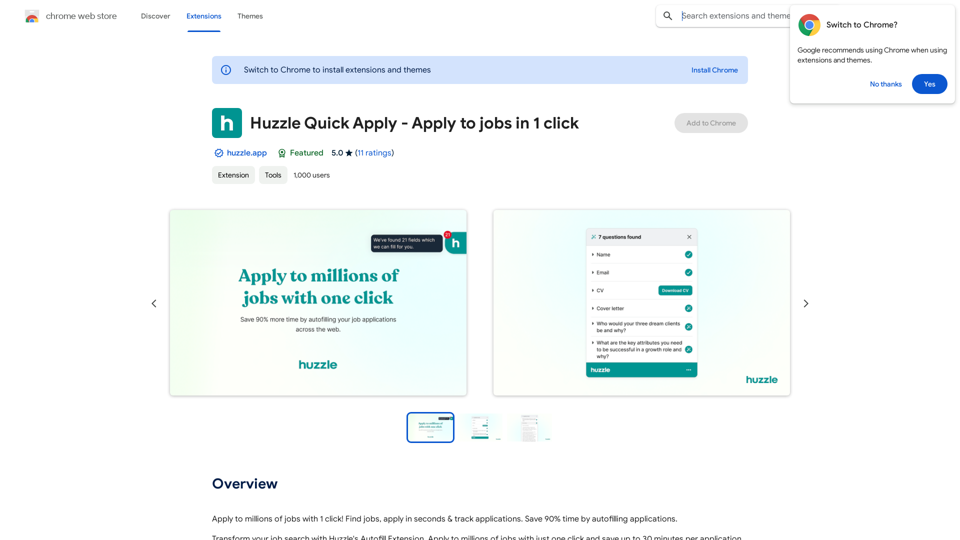
Eskritor AI Writer is an advanced AI content generator designed to assist users in creating high-quality written content across various formats. It offers features that cater to diverse writing needs, including blog posts, business proposals, and academic articles. With support for over 40 languages, Eskritor aims to enhance productivity and streamline the writing process for individuals and businesses alike.
Eskritor AI Writer: Intelligent AI Content Creator
Write 5x faster with Eskritor AI Writer's 20+ content tools. Start creating perfectly tailored content today - from articles to social posts. Try it free!
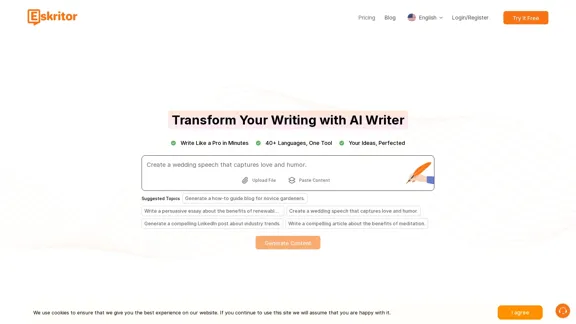
Introduction
Feature
-
Multi-language Support
Eskritor allows users to create, edit, and translate content in over 60 languages, making it accessible for a global audience.
-
AI Content Generation
Users can generate various types of content, including essays, articles, social media posts, and more, using advanced AI algorithms that ensure coherence and relevance.
-
Interactive Follow-Up Questions
The platform engages users with targeted follow-up questions to refine and optimize their content, ensuring tailored results.
-
Selective AI Editing
Eskritor provides tools for targeted enhancements, allowing users to adjust text length, rephrase content, and improve readability while maintaining their unique writing style.
-
Enterprise-Grade Security
The platform prioritizes user privacy and complies with SOC 2 and GDPR standards, ensuring that all information is protected.
-
User-Friendly Interface
Eskritor features an intuitive interface that simplifies the writing process, making it easy for users to navigate and utilize its tools effectively.
How to Use?
- Create an account on the Eskritor website to access its features.
- Upload existing content or start from scratch using the AI writing assistant.
- Utilize the editing tools to refine the generated content according to your needs.
- Save, download, or share your finalized content easily with a single click.
FAQ
What is Eskritor?
Eskritor is an AI-powered text generator designed to assist with various writing tasks, including creative writing, academic writing, and business communications.
Is Eskritor free to use?
Eskritor offers a free trial for users to explore its features, but a subscription is required for full access.
How does Eskritor work?
Eskritor uses advanced AI algorithms to generate, rewrite, and enhance text based on user input, producing high-quality content efficiently.
Can Eskritor create texts in multiple languages?
Yes, Eskritor supports content creation in over 60 languages, facilitating communication across different linguistic backgrounds.
What makes Eskritor different from other AI writing tools?
Eskritor features specialized AI writers for various industries and offers personalized content refinement through interactive follow-up questions.
Price
| Plan | Price |
|---|---|
| Free Trial | $0/month |
| Basic Plan | $9.99/month |
| Standard Plan | $19.99/month |
| Professional Plan | $49.99/month |
The price is for reference only, please refer to the latest official data for actual information.
Evaluation
- Eskritor excels in generating diverse content quickly and efficiently, making it a valuable tool for content creators and businesses.
- The interactive follow-up questions enhance user engagement and help produce tailored content.
- However, the reliance on AI may lead to occasional generic outputs that require further refinement.
- The platform could benefit from additional features for collaboration among team members, enhancing its utility for businesses.
- Overall, Eskritor is a strong choice for those looking to streamline their writing process, though users should be prepared to invest time in editing for optimal results.
Related Websites
Enhance your browser with new features and tailor your browsing experience to your preferences.
193.90 M
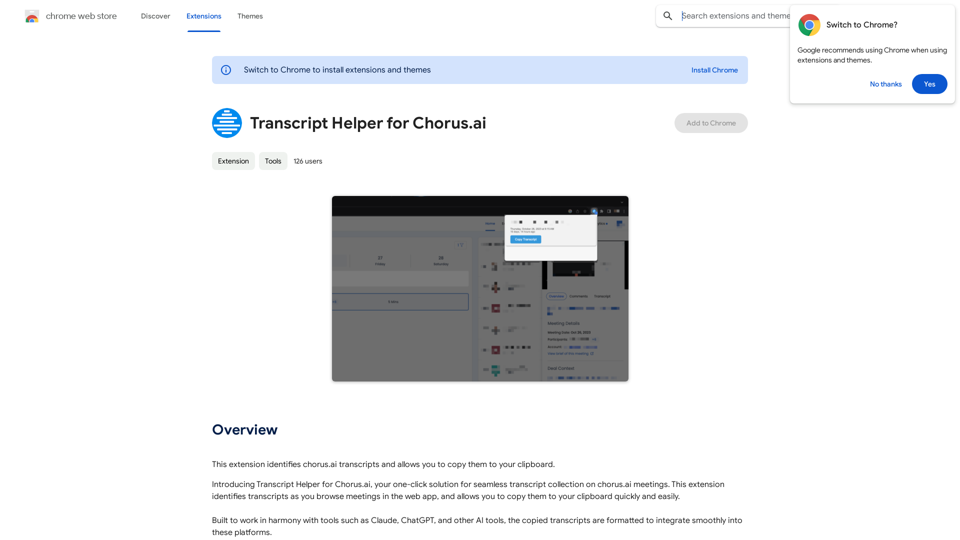
Transcript Helper for Chorus.ai This is a tool designed to help you work with transcripts generated by Chorus.ai. Let me know what you need help with! For example, you can ask me to: * Summarize a transcript: Give me a transcript and I'll provide a concise summary of the main points. * Find specific information: Tell me what you're looking for (e.g., "find all mentions of product X") and I'll search the transcript for relevant text. * Identify key speakers: I can analyze the transcript and tell you who the main speakers are. * Generate action items: Based on the transcript, I can help you identify tasks that need to be completed. * Translate the transcript: I can translate the transcript into another language. What can I do for you today?
Transcript Helper for Chorus.ai This is a tool designed to help you work with transcripts generated by Chorus.ai. Let me know what you need help with! For example, you can ask me to: * Summarize a transcript: Give me a transcript and I'll provide a concise summary of the main points. * Find specific information: Tell me what you're looking for (e.g., "find all mentions of product X") and I'll search the transcript for relevant text. * Identify key speakers: I can analyze the transcript and tell you who the main speakers are. * Generate action items: Based on the transcript, I can help you identify tasks that need to be completed. * Translate the transcript: I can translate the transcript into another language. What can I do for you today?This extension finds chorus.ai transcripts and lets you copy them to your clipboard.
193.90 M
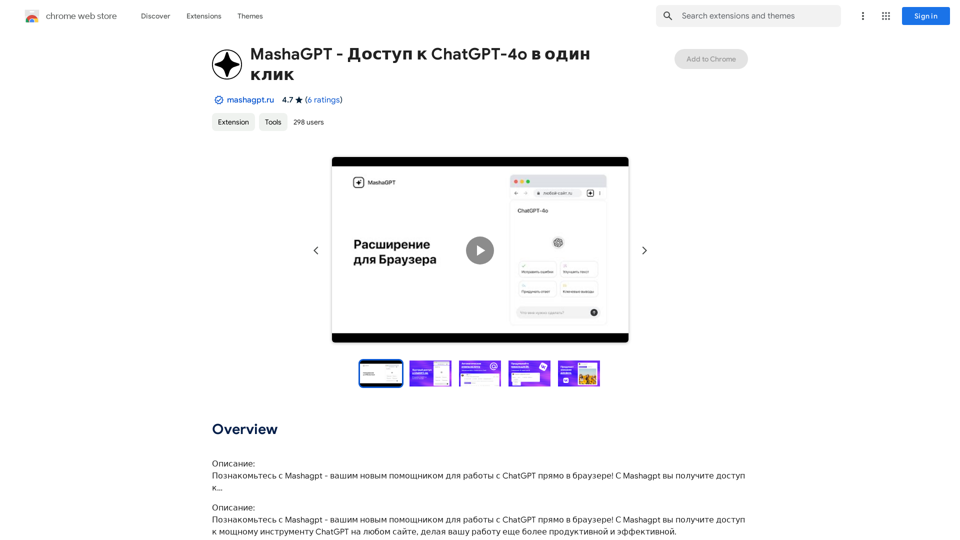
Description: Meet Mashagpt - your new helper for working with ChatGPT right in your browser! With Mashagpt you'll get access to...
193.90 M
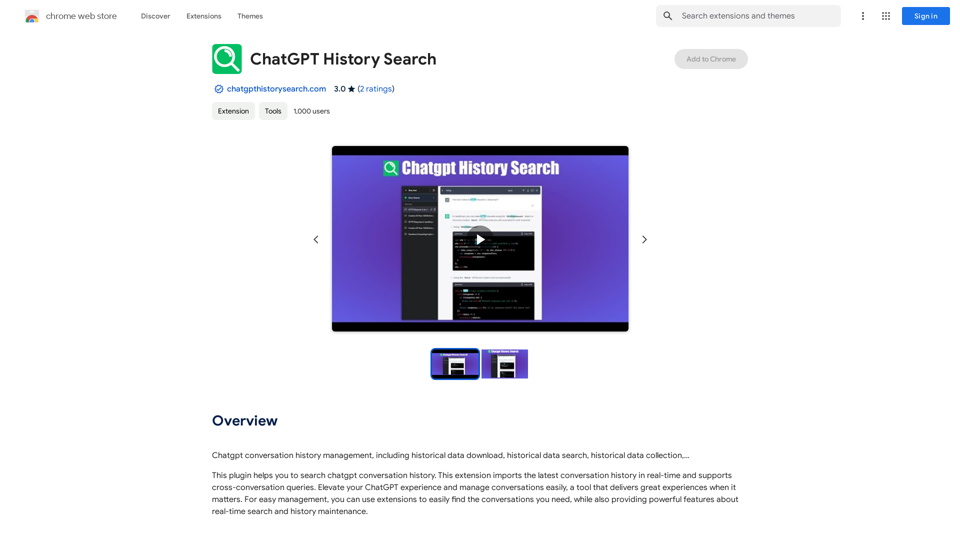
ChatGPT conversation history management, including: - Downloading historical data - Searching historical data - Collecting historical data
193.90 M
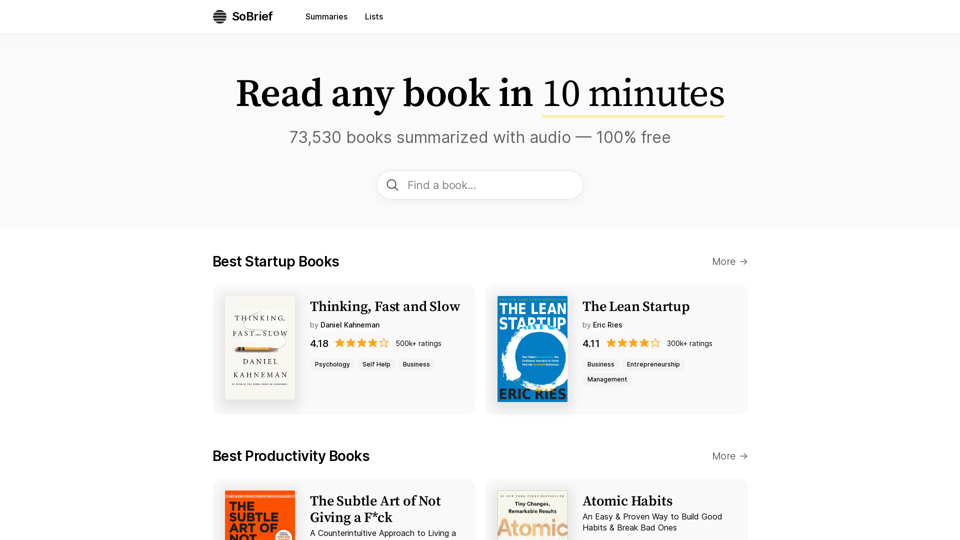
Explore 73,530 free non-fiction book summaries with audio. 12 key takeaways in 10 minutes each. 10x more books than any other site. Every imaginable topic.
1.14 M
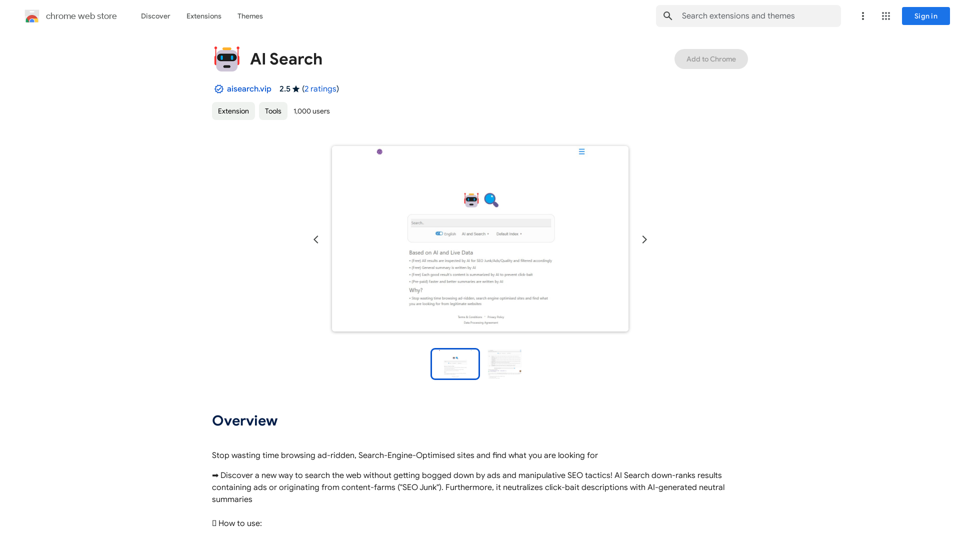
Stop wasting time browsing ad-ridden, Search-Engine-Optimised sites and find what you are looking for
193.90 M
The all-in-one Audio AI platform. The ultimate solution for Audio Transcription, Speech-To-Text, Audio Pen, Text-To-Speech, Video Dubbing, Live Stream Captioning.
The all-in-one Audio AI platform. The ultimate solution for Audio Transcription, Speech-To-Text, Audio Pen, Text-To-Speech, Video Dubbing, Live Stream Captioning.The all-in-one Audio AI platform. The ultimate solution for Audio Transcription, Speech-To-Text, Audio Pen, Text-To-Speech, Video Dubbing, Live Stream Caption
0