Open-source RightAI Tools Directory
  • Discover AI
  • Submit
  • Startup
  • Blog
Open-source RightAI Tools Directory
Discover the best AI tools of 2025 with the RightAI Tools Directory!

Friend Links

AI Anime GeneratorToolsApp AI

Support

Tap4
Privacy policyTerms & ConditionsContact Us
Loading...
loading...

PromptFolder - ChatGPT Prompt Manager

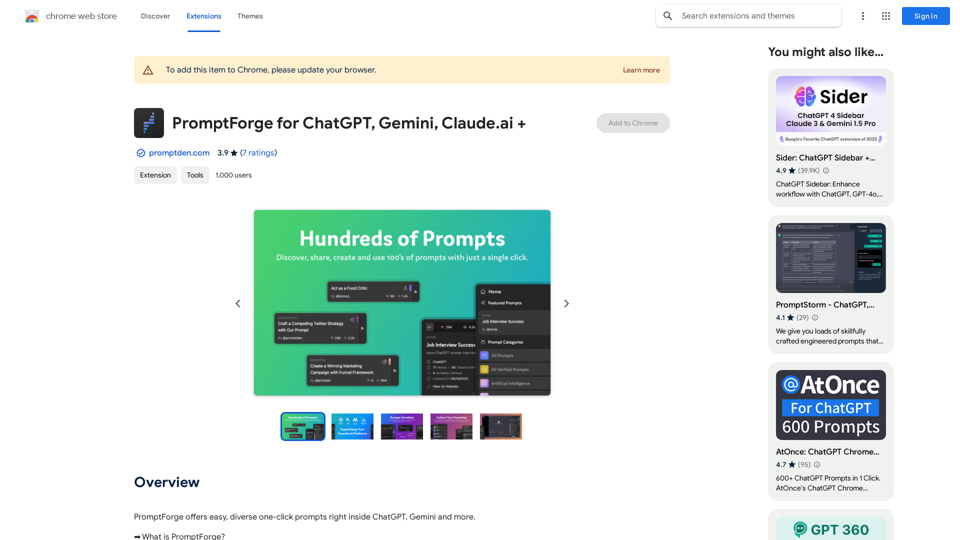
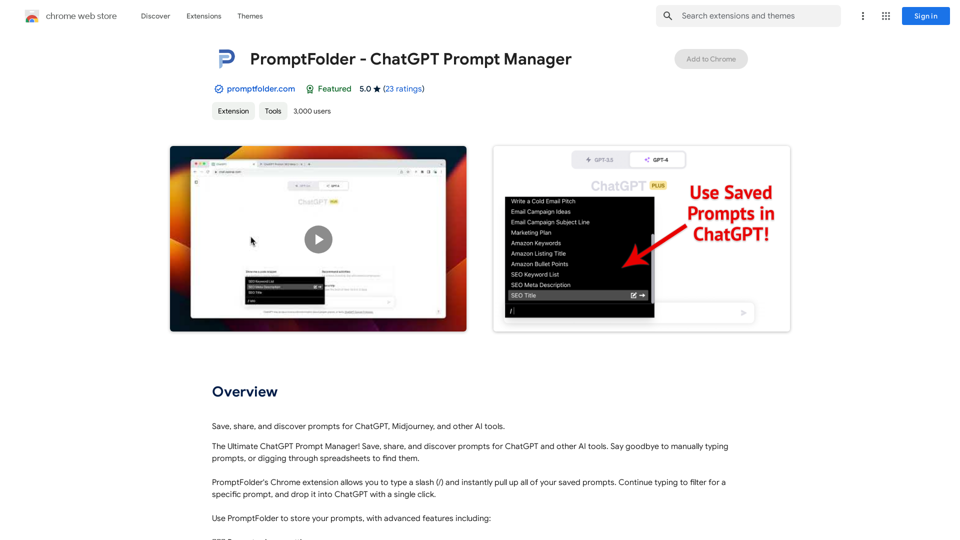
Save, share, and discover prompts for ChatGPT, Midjourney, and other AI tools.
Visit Website
PromptFolder - ChatGPT Prompt Manager
Visit Website

Introduction

PromptFolder is a Chrome extension designed to streamline the management of prompts for AI tools like ChatGPT and Midjourney. It offers a comprehensive solution for saving, sharing, and discovering prompts, enhancing user productivity and creativity in AI interactions. With features like prompt organization, customization, and community sharing, PromptFolder caters to both individual users and collaborative teams seeking to optimize their AI prompt workflows.

Feature

Efficient Prompt Management

  • Save prompts for future use
  • Organize prompts into folders
  • Search functionality for quick prompt retrieval

Seamless Integration

  • Type "/" to instantly access saved prompts
  • Filter and drop prompts into ChatGPT with a single click
  • Compatible with various AI tools (ChatGPT, Midjourney, etc.)

Customization and Flexibility

  • Use variables and comments to customize prompts
  • Access prompts from any device

Community and Collaboration

  • Share prompts with others
  • Discover new prompts from the community
  • Explore community section for ideas and inspiration

User-Friendly Interface

  • Chrome extension for easy access
  • Intuitive prompt organization system

Versatile Pricing Options

  • Free version with limited features
  • Paid subscription with additional features and benefits

FAQ

How does PromptFolder enhance productivity?

PromptFolder boosts productivity by:

  • Saving time on manual prompt typing
  • Providing quick access to a library of prompts
  • Reducing errors through customization features
  • Facilitating collaboration and idea sharing

What are some best practices for using PromptFolder?

Tips for maximizing PromptFolder's potential:

  1. Utilize folders for organized prompt management
  2. Leverage variables and comments for prompt customization
  3. Actively share and collaborate on prompts
  4. Explore the community section for new ideas
  5. Use the search function for efficient prompt retrieval

Is PromptFolder suitable for team use?

Yes, PromptFolder supports team collaboration by:

  • Allowing prompt sharing among team members
  • Providing a platform for discovering and adapting shared prompts
  • Enabling consistent prompt usage across the team

Latest Traffic Insights

  • Monthly Visits

    193.90 M

  • Bounce Rate

    56.27%

  • Pages Per Visit

    2.71

  • Time on Site(s)

    115.91

  • Global Rank

    -

  • Country Rank

    -

Recent Visits

Traffic Sources

  • Social Media:
    0.48%
  • Paid Referrals:
    0.55%
  • Email:
    0.15%
  • Referrals:
    12.81%
  • Search Engines:
    16.21%
  • Direct:
    69.81%
More Data

Related Websites

AI Journey: Explore the Leading AI Tools Software - Expert Reviews & Insights
View Detail

AI Journey: Explore the Leading AI Tools Software - Expert Reviews & Insights

AI Journey: Explore the Leading AI Tools Software - Expert Reviews & Insights

Find the best AI tools and software with AIJourney. Our daily updates and expert reviews help you enhance your productivity and efficiency.

56.90 K
 WriteFastAI-ChatGPT on Demand, on Any Website 

This is a powerful idea! Imagine being able to seamlessly integrate the capabilities of both FastAI and ChatGPT directly into any website. 

Here's a breakdown of what this could mean:

* On-Demand AI Assistance: Users could access powerful AI tools like text generation, summarization, question answering, and more, right from the website they're already using.
* Personalized Experiences: Websites could leverage AI to tailor content and interactions to individual user preferences, creating a more engaging and relevant experience.
* Increased Efficiency: Businesses could automate tasks, generate reports, and analyze data faster and more accurately with the help of AI.

Making it a Reality:

This vision requires a combination of:

* API Integration:  FastAI and ChatGPT both offer APIs that allow developers to integrate their functionalities into applications.
* Web Development Expertise:  Developers would need to build the necessary infrastructure to connect the APIs to the website and handle user interactions.
* Data Management:  Websites would need to manage and secure the data used by the AI models.

Potential Applications:

The possibilities are endless! Here are just a few examples:

* E-commerce:  AI-powered chatbots could provide personalized product recommendations and customer support.
* Education:  Websites could offer interactive learning experiences with AI-powered tutors and personalized feedback.
* News and Media:  AI could be used to generate summaries of articles, create personalized news feeds, and even write original content.


Let me know if you'd like to explore any of these applications in more detail!
View Detail

WriteFastAI-ChatGPT on Demand, on Any Website This is a powerful idea! Imagine being able to seamlessly integrate the capabilities of both FastAI and ChatGPT directly into any website. Here's a breakdown of what this could mean: * On-Demand AI Assistance: Users could access powerful AI tools like text generation, summarization, question answering, and more, right from the website they're already using. * Personalized Experiences: Websites could leverage AI to tailor content and interactions to individual user preferences, creating a more engaging and relevant experience. * Increased Efficiency: Businesses could automate tasks, generate reports, and analyze data faster and more accurately with the help of AI. Making it a Reality: This vision requires a combination of: * API Integration: FastAI and ChatGPT both offer APIs that allow developers to integrate their functionalities into applications. * Web Development Expertise: Developers would need to build the necessary infrastructure to connect the APIs to the website and handle user interactions. * Data Management: Websites would need to manage and secure the data used by the AI models. Potential Applications: The possibilities are endless! Here are just a few examples: * E-commerce: AI-powered chatbots could provide personalized product recommendations and customer support. * Education: Websites could offer interactive learning experiences with AI-powered tutors and personalized feedback. * News and Media: AI could be used to generate summaries of articles, create personalized news feeds, and even write original content. Let me know if you'd like to explore any of these applications in more detail!

WriteFastAI-ChatGPT on Demand, on Any Website This is a powerful idea! Imagine being able to seamlessly integrate the capabilities of both FastAI and ChatGPT directly into any website. Here's a breakdown of what this could mean: * On-Demand AI Assistance: Users could access powerful AI tools like text generation, summarization, question answering, and more, right from the website they're already using. * Personalized Experiences: Websites could leverage AI to tailor content and interactions to individual user preferences, creating a more engaging and relevant experience. * Increased Efficiency: Businesses could automate tasks, generate reports, and analyze data faster and more accurately with the help of AI. Making it a Reality: This vision requires a combination of: * API Integration: FastAI and ChatGPT both offer APIs that allow developers to integrate their functionalities into applications. * Web Development Expertise: Developers would need to build the necessary infrastructure to connect the APIs to the website and handle user interactions. * Data Management: Websites would need to manage and secure the data used by the AI models. Potential Applications: The possibilities are endless! Here are just a few examples: * E-commerce: AI-powered chatbots could provide personalized product recommendations and customer support. * Education: Websites could offer interactive learning experiences with AI-powered tutors and personalized feedback. * News and Media: AI could be used to generate summaries of articles, create personalized news feeds, and even write original content. Let me know if you'd like to explore any of these applications in more detail!

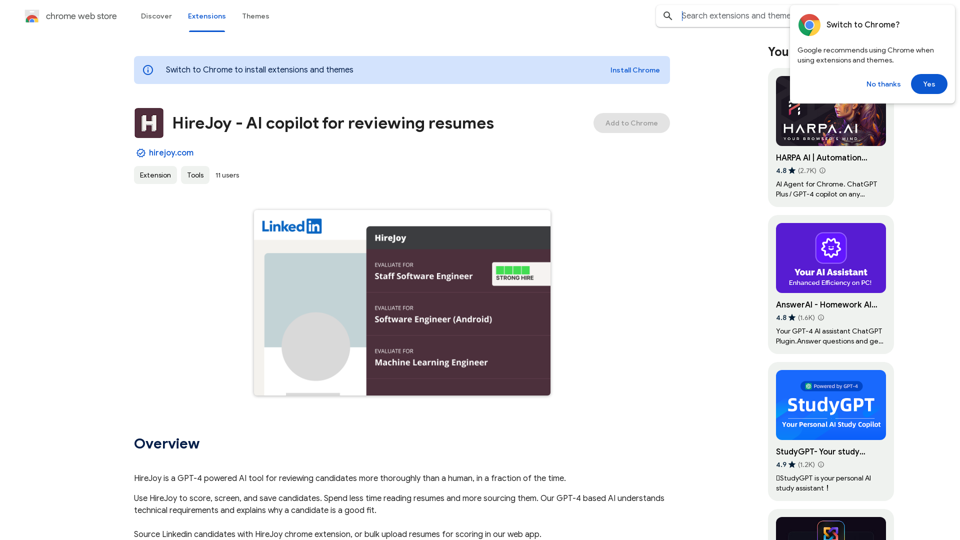
A better way to use ChatGPT right from the website you are on. You can comment, explain, summarize, reword, copywrite, and reply.

193.90 M
Google Translate
View Detail

Google Translate

Google Translate

Google's service, provided at no cost, instantly translates words, phrases, and web pages between English and more than 100 other languages.

598.01 M
Chrome Web Store
View Detail

Chrome Web Store

Chrome Web Store

Enhance your browser with new features and customize your browsing experience.

193.90 M
Niro - AI Powered Email Assistant
View Detail

Niro - AI Powered Email Assistant

Niro - AI Powered Email Assistant

Niro: AI Powered Email Assistant - Write emails, messages, and more using AI (privacy-friendly). Works on all sites

193.90 M
Converting JPG Images to Text

Converting a JPG image to text is a process known as Optical Character Recognition (OCR). This technology enables you to extract text from images, scanned documents, and photos. Here's how to do it:

Method 1: Online OCR Tools

You can use online OCR tools to convert JPG images to text. Here are the steps:

1. Upload your JPG image: Go to an online OCR tool website, such as Online OCR Tools or OCR.space, and upload your JPG image.
2. Select the language: Choose the language of the text in your image.
3. Click on "Convert": The tool will convert the image to text.
4. Download the text: You can download the extracted text as a Word document, PDF, or plain text file.

Method 2: Google Drive

You can also use Google Drive to convert JPG images to text. Here's how:

1. Upload your JPG image: Upload your JPG image to Google Drive.
2. Right-click on the image: Right-click on the uploaded image and select "Open with" > "Google Docs".
3. The image will be converted: Google Docs will automatically convert the image to text.
4. Edit and download: You can edit the extracted text and download it as a Word document or PDF.

Method 3: Adobe Acrobat

If you have Adobe Acrobat installed on your computer, you can use it to convert JPG images to text. Here's how:

1. Open Adobe Acrobat: Open Adobe Acrobat on your computer.
2. Create a new document: Create a new document and click on "Tools" > "Recognize Text".
3. Select the image: Select the JPG image you want to convert.
4. Click on "Recognize": Adobe Acrobat will convert the image to text.
5. Edit and save: You can edit the extracted text and save it as a Word document or PDF.

These are the three methods to convert JPG images to text. Choose the method that works best for you!
View Detail

Converting JPG Images to Text Converting a JPG image to text is a process known as Optical Character Recognition (OCR). This technology enables you to extract text from images, scanned documents, and photos. Here's how to do it: Method 1: Online OCR Tools You can use online OCR tools to convert JPG images to text. Here are the steps: 1. Upload your JPG image: Go to an online OCR tool website, such as Online OCR Tools or OCR.space, and upload your JPG image. 2. Select the language: Choose the language of the text in your image. 3. Click on "Convert": The tool will convert the image to text. 4. Download the text: You can download the extracted text as a Word document, PDF, or plain text file. Method 2: Google Drive You can also use Google Drive to convert JPG images to text. Here's how: 1. Upload your JPG image: Upload your JPG image to Google Drive. 2. Right-click on the image: Right-click on the uploaded image and select "Open with" > "Google Docs". 3. The image will be converted: Google Docs will automatically convert the image to text. 4. Edit and download: You can edit the extracted text and download it as a Word document or PDF. Method 3: Adobe Acrobat If you have Adobe Acrobat installed on your computer, you can use it to convert JPG images to text. Here's how: 1. Open Adobe Acrobat: Open Adobe Acrobat on your computer. 2. Create a new document: Create a new document and click on "Tools" > "Recognize Text". 3. Select the image: Select the JPG image you want to convert. 4. Click on "Recognize": Adobe Acrobat will convert the image to text. 5. Edit and save: You can edit the extracted text and save it as a Word document or PDF. These are the three methods to convert JPG images to text. Choose the method that works best for you!

Converting JPG Images to Text Converting a JPG image to text is a process known as Optical Character Recognition (OCR). This technology enables you to extract text from images, scanned documents, and photos. Here's how to do it: Method 1: Online OCR Tools You can use online OCR tools to convert JPG images to text. Here are the steps: 1. Upload your JPG image: Go to an online OCR tool website, such as Online OCR Tools or OCR.space, and upload your JPG image. 2. Select the language: Choose the language of the text in your image. 3. Click on "Convert": The tool will convert the image to text. 4. Download the text: You can download the extracted text as a Word document, PDF, or plain text file. Method 2: Google Drive You can also use Google Drive to convert JPG images to text. Here's how: 1. Upload your JPG image: Upload your JPG image to Google Drive. 2. Right-click on the image: Right-click on the uploaded image and select "Open with" > "Google Docs". 3. The image will be converted: Google Docs will automatically convert the image to text. 4. Edit and download: You can edit the extracted text and download it as a Word document or PDF. Method 3: Adobe Acrobat If you have Adobe Acrobat installed on your computer, you can use it to convert JPG images to text. Here's how: 1. Open Adobe Acrobat: Open Adobe Acrobat on your computer. 2. Create a new document: Create a new document and click on "Tools" > "Recognize Text". 3. Select the image: Select the JPG image you want to convert. 4. Click on "Recognize": Adobe Acrobat will convert the image to text. 5. Edit and save: You can edit the extracted text and save it as a Word document or PDF. These are the three methods to convert JPG images to text. Choose the method that works best for you!

It is an online tool that uses Optical Character Recognition (OCR) to make it possible to extract text from images in JPG format.

193.90 M
Walle - AI Copilot ChatBot for ChatGPT
View Detail

Walle - AI Copilot ChatBot for ChatGPT

Walle - AI Copilot ChatBot for ChatGPT

Walle: Your All-in-One AI Assistant and Browser Extension

193.90 M
AG Intelligent Assistant - GPT Chat, Drawing, Vision, Networking
View Detail

AG Intelligent Assistant - GPT Chat, Drawing, Vision, Networking

AG Intelligent Assistant - GPT Chat, Drawing, Vision, Networking

Driven by models such as GPT-4 Turbo and GPT-4 O, this private AI work assistant supports a wide range of functions, including GPT networking, PDF analysis, GPT-4 Vision, SD drawing, and DALL·E 3 drawing, making it your most powerful AI work assistant!

193.90 M