Open-source RightAI Tools Directory
  • Discover AI
  • Submit
  • Startup
  • Blog
Open-source RightAI Tools Directory
Discover the best AI tools of 2025 with the RightAI Tools Directory!

Friend Links

AI Anime GeneratorToolsApp AI

Support

Tap4
Privacy policyTerms & ConditionsContact Us
Loading...
loading...

Face Swap - AI Face Swapper

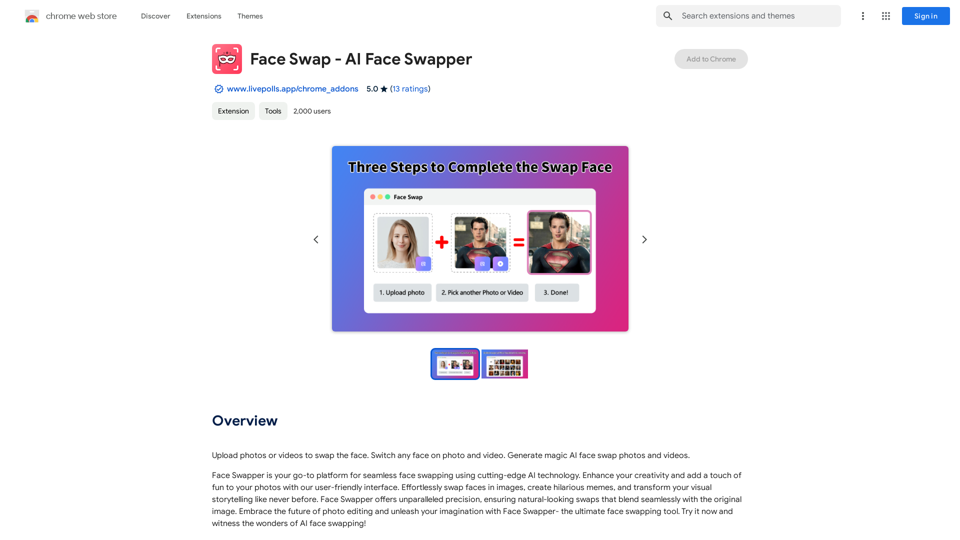
Upload photos or videos to swap the face. Switch any face on photo and video. Generate magic AI face swap photos and videos.
Visit Website
Face Swap - AI Face Swapper
Visit Website

Introduction

Face Swap is an AI-powered platform that offers advanced face swapping capabilities along with image understanding and text-to-image generation features. Users can easily upload photos or videos to swap faces, creating entertaining memes and transforming visual storytelling. The platform utilizes cutting-edge AI technology to ensure natural-looking and seamless face swaps.

Feature

Effortless Face Swapping

Upload photos or videos and swap faces with just a few clicks. Create hilarious memes and transform your visual content effortlessly.

Advanced AI Technology

Cutting-edge AI ensures natural-looking swaps that blend seamlessly with the original image, providing high-quality results.

User-Friendly Interface

Navigate the platform with ease thanks to its intuitive and user-friendly interface, making face swapping accessible to all users.

Versatile Applications

Perfect for creative projects, meme creation, artistic endeavors, and storytelling. Explore the possibilities of AI technology beyond just face swapping.

Multiple AI Technologies

Access a wide range of AI technologies, including image understanding and text-to-image generation, expanding your creative toolkit.

Flexible Pricing Options

Choose between a free version with limited features or a paid subscription offering additional benefits and enhanced capabilities.

FAQ

How do I use Face Swap?

To use Face Swap:

  1. Upload your photos or videos to the platform
  2. Select the face you want to swap
  3. Let the AI generate magic face swap photos and videos for you

What can I create with Face Swap?

Face Swap allows you to:

  • Create hilarious memes
  • Transform visual storytelling
  • Develop unique artistic projects
  • Explore various AI-powered creative possibilities

Is Face Swap free to use?

Face Swap offers:

  • A free version with limited features
  • A paid subscription with additional features and benefits

Choose the option that best suits your needs and creative goals.

Latest Traffic Insights

  • Monthly Visits

    193.90 M

  • Bounce Rate

    56.27%

  • Pages Per Visit

    2.71

  • Time on Site(s)

    115.91

  • Global Rank

    -

  • Country Rank

    -

Recent Visits

Traffic Sources

  • Social Media:
    0.48%
  • Paid Referrals:
    0.55%
  • Email:
    0.15%
  • Referrals:
    12.81%
  • Search Engines:
    16.21%
  • Direct:
    69.81%
More Data

Related Websites

CurseCut - Automatic AI Profanity Removal for Video and Audio
View Detail

CurseCut - Automatic AI Profanity Removal for Video and Audio

CurseCut - Automatic AI Profanity Removal for Video and Audio

Effortlessly remove profanity from your video audio using our advanced AI technology. Try CurseCut today for clean, professional content.

28.22 K
TurboLearn AI
View Detail

TurboLearn AI

TurboLearn AI

TurboLearn AI quickly makes complete notes, interactive flashcards, and custom quizzes from your lectures. Made to help you learn better and remember more, TurboLearn AI changes to fit your specific learning needs. Make the most of your study time today!

292.80 K
SpeedClip
View Detail

SpeedClip

SpeedClip

I can help you with that! Just give me the YouTube video link and I'll do my best to provide a clear and concise summary of its content.

193.90 M
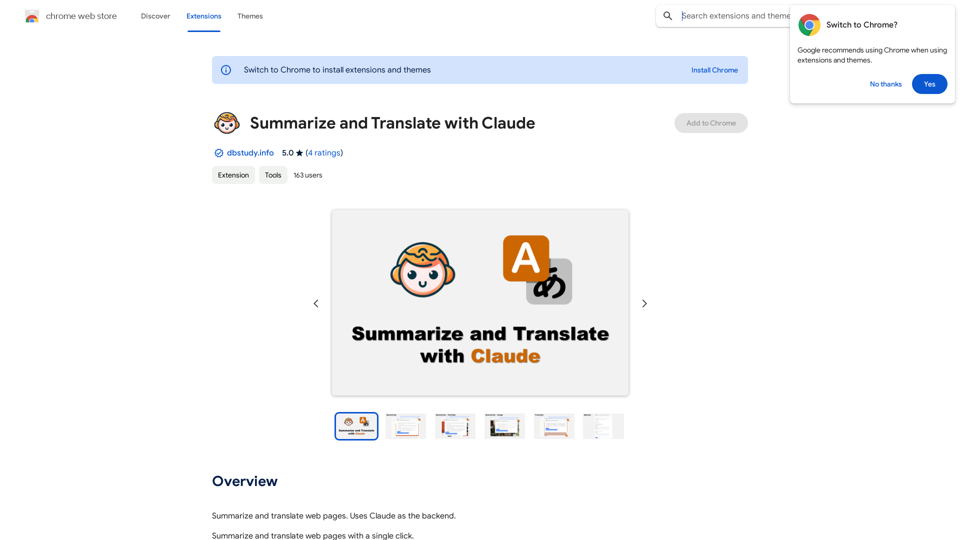
SummGen-Summary for Google/YouTube (ChatGPT) 

This is a summary of the capabilities and potential uses of SummGen, a text summarization model, specifically in the context of Google and YouTube.

* What is SummGen? 

SummGen is a powerful text summarization model developed by Google DeepMind. It excels at condensing large amounts of text into concise and informative summaries.

* How can SummGen be used with Google Search?

Imagine searching Google for a complex topic. SummGen could analyze the top search results and generate a brief, clear summary of the key information, saving you time and effort.

* Applications for YouTube:

* Video Summaries: SummGen could automatically generate summaries of YouTube videos, making it easier for viewers to quickly understand the content.
* Closed Captions:  SummGen could enhance closed captions by providing more accurate and concise summaries of the spoken words.
* Content Discovery: YouTube could use SummGen to create summaries of trending videos, helping users discover new content based on their interests.


* Benefits:

* Efficiency: SummGen saves time by providing concise summaries of large amounts of text.
* Accessibility:  Summaries can make information more accessible to people with visual or cognitive impairments.
* Improved Understanding:  Summaries can help users grasp complex topics more easily. 


SummGen has the potential to revolutionize how we interact with information on Google and YouTube, making it more efficient, accessible, and understandable.
View Detail

SummGen-Summary for Google/YouTube (ChatGPT) This is a summary of the capabilities and potential uses of SummGen, a text summarization model, specifically in the context of Google and YouTube. * What is SummGen? SummGen is a powerful text summarization model developed by Google DeepMind. It excels at condensing large amounts of text into concise and informative summaries. * How can SummGen be used with Google Search? Imagine searching Google for a complex topic. SummGen could analyze the top search results and generate a brief, clear summary of the key information, saving you time and effort. * Applications for YouTube: * Video Summaries: SummGen could automatically generate summaries of YouTube videos, making it easier for viewers to quickly understand the content. * Closed Captions: SummGen could enhance closed captions by providing more accurate and concise summaries of the spoken words. * Content Discovery: YouTube could use SummGen to create summaries of trending videos, helping users discover new content based on their interests. * Benefits: * Efficiency: SummGen saves time by providing concise summaries of large amounts of text. * Accessibility: Summaries can make information more accessible to people with visual or cognitive impairments. * Improved Understanding: Summaries can help users grasp complex topics more easily. SummGen has the potential to revolutionize how we interact with information on Google and YouTube, making it more efficient, accessible, and understandable.

SummGen-Summary for Google/YouTube (ChatGPT) This is a summary of the capabilities and potential uses of SummGen, a text summarization model, specifically in the context of Google and YouTube. * What is SummGen? SummGen is a powerful text summarization model developed by Google DeepMind. It excels at condensing large amounts of text into concise and informative summaries. * How can SummGen be used with Google Search? Imagine searching Google for a complex topic. SummGen could analyze the top search results and generate a brief, clear summary of the key information, saving you time and effort. * Applications for YouTube: * Video Summaries: SummGen could automatically generate summaries of YouTube videos, making it easier for viewers to quickly understand the content. * Closed Captions: SummGen could enhance closed captions by providing more accurate and concise summaries of the spoken words. * Content Discovery: YouTube could use SummGen to create summaries of trending videos, helping users discover new content based on their interests. * Benefits: * Efficiency: SummGen saves time by providing concise summaries of large amounts of text. * Accessibility: Summaries can make information more accessible to people with visual or cognitive impairments. * Improved Understanding: Summaries can help users grasp complex topics more easily. SummGen has the potential to revolutionize how we interact with information on Google and YouTube, making it more efficient, accessible, and understandable.

Display ChatGPT Summaries Alongside Google Search Results and YouTube Videos This feature would allow users to see concise summaries generated by ChatGPT directly integrated with their Google search results and YouTube video pages. Imagine searching for a topic on Google and seeing a ChatGPT-generated summary at the top of the results, providing a quick overview of the key points. Or, watching a YouTube video and having a ChatGPT summary appear below, highlighting the main takeaways. This integration could significantly enhance the user experience by: * Saving time: Quickly grasp the essence of information without having to read through lengthy articles or watch entire videos. * Improving comprehension: ChatGPT summaries can rephrase complex information in a more accessible way. * Encouraging exploration: Summaries can spark curiosity and lead users to explore related content further.

193.90 M
ReplyGO - AI for Customer Service
View Detail

ReplyGO - AI for Customer Service

ReplyGO - AI for Customer Service

AI Agent for e-commerce and ticketing platforms powered by ChatGPT

193.90 M
Converting JPG Images to Text

Converting a JPG image to text is a process known as Optical Character Recognition (OCR). This technology enables you to extract text from images, scanned documents, and photos. Here's how to do it:

Method 1: Online OCR Tools

You can use online OCR tools to convert JPG images to text. Here are the steps:

1. Upload your JPG image: Go to an online OCR tool website, such as Online OCR Tools or OCR.space, and upload your JPG image.
2. Select the language: Choose the language of the text in your image.
3. Click on "Convert": The tool will convert the image to text.
4. Download the text: You can download the extracted text as a Word document, PDF, or plain text file.

Method 2: Google Drive

You can also use Google Drive to convert JPG images to text. Here's how:

1. Upload your JPG image: Upload your JPG image to Google Drive.
2. Right-click on the image: Right-click on the uploaded image and select "Open with" > "Google Docs".
3. The image will be converted: Google Docs will automatically convert the image to text.
4. Edit and download: You can edit the extracted text and download it as a Word document or PDF.

Method 3: Adobe Acrobat

If you have Adobe Acrobat installed on your computer, you can use it to convert JPG images to text. Here's how:

1. Open Adobe Acrobat: Open Adobe Acrobat on your computer.
2. Create a new document: Create a new document and click on "Tools" > "Recognize Text".
3. Select the image: Select the JPG image you want to convert.
4. Click on "Recognize": Adobe Acrobat will convert the image to text.
5. Edit and save: You can edit the extracted text and save it as a Word document or PDF.

These are the three methods to convert JPG images to text. Choose the method that works best for you!
View Detail

Converting JPG Images to Text Converting a JPG image to text is a process known as Optical Character Recognition (OCR). This technology enables you to extract text from images, scanned documents, and photos. Here's how to do it: Method 1: Online OCR Tools You can use online OCR tools to convert JPG images to text. Here are the steps: 1. Upload your JPG image: Go to an online OCR tool website, such as Online OCR Tools or OCR.space, and upload your JPG image. 2. Select the language: Choose the language of the text in your image. 3. Click on "Convert": The tool will convert the image to text. 4. Download the text: You can download the extracted text as a Word document, PDF, or plain text file. Method 2: Google Drive You can also use Google Drive to convert JPG images to text. Here's how: 1. Upload your JPG image: Upload your JPG image to Google Drive. 2. Right-click on the image: Right-click on the uploaded image and select "Open with" > "Google Docs". 3. The image will be converted: Google Docs will automatically convert the image to text. 4. Edit and download: You can edit the extracted text and download it as a Word document or PDF. Method 3: Adobe Acrobat If you have Adobe Acrobat installed on your computer, you can use it to convert JPG images to text. Here's how: 1. Open Adobe Acrobat: Open Adobe Acrobat on your computer. 2. Create a new document: Create a new document and click on "Tools" > "Recognize Text". 3. Select the image: Select the JPG image you want to convert. 4. Click on "Recognize": Adobe Acrobat will convert the image to text. 5. Edit and save: You can edit the extracted text and save it as a Word document or PDF. These are the three methods to convert JPG images to text. Choose the method that works best for you!

Converting JPG Images to Text Converting a JPG image to text is a process known as Optical Character Recognition (OCR). This technology enables you to extract text from images, scanned documents, and photos. Here's how to do it: Method 1: Online OCR Tools You can use online OCR tools to convert JPG images to text. Here are the steps: 1. Upload your JPG image: Go to an online OCR tool website, such as Online OCR Tools or OCR.space, and upload your JPG image. 2. Select the language: Choose the language of the text in your image. 3. Click on "Convert": The tool will convert the image to text. 4. Download the text: You can download the extracted text as a Word document, PDF, or plain text file. Method 2: Google Drive You can also use Google Drive to convert JPG images to text. Here's how: 1. Upload your JPG image: Upload your JPG image to Google Drive. 2. Right-click on the image: Right-click on the uploaded image and select "Open with" > "Google Docs". 3. The image will be converted: Google Docs will automatically convert the image to text. 4. Edit and download: You can edit the extracted text and download it as a Word document or PDF. Method 3: Adobe Acrobat If you have Adobe Acrobat installed on your computer, you can use it to convert JPG images to text. Here's how: 1. Open Adobe Acrobat: Open Adobe Acrobat on your computer. 2. Create a new document: Create a new document and click on "Tools" > "Recognize Text". 3. Select the image: Select the JPG image you want to convert. 4. Click on "Recognize": Adobe Acrobat will convert the image to text. 5. Edit and save: You can edit the extracted text and save it as a Word document or PDF. These are the three methods to convert JPG images to text. Choose the method that works best for you!

It is an online tool that uses Optical Character Recognition (OCR) to make it possible to extract text from images in JPG format.

193.90 M
Chatzy AI – LinkedIn Assistant 

This is a powerful AI assistant designed to help you with your LinkedIn activities. 

Here's what it can do:

* Craft compelling LinkedIn posts:  Generate engaging content for your profile, updates, and articles.
* Write personalized connection requests:  Make a great first impression with tailored messages that stand out.
* Summarize lengthy articles:  Quickly grasp the key points of industry news and insights.
* Optimize your LinkedIn profile:  Get suggestions for improving your profile to attract more connections and opportunities.
* Answer your LinkedIn messages:  Save time by having Chatzy AI respond to common inquiries.

Boost your LinkedIn presence and productivity with Chatzy AI!
View Detail

Chatzy AI – LinkedIn Assistant This is a powerful AI assistant designed to help you with your LinkedIn activities. Here's what it can do: * Craft compelling LinkedIn posts: Generate engaging content for your profile, updates, and articles. * Write personalized connection requests: Make a great first impression with tailored messages that stand out. * Summarize lengthy articles: Quickly grasp the key points of industry news and insights. * Optimize your LinkedIn profile: Get suggestions for improving your profile to attract more connections and opportunities. * Answer your LinkedIn messages: Save time by having Chatzy AI respond to common inquiries. Boost your LinkedIn presence and productivity with Chatzy AI!

Chatzy AI – LinkedIn Assistant This is a powerful AI assistant designed to help you with your LinkedIn activities. Here's what it can do: * Craft compelling LinkedIn posts: Generate engaging content for your profile, updates, and articles. * Write personalized connection requests: Make a great first impression with tailored messages that stand out. * Summarize lengthy articles: Quickly grasp the key points of industry news and insights. * Optimize your LinkedIn profile: Get suggestions for improving your profile to attract more connections and opportunities. * Answer your LinkedIn messages: Save time by having Chatzy AI respond to common inquiries. Boost your LinkedIn presence and productivity with Chatzy AI!

A customizable One Click comment generator. Free to use!

193.90 M
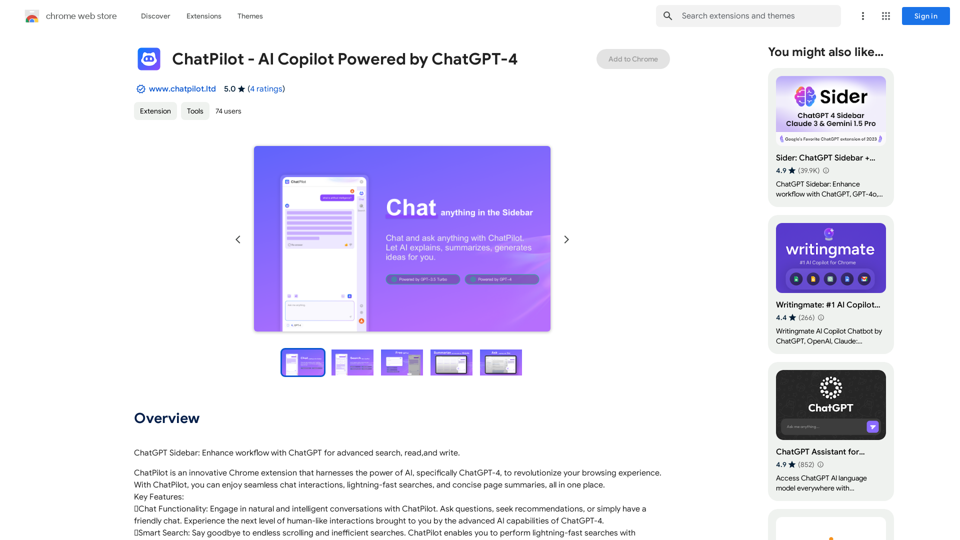
ChatGPT Keyboard Shortcuts

#Navigation

* Ctrl + β†’: Move to the next message
* Ctrl + ←: Move to the previous message
* Home: Move to the beginning of the conversation
* End: Move to the end of the conversation

#Editing

* Ctrl + A: Select all text
* Ctrl + C: Copy selected text
* Ctrl + X: Cut selected text
* Ctrl + V: Paste copied or cut text
* Ctrl + Z: Undo
* Ctrl + Y: Redo
* Ctrl + Shift + F: Format text as code

#Actions

* Enter: Send the message
* Shift + Enter: Insert a new line
* Ctrl + Shift + Enter: Send the message and insert a new line
* Esc: Cancel editing and close the message input field
* Ctrl + Shift + Space: Open the emoji picker
* Ctrl + Shift + /: Open the help menu

#Accessibility

* Ctrl + +: Increase font size
* Ctrl + -: Decrease font size
* Ctrl + 0: Reset font size to default
View Detail

ChatGPT Keyboard Shortcuts #Navigation * Ctrl + β†’: Move to the next message * Ctrl + ←: Move to the previous message * Home: Move to the beginning of the conversation * End: Move to the end of the conversation #Editing * Ctrl + A: Select all text * Ctrl + C: Copy selected text * Ctrl + X: Cut selected text * Ctrl + V: Paste copied or cut text * Ctrl + Z: Undo * Ctrl + Y: Redo * Ctrl + Shift + F: Format text as code #Actions * Enter: Send the message * Shift + Enter: Insert a new line * Ctrl + Shift + Enter: Send the message and insert a new line * Esc: Cancel editing and close the message input field * Ctrl + Shift + Space: Open the emoji picker * Ctrl + Shift + /: Open the help menu #Accessibility * Ctrl + +: Increase font size * Ctrl + -: Decrease font size * Ctrl + 0: Reset font size to default

ChatGPT Keyboard Shortcuts #Navigation * Ctrl + β†’: Move to the next message * Ctrl + ←: Move to the previous message * Home: Move to the beginning of the conversation * End: Move to the end of the conversation #Editing * Ctrl + A: Select all text * Ctrl + C: Copy selected text * Ctrl + X: Cut selected text * Ctrl + V: Paste copied or cut text * Ctrl + Z: Undo * Ctrl + Y: Redo * Ctrl + Shift + F: Format text as code #Actions * Enter: Send the message * Shift + Enter: Insert a new line * Ctrl + Shift + Enter: Send the message and insert a new line * Esc: Cancel editing and close the message input field * Ctrl + Shift + Space: Open the emoji picker * Ctrl + Shift + /: Open the help menu #Accessibility * Ctrl + +: Increase font size * Ctrl + -: Decrease font size * Ctrl + 0: Reset font size to default

Enhance your ChatGPT experience with easy-to-use keyboard shortcuts.

193.90 M